
ChatGPT Won’t Upload Your PDF: Diagnostic Checklist (2026)
I’ve spent over three decades in IT, and I can tell you that the single most frustrating category of tech problem isn’t the ones with a clear error code — it’s the ones that fail silently or inconsistently, leaving you to guess. That’s exactly what happens when ChatGPT won’t upload your PDF. You hit upload, wait, and get hit with a vague “Unknown error occurred” message that tells you nothing about which of six or seven possible causes is actually responsible. This ChatGPT Won’t Upload Your PDF: Diagnostic Checklist exists because guessing wastes your time, and systematic diagnosis doesn’t.
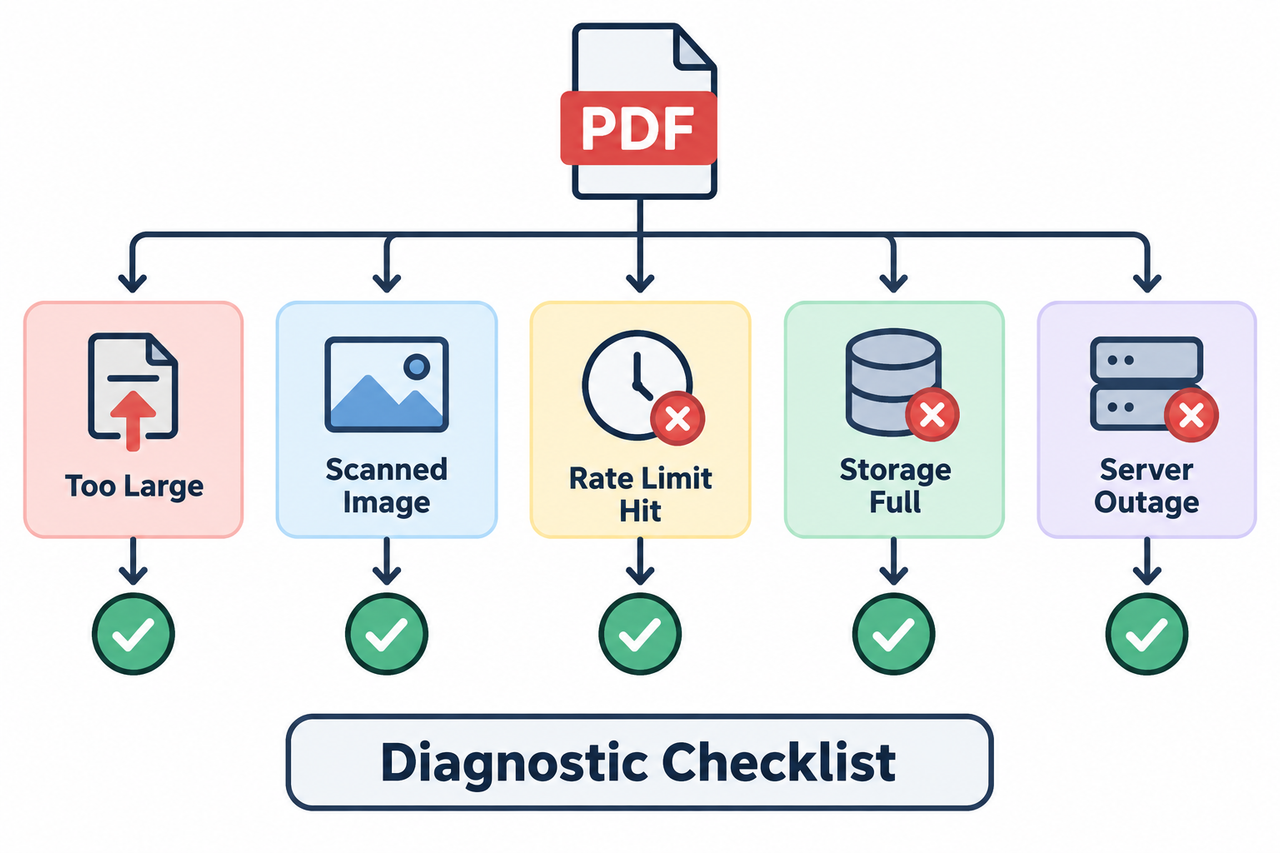
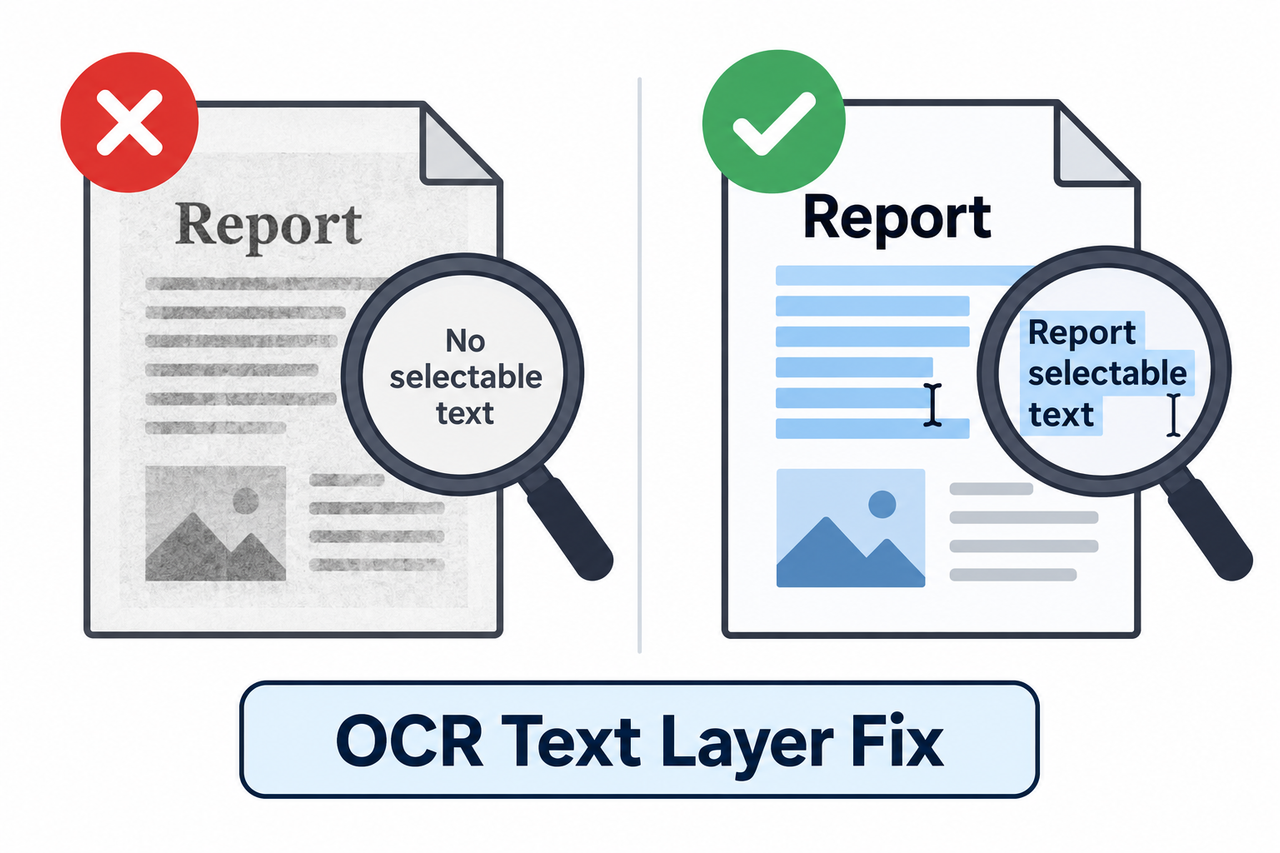
ChatGPT Won’t Upload Your PDF: Diagnostic Checklist is a step-by-step method for identifying which of six confirmed causes — file size, token limits, scanned image content, rate limits, storage caps, or a live outage — is blocking your specific upload. For example, a scanned PDF with no selectable text will fail upload until you run OCR on it first.
In my tests and in the community bug reports I’ve dug through, the mistake I see most isn’t a lack of technical skill. It’s assuming the failure is random when it almost never actually is — there’s a specific, findable reason behind nearly every one of these failures, even the inconsistent-looking ones.
Why Won’t ChatGPT Upload My PDF?
Quick Answer
ChatGPT PDF uploads fail for a small, identifiable set of reasons rather than randomly: exceeding the 512MB file size limit or 2 million token cap, uploading a scanned image PDF with no text layer, hitting a rate or storage limit, a live platform outage, or an intermittent backend bug that a simple re-save often fixes. OpenAI Help Center
I want to be direct about something here: the phrase “Unknown error occurred” is doing you a disservice. It sounds like a black box, but in practice it’s a catch-all message covering several distinct, diagnosable problems. Treating it as one mystery bug instead of a checklist of possibilities is exactly why people end up retrying the same broken upload nine times instead of fixing the actual cause once. OpenAI Developer Community
What Are ChatGPT’s Actual File Upload Limits?
Before you troubleshoot anything else, it helps to know the hard numbers, because most people assume these limits are either much lower or much higher than they actually are.
The 512MB Hard Limit Per File
Every file uploaded to ChatGPT or a GPT has a hard cap of file upload size restriction at 512MB per file, regardless of your subscription plan. OpenAI Help Center This is a flat ceiling — Free, Plus, Pro, and Enterprise users all hit the same wall at the same size.
The 2 Million Token Cap for Documents
Separately from file size, text and document files are capped at a 2 million token cap per file — a limit specific to text-heavy content rather than raw file size. This distinction matters because a PDF can be well under 512MB and still fail if its extracted text content blows past the token ceiling. A dense, text-heavy report can hit this cap long before it hits the size cap.
Projects File Limits Vary by Plan
If you’re using ChatGPT’s Projects feature to organize files, your Projects file limit by plan caps out differently depending on your subscription: 5 files for Free accounts, 25 for Go and Plus, and 40 for Edu, Pro, Business, and Enterprise. OpenAI Help Center Exceeding your plan’s cap blocks new uploads into that Project even if the individual file itself is small and well within size limits.
| Plan Tier | Files Per Project | Notes |
|---|---|---|
| Free | 5 files | Lowest tier limit |
| Go / Plus | 25 files | Mid-tier allowance |
| Edu / Pro / Business / Enterprise | 40 files | Highest tier allowance |
I’ve seen this specific limit trip people up more than almost any other cause on this list, mainly because it has nothing to do with the file you’re currently trying to upload — it’s about everything already sitting in that Project.
How Do You Diagnose and Fix a Failed PDF Upload?
Here’s the exact sequence I run through myself, in order, whenever a PDF upload fails. I don’t skip ahead to the workarounds people love recommending online until I’ve ruled out the boring, structural causes first.
- Check file size and token limits. Confirm your PDF is under 512MB and unlikely to exceed the 2 million token cap before troubleshooting anything else. This takes thirty seconds and eliminates the two most common structural causes immediately.
- Run OCR if the PDF is a scanned image. Image-only PDFs with no machine-readable scanned PDF text layer are a confirmed common failure point according to community reports. OpenAI Developer Community If your document came from a scanner or a photographed page rather than a native digital export, this is very likely your problem.
- Re-save or “print to PDF” the file. Re-saving the PDF through Microsoft Print to PDF on Windows or File > Print > Save as PDF on macOS is a verified community workaround that resolves the issue for many users even when the underlying cause isn’t fully understood by OpenAI’s own support staff.
- Add a text page to image-only PDFs. If OCR recognition alone doesn’t resolve it, try adding one page containing simple selectable text at the front of a fully image-based document — some users report this single change alone unblocks the upload.
- Check your rate and storage limits. Verify you haven’t hit your rolling upload rate limit of roughly 80 files per 3 hours, or the 25GB user storage cap. Note that failed upload attempts can themselves count toward the rate cap, which means repeated failed retries can actually make your situation worse, not better. OpenAI Help Center
- Rule out a live outage. Visit status.openai.com outage check before assuming the problem is your file or account specifically. Platform-wide incidents happen, and they produce the exact same generic error message as a file-specific problem.
- Escalate with the right details. If none of the above resolves it, gather your account email, a screenshot of the unknown error occurred message, the exact timestamp and timezone, the platform and browser you used, and the request ID if visible, then escalate directly to OpenAI support.
- Split large or persistent files. As a last resort, split a large or persistently failing PDF into smaller sections and upload only the portion you actually need analyzed.
I want to flag step 5 specifically, because it’s counterintuitive. When an upload fails, the instinct is to immediately try again, and again, and again. If the real cause is a rate limit, every one of those failed retries can push you further into the penalty window instead of out of it.
Why Does the Same PDF Sometimes Fail and Sometimes Succeed?
This is the part that makes people feel like they’re losing their mind, and it’s worth addressing directly rather than glossing over. In my research through OpenAI’s own community bug threads, one user reported that three out of five identical-looking PDF uploads failed while the other two succeeded — with no discernible difference between the files from the user’s perspective.
That inconsistency isn’t a sign you’re doing something wrong. It’s a sign of an intermittent backend processing issue, most commonly tied to how the parsing pipeline handles borderline cases like partially scanned pages, unusual PDF encoding, or files that sit right at the edge of the token cap without clearly exceeding it. The re-save workaround exists precisely because it normalizes the PDF’s internal structure, which often resolves whatever borderline condition was causing the inconsistent behavior in the first place.
How Do You Prevent PDF Upload Failures Before They Happen?
Diagnosing a failure after it happens is useful, but in my experience, the more valuable habit is building a quick pre-upload check into your workflow so you rarely hit these walls in the first place. This matters even more if you’re on a tight deadline and can’t afford to burn ten minutes mid-task troubleshooting.
Before you upload a PDF you know is important, run through this in under a minute:
- Check the file size in your file explorer or Finder window — anything approaching 400MB is worth flagging as a risk even though the hard limit is 512MB, since some processing overhead can push effective limits lower in practice.
- Open the PDF and try selecting a line of text with your cursor. If nothing highlights, you’re looking at a scanned PDF text layer problem before you’ve even attempted the upload, and you can run OCR proactively instead of discovering the failure later.
- Check how many files already exist in the Project you’re uploading into, especially if you’re on a Free or Plus plan with a lower Projects file limit by plan — clearing out old, unneeded files avoids hitting that ceiling unexpectedly.
- Glance at how many uploads you’ve already made in the last few hours if you’ve been in a heavy research session, since the rolling rate limit resets on a sliding window rather than a fixed clock time.
None of these checks take more than a minute individually, and together they eliminate the four most common causes before you’ve spent any real time on the actual upload. I’d rather spend sixty seconds checking than lose fifteen minutes retrying a doomed upload during a meeting.
Does This Affect Every ChatGPT Plan the Same Way?
Not entirely. The 512MB file size limit and the 2 million token cap apply uniformly across Free, Plus, Pro, and Enterprise accounts — OpenAI doesn’t scale those particular ceilings with your subscription tier. OpenAI Help Center Where plans genuinely diverge is in the Projects file limit by plan, the exact upload rate ceiling, and how much priority your requests get during periods of high platform load, which can indirectly affect how often you encounter the intermittent backend bug described in the community reports above.
If you’re on a Free plan and you’re hitting upload failures frequently, it’s worth checking whether you’re bumping against the lower 5-file Projects ceiling before assuming something is broken with the platform itself. Paid tiers give you more headroom, but they don’t eliminate the scanned-PDF or token-cap issues, since those are structural limits tied to the file itself rather than your account status.
What Does the Real ChatGPT Upload Error Log Look Like?
There’s no numbered error code here in the way you’d expect from a typical software crash log — the interface just shows a generic message. But real, verbatim reports from OpenAI’s own Developer Community bug thread paint a much clearer picture than the vague on-screen text does:
If you upload certain files (PDFs, PPTs, PPTX, CSV, etc.) it will show
you this error... It does not happen for all sorts of files, but
3 out of 5 pdf files are not uploaded.
A different user in the same thread reported a related but distinct symptom after attempting a workaround:
Nope, I got the "files were removed due to the execution state reset"
message I have seen multiple times.
And a third contributor offered the diagnosis that ended up matching a huge share of real-world cases:
The problem seems to be with purely image based PDFs. If you add one
text-containing PDF page at the front, the uploads work.
That third quote alone explains a meaningful chunk of the “random” failures people report. It isn’t random. It’s a specific, reproducible pattern tied to image-only content, and it has a specific, reproducible fix. OpenAI Developer Community
Bad vs. Good Way to Troubleshoot This
I see the bad version of this constantly, so let’s put it side by side with what actually works.
Bad: “It just says ‘Unknown error occurred’ so I guess ChatGPT is broken and I’ll just try uploading the exact same file over and over.”
Good: “I checked the file size against the 512MB and 2M token limits, confirmed it wasn’t a rate-limit issue, then ran OCR on the PDF since it was a scanned document with no selectable text — that’s what actually fixed it.”
The difference isn’t effort. Both approaches take time. The difference is that the good version actually narrows down the cause instead of hoping the problem resolves itself through repetition.
What If You’re Working With a Contract, Research Paper, or Report Under Deadline?
If you’re a student trying to get through a research paper before a seminar, a freelancer prepping a contract review for a client call, or an analyst turning around a report before a meeting, the upload rate limit and storage cap matter more than they might seem to at first glance. Failed attempts count against your rate limit, so panicking and re-trying the same broken file five times in a row can put you in a worse position with less time left than if you’d paused for sixty seconds to run through this checklist first.
I’d also flag that scanned contracts and older research papers are disproportionately likely to hit the scanned PDF text layer problem, simply because older documents are more likely to have been digitized as flat images rather than exported natively from a word processor. If your document falls into that category, jump straight to the OCR recognition step rather than working through file size checks you already know will pass.
For a broader look at diagnosing recurring ChatGPT and AI tool issues beyond this specific upload problem, see our complete guide to troubleshooting AI assistants.
Frequently Asked Questions
Why does ChatGPT say “Unknown error occurred” when I try to upload a PDF?
This generic message appears for several confirmed reasons — file size or token limits, scanned PDFs with no text layer, rate or storage caps, or an intermittent backend bug — rather than pointing to one specific cause, which is why systematic diagnosis matters more than guessing. OpenAI Developer Community
What is the maximum PDF file size ChatGPT will accept?
Every file uploaded to ChatGPT or a GPT has a hard limit of 512MB, and text-heavy documents are separately capped at 2 million tokens regardless of file size. OpenAI Help Center
Why does my scanned PDF fail to upload even though it’s under the size limit?
Scanned PDFs without a machine-readable text layer are a confirmed common failure point — running OCR to add selectable text, or adding one page of plain text to the front of the document, resolves this for most users. OpenAI Developer Community
How many files can I upload to ChatGPT before hitting a limit?
You’re capped by a rolling rate limit of roughly 80 files per 3 hours, a 25GB total storage limit per user, and a Projects file count that ranges from 5 files on Free to 40 files on Pro, Business, and Enterprise plans. OpenAI Help Center
Is there a way to check if ChatGPT’s upload problem is on OpenAI’s end, not mine?
Yes — visit status.openai.com to check for a live platform incident before assuming the issue is specific to your file or account. OpenAI Help Center
What should I do if none of the standard fixes resolve my upload failure?
Escalate to OpenAI support with your account email, a screenshot of the error, the exact timestamp and timezone, your browser or platform, and the request ID if visible, since generic troubleshooting has a documented ceiling for unresolved backend bugs. OpenAI Help Center
Does re-saving a PDF actually fix upload errors, or is that just a myth?
It’s a verified community workaround, not a myth — re-saving or “printing” a PDF to a new file normalizes its internal structure, which resolves many otherwise unexplained failures even when the exact root cause in OpenAI’s parsing pipeline isn’t publicly documented. OpenAI Developer Community
Leave a Reply