
How to Remove Sources in NotebookLM: The Complete Guide to Deleting Files
Picture this: You are halfway through a crucial research project. You ask your AI assistant a specific question, expecting a laser-focused answer based on your latest data. Instead, it hallucinates information from an old, irrelevant PDF you uploaded three weeks ago. Frustrating, right?
If your workspace feels cluttered and your AI answers are getting messy, you are not alone. Learning how to remove sources in notebooklm is the single most effective way to improve the accuracy of your summaries and keep your digital “second brain” organized.
[TOC]
Why Is NotebookLM Still Reading My Old Files? (The Problem)
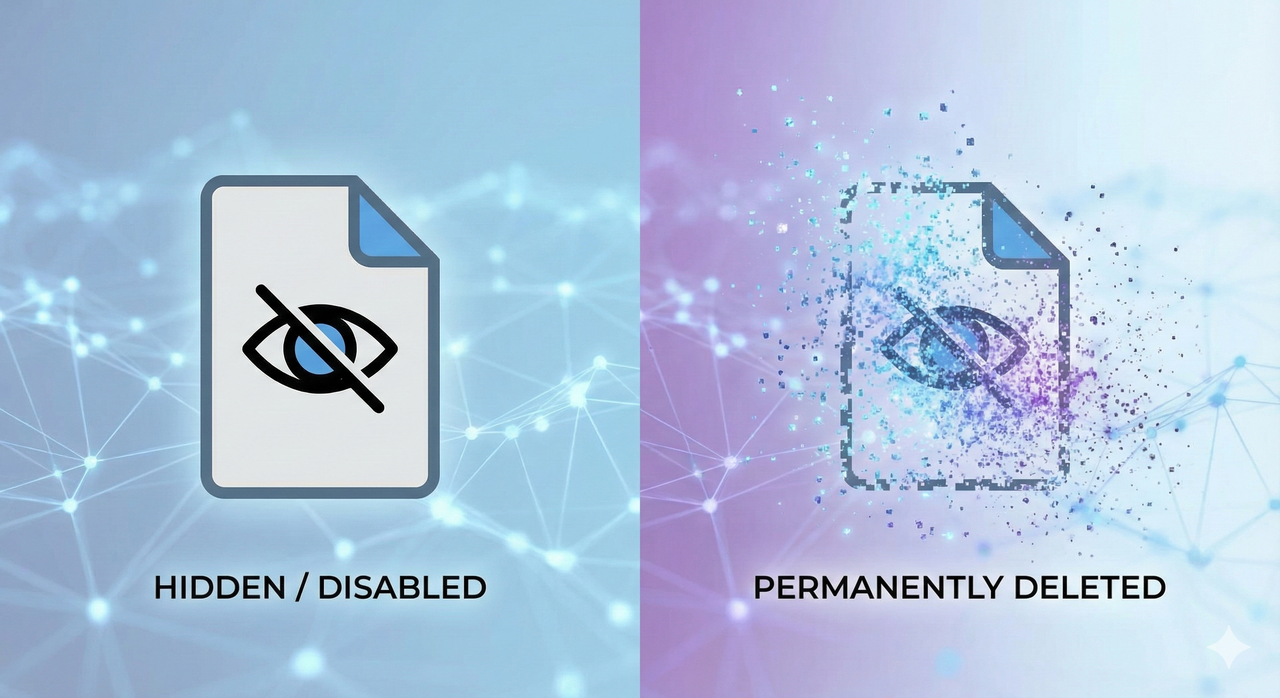
Many users run into a specific “zombie source” issue. You might think you have dealt with an outdated file by simply unchecking the box next to it in the source list. However, you quickly realize the AI is still referencing it.
Here is the reality: Unchecking a source only “disables” it from the current active context window. It doesn’t always scrub the file’s data from the model’s immediate memory, especially in an ongoing chat thread. Furthermore, NotebookLM currently has a limit of 50 sources per notebook. If you just keep unchecking files without deleting them, you will eventually hit a wall where you can’t add new, relevant materials.
To truly fix hallucinations and free up space, you need to know how to remove sources in notebooklm permanently, not just hide them.
Step-by-Step: How to Permanently Remove a Source
Removing a file is a permanent action for that specific notebook, so ensure you truly want it gone. However, the process is straightforward once you know where to look.
Follow these steps to clean up your workspace:
- Open Your Notebook: Navigate to the specific notebook containing the clutter.
- Locate the Sources Panel: Look at the left-hand sidebar where your uploaded files (PDFs, Google Docs, etc.) are listed. If the menu is collapsed, expand it.
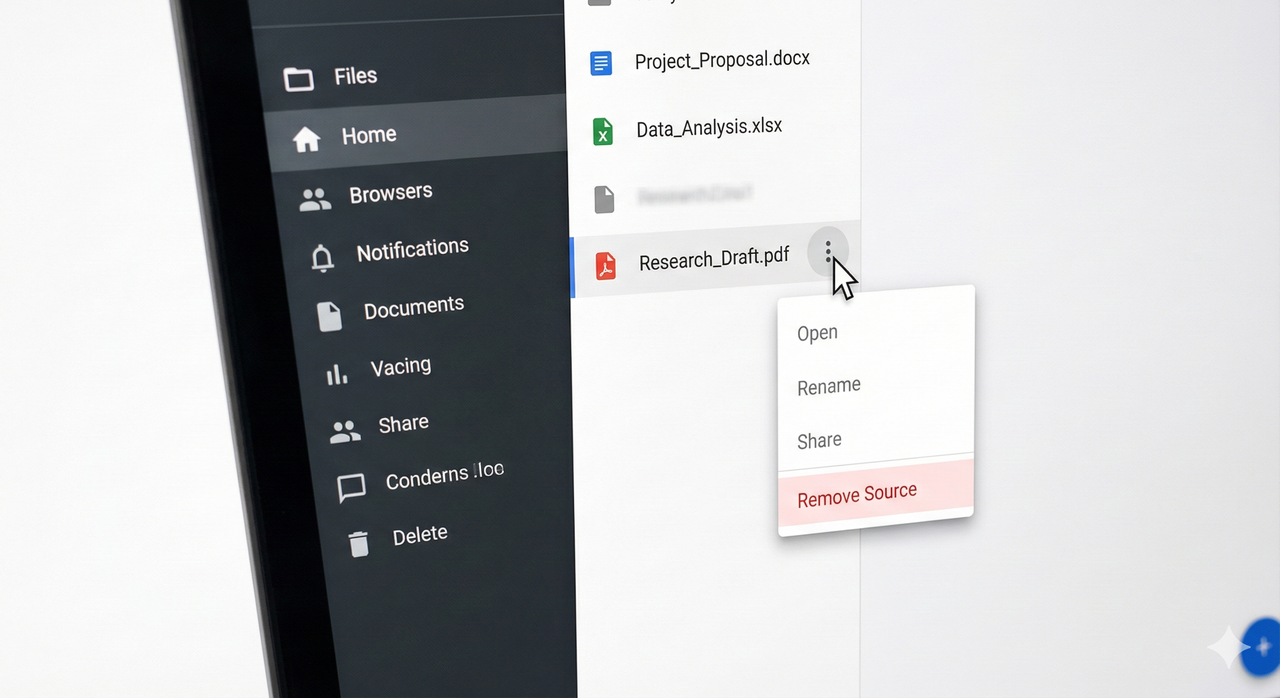
- Find the “More Options” Menu: Hover your mouse cursor over the specific source you want to delete. You will see a three-dot menu icon (⋮) appear to the right of the file name.
- Select Remove: Click the three dots and select “Remove Source” (or “Delete Source” depending on your version).
- Confirm Deletion: A pop-up dialog will ask you to confirm. Click “Delete” or “Remove” to finalize the action.
Pro Tip: After you delete a source, the AI might still have “residue” information in the current chat history. To ensure the source is completely forgotten, it is best to start a new chat thread immediately after deletion.
Delete vs. Disable: Which One Should You Use?
Not every file needs to be deleted. Sometimes you just need to silence a document temporarily. Here is a quick cheat sheet on when to use which feature:
| Feature | Action | Best Used For… |
|---|---|---|
| Disable (Uncheck) | Hides source from current prompt context. | A/B testing answers, temporarily narrowing focus to one document, or keeping a file for later reference without using it now. |
| Delete (Remove) | Permanently ejects file from the notebook. | Removing duplicates, clearing out outdated drafts, freeing up space (50 source limit), and stopping persistent hallucinations. |
If you are struggling with persistent inaccuracies, mastering how to remove sources in notebooklm via deletion is usually the superior option over simply disabling them.
Safety Check: Will This Delete My Original Google Doc?
This is a massive fear for many students and researchers: If I delete it here, do I lose my thesis draft forever?
The Answer is No.
When you upload a source to NotebookLM, the AI creates a copy of that information to process it. When you delete a source from NotebookLM, you are only destroying that specific copy inside the AI tool. Your original PDF on your desktop or your Google Doc in Google Drive remains completely untouched and safe.
Troubleshooting Common Issues
Even after following the steps on how to remove sources in notebooklm, you might hit a snag. Here are the most common fixes:
Q: I deleted the source, but the AI is still using it in answers.
A: This usually happens because the current chat thread has “context memory.” The AI remembers the conversation flow, which included data from the deleted file.
- Solution: Clear the chat or click “New Chat” to refresh the context window completely.
Q: Can I restore a deleted source?
A: No. There is no “Undo” button or “Recycle Bin” inside NotebookLM.
- Solution: You will need to manually re-upload the file or re-import it from Google Drive.
Summary: Keep Your AI Brain Clean
Garbage in, garbage out. That is the golden rule of AI. By keeping your source list curated and clean, you ensure that NotebookLM remains a sharp, reliable research assistant rather than a confused one. Now that you know how to remove sources in notebooklm, take five minutes to scrub your current projects—your future self will thank you.
Leave a Reply