
Fix Microsoft 365 Copilot Cowork When It Won’t Execute Tasks
Transparency Note: This article contains no affiliate links. All recommendations are editorially independent.

For enterprise leaders and IT admins, Copilot Cowork failing mid-workflow is more than a minor inconvenience. It’s the creeping fear that your AI-powered delegation is quietly breaking — silently skipping calendar changes, stalling on launch plans, or worse, touching sensitive data without a clear audit trail. I’ve seen this frustration firsthand across enterprise Microsoft 365 Copilot deployments, and the good news is: almost every Cowork failure traces back to a small set of fixable root causes.
What Is Copilot Cowork and Why It Might Not Work
Microsoft 365 Copilot Cowork is an agentic AI feature that converts your natural-language intent into long-running, multi-step workflows spanning Outlook, Teams, Excel, PowerPoint, and more. Instead of just answering a question, it acts — rescheduling meetings, drafting decks, building launch briefs — and then asks for your confirmation before applying changes.
Quick Answer: Copilot Cowork fails most often because the user’s tenant is not enrolled in Microsoft’s Frontier program, the Microsoft 365 E7 (or equivalent Copilot-enabled) license is missing, Copilot Wave 3 features are not activated in the admin center, or governance and sensitivity-label policies are blocking Copilot’s access to mailboxes, calendars, or SharePoint data.
As verified by the Microsoft 365 Blog , Copilot Cowork is currently in a limited research preview — meaning not every tenant has access, and configuration gaps will cause silent failures with no obvious error message.
Who Is This Troubleshooting Guide For?
I wrote this guide for two specific audiences who feel this problem most acutely:
- Enterprise knowledge workers — product managers, project managers, sales ops leads, and marketing directors who want to delegate complex, multi-app workflows to Copilot Cowork and can’t figure out why nothing happens.
- IT/AI admins in mid-to-large organizations managing Microsoft 365 Copilot enterprise rollouts, specifically those responsible for licensing, tenant configuration, and Microsoft 365 governance and compliance policies.
If you’re a solo user on a personal M365 plan, Copilot Cowork is not available to you yet — this guide is for organizational deployments only.
Why Copilot Cowork Fails: Core Causes
In my experience reviewing broken Copilot Cowork troubleshooting cases, the failure is almost never a “bug” in the traditional sense. It’s a prerequisites problem. The feature quietly does nothing when the environment isn’t set up correctly, which is far more frustrating than an error message.
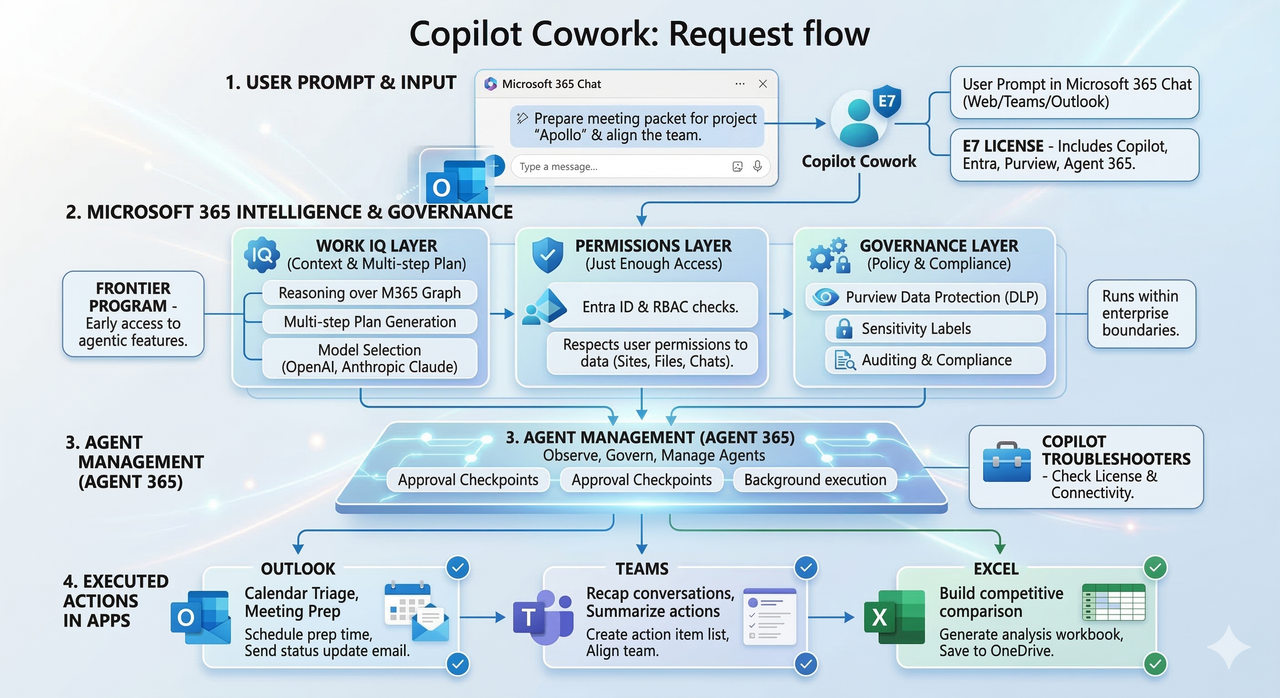
The four root causes I see most often:
| Root Cause | Symptom |
|---|---|
| No Frontier program enrollment | Cowork option simply doesn’t appear in Copilot chat |
| Missing Microsoft 365 E7 or Copilot license | Feature visible but grayed out or non-functional |
| Wave 3 features disabled in admin center | Cowork starts but stalls — “no actions taken” |
| Sensitivity labels / DLP policies blocking data | Workflows fail silently on protected content |
Licensing and Availability Checks
The first thing I always check: does the tenant have the right license? Copilot Cowork is currently part of the Microsoft 365 E7 suite and the Frontier early-access program, announced as part of Copilot Wave 3 updates in March 2026, as detailed by the Microsoft 365 Blog .
Steps to verify:
- Go to Microsoft 365 Admin Center → Billing → Licenses and confirm the user has a Copilot-enabled plan (M365 E7 or an add-on that includes Cowork).
- Check the Frontier program enrollment status for your tenant — if you’re not enrolled, submit a request through your Microsoft account team.
- Confirm that the individual user account has the Copilot license assigned, not just purchased at the tenant level.
Tenant and Admin Settings
Once licensing is confirmed, the next layer is tenant configuration. Copilot Cowork and its associated Copilot Wave 3 features — including Work IQ, multi-model intelligence (which leverages Anthropic Claude on the backend), and app-native Copilot in Word, Excel, PowerPoint, and Outlook — must each be individually enabled.
Steps to verify:
- Navigate to Microsoft 365 Admin Center → Settings → Copilot and look for Copilot Cowork under the Wave 3 feature toggles.
- Accept any preview terms of service if prompted — I’ve seen tenants where this popup was dismissed and the feature never activated.
- Enable Work IQ and multi-model intelligence if your plan includes them; these are separate toggles from the base Copilot chat setting.
Permissions, Data Access, and Security Policies
This is the root cause I see most often after licensing is confirmed. Your tenant’s Microsoft 365 governance and compliance policies may be perfectly correct for data security — and completely wrong for Copilot Cowork.
Common blockers:
- Sensitivity labels on emails, SharePoint files, or Teams channels marked “Confidential” or higher can prevent Copilot from reading the content it needs to act on.
- Data Loss Prevention (DLP) policies may block Copilot from writing to calendars or creating files in SharePoint on behalf of users.
- Conditional Access policies may prevent the Copilot service principal from acting across app boundaries (e.g., reading Outlook and then writing to Excel in the same workflow).
The fix is not to remove your security policies — it’s to create targeted exceptions that allow the Copilot service account to operate within defined, audited boundaries.
Step-by-Step Troubleshooting for Copilot Cowork
Work through these steps in order. In my experience, most issues are resolved by Step 4.
- Confirm Frontier program enrollment and E7 licensing
- Verify tenant enrollment status with your Microsoft account manager.
- Confirm individual user license assignment in M365 Admin Center.
- Enable Wave 3 features in the admin center
- Toggle on Copilot Cowork, Work IQ, and multi-model intelligence.
- Accept preview terms if they appear — don’t skip this step.
- Validate data permissions
- Grant Copilot read/write access to the relevant mailbox, OneDrive, SharePoint sites, Teams channels, and calendar.
- Identify and temporarily scope-down sensitivity labels on test content to isolate whether a label is causing the block.
- Run the built-in Copilot troubleshooters
- In Windows, navigate to Settings → Troubleshoot → Other troubleshooters and run the Copilot troubleshooter as documented by Microsoft Support .
- In the M365 admin center, check Health → Service Health for any active advisories on Copilot or Microsoft 365 services.
- Check for service incidents
- Visit the Microsoft 365 Service Health dashboard for any active Copilot Cowork outages or degradations.
- If an advisory is active, there’s nothing to fix on your end — wait for Microsoft’s resolution.
- Run a controlled test task
- Issue a low-risk Cowork prompt (see the Safe Testing section below) and review the generated plan.
- If you see “no actions taken,” pull the Copilot chat logs and tenant audit logs (under M365 Compliance Center) to identify which permission, policy, or model-selection step failed.
- Adjust governance and DLP policies
- Work with your compliance team to refine sensitivity labels and DLP rules to create Copilot-aware exceptions.
- Ensure all Copilot actions remain logged in the compliance audit trail — this is non-negotiable for enterprise use.
- Escalate to Microsoft support
- If Steps 1–7 don’t resolve the issue, open a Microsoft 365 support ticket referencing Copilot Cowork, the Frontier program, and your specific Wave 3 feature set.
How to Test Copilot Cowork Safely
The common mistake I see is people testing Cowork with high-stakes prompts like “Reorganize my entire calendar for next quarter.” Don’t do that — not because Cowork will run wild, but because if it stalls or returns an error, you won’t be able to tell whether it’s a permissions issue, a feature availability issue, or just a complex task that exceeded the preview’s capability.
Instead, start with a controlled, low-risk, single-app test:
- ✅ Good test prompt:
"Build a one-page meeting packet for my sync with [name] on Friday, pulling from our last three meeting notes in Teams." - ❌ Bad test prompt:
"Reschedule all my low-priority meetings for the next two weeks and draft a summary email to each attendee."
Review the plan Copilot Cowork generates before approving it. This is a designed behavior — Cowork always proposes, then asks for confirmation. If it skips straight to execution without asking, something is misconfigured.
Governance, Compliance, and Risk Mitigation
I want to address the hidden fear directly: Copilot Cowork does not act autonomously. Every multi-step workflow goes through an explicit plan-then-approve loop before any changes are applied, as confirmed by the Microsoft 365 Blog .
That said, you should still harden your environment:
- Sensitivity labels: Create a “Copilot-accessible” classification tier for content Cowork is allowed to read and act on — distinct from “Confidential” or “Highly Confidential” tiers.
- DLP policies: Add Copilot service principal exemptions only for specific, reviewed workflow types (e.g., calendar management, meeting packets) — not blanket exemptions.
- Conditional Access: Scope Copilot Cowork access to compliant, managed devices only.
- Audit logs: Ensure all Copilot Cowork actions are captured in the Microsoft 365 Compliance Center audit trail — this is your paper trail for enterprise accountability.
When to Contact Microsoft or Partner Support
If you’ve worked through all eight steps and Copilot Cowork still doesn’t appear, stalls without explanation, or loops on the approval step without progressing, it’s time to escalate. Don’t spend more than two hours debugging independently — this is preview software, and some issues require Microsoft’s internal Frontier support team.
When you escalate, include:
- Tenant ID and Frontier program enrollment confirmation
- License assignment details for affected users
- Copilot chat session logs and tenant audit log excerpts
- Screenshots of the specific failure point (no actions taken, missing UI toggle, etc.)
A Copilot-experienced managed-service provider (MSP) can also accelerate this process if your IT team is stretched. Refer to the official Microsoft Support – Copilot troubleshooters page for the most current diagnostic tooling.
Examples of Copilot Cowork Working vs. Broken
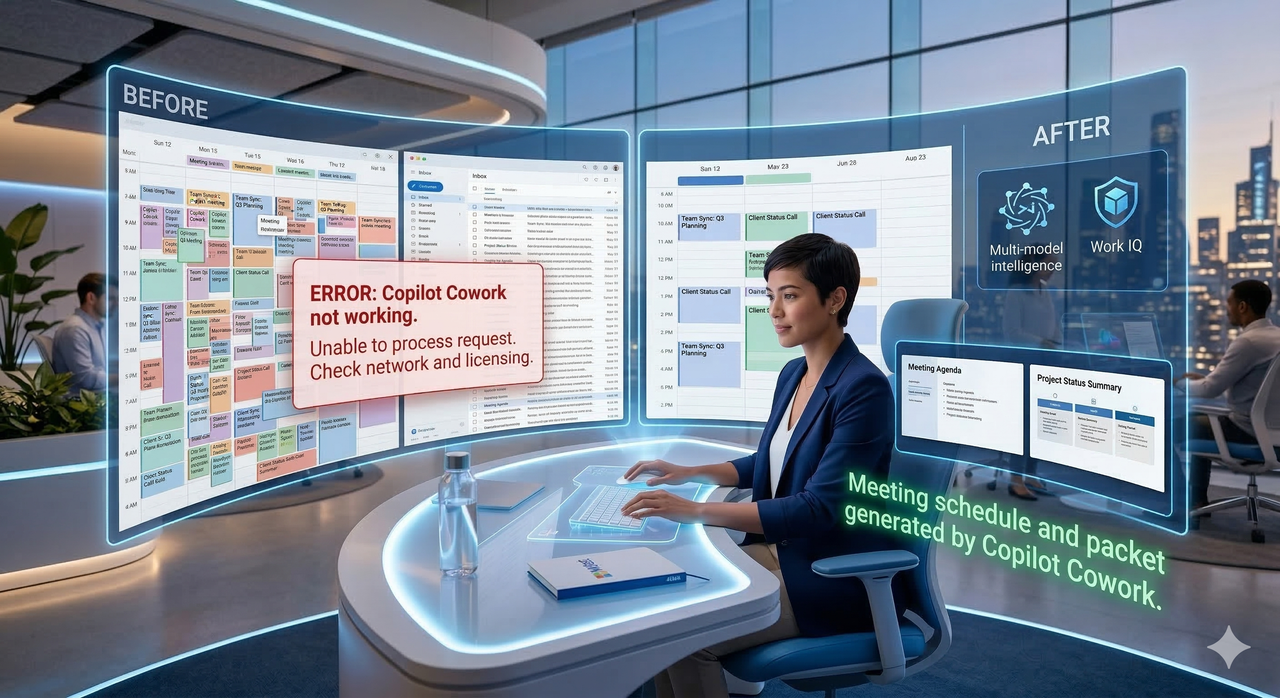
Seeing the contrast between a broken and a working Cowork interaction makes the goal state much clearer. Here’s what I’ve observed:
❌ Broken Cowork (What You Don’t Want to See)
User prompt: “Clean up my calendar for next week.”
Copilot response: (No plan generated. No actions proposed. Chat returns a generic response about Copilot capabilities.)
What this tells you: Cowork is either not enabled on this account, the Frontier program enrollment is missing, or a data-access policy is preventing Copilot from reading the Outlook calendar at all.
✅ Working Cowork (The Goal State)
User prompt: “Review my calendar for next week and suggest which low-priority meetings I can reschedule to free up deep-work blocks.”
“Here’s my proposed plan based on your calendar:
– Move ‘Weekly Sync with [Team]’ from Tuesday 2pm to Thursday 4pm (same attendees, no conflicts found).
– Decline ‘Optional: Q2 Kickoff Pre-Read Review’ — you are marked Optional and have a conflict.
– Block Tuesday 10am–12pm and Wednesday 9am–11am as Focus Time.
Shall I apply these changes? (Yes / Edit / Cancel)”
What this tells you: Copilot Cowork has correctly read the calendar, applied multi-model intelligence to prioritize tasks using Work IQ signals, generated an explicit, reviewable plan, and is waiting for human confirmation before writing any changes — exactly as designed, per the Microsoft 365 Blog .
Have questions about your specific Copilot Cowork setup? Drop them in the comments — I read every one and answer the ones that would help the most people.
Leave a Reply