
Freed AI Not Capturing? Fix Empty Notes Fast
If Freed AI misses your visit or leaves your note completely blank, you are not just losing a few minutes — you are risking incomplete documentation, coding gaps, and potential liability. I have watched clinicians abandon one of the best AI medical scribe tools on the market simply because they never resolved a fixable setup issue. This guide exists so that does not happen to you.
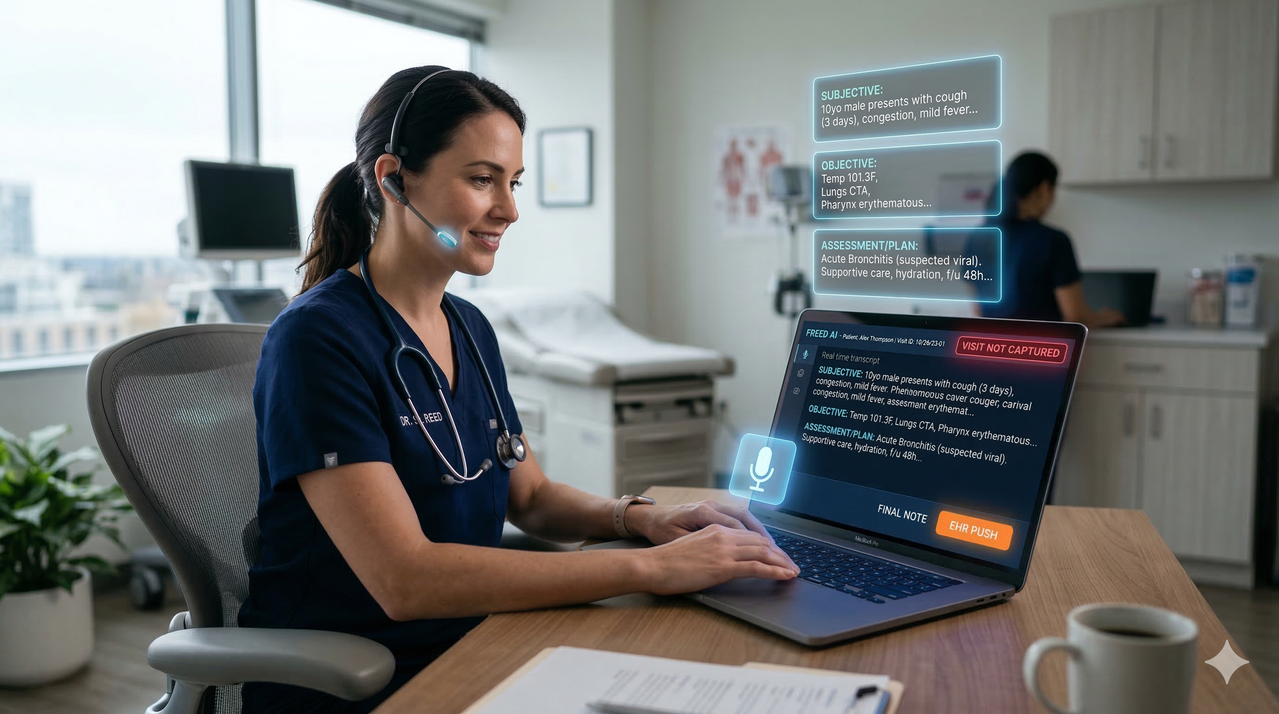
What Causes Freed AI to Capture Nothing or Show Empty Notes?
Most Freed AI “nothing captured” or empty transcription problems come from three root causes: microphone permission loss, browser tab inactive state, or a recording paused mid-visit. Ensuring Freed AI has consistent mic access in Chrome, keeping the tab open and visible throughout the encounter, and letting the recording run uninterrupted resolves the vast majority of “Visit Not Captured” errors, note generation errors, and failed ASR clinical notes.
💡 Quick Answer: Check mic permission → keep tab active → never pause → let upload finish.
Core Problem Breakdown: Why Freed AI Fails to Capture Visits
In my experience testing ambient scribes across different clinic setups, the same three failure modes appear over and over. None of them are bugs in Freed itself — they are environment issues that you can fix in under five minutes.
The three core failure modes are:
- 🎤 Microphone permissions blocked in the browser or hijacked by another app (Zoom, Teams)
- 🖥️ Browser tab inactive — the tab was minimized, switched, or suspended mid-visit
- ⏸️ Recording paused mid-visit, or the app was closed before the upload completed
As verified by the Freed Help Center – Troubleshooting & FAQs , these environment-level issues are the leading cause of audio capture failed complaints across both Windows and Mac.
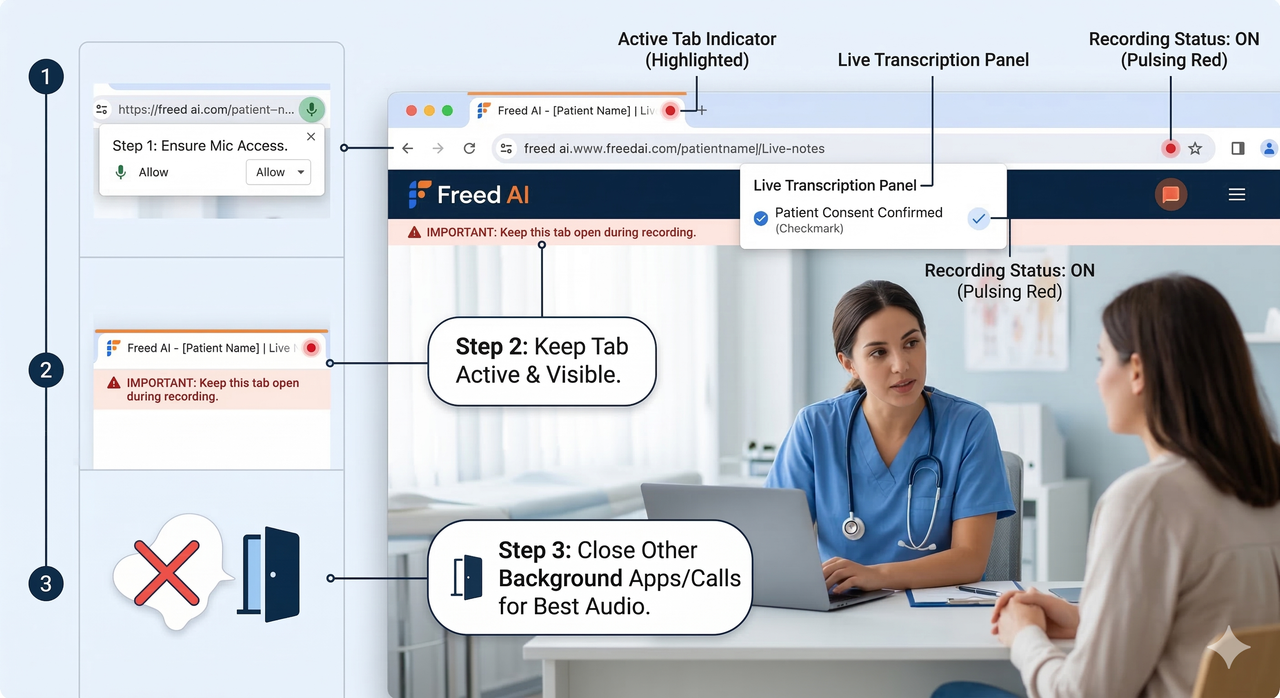
Microphone & Browser Permissions: First-Level Checks
The common mistake I see is clinicians granting mic access once during initial setup, then never checking it again — but Chrome can quietly revoke site-level permissions after an update or OS change.
Step-by-step mic permission check in Chrome:
- In Chrome, click the lock icon (or tune icon) to the left of
app.getfreed.aiin the address bar - Click Site settings
- Ensure Microphone is set to Allow, not Ask or Block
- Scroll down and confirm no other input device override is active
- Reload the Freed AI tab and start a test recording
Audio-stealing apps to watch for:
- Zoom — aggressively claims the default mic during meetings, blocking Freed
- Microsoft Teams — same behavior; close it completely before a visit
- Other browser tabs with WebRTC access (video calls, telehealth platforms)
As documented in
Freed Help Center – Microphone Issues with Freed (Windows)
, Windows users should also verify that app.getfreed.ai is allowed under Windows Privacy Settings → Microphone → Allow apps to access your microphone.
Keeping the Freed AI Tab Active During the Visit
I found this is the single most overlooked issue. When you minimize or switch away from the Freed AI browser tab, Chrome can throttle or fully suspend the tab’s processes — which cuts off HIPAA-compliant transcription mid-stream with no visible warning.
What to do instead:
- Keep the Freed AI tab the foreground, active tab for the entire encounter
- If you need to reference the EHR during the visit, open it in a separate window rather than switching tabs in the same window
- Some clinicians place a dedicated tablet or secondary laptop in the exam room exclusively for Freed, which eliminates this issue entirely
- On mobile, ensure the Freed AI app stays in the foreground; backgrounded iOS/Android apps face aggressive audio restriction
Recording Workflow: No Pausing, Clean Audio Setup
Pausing the recording seems harmless — but it introduces gaps in the ASR clinical note generation pipeline. In practice, I recommend against pausing at all. If you must step out briefly, it is better to let the recording run (ambient silence) than to pause and risk forgetting to resume.
Audio setup best practices:
- Place the laptop or phone within 3 feet of both clinician and patient when possible
- Speak toward the microphone, not at the monitor or chart
- Reduce background noise: close the door, turn off the exam-room TV, mute paging overhead if possible
- Avoid placing the device face-down or under papers — this is a surprisingly common audio capture failed cause
According to Freed – How to Use an AI Scribe , clear, unobstructed audio directly improves the quality and completeness of the generated SOAP note.
Fixing “Visit Not Captured” and Empty Transcriptions
When you see “Visit Not Captured” or open a note to find it completely empty, run this diagnostic ladder in order before assuming Freed failed:
- ✅ Step 1 — Mic: Is microphone permission currently set to Allow in Chrome site settings?
- ✅ Step 2 — Tab: Was the Freed AI tab active and visible the entire visit?
- ✅ Step 3 — Recording: Did you accidentally pause, or close the tab before the upload completed?
- ✅ Step 4 — Audio Quality: Was the device positioned correctly with minimal background noise?
- ✅ Step 5 — Upload: Did you wait for Freed to finish processing before navigating away?
If all checks pass and the note is still empty:
- Attempt the visit again with the corrected setup on a lower-volume patient encounter
- Check Freed’s status page or in-app notification center for service disruptions
- Contact Freed support directly — they can audit the session on their end and in my experience respond quickly
EHR Push and Chrome Extension Issues
Here is a distinction I want to be very clear about: EHR push failure is not the same as a capture failure. Many clinicians I work with panic because their note never appeared in their EHR — but when we look closer, Freed did generate the note. The problem is with the Chrome extension responsible for the EHR push, not with the transcription itself.
Common EHR push failure causes:
- The Freed Chrome extension is not installed in the browser being used
- The extension is installed but outdated (Chrome sometimes disables outdated extensions silently)
- The extension is installed but the clinician is not logged in to it
- The browser was updated and extensions were reset or disabled
Step-by-Step EHR Push Troubleshooting
Follow this sequence in order:
- Install — Go to the Chrome Web Store and confirm the Freed extension is installed; if not, install it fresh
- Update — Click Manage Extensions → find Freed → click Update; if the Update button is greyed out, you are on the latest version
- Login — Click the Freed extension icon in the Chrome toolbar and confirm you are logged in with the correct account
- Restart — Close Chrome entirely (not just the tab) and reopen it; relaunch the EHR and the Freed tab
- Test Push — Open a previously generated note in Freed and attempt a manual Push to EHR to confirm the pipeline is restored
- Escalate — If push still fails, check your EHR vendor’s settings (Tebra, Epic, etc.) for third-party extension authorization requirements
Real-World Examples: Bad vs. Good Freed AI Usage
Nothing explains this better than seeing the two scenarios side by side.
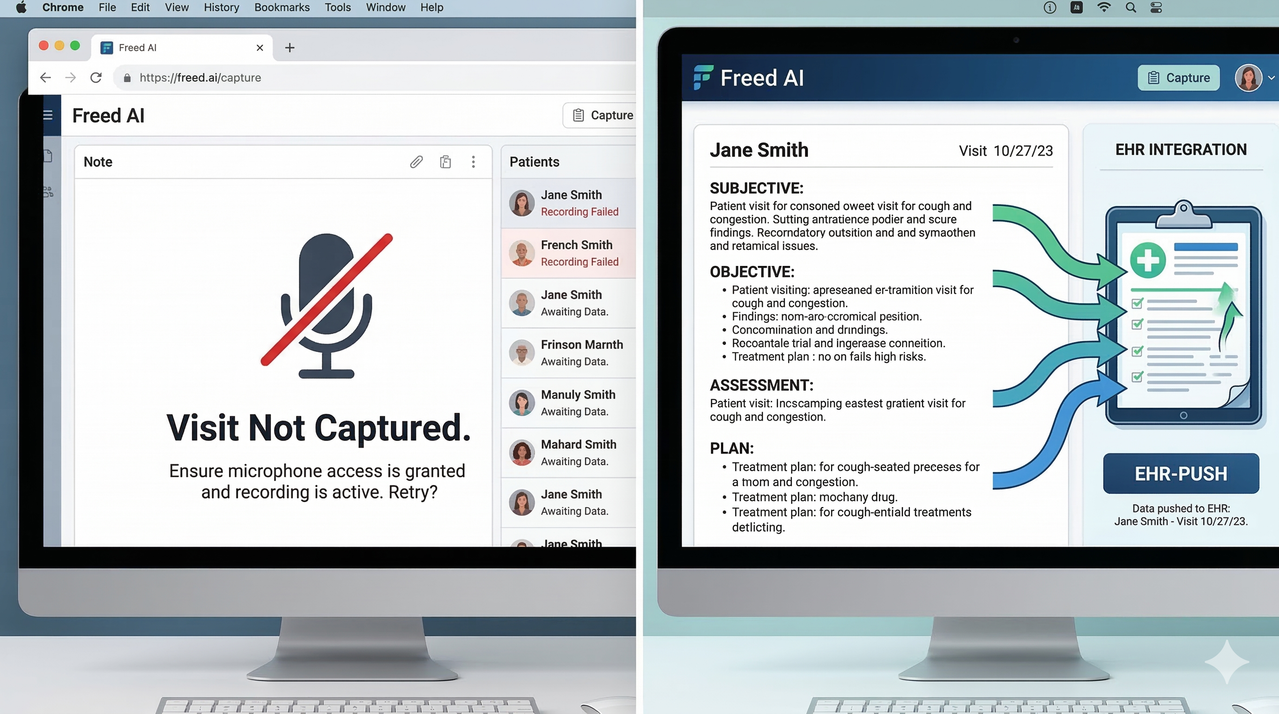
❌ Bad Setup — What Goes Wrong:
“I opened Freed before the visit, switched to the EHR to pull up labs, forgot to switch back, and by the end of the appointment the tab had been inactive for 20 minutes. The note was completely empty. I figured Freed just doesn’t work and went back to typing.”
What actually happened: browser tab inactive → audio capture failed → empty transcription → wrong conclusion drawn about the tool itself.
✅ Good Setup — What Works:
“I keep a dedicated window open with only the Freed AI tab. Before the patient enters I confirm the mic permission icon shows in the address bar, hit record, and leave it running. The device sits on the corner of the desk. By the time I finish the encounter and step out, Freed has already generated a clean SOAP note that takes me under 90 seconds to review and push to my EHR.”
That is the workflow. Everything else is just eliminating the variables that break it.
Preventing Future Issues: Best-Practice Setup for Clinicians
I want to give you a repeatable daily routine — not a one-time fix. Freed AI is a genuinely powerful ambient scribe for HIPAA-compliant transcription, but it performs best when the environment is consistent.
Daily Pre-Visit Checklist:
- ☐ Browser: Use Chrome as your default for Freed AI visits
- ☐ Tab: Open Freed AI as the first tab; keep it the active, foreground tab throughout
- ☐ Mic permission: Glance at the address bar — the mic icon should show as allowed
- ☐ Competing apps: Close Zoom, Teams, or any telehealth platform not in use
- ☐ Device position: Place within 3 feet of the conversation, face-up, unobstructed
- ☐ Recording: Hit start and do not pause; let it run through the full encounter
- ☐ Upload: After the visit ends, wait for Freed to finish processing before closing the tab
- ☐ EHR Push: Keep the Freed Chrome extension updated monthly; re-login if push fails
Build this into your pre-clinic routine the same way you check your stethoscope. The documentation burden that made you interested in an AI medical scribe in the first place does not go away — but with a stable setup, Freed AI handles it so you can focus on the patient in front of you.
For the full official Freed troubleshooting documentation, visit the Freed Help Center – Troubleshooting & FAQs .
Leave a Reply