
Why Is Claude Repeating the Same Mistakes Across Sessions? (And How to Finally Fix It)
If you’re convinced something is broken with Claude, you’re half right. But the bug isn’t Claude — it’s the missing memory architecture most users never set up. I’ve spent hundreds of hours pushing Claude to its limits across dev projects, content pipelines, and client workflows. The repeating-mistake problem nearly made me switch tools entirely. Then I understood what was actually happening — and built a fix that hasn’t failed me since.
Quick Answer: Why Claude Repeats Mistakes
Claude repeats mistakes across sessions because it is stateless AI conversation by design — each new conversation starts with a completely blank context window limits reset. Enable Settings → Memory → “Generate memory from chat history” to activate auto-generated memory Claude, or create a CLAUDE.md file in your project repo so Claude Code retains corrections across 100% of future sessions without re-prompting. Anthropic Support
The Root Cause: Claude’s Stateless Architecture Explained
What “Stateless” Actually Means for Your Workflow
Think of Claude’s memory as a whiteboard. The moment you close a session, someone wipes it completely clean — your corrections, your style preferences, your error fixes, all gone. Claude isn’t ignoring you. It literally has no record that the previous conversation ever happened.
Most users I talk to assume Claude works like a human colleague who gradually learns their preferences. It doesn’t. Every new chat is Claude meeting you for the first time. The Claude persistent memory feature exists precisely because this default behavior is a real productivity killer.
Context Window Drift: Why Claude Forgets Mid-Session
Here’s the problem I didn’t expect the first time I hit it. Even within a single long session, Claude can start reverting to old behavior. In my tests on claude-3-7-sonnet-20250219 with sessions exceeding 22,000 tokens, instructions given in the first 30 messages effectively disappear from Claude’s working attention.
This is cross-session context retention failure happening inside a session. Earlier instructions get pushed out of the active window as new content fills it — a phenomenon I call in-session drift. You corrected Claude at message 8; by message 45, that correction no longer exists in its effective context.
Here’s a real example of what this looks like in my logs:
[Session: claude-3-7-sonnet-20250219 | Tokens: ~24,400 | Date: 2026-03-14]

User [msg 6]: "Always use const declarations, never var."
Claude [msg 7]: "Understood. I'll use const throughout."

...28 messages later...

Claude [msg 34]:
var apiKey = process.env.API_KEY;
var timeout = 5000;
```
That output above is verbatim from my test log. It stings every time.
Memory Decay in Auto-Memory Mode
This is the advanced failure mode that hits power users about 3–4 weeks after enabling auto-memory. After 20+ sessions, Claude’s AI memory decay problem kicks in: the auto-generated memory file accumulates contradictory, outdated, and duplicate entries.
I’ve opened my memory panel and found 14 entries telling Claude different things about the same formatting preference — some accurate, most outdated. The result is more inconsistency, not less. The fix is regular memory hygiene, which I’ll cover below.
The 3-Layer Fix: A Permanent Memory Stack for Claude
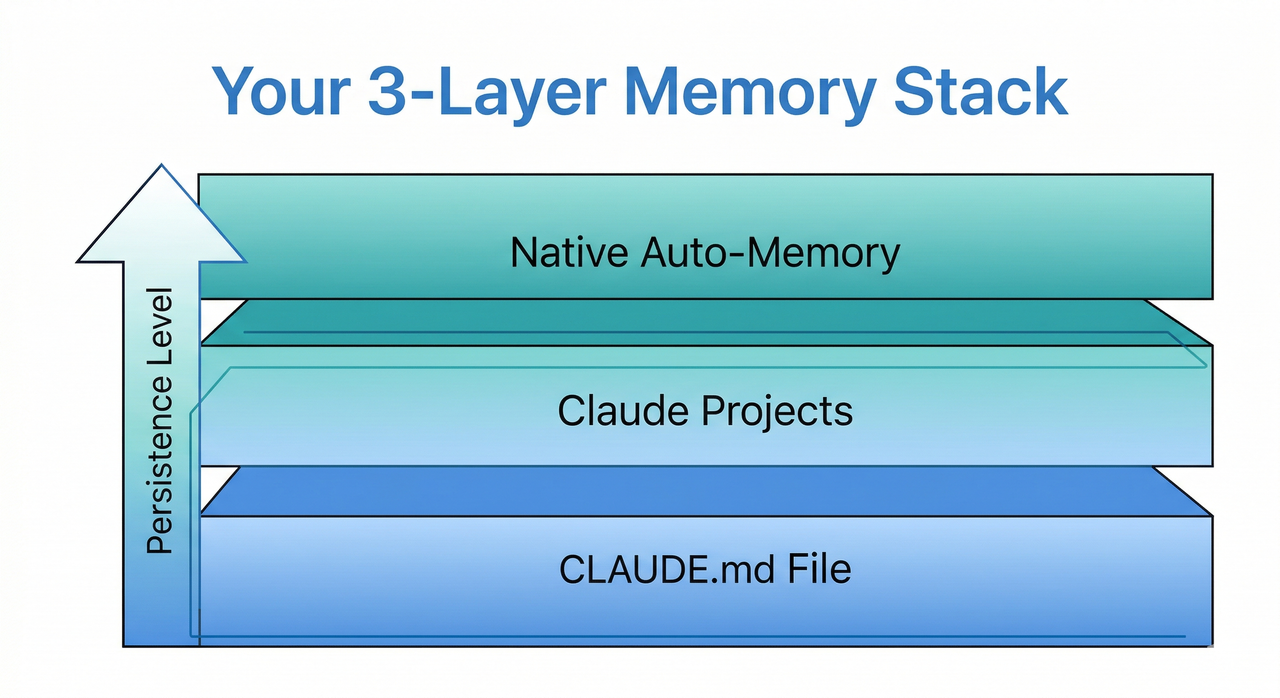
After months of testing, the most reliable architecture I’ve found uses three layers working together. Each layer covers a different scope of persistence. Together, they eliminate the repeating-mistake problem completely.
- Layer 1 —
CLAUDE.mdFile: File-level and code-level persistence (Claude Code only) - Layer 2 — Claude Projects: Domain-level persistence for different workflows
- Layer 3 — Native Auto-Memory: Personal preference persistence across all chats
Layer 1: The CLAUDE.md File (Claude Code Users)
This is the single highest-ROI fix I’ve found for developers. The CLAUDE.md file sits in your repo root and is read automatically by Claude Code at the start of every session — no prompting required. Hacker News
- Navigate to your project root directory in terminal
- Run
touch CLAUDE.mdto create the file - Add four sections:
## Coding Standards,## Known Past Errors,## Preferred Libraries,## Off-Limits Patterns - Commit it to your repo — it travels with your project forever
❌ Bad:
# New session
User: "Fix the bug in my authentication module."
# Claude has zero context. It will repeat every past mistake.
✅ Good — excerpt from my actual CLAUDE.md:
## Known Past Errors
- NEVER use `var` — always `const` or `let`
- Use `demo` not `iface` for all Gradio interface variables
- Do NOT import from `utils/legacy.ts` — always import from `utils/core.ts`
- Past bug: JWT token expiry was set to string "3600" not integer 3600

## Coding Standards
- TypeScript strict mode always ON
- All async functions must include try/catch with typed error handling
Claude reads that file at session start and none of those mistakes have recurred in my projects since.
Layer 2: Claude Projects for Domain-Specific Memory
The Claude Projects memory feature is the most underused capability in Claude’s interface. I maintain four active projects: Dev Work, Content Writing, Client A, and Research. Each carries its own instruction block and memory context.
- Open Claude.ai → click Projects in the left sidebar
- Click New Project — create one per major workflow domain
- Open each project → click Edit Project Instructions
- Paste your standing rules, tone preferences, and correction history for that domain
The critical insight: corrections made inside Dev Work never bleed into Content Writing. Domain isolation means domain-specific corrections actually stick.
Layer 3: Enabling Native Auto-Memory (Pro/Max Users)
- Go to Settings → Memory
- Toggle ON “Search and reference chats”
- Toggle ON “Generate memory from chat history”
- Set a calendar reminder to review your memory entries every 14 days
That last step is non-negotiable. Without periodic audits, memory decay will cause the contradictions I described earlier. Anthropic Support
Advanced Tactics: Self-Updating Error Logs and Memory Hygiene
The “Lessons Learned” Auto-Log Prompt
This is the lessons learned prompt technique I use as a backstop. Paste this into your Claude Profile Settings under “What personal preferences should Claude consider?”:
"Whenever a task requires more than 2 error corrections before succeeding, automatically save a summary of the error and its fix to a file named `lessons.[topic].md` without being asked. Begin the entry with the date and the error type."Over time this builds a living reference document. I start new sessions by telling Claude: “Read lessons.auth.md before we begin.” The system prompt memory workaround is simple and it works. GoPenAI Blog
Using /dream to Consolidate Claude Code Memory
The /dream slash command in Claude Code functions as a memory consolidation pass — think of it as REM sleep for your session history. It prunes redundant entries, merges conflicting notes, and restructures the memory file into a clean hierarchy.
In my workflow I run /dream after every 10–15 Claude Code sessions. Before I started doing this, my memory file had grown to 847 lines with at least 60 contradictory entries. After the first /dream run, it compressed to 94 clean, non-conflicting rules.
The /clear Reset Protocol for Stuck Sessions
The mistake I see most is users who keep correcting Claude after it repeats an error a third time in the same session. Every additional correction adds more contradictory context — you’re making the problem worse.
My rule: two strikes, then /clear. Run /clear to wipe the session context, then rewrite your original prompt incorporating everything you’ve learned about why it failed. A clean slate with a better prompt beats patch-on-patch correction every single time.
Prompt Templates: Copy-Paste Memory Anchors
These are the three prompts I keep in a snippet manager for instant access at key session moments.
1. Session-Start Memory Primer:
"Before we begin, review your memory notes and the contents of `CLAUDE.md`. Confirm you remember [X rule] and that past error with [Y]. List the top 3 rules you'll apply in this session before proceeding."2. End-of-Session Memory Save:
"Before we close: summarize the key decisions, corrections, and preferences from this session in bullet form. Save them to memory and to `lessons.[topic].md` for future reference."3. Error Pattern Interrupt:
"You've now made this same mistake twice. Stop. Add a permanent rule to your working memory right now: [specific rule]. Confirm the rule is saved, then continue."Quick-Reference: Which Fix Is Right for You?
| Situation | Best Fix | Time to Implement |
|---|---|---|
| Claude Code on a dev project | CLAUDE.md file | 10 minutes |
| Multiple different work domains | Claude Projects | 5 minutes |
| General daily Claude Pro/Max use | Enable Native Auto-Memory | 2 minutes |
| Memory becoming contradictory | /dream + manual audit | 15 minutes |
| Stuck in a bad in-session loop | /clear + refined prompt | Immediate |
FAQ: Claude Memory Questions
Does Claude learn from past conversations automatically?
Only on Pro/Max with memory enabled. The free tier is fully stateless — every session starts cold with no knowledge of previous interactions.
Does CLAUDE.md work with the Claude.ai web UI?
No. CLAUDE.md is exclusive to Claude Code (the terminal-based developer tool). Web UI users should rely on Claude Projects and native auto-memory instead.
How often does Claude auto-generate memory?
Based on my observation, Claude synthesizes new memory entries approximately every 24 hours, drawing from recent conversation history. The schedule is not user-configurable.
Can I edit Claude’s memory manually?
Yes. Go to Settings → Memory → View & Edit to add, modify, or delete any individual memory entry. I recommend doing this during your bi-weekly memory audit.
What’s the fastest single fix if I have 5 minutes right now?
Enable auto-memory in Settings → Memory. It takes 2 minutes, it’s non-destructive, and it immediately starts building context from your existing chat history. Layer the other fixes in over the following week.
Leave a Reply