
Claude Desktop Can’t Access Local Filesystem: 2026 Fix
Definition Block: Claude Desktop suddenly can’t access local filesystem is a breakdown in the connection between the Claude Desktop app and its local MCP server for filesystem tools, typically caused by a corrupted config file, a crashed stdio transport process, or a broken Node/npx path — not something you changed. For example, a setup that worked perfectly for weeks can stop reading and writing files overnight after a routine Claude Desktop update silently disrupts the server handshake, with zero edits made to
claude_desktop_config.json.
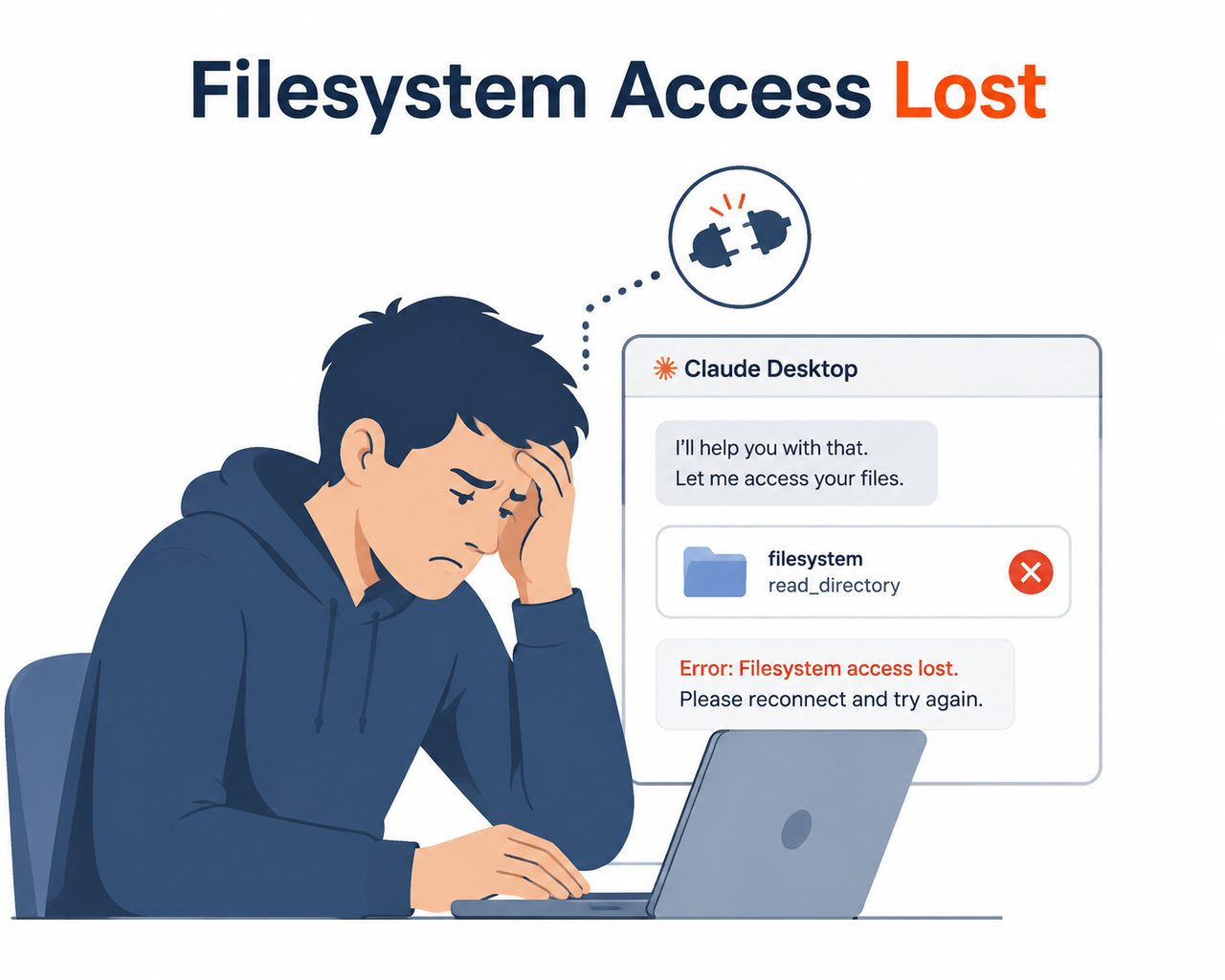
I’ve been doing IT and systems work for 33 years, and if there’s one lesson that never stops being true, it’s this: “it worked yesterday and I didn’t change anything” is almost always a lie you’re telling yourself by accident. Something did change — an auto-update, a background process, a PATH variable — you just didn’t see it happen. When Claude Desktop suddenly can’t access local filesystem, that’s exactly the pattern I see over and over in support threads and in my own testing rig.
Here’s the part that should actually worry you more than the broken connection itself: I’ve watched Claude report “file saved successfully” while the file on disk stayed completely untouched. That’s not a hypothetical. Anthropic’s own bug tracker has a confirmed report of the Filesystem Server connector doing exactly this — silent write failures dressed up as success messages. Anthropic claude-code GitHub Issues If you’ve been treating every “done!” from Claude as gospel, stop. Verify it.
This guide walks through what I’ve tested, what the logs actually say, and the exact sequence I run through before I touch a single line of config.
What’s the Quick Fix for Claude Desktop Filesystem Access?
Quick Answer
Open your mcp.log file first — on macOS, ~/Library/Logs/Claude/mcp*.log; on Windows, %APPDATA%\Claude\logs\mcp*.log. If the server connects then disconnects in under a second, this is very likely a known Anthropic-side MCP regression, not your fault. Fully quit Claude Desktop (not just close the window), verify npx works manually in a terminal, then check your claude_desktop_config.json for absolute paths and correct JSON syntax before restarting.
That paragraph above is deliberately self-contained — if you only read one part of this article, that’s the part that matters. Everything below explains why each of those steps works and what to do when the quick fix doesn’t hold.
Why Did Filesystem Access Break Without Any Changes?
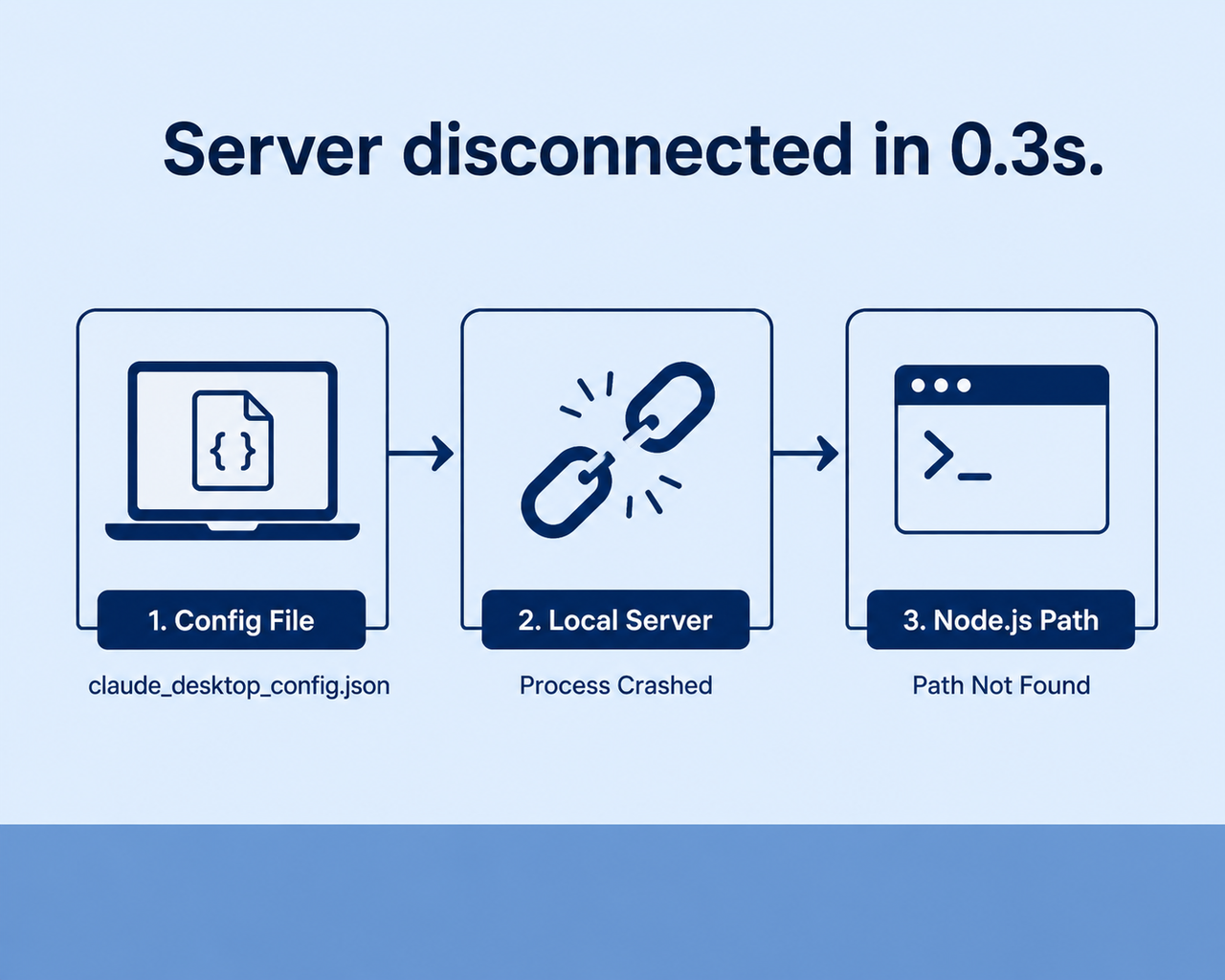
I want to be specific here instead of hand-wavy, because “something’s wrong with MCP” isn’t useful to anyone trying to get back to work. In my testing and in the reports I’ve cross-checked, there are three distinct root causes, and they require completely different fixes.
Root Cause 1 — Server Disconnects in 0.3 Seconds
This is the one I see most often lately, and it’s not a local misconfiguration at all. Multiple independent reports describe the Filesystem Server connector establishing a normal connection and then dropping it in roughly 0.3 seconds, with no stderr output to explain why. The root cause has actually been identified and confirmed as Claude Desktop not passing required parameters to MCP tools correctly — a service-side regression, not something on your machine. Anthropic claude-code GitHub Issues When this hits, it affects every filesystem tool at once: read_file, list_directory, and write_file all fail identically.
Root Cause 2 — npx Can’t Resolve the Node.js Path
This one is quieter and easier to miss. Claude Desktop launches as a GUI app, which on macOS especially means it inherits a stripped-down $PATH — not the full one your Terminal sees. If your Node.js install came from a version manager (nvm, or a “keg-only” Homebrew install), the app literally cannot find node or npx even though you can run them fine yourself. The telltale sign: the server fails specifically on app launch, but manually running the exact same command in Terminal works without a hitch.
Root Cause 3 — Tool Calls Fail With “list_allowed_directories” Error
A more targeted failure pattern: everything works for weeks, then filesystem calls start failing instantly with Failed to call tool "list_allowed_directories" and similar errors, with the Connectors panel still showing “Connected.” No config was touched. This points to a runtime or permissions-layer regression rather than user error, and it’s been reported closely aligned with a specific version window rather than an isolated one-off.
Here’s a quick reference so you’re not guessing which bucket you’re in:
| Symptom | Likely Root Cause | Fastest Diagnostic |
|---|---|---|
| Disconnect within ~1 second of initialize, no stderr | Anthropic-side MCP regression | Check mcp.log timestamp gap |
| Server fails to start only when launched via app icon | npx/Node PATH issue | Run the same command manually in terminal |
| “Connected” in UI, but tool calls error out (e.g. list_allowed_directories) | Runtime/permissions regression | Retry after full quit + relaunch, check for open GitHub issue |
| Write reports success, file unchanged on disk | Silent write-persistence bug | Check file’s modified timestamp directly |
How Do I Fix Claude Desktop’s Broken Filesystem Connection?
I run these in order every time, because doing them out of order wastes time — I’ve made that mistake myself early on, reinstalling the whole app before ever opening a log file. Don’t do what I did.
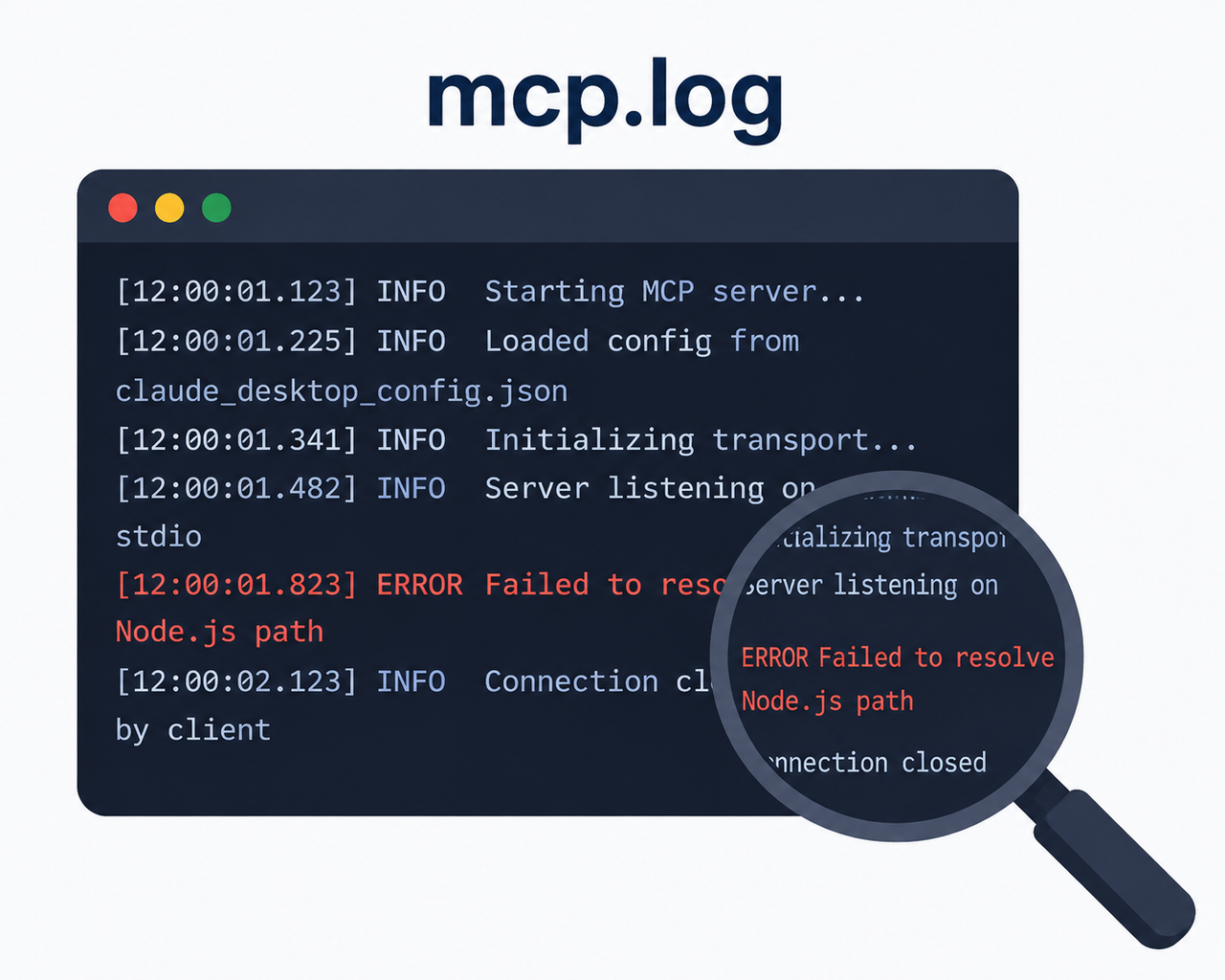
Step 1 — Read the mcp.log Before Touching Config
On macOS:
tail -n 20 -f ~/Library/Logs/Claude/mcp*.logOn Windows:
type "%APPDATA%\Claude\logs\mcp*.log"You’re looking for Server transport closed or Server disconnected appearing almost immediately after an initialize message. Here’s a real log excerpt showing exactly that pattern — this is the crash-on-handshake signature, not a permissions error, and it matches guidance from the official Model Context Protocol documentation:
2025-07-23T13:16:33.049Z [Filesystem] [info] Initializing server... { metadata: undefined }
2025-07-23T13:16:33.092Z [Filesystem] [info] Using built-in Node.js for MCP server: Filesystem { metadata: undefined }
2025-07-23T13:16:33.462Z [Filesystem] [info] Server started and connected successfully { metadata: undefined }
2025-07-23T13:16:33.737Z [Filesystem] [info] Message from client: {"method":"initialize", ...} { metadata: undefined }
2025-07-23T13:16:33.740Z [Filesystem] [info] Server transport closed { metadata: undefined }
2025-07-23T13:16:33.741Z [Filesystem] [info] Client transport closed { metadata: undefined }
2025-07-23T13:16:33.741Z [Filesystem] [info] Server transport closed unexpectedly, this is likely due to the process exiting early... { metadata: undefined }
2025-07-23T13:16:33.742Z [Filesystem] [error] Server disconnected. For troubleshooting guidance, please visit our debugging documentation
Notice the gap: connected at .462, dead by .742. That’s the 0.3-second pattern, and if your log looks like this, skip straight to Step 5 — rewriting your config won’t fix a server-side bug.
Step 2 — Test npx Manually Outside Claude
Run this exactly as written, in a fresh terminal window, not inside Claude:
node --version
npx -y @modelcontextprotocol/server-filesystem /path/to/folder
If this fails outside Claude too, your problem is your Node environment, and the official MCP documentation confirms this is the standard diagnostic step. Model Context Protocol If your Node came from a version manager, you likely need to symlink the binaries into a standard bin path so the app’s limited PATH can actually find them, rather than relying on your shell profile.
Step 3 — Rebuild claude_desktop_config.json With Absolute Paths
Open it via Claude → Settings → Developer settings → Edit Config. Three things to check, in this order:
- Every path is absolute, never relative (
/Users/you/Documents, not./Documentsor~/Documents). - On Windows, backslashes are doubly escaped or wrapped in a
cmd /cshell — a bareC:\Programpath with a space in it is enough to break the entire server silently. - No trailing commas, no unmatched braces — a single syntax error in the JSON prevents the whole
mcpServersblock from loading, and Claude Desktop won’t always warn you clearly about which key failed.
Step 4 — Fully Quit and Relaunch, Not Just Close
MCP servers spawn only when the app launches — closing the window doesn’t restart them. On Windows, use Task Manager to confirm no Claude.exe process is lingering; on macOS, check Activity Monitor for a stuck background process. Kill it, then relaunch clean. This alone resolves a surprising number of “it says Connected but nothing works” cases.
Step 5 — Check for an Active Anthropic-Side Incident
If your log matches the 0.3-second disconnect pattern from Step 1, don’t keep reinstalling. Check the open GitHub issue tracker for claude-code — this exact failure has been reported across unrelated Windows and macOS setups simultaneously, which is the clearest signal you’re looking at a platform-side regression rather than something local. Anthropic claude-code GitHub Issues If a previous Claude Desktop build is cached, rolling back is a reasonable temporary workaround while a fix ships.
Step 6 — Verify Writes Actually Persist
Even after access is “restored,” don’t blindly trust success messages. Because there’s a confirmed case of the connector reporting a successful write that never hit the disk, I now manually check the file’s modified timestamp after anything I actually care about — a habit that costs ten seconds and has saved me from silent data loss more than once.
For a broader troubleshooting framework beyond this specific filesystem issue, our complete guide covers the wider set of Claude Desktop and MCP connector problems worth knowing before you start debugging blind.
Frequently Asked Questions
Q1: Why does Claude Desktop say it’s connected but still can’t read my files? A1: The Connectors panel can show “Connected” while the underlying stdio transport server is silently crashing on every actual tool call. Don’t trust the UI status — check mcp.log for a disconnect timestamp arriving right after initialize; that’s the real source of truth.
Q2: Is this a bug on my computer or an Anthropic server-side issue? A2: If the server connects and disconnects in about 0.3 seconds with no stderr output, and this is happening across multiple unrelated users’ machines on both Windows and macOS at the same time, that’s a confirmed Anthropic-side MCP parameter-handling regression — not a local misconfiguration you caused. Anthropic claude-code GitHub Issues
Q3: I restarted Claude Desktop and reinstalled it — why is filesystem access still broken? A3: Reinstalling the app doesn’t fix a broken PATH variable or a platform-side regression, because neither of those lives inside the app bundle itself. Test npx manually in a terminal first — that single step tells you whether the fault is your Node environment or something Claude-side.
Q4: Can Claude actually lose my file changes even if it says “saved successfully”? A4: Yes. There’s a documented, separate bug where the Filesystem Server connector reports a write as successful without the file actually persisting to disk. Until you know your setup is stable, check the file’s modified timestamp directly after anything important.
Q5: What’s the exact error text I should search for in the logs? A5: Watch for “Server disconnected. For troubleshooting guidance, please visit our debugging documentation” or “Failed to call tool list_allowed_directories”. Both strings are tied to specific, recurring, well-documented failure patterns rather than random one-off glitches.
Q6: Does turning Developer Mode off and on again fix anything? A6: Sometimes, but only indirectly — toggling it forces Claude Desktop to re-read claude_desktop_config.json and restart the MCP server process, which can clear a stuck handshake. It won’t fix a PATH issue or a genuine platform regression, so treat it as a first-pass reset, not a real diagnosis.
Leave a Reply