
Table of Contents
The Problem: “Data Entry Hell”
You need structured data from a website now. Maybe it’s a list of 500 competitor prices, a directory of potential leads, or job listings for market research.
The site doesn’t have an API. You are left with two terrible options:
- The Manual Grind: Copy-pasting row after row into Excel until your eyes glaze over. It’s slow, soul-crushing, and the moment you finish, the data is already outdated.
- The Technical Nightmare: You try a free Chrome extension, but it breaks the moment the website changes its layout. You think about hiring a developer, but waiting two weeks and paying $500 for a simple script feels like overkill.
You are stuck in Data Entry Hell. You have the strategy, but you lack the raw fuel (data) to execute it.
The Solution: Browse AI
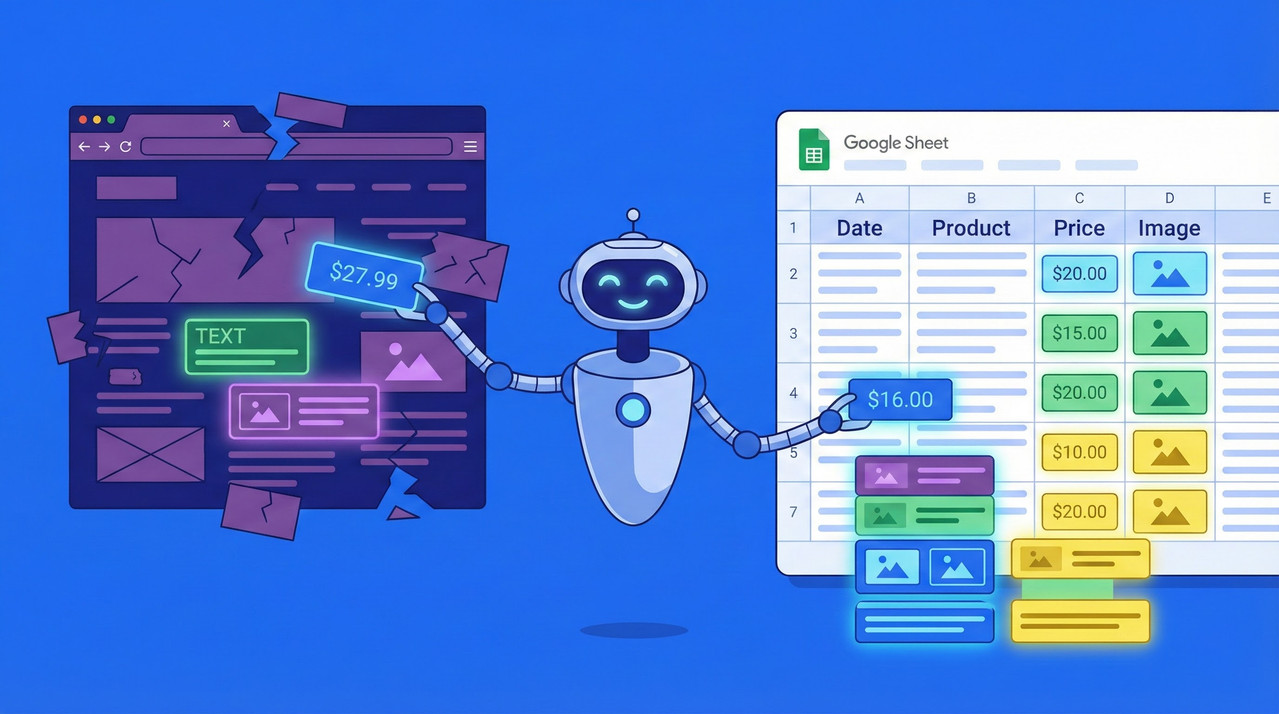
Enter Browse AI. It promises a third option: “Train a robot” in 2 minutes simply by clicking on the data you want. No code, no Python scripts, no servers to manage.
But does it actually work for complex, real-world sites? Or is it just another tool that demos well but fails in production?
💭 Ice Gan’s Verdict
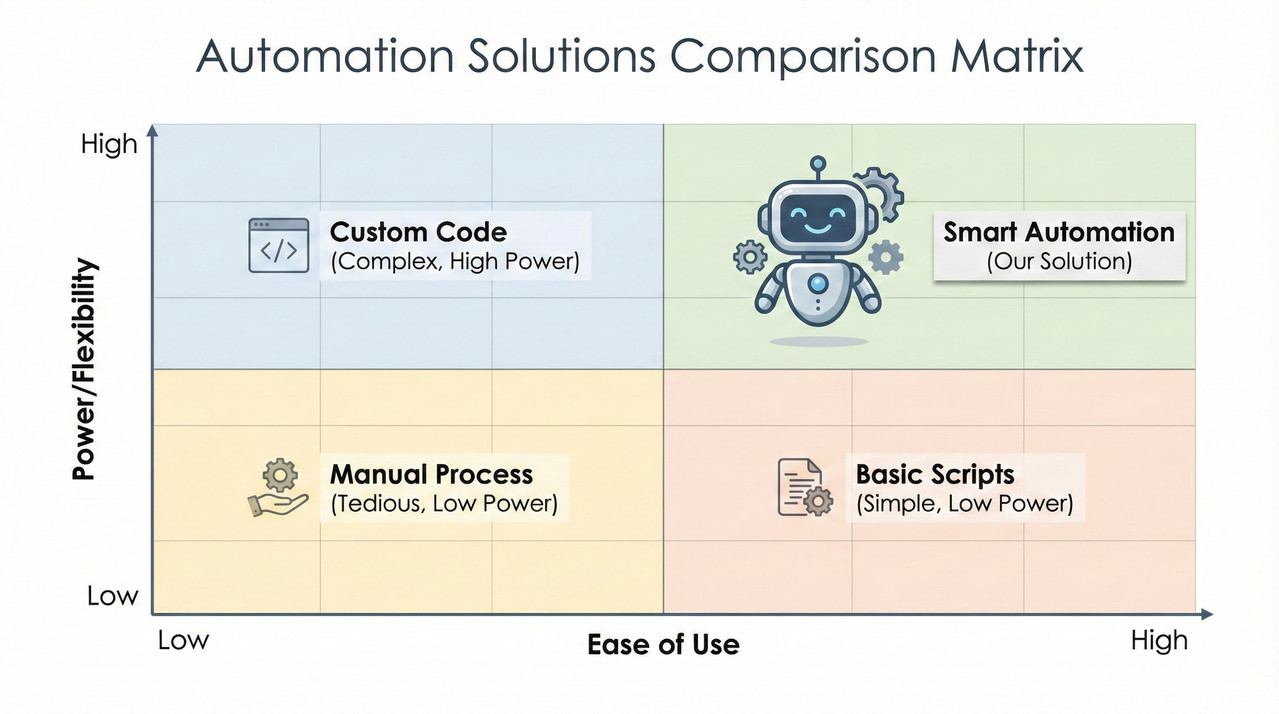
Browse AI is excellent for structured, recurring tasks on standard websites, but you need to understand the “Credit Math” before you scale. It bridges the gap between manual work and engineering, but it is not a magic wand for every single website on the internet.
What Actually Is Browse AI?
At its core, Browse AI is a no-code, cloud-based web scraping and monitoring tool.
Here is why that definition matters:
- “No-Code”: You don’t write selectors or Python. You browse the web, click on items, and the tool “records” your actions.
- “Cloud-Based”: Unlike a standard browser extension that stops working when you close your laptop, Browse AI runs on their servers. You can set it to run at 3 AM every day, and it will do the work while you sleep.
You open a browser window inside their interface, point at a price tag, label it “Price,” point at a title, label it “Product Name,” and the “Robot” learns the pattern.

Key Features & How It Works (The “Meat”)
In my testing, three features stood out that separate this from the basic “scraper” crowd.
1. Prebuilt vs. Custom Robots
Browse AI knows that 80% of users want data from the same major sites. They have a library of pre-made robots for popular platforms like LinkedIn, Eventbrite, Upwork, and ProductHunt. If you just need job listings from LinkedIn, you don’t even need to train the robot; you just provide the search URL.
However, the real power is the Custom Robot. This allows you to tackle niche e-commerce sites or industry-specific directories that no one else is scraping.
2. Handling Complexity (Pagination & Lists)
Most basic scrapers fail when they hit page 2. Browse AI handles pagination surprisingly well. During the training phase, you identify the “Next” button, and the robot knows to click it and repeat the extraction process until it gathers the number of items you requested.
Deep Scraping: It can also handle “List to Detail” flows. This is where the robot scrapes a list of items, clicks on each one to open the details page, scrapes specific info there (like an email address), and then goes back. Note: This consumes significantly more credits.
3. Integrations (The “No-Code” Stack)
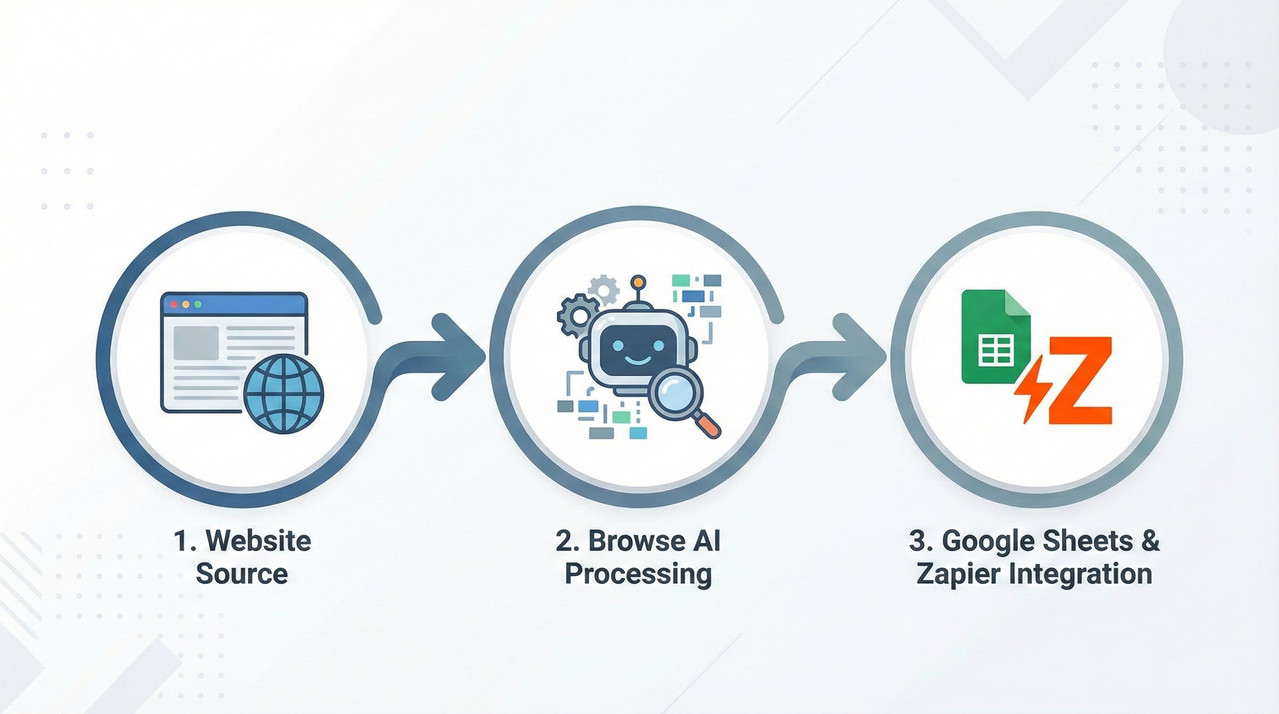
Data is useless if it sits in a dashboard. Browse AI’s native integration with Google Sheets is its killer feature. You can set it up so that every time the robot runs, new rows are automatically added to your spreadsheet.
If you are more advanced, you can use Zapier or Make (formerly Integromat) to send that data directly to your CRM or Slack.
The “Credit Math”: Pricing Reality Check
This is the most important section of this guide. Most users get blindsided by this.
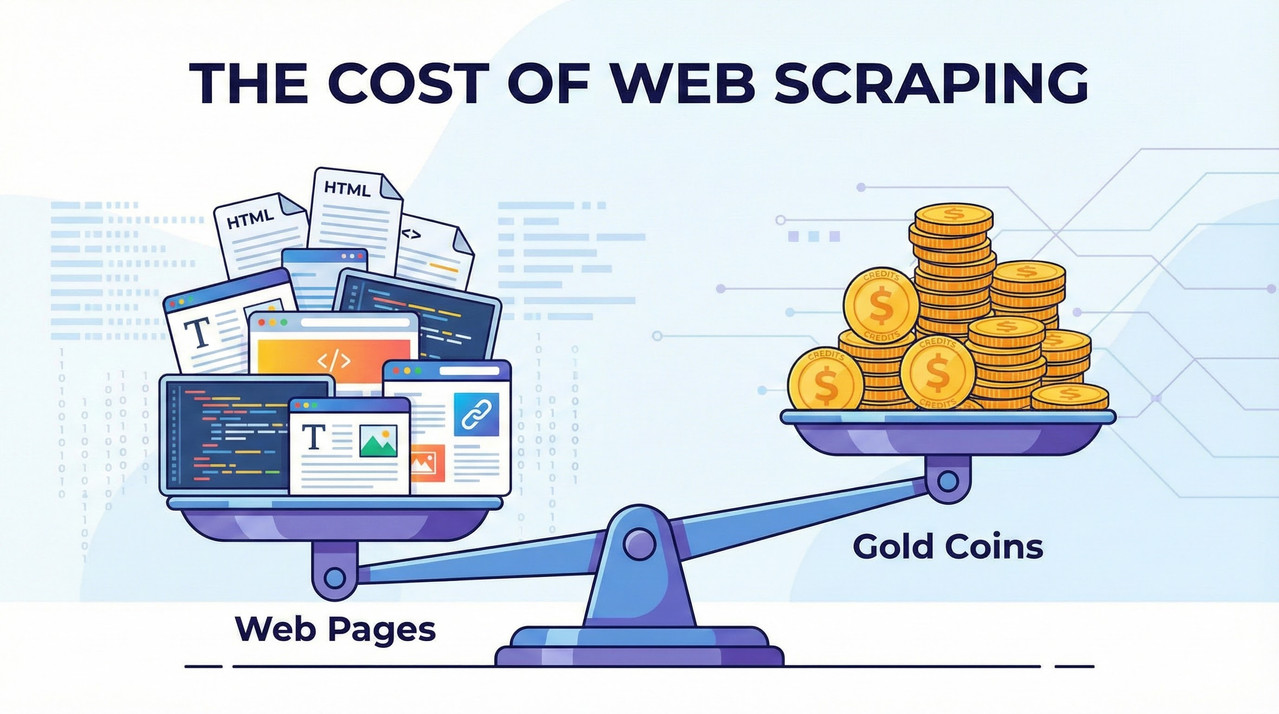
Browse AI operates on a “Credit” system. 1 Credit does NOT equal 1 Run.
Credits Used = (Robots × Pages Scraped × Frequency)
The Cost of Complexity
- Simple Task: Scrape 1 page (e.g., a homepage price check).
Cost: 1-2 Credits per run. - Heavy Task: Scrape a directory of 50 items where the robot has to click “Next” 5 times (5 pages total).
Cost: 5-10 Credits per run. - Deep Scraping Task: Scrape a list of 10 items, click into each one to get details.
Cost: 1 (List page) + 10 (Detail pages) = 11 Credits per run.
If you set that “Deep Scraping” task to run daily:
11 credits x 30 days = 330 Credits/month.
If you have a Free plan (50 credits) or a Starter plan, you can burn through your allowance very quickly if you aren’t doing the math.
Step-by-Step Workflow: From 0 to Google Sheets
Here is exactly how I set up a monitoring task in my testing:
- The Setup: I installed the Browse AI Chrome extension (required for the recording phase).
- Training: I navigated to a target e-commerce category page. I opened the robot, clicked on the first product name, then the second. The robot immediately guessed the rest of the list. I labeled the columns (Price, Title, URL).
- The Pagination: I scrolled down, told the robot “This is the Next button,” and set it to scroll for 3 pages.
- The Review: I saved the robot. Browse AI ran a test extraction to show me a preview of the data. Crucial Step: Always check this preview for errors before scheduling.
- The Schedule: I set the robot to run every Saturday morning.
- The Sync: In the “Integrations” tab, I connected my Google Drive account and selected a specific Sheet.
Now, every Saturday, I get fresh data without lifting a finger.
The “Ugly” Truth: When Browse AI Fails
I want to be transparent. Browse AI is not a developer replacement for high-end scraping.
- Complex Auth & CAPTCHAs: While they have systems to handle logins, sites with aggressive Cloudflare protection or heavy 2FA will often block the robot.
- Dynamic “Spaghetti” Sites: If a website is built entirely as a Single Page Application (SPA) where the URL doesn’t change and the DOM is messy, the robot can get confused.
- High-Frequency Trading: Do not use this to snipe crypto prices or limited-edition sneakers. The fastest monitoring interval is usually 15 minutes or 1 hour depending on your plan. It is not real-time.
For more on handling difficult sites, check out my guide on [FUTURE: How to Bypass Captchas in Web Scraping].
Who is this for? (The Verdict)
| Profile | Verdict | Why? |
|---|---|---|
| Growth Marketers | YES | Perfect for building lead lists and monitoring competitor ads. |
| E-commerce Managers | YES | Ideal for tracking pricing changes on 10-50 competitor SKUs. |
| Solo Founders | YES | Allows you to validate ideas with real data without coding. |
| Developers | NO | You will find it expensive compared to writing your own Python/Selenium scripts. |
| Enterprise Data Teams | MAYBE | Good for quick prototypes, but scaling to millions of rows is cost-prohibitive. |
Pricing Tiers & Recommendation
- Free Tier: ~50 Credits/month.
Use case: Strictly for testing if a site works. You will burn these credits in 2 days of real use. - Starter (~$19-$48/mo): ~2,000 – 10,000 Credits.
Use case: The “Solo Founder” sweet spot. Enough for daily monitoring of a few key pages or weekly scraping of larger lists. - Professional: Higher limits, concurrent tasks.
Use case: Agencies or teams needing speed.
Start with the Free tier to verify your target site is “scrape-able.” If the robot works reliably for a week, then upgrade to Starter to automate the schedule.
Conclusion
Browse AI is the bridge between “Manual Copy-Paste” and “Hiring a Developer.” It allows non-technical operators to access the web’s data layer. It saves hours of boring work, provided you respect the credit limits and don’t try to scrape the entire internet.
Next Step: Go record a robot on a simple site (like Amazon or LinkedIn) just to see the magic happen. The first time you see that spreadsheet fill up automatically, you’ll never want to copy-paste again.
Want to do more with your data? Check out [FUTURE: Automating Lead Gen with Zapier].
Leave a Reply