
Transparency Note: This article contains affiliate links. If you purchase through these links, we may earn a commission at no extra cost to you. I only recommend tools I have personally tested and trust.
Free AI Video Generator: What You Actually Get (And When to Upgrade)
You need a video live today. Maybe it’s for a client update, a quick TikTok, or a product teaser. But professional editors are expensive, and learning Premiere Pro feels like a six-month commitment you don’t have time for. So, you search for a free AI video generator and quietly wonder: Am I just going to end up with unusable, low-quality, watermarked trash that I can’t even use commercially?
I’ve been there. I’ve spent hours crafting prompts only to hit a paywall right when I clicked “Export.” In this guide, I’ll walk you through what “free” actually means in the AI video world, how to spot the tools that are worth your time, and when it makes sense to open your wallet.
Quick Answer – What Is a Free AI Video Generator?
A free AI video generator is typically a template-based video editor that turns text-to-video AI prompts or simple scripts into short videos. These tools automatically pull from a stock media library, generate AI voiceover and subtitles, and assemble the edit for you.
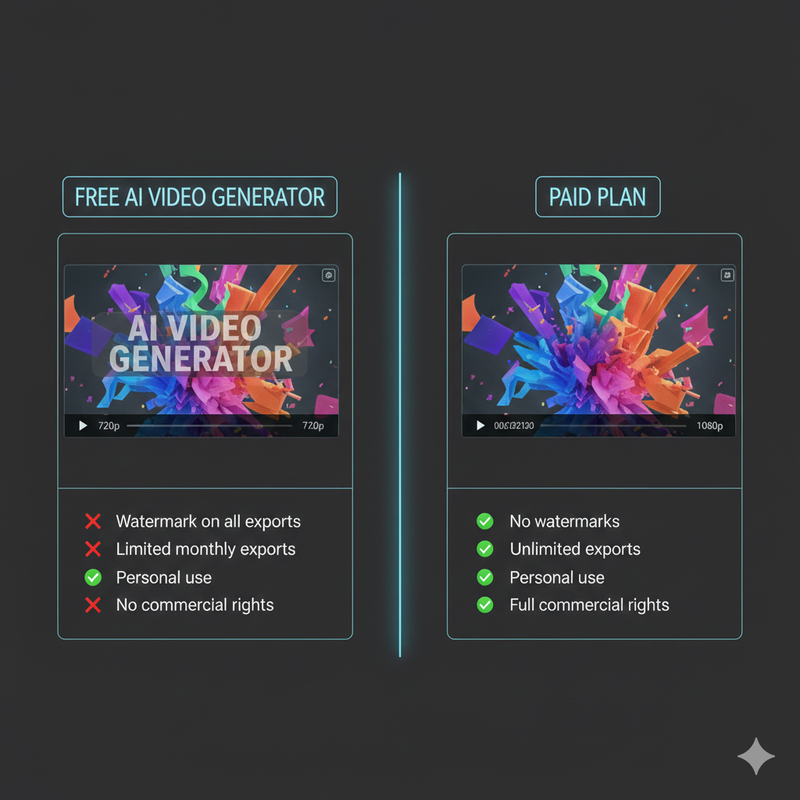
However, “free” usually comes with specific constraints. In my experience testing these platforms, most free plans include a visible watermark on free exports, strict export limits per month, and caps on video resolution (often limited to 720p) or commercial use rights. They are powerful for prototyping, but often restrictive for final brand assets.
Why Creators Look for a Free AI Video Generator
The Urgent Need: Publish Today
The primary driver I see isn’t just budget—it’s speed. Solo creators, social media managers, and small business owners use script to video flows to ship content for TikTok, Reels, or YouTube Shorts without touching a complex timeline. You don’t want to hire an editor for a 30-second clip; you just want to input text and get a visual result.
The Hidden Fear: “Free” Means Unusable
There is a valid anxiety here. You worry about heavy branding, low-res pixelation, or restrictive licenses. Nothing is worse than discovering key features are locked behind a paywall after you’ve invested two hours into a project. This article is designed to set realistic expectations so you can pick tools—like the InVideo AI free plan—that scale from a sandbox environment to a production workflow.
How Free AI Video Generators Actually Work
Core Workflow: From Idea to Script to Video
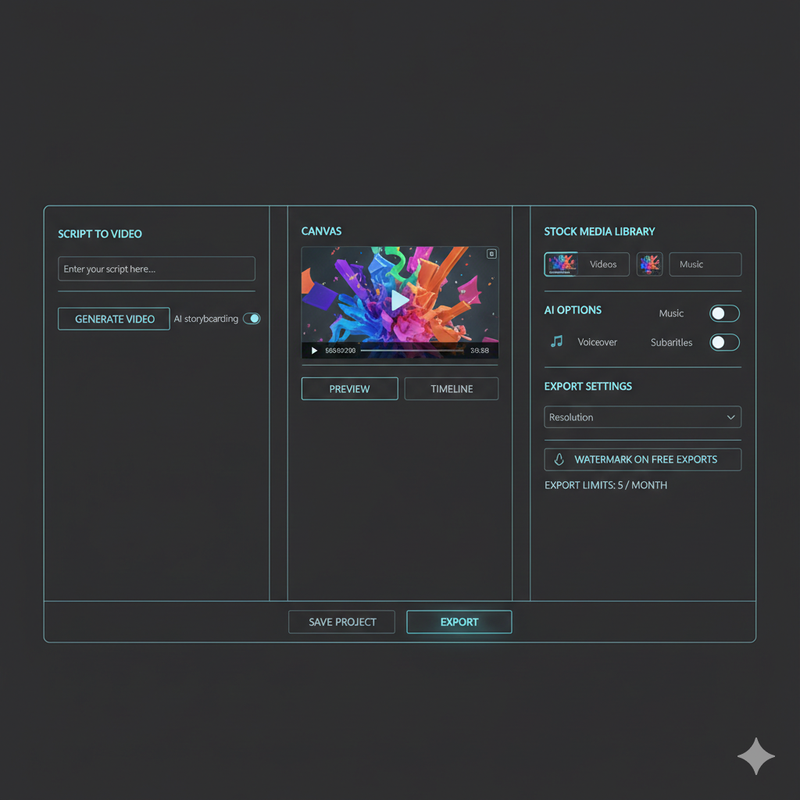
The magic of these tools lies in the pipeline. You enter a text prompt or paste a script, and the text-to-video AI engine generates scenes. It doesn’t just create images; it selects relevant stock footage, times the cuts, and overlays text. I found that the best tools allow you to choose a style (e.g., “Professional,” “YouTube Documentary”) before generating, which saves massive amounts of editing time.
Key Components: Templates, Stock, and Exports
Most platforms bundle a stock media library (images, B-roll, music) directly into the interface. This means you don’t have to hunt for assets on Pexels or Unsplash. However, on free tiers, you often face caps on video resolution and file count. While the AI does the heavy lifting, you usually retain access to a timeline or storyboard view to refine clips, captions, and transitions manually.
Free vs Paid – What “Free” Really Includes
Common Limits on Free AI Video Plans
If you stick to the free tier, expect constraints. The most common is the watermark on free exports. It’s usually placed in a corner, but sometimes it tiles across the screen. You will also encounter export limits per month—for example, you might only be able to export 10 minutes of video total. Additionally, quality is often capped at 720p, which looks fine on a phone but blurry on a desktop monitor.
Features Usually Unlocked on Paid Plans
When you upgrade, you’re paying for polish and volume. Paid tiers typically remove the watermark, drastically increase export minutes and storage, and unlock 1080p+ video resolution. More importantly, upgrading is often necessary to secure full commercial use rights, ensuring you don’t run into copyright strikes on monetized channels.
InVideo AI Free Plan – A Practical Starting Point
Overview of InVideo AI
In my tests, InVideo AI stands out as a robust entry point. It is a browser-based text-to-video AI tool that generates scenes, scripts, music, and transitions from a simple prompt. It operates as a template-based video editor, meaning you don’t start from a blank canvas.
What You Get on the Free Plan
According to the InVideo AI – Free AI Video Generator Landing , users on the free plan can generate videos using the AI model and access standard stock media. However, these exports will carry the InVideo branding. It is an excellent way to test the script to video capability without putting a credit card down.
When to Upgrade to Plus or Max
If you are serious about publishing, you will likely hit the ceiling of the free plan. As detailed in their documentation on InVideo AI – Pricing & Plan Limits , the Plus and Max plans are required to remove the watermark on free exports, access premium iStock assets, and increase your AI generation minutes. I recommend upgrading if you need watermark-free videos for client projects, ads, or monetized YouTube content.
Key Features to Look For in Any Free AI Video Generator
Must-Have Core Features
Don’t settle for a tool that just overlays text on a static image. Look for:
- Text-to-video AI: The ability to understand context and pick relevant visuals.
- Script to video: Support for pasting your own pre-written scripts.
- Stock media library: Integrated access to millions of assets.
- AI voiceover and subtitles: Essential for social videos where audio is often muted.
Video Quality and Export Options
Pay attention to video resolution. While 720p is the standard for free plans, some restrictive tools only offer 480p, which I consider unusable in 2025. Check if the tool supports different aspect ratios (9:16 for TikTok, 16:9 for YouTube) natively.
Licensing and Commercial Use Rights
This is the “gotcha.” Always check if the free plan allows for commercial use. Often, commercial use rights are reserved for paid subscribers. If you use a free, watermarked video for a paid Facebook ad, it not only looks unprofessional but might violate the platform’s terms of service.
Pros and Cons of Free AI Video Generators
Advantages for Creators on a Budget
- No Upfront Cost: Perfect for “pressure testing” an idea.
- Fast Prototypes: You can see if a video concept works in minutes.
- Low Technical Barrier: No need to learn complex editing software.
Limitations and Hidden Trade-Offs
- Watermarks: The biggest brand killer.
- Export Caps: You can’t run a daily vlog on a free plan due to export limits per month.
- Restricted Assets: Premium stock footage is often locked.
How to Choose the Right Free AI Video Generator
Match Tool Capabilities to Your Use-Case
If you are making a birthday video for a friend, a watermark on free exports doesn’t matter. But if you are pitching a client, it’s a dealbreaker.
- Social Content: Prioritize AI voiceover and subtitles and vertical aspect ratios.
- Client Work: You generally cannot use free plans here; treat the free tier as a demo to verify the tool’s quality before buying.
Checklist Before Committing
- Test the text-to-video AI quality with a complex prompt.
- Check the watermark placement—is it subtle or intrusive?
- Review export limits per month to see if it fits your schedule.
- Confirm video resolution is at least 720p.
Step-by-Step – Creating Your First Video with InVideo AI (Free)
1. Setup and Project Creation
Sign up and choose the “AI Text to Video” workflow. I recommend starting with a short prompt to create a 15–30 second social clip. This respects the export limits per month while letting you test the engine.
2. Editing with Templates and Stock Media
Once the AI generates the draft, enter the template-based video editor. Swap out any irrelevant footage from the stock media library. This is also where you should enable AI voiceover and subtitles—I found that tweaking the subtitles for accuracy is the highest ROI edit you can make.
3. Exporting and Evaluating
Hit export. You will see options for video resolution (likely capped at 1080p or 720p depending on current promos, but usually watermarked). Watch the result on your phone. If the pacing and stock selection work, you know the tool is solid. If you need to remove that watermark, you can then make an informed decision to upgrade.
FAQ – Common Questions About Free AI Video Generators
Can I use free AI video generators for client work?
Generally, no. The watermark on free exports and lack of full commercial use rights make free outputs unsuitable for professional deliverables. Use the free version to prototype the concept, then upgrade to export the final file.
Why is there a watermark on my video?
Watermarks are the trade-off for free server costs. AI video generation is computationally expensive. Platforms like InVideo AI use branding to recoup costs on free users.
Why can’t I export in 1080p on a free plan?
Higher video resolution requires more rendering power and storage. Most platforms reserve 1080p and 4K for paid subscribers to manage server loads.
When should I move beyond “free”?
I advise upgrading when you hit one of three triggers:
- You need to publish consistently (weekly or daily).
- You need brand-safe, watermark-free content.
- You require access to premium stock assets that aren’t available in the free stock media library.
Leave a Reply