
Transparency Note: This article contains no affiliate links. All recommendations are editorially independent.
You don’t need an ML PhD to use Genie 3. I know it feels that way — you’re staring at a tool built by one of the most advanced AI labs in the world, your generated worlds keep looking wrong, and a quiet voice is asking whether you’re simply not technical enough to make this work.
You are. The issue is almost never your expertise. It’s your prompt structure, your reference image, or a misunderstanding of what the Genie 3 world model is actually doing frame by frame. Let’s fix that.
Quick Answer – How to Use Genie 3 in 5 Steps
To use DeepMind Genie 3, open Project Genie via Google Labs, write a clear text prompt describing your environment and character, preview the generated world sketch, refine your prompt until the preview matches your vision, then enter the world and control it in real-time interactive environments using keyboard, touch, or controller inputs translated into action tokens. Fix instability or lag by simplifying the prompt, using a cleaner reference image, or reducing scene complexity.
What Genie 3 Actually Is (In Plain English)
Most people stumble because they expect Genie 3 to work like a video generator — you type something, it plays a clip. That’s not it.
Genie 3 is a general-purpose world model. According to Google DeepMind – Genie 3 Overview , it is “the first real-time, interactive world model that generates photorealistic worlds from a simple text description.” It renders those worlds at 720p resolution and operates at 20–24 frames per second — not as a pre-rendered video, but as an auto-regressive simulation that responds to your inputs, frame by frame.
Here’s the key distinction:
| AI Video Generator | Genie 3 World Model | |
|---|---|---|
| Responds to your actions? | No | Yes (real-time controls) |
| Output type | Fixed clip | Continuous interactive world |
| World memory | None | ~1 minute of context recall |
| You control a character? | No | Yes (walk, jump, drive, fly) |
| Primary use case | Watching | Exploring / prototyping / training |
That “auto-regressive” architecture is also why temporal consistency / world memory is limited. The model recalls interactions for up to a minute. Push it longer than a few minutes without re-anchoring, and older details quietly drift. Design for that, and it’s a powerful tool. Fight it, and you’ll be frustrated.
Why should indie devs and AI tinkerers care? Because you can go from text idea → playable prototype in minutes — no Unity, no Unreal, no shader code. That’s the real value. See our guide on AI prompt engineering for game prototyping for more context.
Before You Start – Access, Hardware, and Interface Basics
Confirm You’re Using a Supported Genie 3 Interface
The official and only verified access point is Project Genie, available through Google Labs at labs.google/projectgenie. As confirmed by
Google DeepMind – Genie 3 Overview
,
Project Genie is described as “an experimental research prototype that lets you create and explore infinitely diverse worlds.”
If you’re hitting a paywall, seeing login walls unrelated to a Google account, or the interface lacks a world sketch preview panel — you may be on a third-party site, not the real thing. Signs you’re in a limited or unofficial environment:
- Resolution is capped below 720p with no explanation
- There’s no world sketch / image preview step before entering
- Promptable world events (weather, new objects) are absent
- FPS display shows under 15 consistently, even on simple scenes
Recommended System Setup for Real-Time Worlds
Genie 3 runs in-browser, which means hardware acceleration is non-negotiable. Before blaming the model for lag, run these checks first:
- Enable GPU hardware acceleration in your browser settings (Chrome:
Settings → System → Use hardware acceleration) - Close background tabs and apps — browser-based 720p 24fps rendering is memory-hungry
- Use a wired connection over Wi-Fi if possible for lower latency on control inputs
- Test in a windowed but large browser view first; some users see better performance vs. full-screen on certain GPU configurations
- On lower-spec machines, start with simple, low-clutter environments to establish a stable baseline
I’ve found that at least 50% of “Genie 3 is broken” reports I see in community forums disappear once hardware acceleration is turned on. Check that first — always.
The Genie 3 Workflow – From Prompt to Playable World
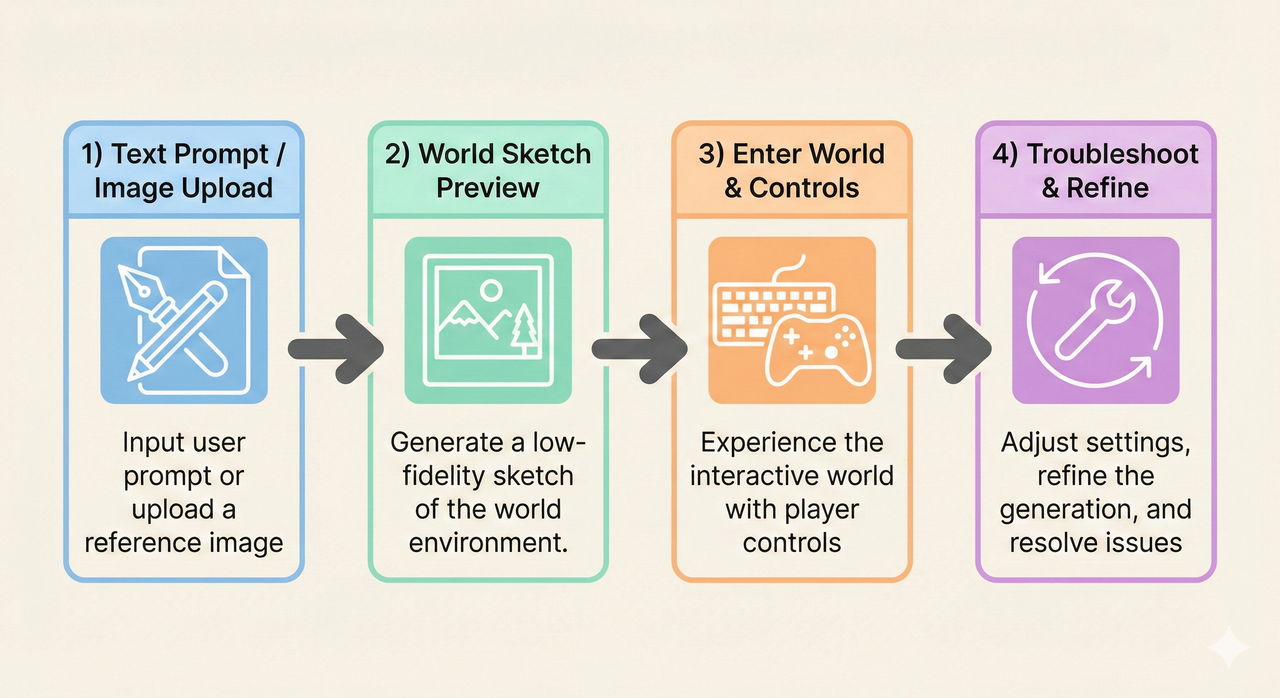
The world sketching workflow is the backbone of Project Genie. It’s a deliberate two-stage system: you describe first, preview second, then enter. Skipping or rushing the preview stage is the single most common reason worlds feel “wrong” on entry.
Step 1 – Describe Your Environment (World Prompting)
As documented in the Google DeepMind – Genie 3 Prompt Guide , environmental prompting means describing the landscape you want to explore — “from realistic to fantastic, cartoony to cinematic.” The guide specifically recommends:
“Keep your descriptions to-the-point. Short declarative sentences work well.”
“Evoke mood through strong sensory details.”
In practice, that means thinking like a level designer, not a novelist. Structure your environment description around these axes:
- Location/Setting: “sunlit Japanese forest,” “flooded neon city street,” “barren Mars canyon”
- Style/Aesthetic: “2D side-scrolling cartoon,” “photorealistic third-person,” “low-poly top-down”
- Lighting/Time: “golden hour backlight,” “overcast grey noon,” “neon-lit at night”
- Layout Language: “grid of stone platforms,” “single winding forest path,” “three-lane highway”
- Mood Cues: “eerie silence,” “busy and chaotic,” “serene and open”
Layout language is especially powerful. Saying “a grid of platforms” does more for temporal consistency than “a platforming world.” The model has something structured to hold onto across frames.
Step 2 – Describe Your Character and Movement
Your character description isn’t about looks — it’s about control interface. The model needs to know how to generate affordances (jumpable ledges, drivable roads, climbable walls) that match the way your character moves.
According to the Google DeepMind – Genie 3 Prompt Guide , character prompting means defining “a person, animal, object or something totally different” and explaining “how to direct it through your world — from walking to jumping, driving to flying.”
What to define:
- Identity: “a small blue-cloaked adventurer,” “a red sports car,” “a tabby cat”
- Movement type: “can walk and jump,” “drives on roads,” “flies and hovers”
- Constraints: “can only move left and right on platforms,” “turn-based movement on a grid”
- Perspective hint: “viewed from the side” or “seen from above”
Movement constraints are stability multipliers. A character with “can only walk and jump on platforms” will generate a far more consistent world than one with “can do anything.” The model needs fewer simultaneous world affordances to maintain.
Step 3 – Use World Sketch Preview to “Debug” Your Idea
This step is your quality gate. The world sketch is a generated image preview of your world based on your prompts — inspect it before you ever enter.
What to check in your world sketch:
- Scale: Does your character appear to be the right size relative to the environment?
- Camera angle: Is the perspective correct (side-view, top-down, first-person)?
- Clutter level: Are there too many small objects, background text, or busy patterns?
- Platforms/paths: Are key navigable surfaces clearly readable?
- Mood match: Does it feel like the world you described?
If the world sketch is off, fix the prompt — don’t enter hoping it gets better. The sketch is usually an honest preview of what you’ll experience. When the environment looks wrong, revise environment prompts. When the character placement or affordances look wrong, revise character prompts.
Step 4 – Optional: Upload a Reference Image
Text-only prompting works well for abstract, game-like, or stylized environments. Use a reference image when:
- You want a very specific art style, color palette, or visual tone
- Your text prompts keep generating environments that drift from your intent
- You’re prototyping a world based on a concept sketch, screenshot, or photo reference
Best practices from the official prompt guide:
- Upload high-quality, high-resolution images — low quality yields unstable early frames
- Center your character/subject in the frame
- Minimize tiny text in the reference (Genie 3 has known text rendering limitations)
- Clean composition beats complexity — a reference with one clear focal point outperforms a busy one
Reference images anchor the early frames of your world, stabilizing textures and affordances significantly. I’ve found they’re especially powerful for nailing lighting and surface materials that are hard to describe in words.
Step 5 – Enter the World and Map Your Controls
Once your world sketch looks right, enter the world. Your keyboard, controller, or touch inputs are translated into action tokens — semantic instructions the model uses to predict the next frame of your world.
On entry, do a “physics test” before getting creative:
- Move in the most basic direction (walk left/right, drive forward)
- Test one secondary action (jump, brake, look up)
- Walk to the edges of the visible space
If these feel consistent and responsive, your foundation is solid. If controls feel sticky or the world geometry warps on movement, you have a prompt or complexity issue — not a control mapping issue.
The official guide also recommends: “Click the perspective button to switch between a first-person and third-person view.” Use third-person to debug character-world interaction (you can see if the character clips geometry), and first-person to evaluate environmental immersion.
Prompt Engineering for Genie 3 (With Before/After Examples)
Your prompt is the single biggest lever you have over world quality. Prompt structure directly affects world stability, clarity, and playability — far more than hardware or settings.
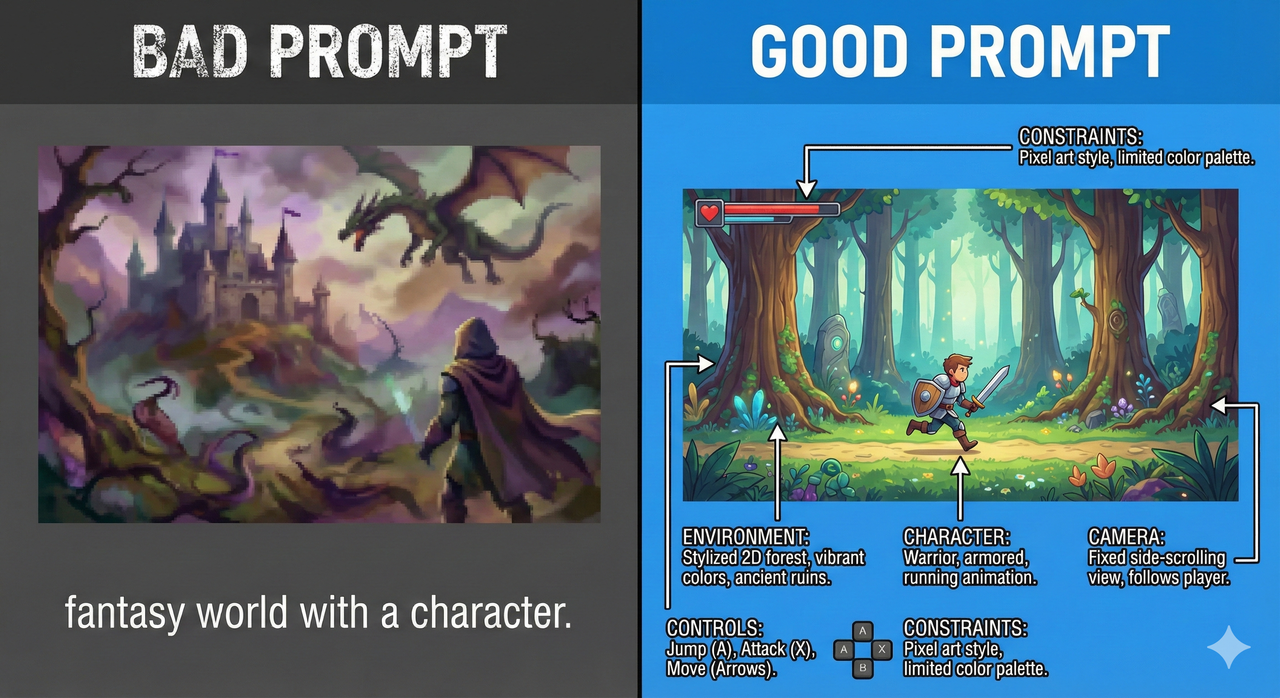
Anatomy of a Strong Genie 3 Prompt
Break every Genie 3 prompt into five components:
- Environment — Setting, style, lighting, layout
- Character — Identity, movement type, constraints
- Camera — Angle and perspective (side-view, top-down, third-person behind)
- Layout Language — Explicit structural terms (grid, single path, lane)
- No-Go Constraints — What to exclude (no crowds, no small text, no fast-moving backgrounds)
The last category — no-go constraints — is underused. Saying “no small background text” alone eliminates a common source of visual noise, since Genie 3 has difficulty rendering legible text not explicitly in the prompt.
Before/After Prompt Examples
Example 1 — Fantasy Platformer
❌ Bad:
“fantasy world with a character”
Why it fails: No layout, no camera, no movement constraints. Genie 3 has to guess at everything and typically generates an unstable, spatially incoherent scene with ambiguous affordances.
✅ Good:
“Side-scrolling 2D fantasy forest at sunset. Soft golden backlight filtering through tall trees. A clear grid of stone platforms runs horizontally across the screen. A single blue-cloaked adventurer stands at center-left and can only walk left/right and jump. No small background text, no crowds, clean minimal UI overlay.”
Why it works: Explicit camera (side-scrolling), layout (grid of stone platforms), movement (walk/jump only), and two no-go constraints reduce noise. Temporal consistency improves significantly.
Example 2 — Realistic City (Driving)
❌ Bad:
“city with a car”
✅ Good:
“Top-down view of a quiet American suburb at midday. Two-lane road running left to right, flanked by green lawns and identical houses. A single red compact car drives forward on the right lane. The car can only accelerate, brake, and turn. No pedestrians, no fast-moving vehicles, no signage with small text.”
Example 3 — Sci-Fi Interior (Exploration)
❌ Bad:
“futuristic space station”
✅ Good:
“Third-person view of a narrow spaceship corridor. Metallic grey walls, ambient blue panel lighting from below, low ceiling. A lone astronaut in a white EVA suit walks forward at walking pace. Corridor is straight with one junction visible ahead. No other characters, minimal HUD, no flashing lights.”
Using Gemini to Refine Genie 3 Prompts
The official DeepMind prompt guide explicitly recommends: “Use the Google Gemini app to rewrite, expand, and elaborate your descriptions.” This is genuinely useful advice. Paste your rough prompt into Gemini and ask it to:
- Add sensory mood detail (lighting, sound cues as visual metaphors)
- Add movement constraints for your character
- Remove contradictions or vague modifiers
“Ready to test” prompt checklist:
- ☐ Environment described with style + lighting + layout language
- ☐ Character described with identity + movement type + constraints
- ☐ Camera angle specified
- ☐ At least one no-go constraint included
- ☐ No contradictory style terms (e.g., “realistic” and “cartoon” in the same prompt)
- ☐ Under ~80 words total (long prompts dilute signal)
Troubleshooting: When Genie 3 Doesn’t Behave
Consider this your calm, non-expert-required fix list. Work through it top to bottom before concluding “Genie 3 is broken.”
Fix 1 – “World Not as Expected” (Wrong Scale, Layout, or Mood)
Symptoms: World feels random or chaotic, key objects are off-screen, physics seem wrong, the mood is completely different from what you imagined.
Root cause: The prompt lacks specificity in layout, camera, or movement — so the model fills gaps with its own learned priors.
Fix steps:
- Simplify the prompt to its three core elements (environment style + character + camera)
- Remove any contradictory style descriptors
- Add explicit layout language (“single path,” “grid of platforms,” “three-lane road”)
- If using a reference image, replace it with a cleaner, less busy version
- Test the simplest version of your scene first, then layer complexity back in
Fix 2 – Instability, Flicker, and Visual Jitter
Symptoms: Textures visibly pop between frames, background geometry “melts,” surfaces wobble as you move.
Root cause: The auto-regressive nature of Genie 3 means complex, high-frequency visual information (busy patterns, crowds, detailed foliage, small text) is harder to maintain consistently across frames.
Fix steps:
- Remove busy/high-contrast patterns from the environment description
- Add “no crowds,” “no small text,” “minimal background detail” to your no-go constraints
- Favor blocky, geometric architecture over organic, irregular geometry
- Limit camera sweep language (remove “sweeping camera” or “dynamic camera movement”)
- Push toward structured layouts — these demonstrably improve temporal consistency
When it’s a model limit, not a prompt issue: Faces and fine humanoid details at scale are a known Genie 3 limitation. Don’t fight it — design characters that are small on screen, masked, helmeted, or stylized.
Fix 3 – Lag, Slow Controls, and Frame Drops
Symptoms: Input feels delayed (noticeable gap between keypress and character response), visible stutter, frame rate clearly below 20fps.
Fix steps:
- Enable hardware GPU acceleration in your browser (highest impact fix)
- Close all non-essential browser tabs and background applications
- Reduce world complexity: fewer moving elements, simpler lighting, no particle-heavy descriptions
- Use “performance-safe” test scene: top-down, flat environment, single character, midday lighting, no weather effects
- If the interface exposes resolution controls, drop to a lower setting to verify if it’s a rendering limit
Quick baseline check: If the performance-safe test scene also lags, the issue is system-level (hardware acceleration, memory). If it runs fine and only complex scenes lag — reduce complexity in the prompt.
Fix 4 – Worlds Drift Over Time or “Forget” Changes
Symptoms: Returning to a location feels different from before, objects that were in the scene have vanished or moved, world layouts shift unexpectedly in long sessions.
Root cause: This is expected behavior, not a bug. As confirmed by Google DeepMind – Genie 3 Overview , Genie 3 environments “remain largely consistent for several minutes, with memory recalling changes from specific interactions for up to a minute.” The model has a finite context horizon.
Fix steps:
- Design for episodes, not marathons. Think of each session as a short level (2–4 minutes), not an open world
- Re-anchor key elements via promptable world events — if an important object needs to stay, reference it in an event prompt to refresh the model’s attention
- Use reset points: close and re-enter the world with the same prompt to “restart” the consistency clock
- Accept drift in background details — design your world so that critical gameplay affordances (platforms, paths, roads) are structurally described and robust to minor drift
Designing “Genie-Friendly” Worlds (Best Practices)
The following principles come from my own testing patterns and are consistent with the architectural realities of how Genie 3 generates worlds auto-regressively.
Keep Layouts Readable and Intentional
The clearest silhouettes produce the most stable worlds. These layout types consistently perform well:
- Side-scrollers: Clear left-right movement, readable platform heights, defined background/foreground layer separation
- Corridor-based environments: Single-path, tight walls, limited branching — the model doesn’t have to maintain peripheral detail
- Lane-based driving: Defined lanes with consistent road textures, minimal intersections
Use Promptable World Events Instead of Overloaded Base Prompts
One of Genie 3’s most underused features is promptable world events — text-based commands that change the world mid-session, such as introducing weather changes, new objects, or characters. As documented in the DeepMind overview, these “make it possible to change the generated world — such as altering weather conditions or introducing new objects and characters.”
Instead of loading your base prompt with ten conditions at once, start minimal and layer via events:
- Base: “Quiet prairie at noon, flat ground, clear blue sky”
- Event 1: “Brown bear appears on the right”
- Event 2: “Storm clouds roll in from the left”
This produces far better stability than cramming all three into the initial prompt.
Playtesting With Agents or Friends
Once you have a stable world, hand it to someone who hasn’t read your prompt. If they can intuitively understand what to do — where to go, what to interact with — the world is well-designed. If they’re confused, your prompt is probably either too abstract or contradictory.
Log issues they hit, map each back to a specific prompt element, and fix one variable at a time. This iterative prompt debugging is the fastest way to improve world quality over multiple sessions.
Genie 3 Limitations and Realistic Expectations
Here’s the honest list, directly from the official documentation, so you stop blaming yourself when the model hits its ceiling.
Visual and Physical Limitations
Per Google DeepMind – Genie 3 Overview , the confirmed current limitations are:
- Limited action space: Agents have a restricted range of actions; complex multi-step interactions are not yet reliable
- Multi-agent simulation: Accurately modeling interactions between multiple independent agents in shared environments remains an open research challenge
- Real-world location accuracy: Genie 3 cannot simulate real-world locations with perfect geographic or architectural fidelity
- Text rendering: Clear, legible text is “often only generated when it’s in the input world description” — don’t expect signs, menus, or labels to render correctly unless explicitly prompted
- Limited interaction duration: Sessions support “a few minutes of continuous interaction, rather than extended hours”
Design around these limits: use stylized characters to avoid the face-rendering uncanny valley, avoid requiring legible in-world text, and build short episodes rather than continuous open-world experiences.
When to Stop Tweaking and Ship the Prototype
I’ve seen creators spend two hours iterating on a Genie 3 world that would have been “good enough” after thirty minutes. Apply this heuristic:
If your world is:
- Navigable without confusion ✓
- Visually stable for 2+ minutes ✓
- Responsive to your primary control inputs ✓
→ It’s ready. Export your prompt, record a session, and share it.
Genie 3 is a research model, not a AAA engine. A slightly imperfect world that exists and is shareable beats a theoretically perfect world you never finished prompting.
Saving, Sharing, and Reusing Your Best Worlds
Recording Your Best Prompt + Image Combos
Every time you find a prompt combination that produces a stable, playable world, save it immediately — you will not perfectly reconstruct it from memory. Build a simple tagging system:
[Layout Type] | [Style] | [Character] | [Notes]
Side-scroller | Fantasy forest, sunset | Blue-cloaked hero, walk/jump | Very stable, use as base for fantasy variants
Top-down      | Suburb driving         | Red compact car              | Add event "cyclist appears" for dynamic version
Use a plain text file, Notion, or Obsidian — whatever you already use. The format matters less than the habit of saving immediately after a successful session.
Building Your Personal “World Library”
Over time, your prompt library becomes your biggest Genie 3 advantage. Organize it by:
- Layout type (side-scroller, top-down, corridor, driving)
- Art style (photorealistic, cartoon, pixel, cinematic)
- Session notes (what worked, what broke, what to try next)
Attach your best reference images to their corresponding prompts. When you start a new session, pull from this library instead of prompting from scratch — this cuts your setup time dramatically and gives you a known-stable baseline to deviate from intentionally.
FAQs About Using DeepMind Genie 3
Do I need ML or game dev experience to use Genie 3?
No. Genie 3 via Project Genie is designed to be accessible to anyone with a Google account. The prompt guide, world sketch preview, and reference image tools are designed for non-technical creators. The skills that help most are clear language and iterative thinking — not coding or ML knowledge.
What’s the difference between Genie 3 and an AI video generator?
An AI video generator produces a fixed, non-interactive clip. Genie 3 produces a real-time interactive environment that responds to your controls frame by frame. You are playing inside the world, not watching it — and the model adapts the next frame based on your actions via action tokens.
Can I use Genie 3 worlds for commercial games or products?
Project Genie is currently an experimental research prototype. You should review Google DeepMind’s current Terms of Service for Project Genie before using any output commercially. Terms for research prototypes typically restrict commercial use — check directly at labs.google/projectgenie before assuming permissions.
How long can a Genie 3 world stay stable in one session?
According to official DeepMind documentation, environments remain largely consistent for several minutes, with world memory recalling specific interactions for up to a minute. Plan for sessions of 2–4 minutes per episode and use promptable world events and resets to extend usable session time.
What should I do if my worlds keep failing no matter what I try?
Work the checklist in order:
- Verify you’re in the official Project Genie interface
- Enable GPU hardware acceleration in your browser
- Reduce the prompt to its simplest possible form (one environment sentence + one character sentence)
- Remove all no-go constraints and style complexity
- Test the “performance-safe” scene (flat top-down environment, single character, midday, no weather)
- If that fails, the issue is system/access-level — check browser compatibility and hardware acceleration before prompting further
Leave a Reply