
Transparency Note: This article may contain affiliate links. We may earn a commission if you make a purchase through these links, at no extra cost to you.
Help! My Photographer Used AI and We Look Like Cartoons (How to Fix It)
You opened the gallery link with your partner, hearts racing, ready to relive the magic of your engagement party. But as the images loaded, the excitement turned to confusion. Then, a sinking feeling.
The lighting is beautiful, and the pose is right, but… the faces? That’s not quite you. Your skin looks like polished plastic. Your partner’s crow’s feet—which you love—are gone. There is a weird, glassy sheen over everyone’s eyes.
You aren’t crazy, and you aren’t being picky. You are in the “Uncanny Valley.”
We are seeing a massive spike in professional photographers leaning too heavily on AI tools to speed up their workflow. The result? “Plastic” skin, hallucinated details, and photos that feel more like computer-generated imagery than memories.
Here is the good news: Your real photos still exist underneath the digital makeup. Here is how to get them back without burning bridges.
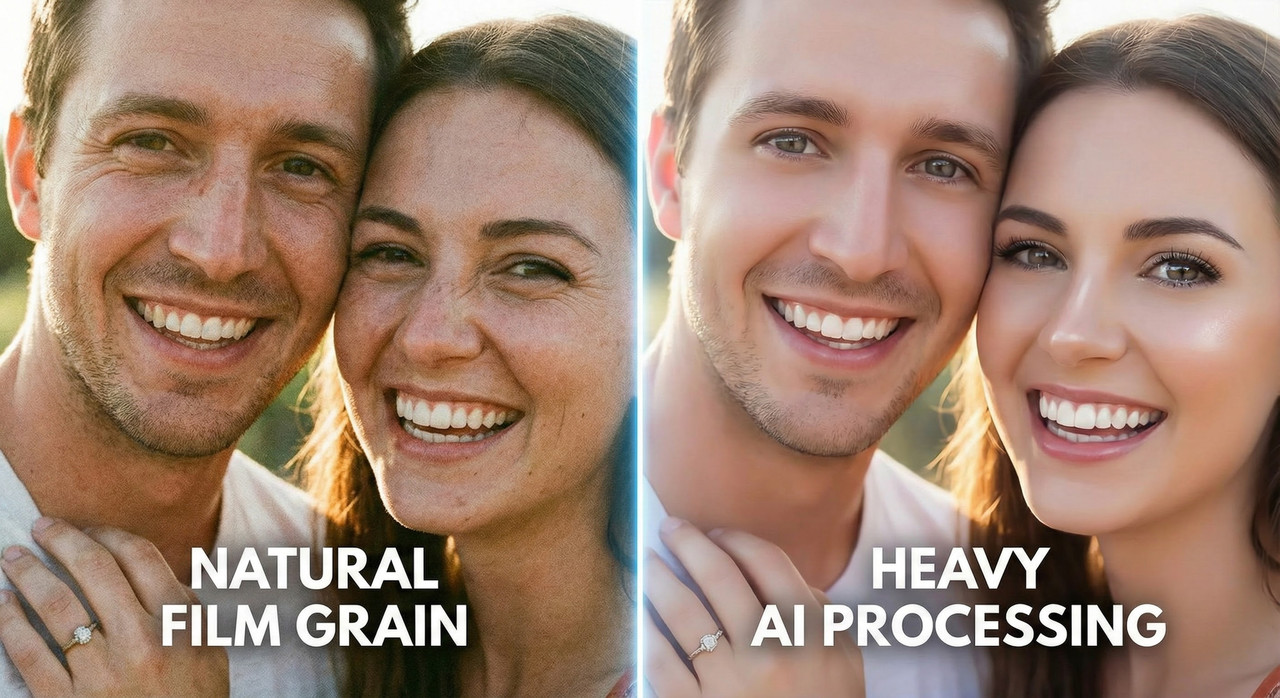
Why Your Photos Look “Fake” (The Technical Reality)
First, take a deep breath. Your photographer likely didn’t do this out of malice. It is usually a case of workflow automation gone wrong.
To handle thousands of photos quickly, many modern photographers use Batch AI Culling and Editing tools like Aftershoot, Evoto, ImagenAI, or Neurapix. These tools are incredible time-savers, but they require manual Quality Control (QC).
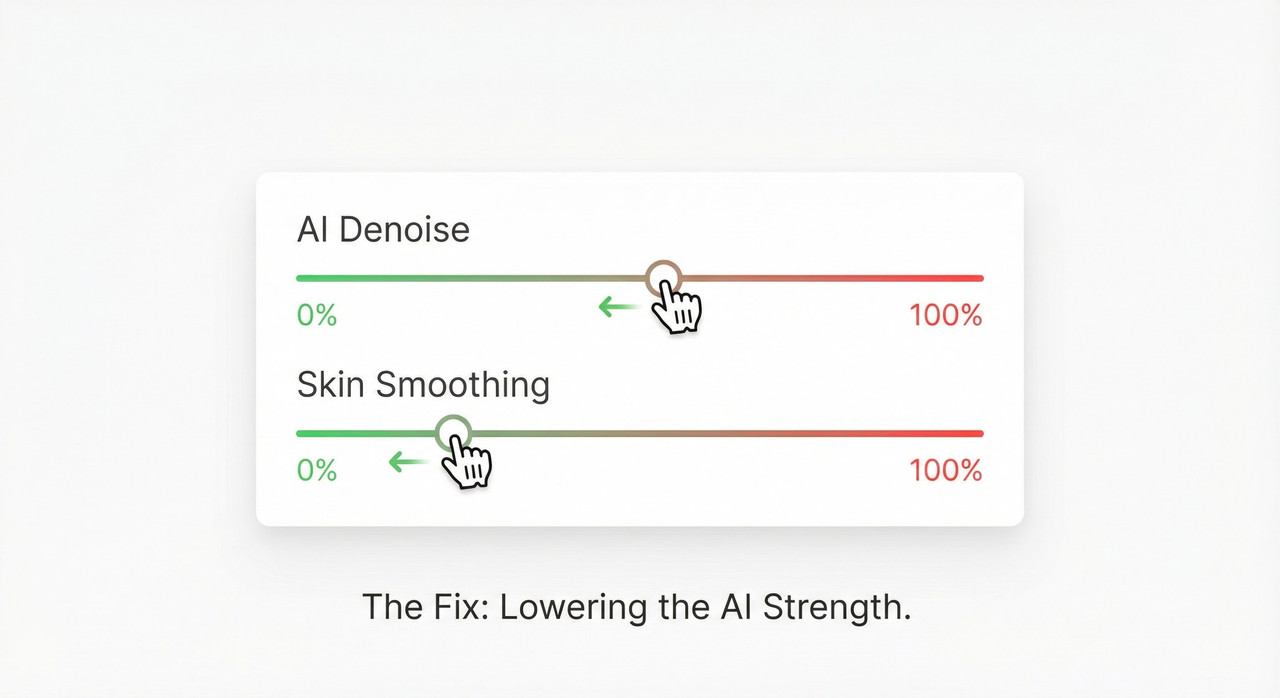
The “plastic” look usually comes from two specific sliders in these software programs being set too high:
- AI Skin Smoothing: This identifies skin tones and blurs them to remove blemishes. When cranked up, it wipes away pores and skin texture, turning humans into wax figures.
- AI Denoise: This attempts to remove grain from low-light photos. If the software is aggressive, it interprets skin texture as “noise” and scrubs it out.
When a photographer relies 100% on the AI and skips the manual review, you get the “cartoon” effect.
Stop! Don’t Ask for the “RAW Files” (The Rookie Mistake)
When clients see bad editing, their first instinct is usually to panic and demand the source data.
- What you want to say: “You ruined the edit, just give me the raw files and I’ll do it myself!”
- Why this fails: Asking for RAW files is the quickest way to shut down communication.
In the photography world, RAW files are considered “unbaked ingredients.” Most contracts specifically state that RAW files are not part of the deliverables. If you demand them, the photographer will get defensive, quote their “Copyright” and “Artistic License” clauses, and you will hit a wall.
Do not make this about files; make it about defects. You aren’t challenging their art; you are pointing out a technical error in the processing software.
The “Revision Script”: How to Get Your Real Faces Back
To get what you want, you need to speak the photographer’s language. You need to sound technically literate. This forces them to treat your request as a professional critique rather than an emotional complaint.
The Strategy:
You don’t need a “re-edit” (which implies hours of manual labor). You need a “Re-export with AI disabled.” This is a fast process for them, making them more likely to agree.
Copy and Paste this email:
Subject: Question regarding post-processing (AI/Denoise settings)
“Hi [Photographer Name],
We’ve been looking through the gallery. We absolutely love the composition and the moments you captured!
However, we’re noticing that the post-processing feels a bit heavy regarding the skin smoothing and denoising. It’s creating a bit of a ‘plastic’ texture that removes our natural skin details, and we’ve noticed a few AI artifacts (like [mention specific error, e.g., the extra finger in photo #42]).
We prefer a much more natural, photographic look—even if that means having some visible grain or skin texture.
Could you please re-export the gallery with the AI Skin Smoothing and Denoise sliders turned down to zero (or significantly reduced)? We aren’t looking for a full manual re-edit, just a flatter export that looks more like the original capture.”
Identifying “Hallucinations” vs. “Edits”
It is crucial to distinguish between “bad taste” and “AI failure.”
- Bad Edit: Colors are too bright, shadows are too dark. This is subjective.
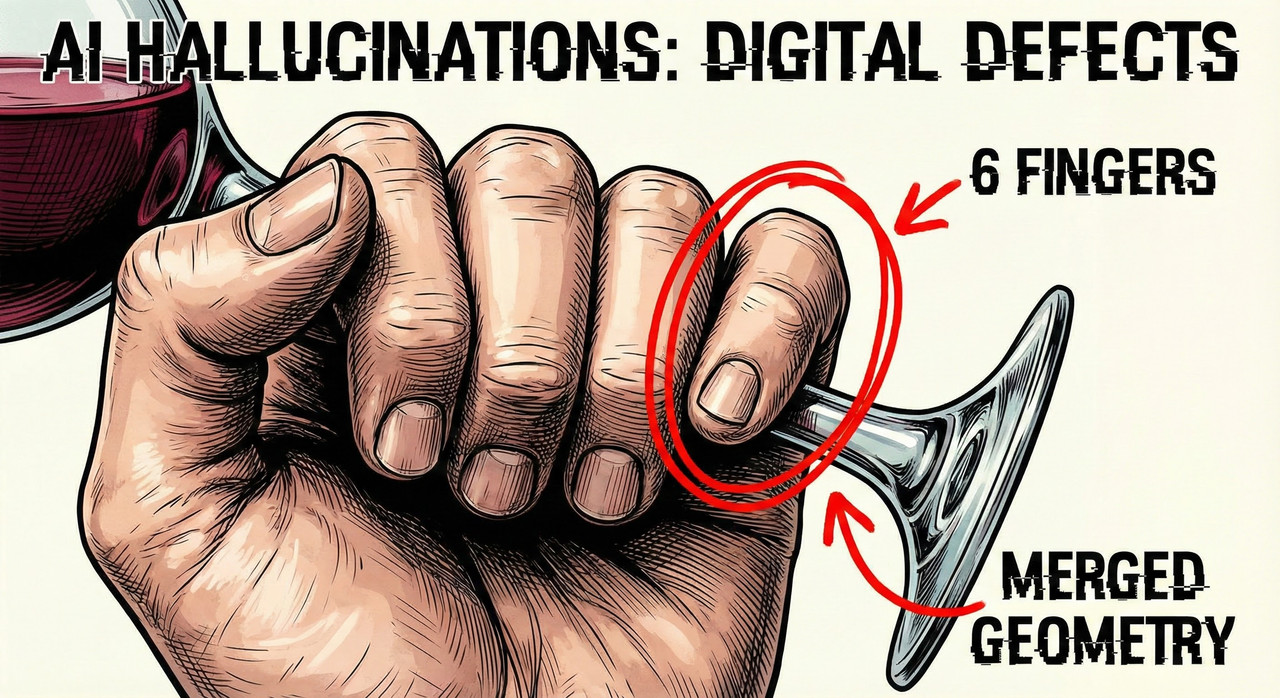
- AI Hallucination: A hand has six fingers; a bridesmaid’s teeth are merged together; a brick wall melts into a tree.
Why it matters:
Generative AI errors (hallucinations) are undeniable Technical Defects. If your photographer refuses to fix these, they are likely in breach of implied warranties of competence. You cannot hide behind “Artistic License” when the groom has three hands.
If you spot these, screenshot them immediately as leverage.
Summary Checklist
- Audit the Gallery: Zoom in 200%. Look for warped limbs, melting backgrounds, or missing jewelry.
- Send the “Technical Revision” Email: Keep it cool, professional, and specific. Use the terms Denoise and Smoothing.
- Request the “Natural” Export: Make it clear you prefer “grain” over “plastic.”
You hired a human to capture humans. It is perfectly reasonable to ask for photos that look like them.
Leave a Reply