
If you’ve been successfully uploading a particular PDF in regular chat for weeks and suddenly hit a wall after switching to a Project, this table explains exactly why — you haven’t done anything wrong, you’ve simply crossed into a stricter limit that applies specifically to that feature.
How Do You Tell a Temporary Outage Apart From a Problem With Your Own Setup?
I’d recommend a quick, specific check before spending more time troubleshooting settings on your end. Open a fresh, brand-new conversation and try uploading a small, simple test file — a one-page PDF or a plain text document — completely unrelated to the file that originally failed.
If that small test file also fails with the exact same “network issue” message, you’re very likely looking at a platform-wide problem rather than anything specific to your original file or your local settings, and the most productive next step is simply waiting and checking back rather than continuing to adjust settings that were never the actual cause. If the small test file uploads successfully while your original file still fails, that confirms the problem is specific to that file or your current session, which points you back toward the file-size, parsing, and cache-related steps above.
Bad vs. Good Way to Respond to This Error
Let me put these two approaches side by side, because the difference in response determines whether you solve this in five minutes or lose half an hour chasing the wrong cause.
Bad: “I got the ‘network issue’ error uploading a PDF, so I spent twenty minutes restarting my router and switching from Wi-Fi to my phone’s hotspot, assuming my internet connection was somehow the problem, before giving up on the task entirely.”
Good: “I got the ‘network issue’ error, checked that my PDF was under the 500MB chat limit and under 1,000 pages, confirmed it wasn’t a scanned image with no selectable text, toggled off Code execution in Settings since I’d just enabled it, and the very next upload attempt went through successfully.”
The bad approach trusts the error message’s own stated explanation and wastes time on a dead end. The good approach works through the actual documented causes systematically, in the order most likely to resolve the issue fastest.
What Should You Do If None of These Steps Work?
If you’ve genuinely worked through every step above and the upload still fails, I’d recommend documenting the exact error, the file type and size, and what you’ve already tried, then reaching out to Claude’s support channel directly with those specifics rather than a vague “uploads aren’t working” report. Specific details dramatically speed up any support interaction, since it lets a human quickly rule out the common causes you’ve already eliminated and focus on whatever’s actually unusual about your case.
In my experience with any platform’s support process, the difference between a report that gets resolved quickly and one that sits in a queue indefinitely is almost always the specificity of the initial report. Include the exact error text, your file’s size and page count, which upload location you tried (chat versus Project), and which of the troubleshooting steps above you’ve already ruled out.
Does This Same Pattern Show Up With Other AI Tools Too?
I don’t want to leave the impression this is some unique failing specific to Claude, because I’ve seen the identical pattern across plenty of other software over the years: a generic, overly broad error message covering several genuinely distinct failure conditions underneath. ChatGPT users have reported very similar experiences with PDF uploads failing for reasons that have nothing to do with the vague error text shown to them, and the same troubleshooting philosophy applies regardless of which specific AI platform you’re using.
The practical lesson generalizes well beyond this one specific error: whenever a piece of software blames your internet connection, your account, or something equally generic and unverifiable, treat that explanation with healthy skepticism rather than immediately acting on it. Check the things you actually can verify first — file size, file format, recent settings changes, and whether anyone else is reporting the identical problem at the same time — before spending real time on fixes aimed at a cause the error message merely asserts rather than actually demonstrates.
How Can You Avoid Running Into This Error in the First Place?
Once you understand the actual causes, a handful of simple habits meaningfully reduce how often you’ll encounter this error going forward. Before uploading any large or important PDF, I’d get into the habit of quickly checking its file size and page count first, rather than discovering a limit problem only after the upload has already failed partway through your task.
If you’re working inside a Claude Project specifically, keep the much stricter 30MB limit in mind from the start rather than assuming the same file that worked in a regular chat will behave identically there. And if you’ve recently toggled any capability setting, particularly Code execution, make a mental note of that change so you have an immediate lead to investigate if an upload suddenly stops working that was fine the day before. None of these habits take more than a few seconds, but together they eliminate most of the guesswork that otherwise turns a thirty-second fix into a half-hour troubleshooting detour.
Frequently Asked Questions
Is Claude’s “network issue” error actually about my internet connection?
Almost never — it’s a generic error message that fires for file size limits, parsing problems, settings conflicts, or platform bugs, not genuine connectivity issues.
Why does a PDF upload fail in a Claude Project but work fine in regular chat?
Project file uploads are capped at just 30MB per file, a much stricter limit than the 500MB allowed in standard chat conversations. Claude Help Center
Can a scanned PDF with no selectable text cause this error?
Yes — a PDF with no extractable text layer can fail during processing, and Claude may report this as a generic network-style error rather than a parsing-specific one.
Does the Code execution setting really affect PDF uploads?
Yes — multiple documented reports show this capability setting directly interfering with uploads in both directions, with some users needing it disabled and others needing it enabled depending on the file type. Reddit
Has this error ever been a genuine bug on Anthropic’s side rather than a user issue?
Yes — a confirmed case documented on Anthropic’s own GitHub repository shows every file upload across claude.com failing with a 404 error for over 48 hours, affecting all users at once. GitHub
What should I do if my PDF genuinely exceeds Claude’s size or page limits?
Split the PDF by page range using a tool like Smallpdf and upload the sections separately, or add the file to a Claude Project instead of a single chat conversation.
References & Sources
Fix Claude PDF Upload Network Errors (2026)
I’ve spent over three decades in IT, and if there’s one lesson that’s never once failed me, it’s this: when an error message blames something you can clearly verify isn’t the problem, the error message is wrong, not you. How can I troubleshoot persistent PDF upload network errors in Claude? is exactly this situation, and I want to walk you through why Claude’s error text is actively sending you in the wrong direction, and what to actually check instead.
How can I troubleshoot persistent PDF upload network errors in Claude? means identifying which of several unrelated real causes — file size limits, a parsing problem, a settings conflict, or a platform-wide bug — is actually triggering a generic, misleading error message. For example, Anthropic’s own GitHub repository documents a confirmed case where every single file upload across claude.com failed with a 404 error for over 48 hours, with nothing wrong on any user’s end at all.
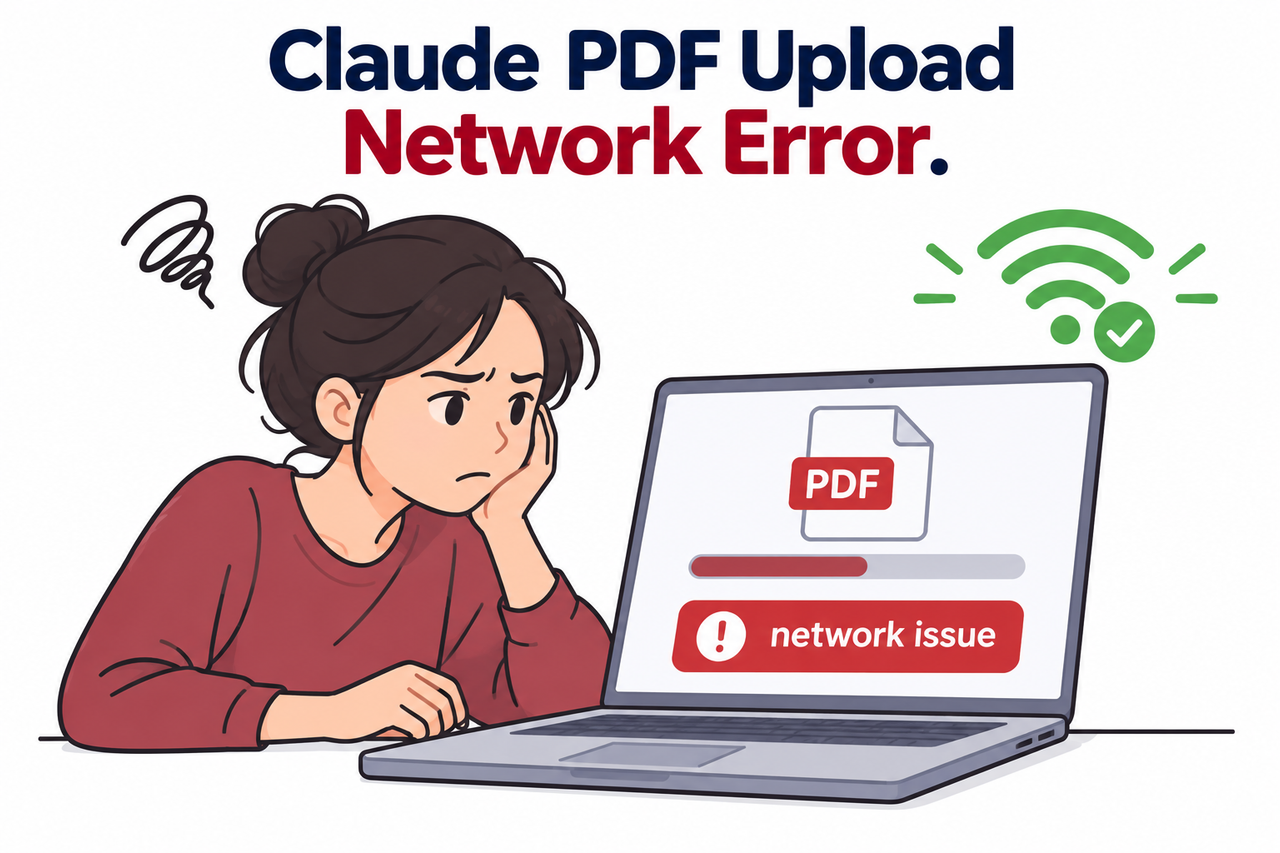
If Claude just told you your PDF upload failed “due to a network issue” while your internet is clearly working fine, stop checking your Wi-Fi. The error message is lying to you about the actual cause, and the real fix is probably one of eight specific, well-documented things that have nothing to do with your connection.
How Can I Troubleshoot Persistent PDF Upload Network Errors in Claude?
Quick Answer
Claude’s “network issue” error almost never relates to your actual internet connection. Check your PDF against Claude’s real limits first — 500MB and 1,000 pages in chat, or just 30MB inside a Project — then verify the PDF has selectable text, toggle the Code execution setting, and clear your browser cache. If none of that works, check whether it’s a confirmed platform-wide outage instead.
In my years troubleshooting systems, I’ve learned that a vague error message is almost always a symptom of the underlying engineering team bundling several completely different failure conditions behind one generic catch-all string, rather than writing a distinct message for each. That’s precisely what’s happening here, and once you know that, you stop wasting time on the one explanation the message actually gives you.
Why Does Claude Blame “Your Internet Connection” When That’s Not the Problem?
Before working through the fix, I want to explain why the message is so misleading, because understanding this changes how you troubleshoot it.
The Error Message Is a Generic Catch-All
Claude’s upload system returns the same misleading “network issue” message for file size limits, parsing failures, settings conflicts, and platform bugs alike, regardless of the actual cause. I’ve found this pattern across plenty of consumer software over the years — a generic failure string gets reused because writing distinct error handling for every edge case takes real engineering time that often doesn’t get prioritized.
Project Uploads Have a Much Stricter Limit Than Chat
Regular chat allows files up to 500MB, but uploading the same file inside a Claude Projects file area drops that limit sharply to just 30MB, a detail many users don’t realize until they hit it. Claude Help Center This specific gap catches people off guard constantly, since the exact same PDF that uploaded fine in a regular chat yesterday can fail today simply because you moved the conversation into a Project.
This Has Happened as a Confirmed Platform-Wide Bug Before
Anthropic’s own GitHub repository documents a case where every file upload across the entire claude.com interface returned a 404 error for over 48 hours, affecting all users simultaneously. GitHub I want to be direct about what this confirms: the exact same misleading “network issue” text can appear when the actual fault sits entirely on Anthropic’s infrastructure, with absolutely nothing wrong on your end.
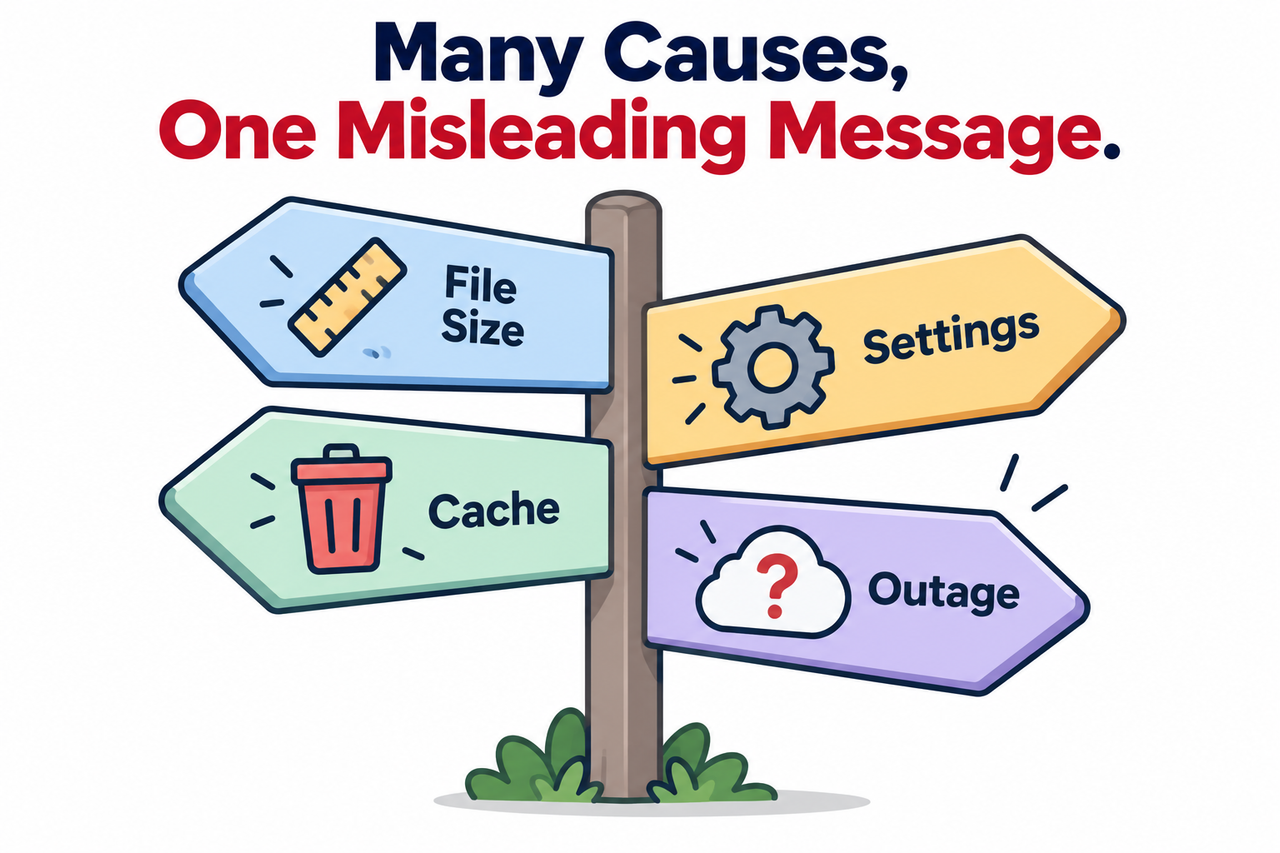
How Can I Troubleshoot Persistent PDF Upload Network Errors in Claude? Step by Step
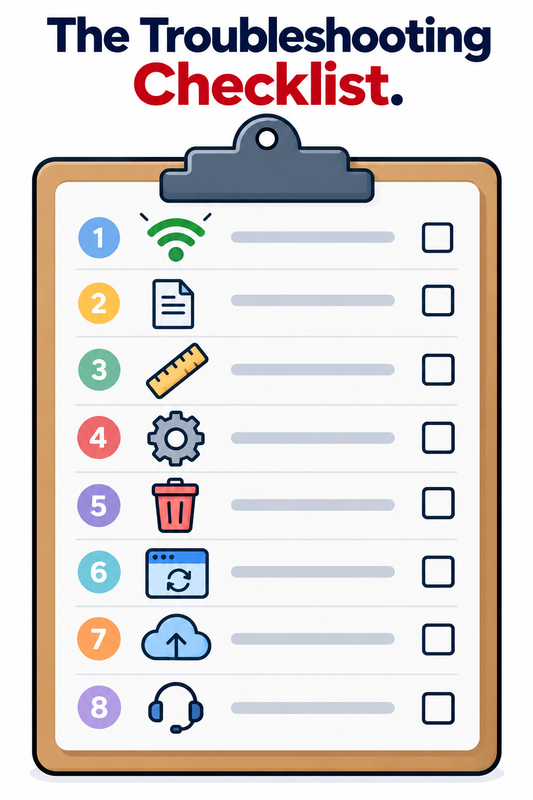
Here’s the exact sequence I’d work through, in order, before assuming anything is fundamentally broken.
- Check your file against Claude’s actual limits. Confirm your PDF is under 500MB and 1,000 pages in standard chat, or under just 30MB if uploading inside a Project. Claude Help Center
- Confirm the PDF isn’t a scanned image with no text. Try selecting text in your own PDF viewer; if nothing selects, the file likely has no extractable text layer and can fail even though the error looks network-related.
- Toggle Code execution in Settings. Turn “Code execution and file creation” off if it’s enabled, or on if you’re uploading an XLSX file, since this setting has directly interfered with uploads in documented reports. Reddit
- Clear your browser cache and hard refresh. Clear cookies and site data for claude.ai, then reload with Ctrl+Shift+R or Cmd+Shift+R, since a stale cached session is a documented trigger for this exact error.
- Verify the file isn’t open elsewhere or still syncing. Close the file in any other program and confirm it’s fully downloaded locally rather than a cloud-sync placeholder from OneDrive or Dropbox.
- Check for a known platform-wide outage. Search for recent reports matching your exact error, since Anthropic has had at least one confirmed multi-day outage affecting every user’s uploads simultaneously. GitHub
- Try uploading from a different device as a workaround. Upload the same file from the Claude mobile app in the same conversation, then refresh the page on desktop, a documented workaround that has pulled files through successfully. Reddit
- Split or relocate a file that genuinely exceeds limits. Split an oversized PDF by page range using a tool like Smallpdf, or move it into a Claude Project, which handles multi-file reference differently than a single chat.
I want to spend extra time on step 3, because it’s the fix I’d least expect to work the first time I heard about it, and yet it’s independently confirmed by multiple unrelated reports. One user described it directly: “Enabling the Analysis tool instantly fixed the issue,” explicitly noting “It seems to be a Claude bug, unrelated to the network.” Reddit That’s someone else independently arriving at the exact conclusion this entire article is built around.
What Does the Real Error Actually Look Like?
I always prefer reproducing the exact error text rather than paraphrasing, since the precise wording matters for anyone trying to confirm they’re dealing with the same issue. The user-facing message reads exactly:
Upload failed due to a network issue.
Check your internet connection and try again.
The confirmed platform bug’s actual technical error, visible in browser DevTools console output and documented directly in the GitHub issue, tells a very different story:
api/organizations/{org-id}/conversations/{conv-id}/wiggle/upload-file: 404 Not FoundThat’s not a network timeout or a connectivity failure of any kind — that’s the server returning “this endpoint doesn’t exist,” a server-side routing problem that has nothing whatsoever to do with any individual user’s internet connection. GitHub I want to flag one more relevant error for completeness: if your PDF genuinely exceeds the page limit, Anthropic’s own documentation confirms the separate, correctly-labeled message you’d actually see is “Uploaded file is too large” when a PDF exceeds 1,000 pages, Claude Help Center which is a meaningfully more honest error than the generic network message, and worth knowing so you can tell the two apart.
Why Does the Code Execution Setting Affect File Uploads at All?
I think this deserves a bit more explanation than a single step in a checklist, because it’s genuinely counterintuitive the first time you hear it. Code execution is a capability that lets Claude run code and create files as part of its response, and it operates through a different processing pathway than a straightforward document upload.
When this capability is toggled in a way that conflicts with how your specific file type gets handled, the upload pipeline can fail before the file ever reaches Claude’s document-reading system at all. This explains the seemingly contradictory reports: some users fix their PDF upload by disabling Code execution, while others uploading XLSX files specifically need it enabled, because spreadsheet files are processed through that same capability pathway rather than treated as a plain document the way a PDF typically is.
What’s the Difference Between Chat Uploads and Project Uploads?
I think this distinction deserves its own clear breakdown, since it’s one of the most common reasons a working upload method suddenly stops working. Claude treats files differently depending on where you’re uploading them, and the limits aren’t just slightly different — they’re dramatically different in a way that genuinely surprises most users.
| Upload Location | File Size Limit | Page Limit (PDF) | Files Per Conversation |
|---|---|---|---|
| Standard Chat | 500MB per file | 1,000 pages | Up to 20 files |
| Claude Projects | 30MB per file | Not separately specified | No fixed file count |
If you’ve been successfully uploading a particular PDF in regular chat for weeks and suddenly hit a wall after switching to a Project, this table explains exactly why — you haven’t done anything wrong, you’ve simply crossed into a stricter limit that applies specifically to that feature.
How Do You Tell a Temporary Outage Apart From a Problem With Your Own Setup?
I’d recommend a quick, specific check before spending more time troubleshooting settings on your end. Open a fresh, brand-new conversation and try uploading a small, simple test file — a one-page PDF or a plain text document — completely unrelated to the file that originally failed.
If that small test file also fails with the exact same “network issue” message, you’re very likely looking at a platform-wide problem rather than anything specific to your original file or your local settings, and the most productive next step is simply waiting and checking back rather than continuing to adjust settings that were never the actual cause. If the small test file uploads successfully while your original file still fails, that confirms the problem is specific to that file or your current session, which points you back toward the file-size, parsing, and cache-related steps above.
Bad vs. Good Way to Respond to This Error
Let me put these two approaches side by side, because the difference in response determines whether you solve this in five minutes or lose half an hour chasing the wrong cause.
Bad: “I got the ‘network issue’ error uploading a PDF, so I spent twenty minutes restarting my router and switching from Wi-Fi to my phone’s hotspot, assuming my internet connection was somehow the problem, before giving up on the task entirely.”
Good: “I got the ‘network issue’ error, checked that my PDF was under the 500MB chat limit and under 1,000 pages, confirmed it wasn’t a scanned image with no selectable text, toggled off Code execution in Settings since I’d just enabled it, and the very next upload attempt went through successfully.”
The bad approach trusts the error message’s own stated explanation and wastes time on a dead end. The good approach works through the actual documented causes systematically, in the order most likely to resolve the issue fastest.
What Should You Do If None of These Steps Work?
If you’ve genuinely worked through every step above and the upload still fails, I’d recommend documenting the exact error, the file type and size, and what you’ve already tried, then reaching out to Claude’s support channel directly with those specifics rather than a vague “uploads aren’t working” report. Specific details dramatically speed up any support interaction, since it lets a human quickly rule out the common causes you’ve already eliminated and focus on whatever’s actually unusual about your case.
In my experience with any platform’s support process, the difference between a report that gets resolved quickly and one that sits in a queue indefinitely is almost always the specificity of the initial report. Include the exact error text, your file’s size and page count, which upload location you tried (chat versus Project), and which of the troubleshooting steps above you’ve already ruled out.
Does This Same Pattern Show Up With Other AI Tools Too?
I don’t want to leave the impression this is some unique failing specific to Claude, because I’ve seen the identical pattern across plenty of other software over the years: a generic, overly broad error message covering several genuinely distinct failure conditions underneath. ChatGPT users have reported very similar experiences with PDF uploads failing for reasons that have nothing to do with the vague error text shown to them, and the same troubleshooting philosophy applies regardless of which specific AI platform you’re using.
The practical lesson generalizes well beyond this one specific error: whenever a piece of software blames your internet connection, your account, or something equally generic and unverifiable, treat that explanation with healthy skepticism rather than immediately acting on it. Check the things you actually can verify first — file size, file format, recent settings changes, and whether anyone else is reporting the identical problem at the same time — before spending real time on fixes aimed at a cause the error message merely asserts rather than actually demonstrates.
How Can You Avoid Running Into This Error in the First Place?
Once you understand the actual causes, a handful of simple habits meaningfully reduce how often you’ll encounter this error going forward. Before uploading any large or important PDF, I’d get into the habit of quickly checking its file size and page count first, rather than discovering a limit problem only after the upload has already failed partway through your task.
If you’re working inside a Claude Project specifically, keep the much stricter 30MB limit in mind from the start rather than assuming the same file that worked in a regular chat will behave identically there. And if you’ve recently toggled any capability setting, particularly Code execution, make a mental note of that change so you have an immediate lead to investigate if an upload suddenly stops working that was fine the day before. None of these habits take more than a few seconds, but together they eliminate most of the guesswork that otherwise turns a thirty-second fix into a half-hour troubleshooting detour.
Frequently Asked Questions
Is Claude’s “network issue” error actually about my internet connection?
Almost never — it’s a generic error message that fires for file size limits, parsing problems, settings conflicts, or platform bugs, not genuine connectivity issues.
Why does a PDF upload fail in a Claude Project but work fine in regular chat?
Project file uploads are capped at just 30MB per file, a much stricter limit than the 500MB allowed in standard chat conversations. Claude Help Center
Can a scanned PDF with no selectable text cause this error?
Yes — a PDF with no extractable text layer can fail during processing, and Claude may report this as a generic network-style error rather than a parsing-specific one.
Does the Code execution setting really affect PDF uploads?
Yes — multiple documented reports show this capability setting directly interfering with uploads in both directions, with some users needing it disabled and others needing it enabled depending on the file type. Reddit
Has this error ever been a genuine bug on Anthropic’s side rather than a user issue?
Yes — a confirmed case documented on Anthropic’s own GitHub repository shows every file upload across claude.com failing with a 404 error for over 48 hours, affecting all users at once. GitHub
What should I do if my PDF genuinely exceeds Claude’s size or page limits?
Split the PDF by page range using a tool like Smallpdf and upload the sections separately, or add the file to a Claude Project instead of a single chat conversation.
Leave a Reply