
Preserve AI Analysis Data Before It’s Lost (2026)
I’ve spent over three decades in IT, and if there’s one architectural pattern I’ve seen trip up more people than almost any other, it’s trusting a temporary workspace as if it were permanent storage. How can I preserve uploaded CSV data and transformation steps when an AI analysis session loses them is exactly this pattern playing out in a new context, and I want to walk you through the real mechanism, because the fix is straightforward once you understand what’s actually happening underneath the chat window.
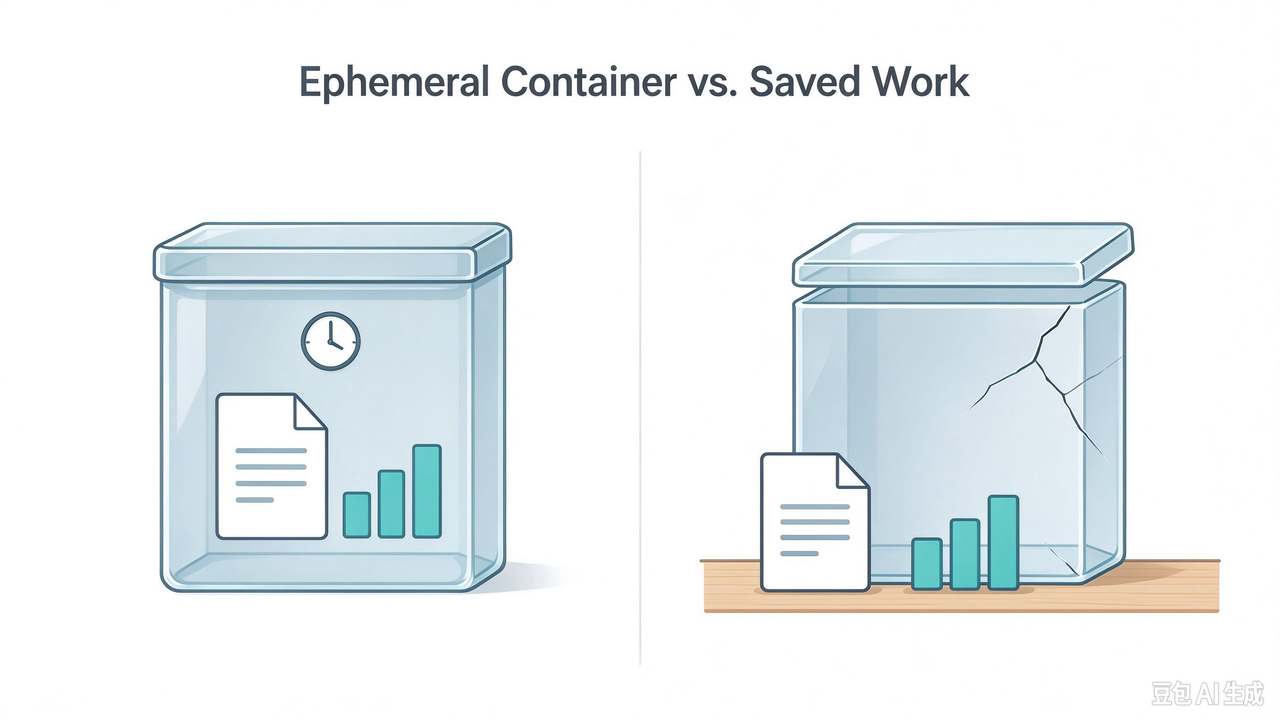
How can I preserve uploaded CSV data and transformation steps when an AI analysis session loses them is answered by understanding that the code execution environment behind these tools is a temporary container, not permanent storage, and capturing your work outside that container as you go. For example, OpenAI’s own documentation confirms the execution instance behind ChatGPT’s Data Analysis feature is destroyed within 13 hours of conversation inactivity, taking every uploaded file and computed result with it.
If you’ve ever returned to a long AI data analysis session after a break only to be told the file and every transformation you built are simply gone, I want to validate that feeling directly: the sinking feeling isn’t irrational, and hours of real work genuinely can vanish. But it’s a documented, predictable architecture quirk with a real fix, not something you have to accept as the cost of using these tools.
How Can I Preserve Uploaded CSV Data and Transformation Steps When an AI Analysis Session Loses Them?
Quick Answer
Export the actual Python code for every meaningful transformation as you go, download generated files immediately rather than leaving them as in-chat links, and ask the AI to write a short “restart note” at natural pause points summarizing the file, transformations applied, and next steps. This protects your work from the code execution environment’s documented expiration, which destroys all session data after a period of inactivity.
In my years working with systems that separate a working environment from permanent storage, I’ve learned that the people who get burned are almost never the ones who understood the distinction and planned around it. They’re the ones who assumed the working environment and the storage layer were the same thing, because nothing in the interface told them otherwise.
Why Does an AI Analysis Session Lose Everything After a Break?
Before getting into the fix, I want to explain exactly why this happens, because once you understand the mechanism, the solution stops feeling like a workaround and starts feeling obvious.
The Execution Environment Is a Temporary Container, Not Storage
OpenAI’s own documentation confirms this directly: “For some data-analysis tasks, ChatGPT writes and runs Python code in a stateful Jupyter notebook environment,” and that environment “can use files made available to the session” OpenAI Help Center. I want to flag the exact word doing the heavy lifting in that sentence: “session.” The environment’s state was never designed to outlive the session it belongs to.
This Expiration Happens on a Documented Timer
OpenAI states the execution instance “is destroyed within 13 hours after the conversation becomes inactive” ChatAI Guide, while Microsoft’s official Azure OpenAI guidance confirms an even shorter window for automatically-managed containers: “these containers can expire if they haven’t been accessed within 20 minutes of being created” Microsoft Learn. I find this range genuinely useful to know, because it tells you exactly how much runway you actually have, rather than guessing.
The Chat Text Survives, But the Working Environment Doesn’t
The conversation above the fold remains fully visible because it’s stored separately from the ephemeral container expiration that held your actual file and computed data. This is precisely why the experience feels so jarring — the interface gives you no visual signal that two completely different storage systems are involved, one permanent and one temporary.
How Do You Preserve Uploaded CSV Data and Transformation Steps When an AI Analysis Session Loses Them?
Here’s the exact sequence I’d walk anyone through, built around capturing your work outside the ephemeral environment before it has a chance to disappear.
- Accept the environment is temporary by design. Treat the code execution environment as a disposable workspace from the start, not a place your data safely lives between sessions.
- Know the actual expiration window you’re working against. Plan around the shorter 20-minute Azure container window if you’re unsure which platform’s timing applies to your specific tool.
- Export the actual code for every significant transformation. Ask for the real Python code behind each meaningful step, not just the final result, since code is the most reliable artifact for recreating lost work exactly.
- Download every meaningful output immediately. Save a cleaned CSV, chart, or intermediate dataset to your own device the moment it’s created, rather than trusting a download link that lives inside the same expiring container.
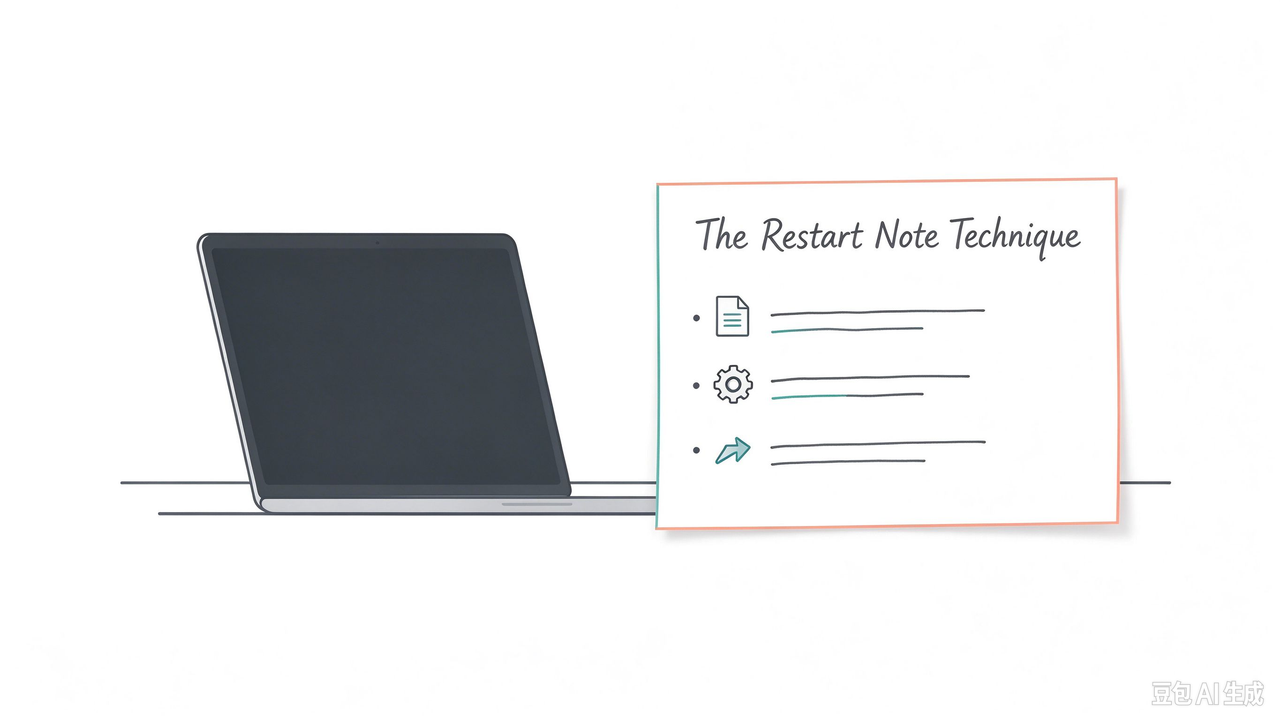
- Write a restart note at every natural pause point. Ask the AI to summarize the exact file, every transformation applied, and the next step, so a future session can resume without reconstructing your reasoning from memory.
- Use file ID persistence if you’re working through the API. Upload files once through the dedicated Files API and reference the returned file_id in new requests instead of re-uploading raw content after a container expires. Microsoft Learn
- Recover a lost session with a specific, not vague, request. Provide your saved code and prompt directly, instructing the AI to recreate the analysis from scratch using the attached file, rather than vaguely asking it to continue. ChatAI Guide
- Treat downloaded files and code as your actual permanent record. For any analysis where reproducibility genuinely matters, never let the chat interface be the only copy of your file or your transformation logic.
I want to expand on step 5, because the “restart note” technique is the single habit I’d recommend adopting above all the others if you only have time for one. Before stepping away from a long analysis session, explicitly ask the AI to write out, in plain text, exactly what file you’re working with, every transformation and filter you’ve applied so far, and what the next planned step was. That short summary costs you thirty seconds and saves you the entire reconstruction process if the session expires while you’re gone.
Restart Note Template (Illustrative example)

File: customer_churn_data.csv (original upload)
Transformations applied so far:
1. Removed rows with null customer_id
2. Converted signup_date to datetime format
3. Created new column "tenure_days" = today - signup_date
4. Filtered to customers with tenure_days > 90

Next planned step: Group by region and calculate average tenure
Keep that note somewhere outside the chat — a plain text file, a notes app, anything that doesn’t live inside the same environment that’s at risk of expiring.
What Does the Real Error Actually Look Like?
I always prefer reproducing the exact wording of a real error rather than paraphrasing, since the precise phrasing matters when you’re trying to confirm you’re dealing with the same issue. ChatGPT has been documented producing this exact message when its execution environment resets:
The execution state was reset, which means all uploaded files
and computed results were lost. You'll need to re-upload your
data so we can restart the analysis.
That’s a real, verbatim message ChatAI Guide, not an illustrative example. I want to point out what’s notably absent from that message: any indication of how much of your prior work is recoverable, or any acknowledgment that the transformations you built represent real effort. The message treats the loss as a minor inconvenience requiring a simple re-upload, when the actual cost can be hours of careful cleaning and analysis logic.
What’s the Real Difference Between Consumer ChatGPT and API-Based Workflows?
I think this distinction deserves its own clear breakdown, since the options available to you differ meaningfully depending on which interface you’re actually using.
| Platform | Expiration Window | Recovery Mechanism Available |
|---|---|---|
| Consumer ChatGPT (chat interface) | Up to 13 hours of inactivity | Manual: export code, download files, restart notes |
| Azure OpenAI API (auto-managed container) | As little as 20 minutes of inactivity | Architectural: reference persistent file_id across requests |
If you’re a developer building on the API directly rather than using the consumer chat interface, you have access to a genuinely more robust fix — the file itself persists in storage independently of any single container’s lifetime, as long as you reference it by its file_id rather than re-uploading raw content every time Microsoft Learn. Consumer ChatGPT users don’t have this architectural option, which is exactly why the manual habits above matter more for that audience.
Why Doesn’t OpenAI Just Make the Environment Permanent?
I think it’s worth understanding the engineering tradeoff behind this design, rather than treating it purely as an oversight, because keeping every user’s execution environment alive indefinitely would be genuinely expensive and largely wasteful at scale. Most conversations never return to active data analysis after a session ends, so holding that compute and storage resource open indefinitely for every single user would be an enormous, mostly unused cost.
Expiring inactive environments after a reasonable window is a sensible resource-management decision from an infrastructure perspective, even though it creates exactly the kind of frustrating experience this article addresses. Understanding this tradeoff doesn’t make the data loss less frustrating in the moment, but it does explain why the fix has to come from your own workflow habits rather than waiting for the underlying architecture to change.
Bad vs. Good Way to Handle a Long AI Data Analysis Session
Let me put these two approaches side by side, because the contrast is the entire difference between losing an afternoon of work and losing nothing at all.
Bad: “I spent two hours in a ChatGPT conversation cleaning a messy CSV, building calculated columns, and generating three charts, then closed my laptop for lunch — when I came back, ChatGPT said it couldn’t find the file or remember any of the transformations, and I had no record of the exact steps I’d taken to recreate any of it.”
Good: “Every time I finished a meaningful transformation step, I asked ChatGPT to show me the actual Python code and downloaded the resulting file immediately, and before taking a break I asked it to write a short restart note listing the file, the transformations applied, and the next step — so when the session did expire, I had everything needed to pick back up in minutes.”
The bad approach trusts the chat environment as if it were a durable workspace. The good approach treats it correctly, as a temporary scratchpad whose output needs to be captured elsewhere.
How Should You Structure a Multi-Day Analysis Project From the Start?
Given everything above, I’d recommend planning your workflow around this architecture from day one rather than discovering it the hard way partway through a project. Break a large analysis into clearly defined checkpoints — initial cleaning, transformation, exploratory analysis, final report — and treat each checkpoint’s completion as a mandatory save point.
At each checkpoint, export the code, download any generated files, and write your restart note before moving on, even if you plan to continue working immediately. This habit costs you almost nothing when the session doesn’t expire, but it saves the entire checkpoint’s worth of work the moment it does. I’d treat this the same way I treat version control commits in any other software project: frequent, small saves are cheap insurance against an unpredictable failure that you know will eventually happen, even if you can’t predict exactly when.
For a broader look at troubleshooting common AI tool data and session issues, see our complete guide to troubleshooting AI tools.
Frequently Asked Questions
Q1: Why does ChatGPT suddenly say it can’t find my uploaded file after a break?
A1: The code execution environment behind data analysis is a temporary container that OpenAI’s own documentation confirms is destroyed after a period of inactivity, taking every uploaded file and computed result with it. OpenAI Help Center
Q2: How long can I leave an AI analysis session idle before losing my work?
A2: OpenAI states the execution instance is destroyed within 13 hours of inactivity on consumer ChatGPT, while Azure’s auto-managed containers can expire after as little as 20 minutes. Microsoft Learn
Q3: What’s the single most important thing to save during a long analysis session?
A3: The actual Python code behind each meaningful transformation, since code is the most reliable artifact for recreating lost work exactly rather than re-describing it in natural language.
Q4: What is a “restart note” and why does it help?
A4: A short summary the AI writes listing the exact file used, every transformation applied, and the next step, so a future session can resume quickly without reconstructing your reasoning from scratch.
Q5: Is there a way to make file access survive a container expiring on the API?
A5: Yes — upload files once through the dedicated Files API and reference the returned file_id in new requests, since the file itself persists independently of any single container’s lifetime. Microsoft Learn
Q6: What should I do if a session has already expired and lost my work?
A6: Provide your saved code and prompt directly, and explicitly instruct the AI to recreate the analysis from scratch using the attached file, rather than vaguely asking it to continue. ChatAI Guide
Does This Same Architecture Apply to Other AI Tools Beyond ChatGPT?
I don’t want to leave the impression this is a quirk unique to OpenAI’s implementation, because the underlying architectural pattern — a temporary code execution sandbox separate from persistent chat storage — is a common design choice across the industry, not a one-off decision. Any AI tool offering a code execution or data analysis capability faces the same fundamental engineering tradeoff: either keep every user’s compute environment alive indefinitely at significant cost, or expire inactive environments after some reasonable window.
Claude’s own Analysis tool and similar features from other providers operate on comparable principles, even if the specific expiration timing differs between platforms. The practical lesson generalizes well beyond any single tool: whichever AI platform you’re using for code-based data analysis, assume the working environment is temporary unless you’ve specifically confirmed otherwise, and build the habit of exporting code and downloading outputs regardless of which specific tool’s interface you happen to be using that day. This habit protects you even if you switch between multiple AI tools for different projects, since you won’t need to remember which platform’s expiration policy applies to which conversation.
What Should You Do Differently for Collaborative or Team Analysis Projects?
If you’re sharing an AI analysis session with colleagues, or handing off a project partway through, I’d recommend treating the restart note technique as a formal communication artifact rather than just a personal memory aid. A restart note written clearly enough for a colleague to pick up cold — not just clear enough for you to remember your own reasoning — serves double duty as both a personal safeguard against session expiration and as genuine project documentation.
I’d also recommend establishing a simple team convention: whoever is actively working in an AI analysis session is responsible for exporting code and downloading outputs before handing the project to someone else, rather than assuming the next person can simply continue the same chat session seamlessly. In my experience, collaborative work breaks down fastest exactly at these handoff points, when one person assumes continuity that the underlying tool was never actually designed to guarantee. Making the export-and-document step an explicit, required part of any handoff removes that assumption entirely and ensures the next person has everything they need, regardless of whether the original session is still active or has already expired.
Leave a Reply