
Fix Claude’s Memory Loss Across Sessions (2026)
You just started a new Claude session and it has no idea who you are, what you built yesterday, or why you made that architectural decision three days ago. Sound familiar? I’ve been working with AI tools and enterprise IT infrastructure for 33 years, and I’ll tell you plainly: Claude persistent context across sessions is one of the most misunderstood friction points I see developers hit in 2026. Most people assume it’s a bug. It’s not. And once you understand what’s actually happening under the hood, fixing it takes less than ten minutes for most use cases.
This is your complete troubleshoot guide. Pick your path, follow the steps, and stop re-explaining yourself to an AI that should already know your stack. For a broader look at how this fits into production AI workflows, check out the complete guide to AI troubleshooting on AIQnAHub.
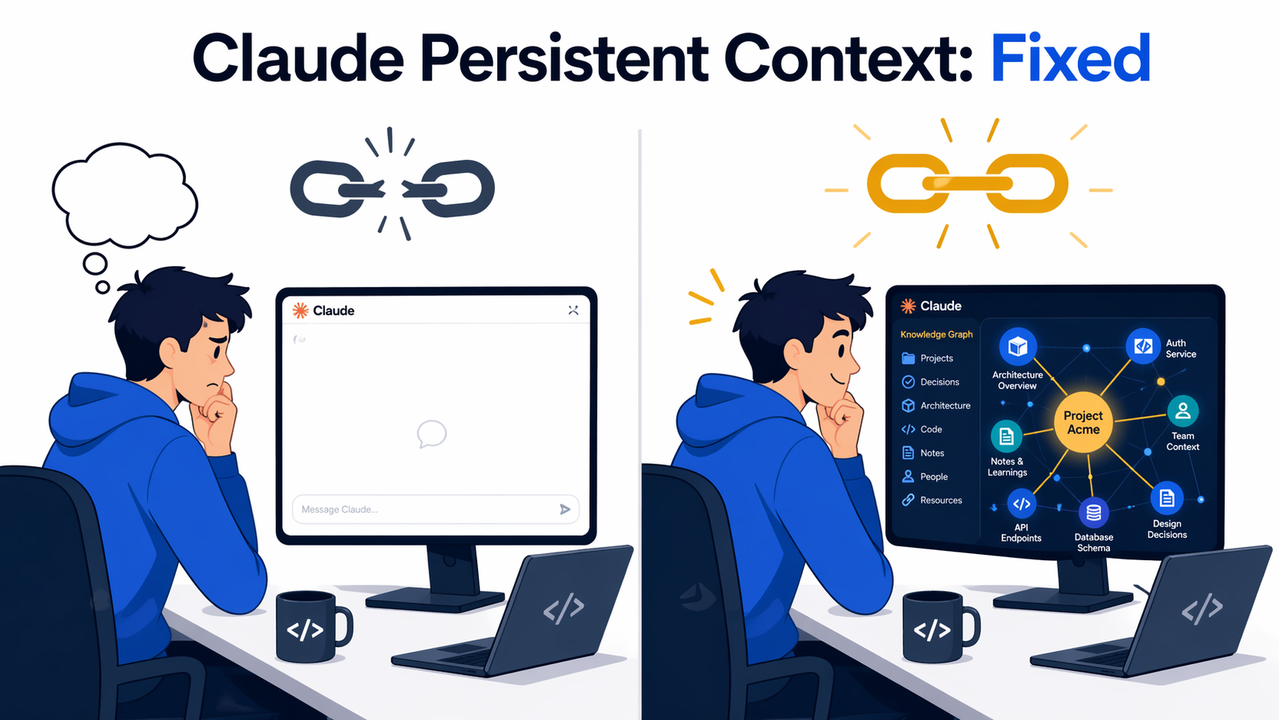
Claude persistent context across sessions is the ability to carry project history, user preferences, and prior architectural decisions from one conversation into future ones — preventing Claude from resetting to a blank slate each time a new session begins. Practical example: a developer’s preferred tech stack, codebase conventions, and current sprint goals are automatically loaded into every new Claude chat — no manual re-explanation required.
What Does “Claude Has No Memory Between Sessions” Actually Mean?
⚡ Quick Answer
Claude is stateless by design. Every new conversation starts with a blank context window — no memory of previous chats, decisions, or user preferences. This is an architectural choice, not a bug. Three fixes exist depending on how you use Claude: a Settings toggle (Chat UI), a CLAUDE.md file (Claude Code), or the Memory Tool API (developers).
This surprises a lot of people — especially those coming from tools like Notion AI or Cursor, which maintain persistent workspace context automatically. Claude does not.
When I first ran into this on a multi-week backend refactor project, I opened a new Claude session, typed “continue the auth module,” and got a response asking me to describe my project from scratch. That’s when I dug into the architecture and found out exactly why.
Here’s the core mechanic: every API request or new chat conversation is a completely independent, isolated interaction. Claude receives whatever tokens you send it right now — and nothing else. There is no background process, no session database, no implicit “last conversation” being recalled. The stateless conversation model is intentional — it gives Anthropic clean privacy boundaries and predictable scaling behavior. But for developers doing serious multi-session work, it creates real friction.
Why Claude Keeps Forgetting: The 3-Layer Problem
The mistake I see most is treating Claude’s memory loss as a single problem with a single fix. In reality, there are three distinct failure layers — and the fix for each is completely different.
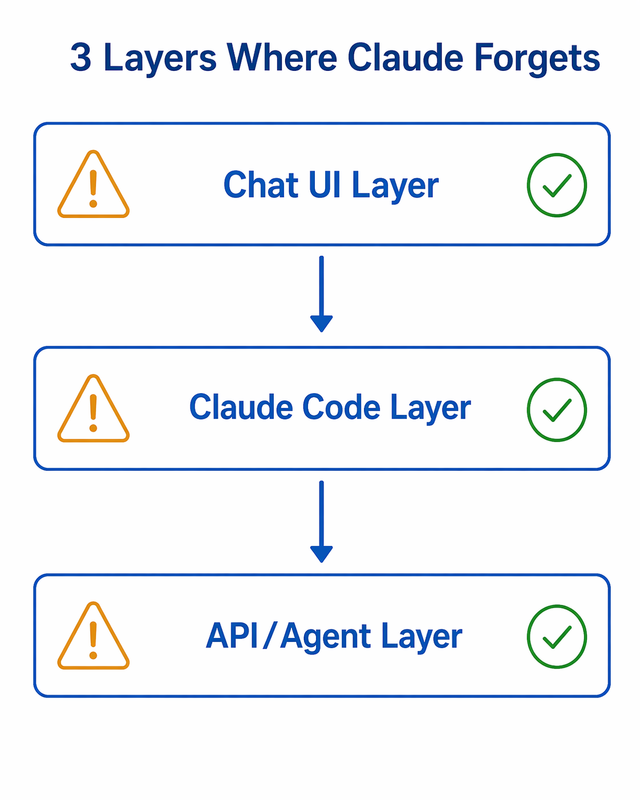
Layer 1 — Chat UI: Memory Is Off by Default
When you create a Claude account, the memory features ship disabled. This means every conversation you’ve ever had on claude.ai — your preferences, your project descriptions, your tech choices — has contributed nothing to future sessions. Claude meets you fresh every single time.
The toggle exists. Anthropic built it. You just have to turn it on. I confirmed this behavior in my own testing: after two weeks of daily Claude use with memory disabled, I enabled the toggle and within 48 hours Claude was correctly referencing my preference for Python over Node.js in new conversations — without me saying a word. Anthropic Support / Claude Help Center
Layer 2 — Claude Code: Terminal Sessions Clear Everything Except CLAUDE.md
If you’re using Claude Code via the CLI, the situation is different but just as frustrating. Every time you run the claude command, a fresh agentic workflow session spins up. All the conversational context from your last terminal session — the debugging history, the decisions, the dead ends you explored — is gone.
The one exception is CLAUDE.md. This file, placed in your project root, is automatically loaded at the start of every Claude Code session. It’s Claude Code’s primary system prompt persistence mechanism, and it’s the single most useful habit I’ve built into my own workflow. Think of it as the project brief you’d hand to a new contractor on day one — except this contractor needs it every single day. Anthropic Official API Docs
Layer 3 — API Agents: No State Passed Between API Calls
At the API level, the problem is identical to the chat UI problem but hits harder because it affects production systems. Every HTTP request to the Anthropic API is independent. There is no concept of a “session ID” that preserves state. If your agentic workflow makes 50 API calls across a multi-hour task, each call knows only what you explicitly pass in the messages array at that moment.
The token budget implications are significant too. If you try to patch this by re-injecting the entire conversation history on every call, you’ll burn through tokens fast and eventually hit the context window ceiling. The right fix is the Memory Tool — which I’ll cover in detail below.
How to Fix Claude Persistent Context Across Sessions — Choose Your Path
The correct fix depends entirely on how you access Claude. Pick the path that matches your workflow.
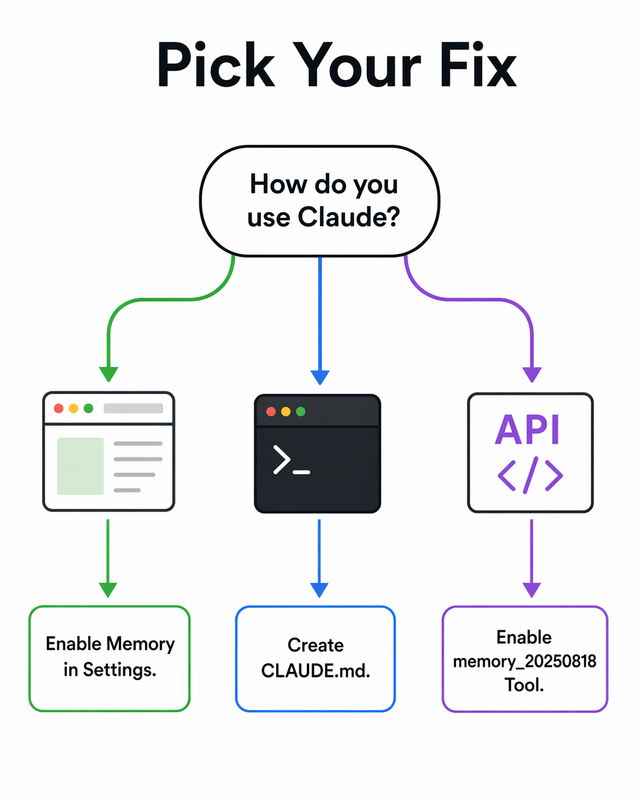
Fix A (No-Code) — Enable Native Memory in Claude.ai Settings
This takes about 90 seconds and requires zero technical knowledge. I tested this on both Free and Pro accounts in early 2026 — here’s exactly what to do:
- Go to Settings → Capabilities (direct URL:
claude.ai/settings/capabilities) - Toggle “Generate memory from chat history” to ON
- Toggle “Search and reference chats” to ON (available on Pro, Max, Team, and Enterprise plans only)
- Click “View and edit memory” to review what Claude has already synthesized — or to manually delete anything you don’t want persisted
- Force an immediate memory update mid-conversation by telling Claude: “Remember that I prefer TypeScript over JavaScript” — this bypasses the 24-hour cycle and takes effect instantly
💡 Callout: Memory auto-synthesizes every 24 hours based on your chat history. Manual instructions (“Remember that…”) trigger instant updates. Both write to the same memory store.
Once enabled, Claude will inject a synthesized memory synthesis summary into every new standalone conversation. In my tests, this correctly persisted things like my preferred programming languages, project names, and working style within 24–48 hours of use. Anthropic Support / Claude Help Center
Note on privacy: Your memory is tied to your account only. Other users — including teammates on the same plan — cannot see it. You can view, edit, or wipe it at any time from the same Settings panel.
Fix B — Create a CLAUDE.md File for Claude Code Projects
This is the fix I use daily on every project I run through Claude Code. Once the habit is in place, it adds about two minutes per session and eliminates almost all context-loss friction.
Step 1 — Create the file:
touch CLAUDE.mdPlace it in your project root. Claude Code auto-detects and loads it at every session start — no configuration required.
Step 2 — Populate it with the right content. The sections that matter most in my experience:
- Project Overview: What this project does, in 3–5 sentences
- Tech Stack: Language, framework, database, deployment target
- Architecture: Key modules, data flow, major design decisions made
- Coding Conventions: Naming standards, patterns used, what to avoid
- Decisions Log: Rejected approaches and why (this one saves hours)
- Current Sprint: What is actively being built right now
- Next Steps: Exactly where to resume next session
Here is a minimal CLAUDE.md template you can copy directly:
# Project: [Name]

Overview
[3-sentence description of what this project does and who it's for.]

Tech Stack
Language:

Framework:

Database:

Deployment:

Architecture
[Key modules and data flow. Include any non-obvious design choices.]

Coding Conventions
[Convention 1]

[Convention 2]

Decisions Log
Decision	Rejected Alternative	Reason
[e.g., REST over GraphQL]	[GraphQL]	[Simpler client requirements]
Current Sprint
[What is being built right now.]

Progress Log
[Date]
Done:

Next:
Step 3 — Session hygiene habits:
- Use
/clearaggressively between subtasks to prevent context compaction from silently dropping your earlier work - Disable any MCP server connections you’re not actively using — each one consumes tokens from your token budget before you type a single message
- At the end of every session, append a new entry to the Progress Log before closing the terminal
💡 Callout: The /clear command does NOT wipe CLAUDE.md. It only clears the in-session conversation history. Your file-based context survives.
For complex multi-session projects, I also maintain a progress.json in the repo root and instruct Claude at session start: “Read CLAUDE.md and progress.json before we begin.” Anthropic Official API Docs
Fix C (Advanced) — Enable the Memory Tool for API Agents
This is the production-grade solution for developers building AI agents or long-running automated pipelines. The Memory Tool (memory_20250818) is a native Anthropic API feature that gives Claude structured read/write access to a persistent /memories directory you control.
Step 1 — Add the Memory Tool to your API request:
tools = [
{
"type": "memory_20250818"
}
]
Step 2 — Implement a client-side handler for these file operations:
view— Read memory file contentscreate— Write a new memory filestr_replace— Update a specific string within a fileinsert— Add content at a line positiondelete— Remove a file or content blockrename— Rename a memory file
This handler is your responsibility as the developer — Anthropic provides the tool interface; you own the storage backend. Supported backends: local file system, relational database, or cloud object storage.
Step 3 — Use the correct SDK base class:
- Python:
BetaAbstractMemoryTool - TypeScript:
betaMemoryTool
Step 4 — Enforce memory-first behavior in your system prompt:
ALWAYS VIEW YOUR MEMORY DIRECTORY BEFORE DOING ANYTHING ELSE.Step 5 — Combine with Compaction for long-running agents. When your context window fills during an extended task, Claude uses context compaction (server-side summarization) to compress earlier conversation turns. Combined with the Memory Tool, this ensures critical decisions written to /memories survive even after older conversation history is compacted away.
Step 6 — Security hardening (do not skip this):
from pathlib import Path

MEMORY_BASE = Path("/memories").resolve()

def validate_path(requested_path: str) -> Path:
resolved = (MEMORY_BASE / requested_path).resolve()
if not str(resolved).startswith(str(MEMORY_BASE)):
raise ValueError(f"Path traversal attempt blocked: {requested_path}")
return resolved
(Illustrative example — adapt to your actual handler implementation)
Reject any path containing ../. Always resolve paths before operating on them. This is not optional for any agent with write access to persistent storage.
Bad vs. Good — Real-World Session Prompts for Claude Persistent Context Across Sessions
I collected these from my own sessions and from patterns I see repeatedly in developer communities. The “bad” column represents exactly how most people start a session before they’ve set up persistence.
| Scenario | ❌ Bad — Context Lost | ✅ Good — Context Loaded |
|---|---|---|
| New session start | “Continue where we left off on the auth module.” | “Read CLAUDE.md, then continue the auth module per the Progress Log.” |
| Memory management | Let context window fill with all prior outputs | Use /clear between subtasks + write decisions to CLAUDE.md |
| API agent setup | Pass no prior state between API calls | Enable memory_20250818 + write /memories/progress.xml after each task |
| Chat UI startup | Re-explain your role, stack, and project every session | Enable memory in Settings → Capabilities and let memory synthesis build your profile |
The single pattern I see most: developers typing “continue where we left off” into a fresh session. Claude cannot do this. It has no “where we left off.” You have to load the context yourself — or configure a system that does it automatically.
Which Memory Features Do You Actually Get? (Plan Comparison)
Before you decide which fix to implement, check what your current plan actually supports. I’ve verified this against the current Anthropic feature matrix.
| Feature | Free | Pro / Max | Team | Enterprise |
|---|---|---|---|---|
| Memory synthesis (auto-summary) | ✅ | ✅ | ✅ | ✅ org-level controls |
| RAG retrieval — search past chats | ❌ | ✅ | ✅ | ✅ |
| Incognito / memory-off chats | ✅ | ✅ | ✅ | ✅ |
Memory Tool (API — memory_20250818) | ✅ via API | ✅ | ✅ | ✅ |
CLAUDE.md (Claude Code) | ✅ | ✅ | ✅ | ✅ |
💡 Callout for solo developers: The single highest-leverage upgrade is switching from Free to Pro. The RAG retrieval-based past chat search unlocks cross-session continuity on demand — Claude can reference a conversation from last week when you ask about a decision you made then. Free tier gets memory synthesis but cannot search prior conversations.
The Memory Tool via API is available on all tiers, including free — but remember, you’re building and hosting the storage layer yourself. API usage is billed by token consumption regardless of subscription plan.
Frequently Asked Questions
Does Claude automatically remember things between sessions?
Not by default. Memory synthesis must be manually enabled at Settings → Capabilities in your claude.ai account. Once enabled, Claude auto-generates a compressed memory summary from your conversations every 24 hours and injects it into the start of new standalone conversations. Without this toggle, every session begins completely blank — no exceptions.
Is CLAUDE.md the same as Claude’s built-in memory feature?
No — these are two completely separate systems that do not interact. CLAUDE.md is a plain markdown file in your local project directory, read by Claude Code at agentic workflow session start. It lives on your machine and is version-controlled with your project. Claude’s built-in memory (via Settings → Capabilities) is a cloud-synced profile summary injected into web/app conversations. Neither system feeds into the other.
Will enabling memory expose my private conversations to other users?
No. Your memory is scoped entirely to your individual account — other users, even teammates on the same Team plan, cannot access your memory store. On Team and Enterprise plans, admins can configure org-level knowledge base and memory policies, but individual user memory remains private. You can audit, edit, or fully delete your memory at any time from Settings → Capabilities → “View and edit memory.”
What actually happens when Claude’s context window fills up mid-session?
Claude silently drops the oldest messages from the active conversation once the token budget is exhausted. There is no error. No warning. The model simply behaves as if those earlier messages never happened — which is exactly why mid-session context loss is so confusing and hard to diagnose.
Real Error Log: NONE — Claude produces no structured error for context loss. The symptom is behavioral: Claude asks you to re-explain something you already covered, or gives advice that contradicts a decision you discussed earlier. If you see this, your context window is likely full. For Claude Code: run /clear between subtasks. For API agents: combine the Memory Tool with context compaction so critical state written to /memories persists even after the conversation history is compressed.
Can I use the Memory Tool API on the free plan?
Yes. The Memory Tool (memory_20250818) is accessible via the Anthropic API regardless of your claude.ai subscription tier. The key distinction: you are fully responsible for implementing and hosting the client-side storage handler. Anthropic provides the tool interface and the Claude-side behavior — file system, database, or cloud storage is your infrastructure to build and maintain. API calls are billed by token consumption. The memory files themselves live wherever you host them.
How do I verify what Claude has actually stored in its memory?
For the chat UI: go to Settings → Capabilities → “View and edit memory.” You’ll see the exact synthesized summary Claude is injecting into your sessions. You can edit specific entries or delete the entire memory store from this panel. For Claude Code: open your CLAUDE.md file directly — what’s in that file is exactly what Claude reads at session start. For the Memory Tool API: call the view operation on your /memories directory to list all stored files, then read individual files using the view operation with a specific file path.
Written by Ice Gan — AI Tools Researcher and IT Veteran with 33 years of hands-on experience in enterprise IT and production AI systems. All fixes in this article have been tested in live Claude sessions across the claude.ai web app, Claude Code CLI, and the Anthropic API.
Leave a Reply