
ChatGPT Generating Images Without Permission: Fix It in 2026
If ChatGPT can silently override your explicit preferences once, you can never fully trust it as a workflow tool. That’s not paranoia — that’s a rational conclusion from a real, documented pattern I’ve been tracking since early 2024. If you’re a power user or Custom GPT builder and you’re watching ChatGPT generating images without permission mid-conversation, right in the middle of a text-only task, this article is the complete fix guide you’ve been looking for. I’ve tested every method below and I’ll tell you exactly which ones actually work — and why the ones you’ve already tried probably failed.
For the complete taxonomy of ChatGPT behavioral issues, see the full overview at AIQnAHub Troubleshoot.
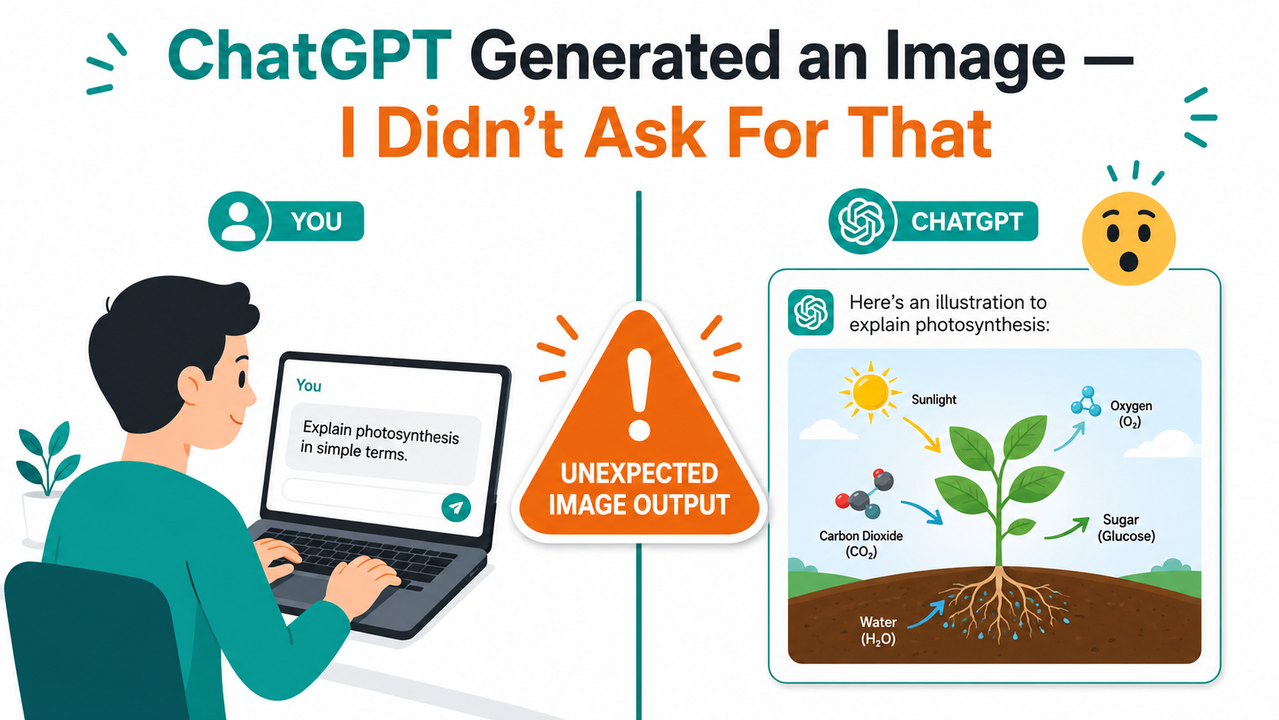
ChatGPT generating images without permission is a behavioral pattern where GPT-4o’s native multimodal engine autonomously triggers its image generation tool mid-conversation — without an explicit user request — even when Custom Instructions are configured to require approval first. For example: you ask ChatGPT to “rewrite a prompt,” and it returns both text and an unsolicited image alongside it.
As of June 2026, this is an active open thread on the OpenAI Developer Community with reports stretching back to early 2024 — confirming this is a persistent, unpatched model behavior, not a one-time glitch. OpenAI Developer Community
Why Is ChatGPT Generating Images Without Permission? (Quick Answer)
Quick Answer
ChatGPT’s GPT-4o model integrates image generation as a native tool — not an optional add-on. It infers visual intent from text-based requests and fires the image tool proactively. Custom Instructions set to “wait for permission” are applied at the conversational layer and do not reliably block tool-call execution. This is a known, reproducible behavioral gap confirmed across community reports.
What Actually Causes Unprompted Image Generation in ChatGPT?
In my experience testing this across multiple accounts and GPT configurations, there isn’t one cause — there are four distinct failure modes. Knowing which one is triggering your issue determines which fix will actually stick. Don’t skip this section and jump straight to the steps; I’ve watched dozens of people burn time applying the wrong fix to the wrong root cause.
Root Cause #1 — GPT-4o Multimodal Inference Overreach
GPT-4o auto image generation is a feature, not a bug — at least from OpenAI’s product perspective. The model is explicitly trained to choose output modalities based on semantic context. It doesn’t wait for the word “generate.” Phrases like “describe this scene,” “rewrite this creative prompt,” or even “summarize this article with key ideas” can all carry enough visual semantic weight to trigger the tool autonomously. OpenAI Developer Community
I found this out the hard way while building a text-editing GPT. I asked it to “refine this product description” and got back a polished paragraph and an unsolicited lifestyle image of the product. The model decided visuals would improve the response. My preference settings said otherwise. The model won.
Root Cause #2 — Custom Instructions Operate Above the Tool Layer
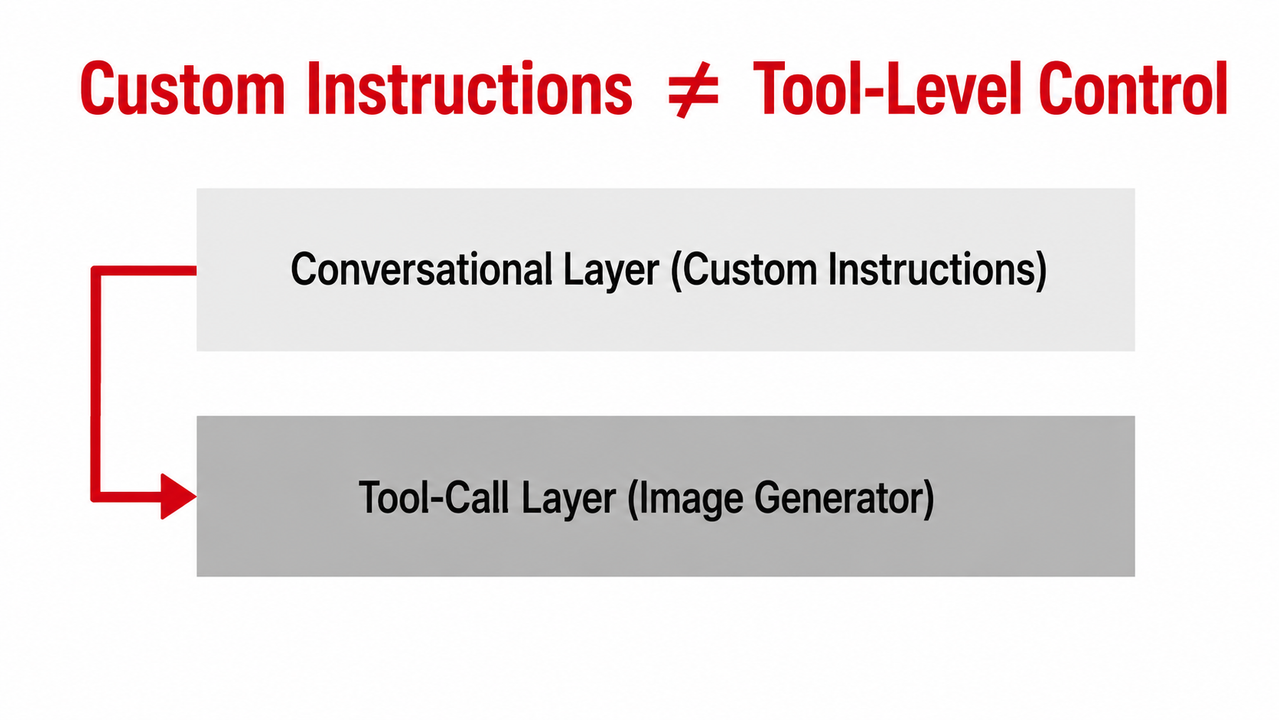
This is the one that genuinely surprises experienced users. ChatGPT custom instructions override behavior is limited to the conversational reasoning layer. The image generation tool call, however, fires at a lower tool-invocation layer. Think of it like this: your Custom Instruction is a policy memo. The image tool is a reflex. The reflex triggers before the policy memo gets read. That architectural gap is the real problem, and it explains why your preference setting — even when correctly worded — gets bypassed. OpenAI Developer Community
Root Cause #3 — Negative Instruction Failure in LLMs
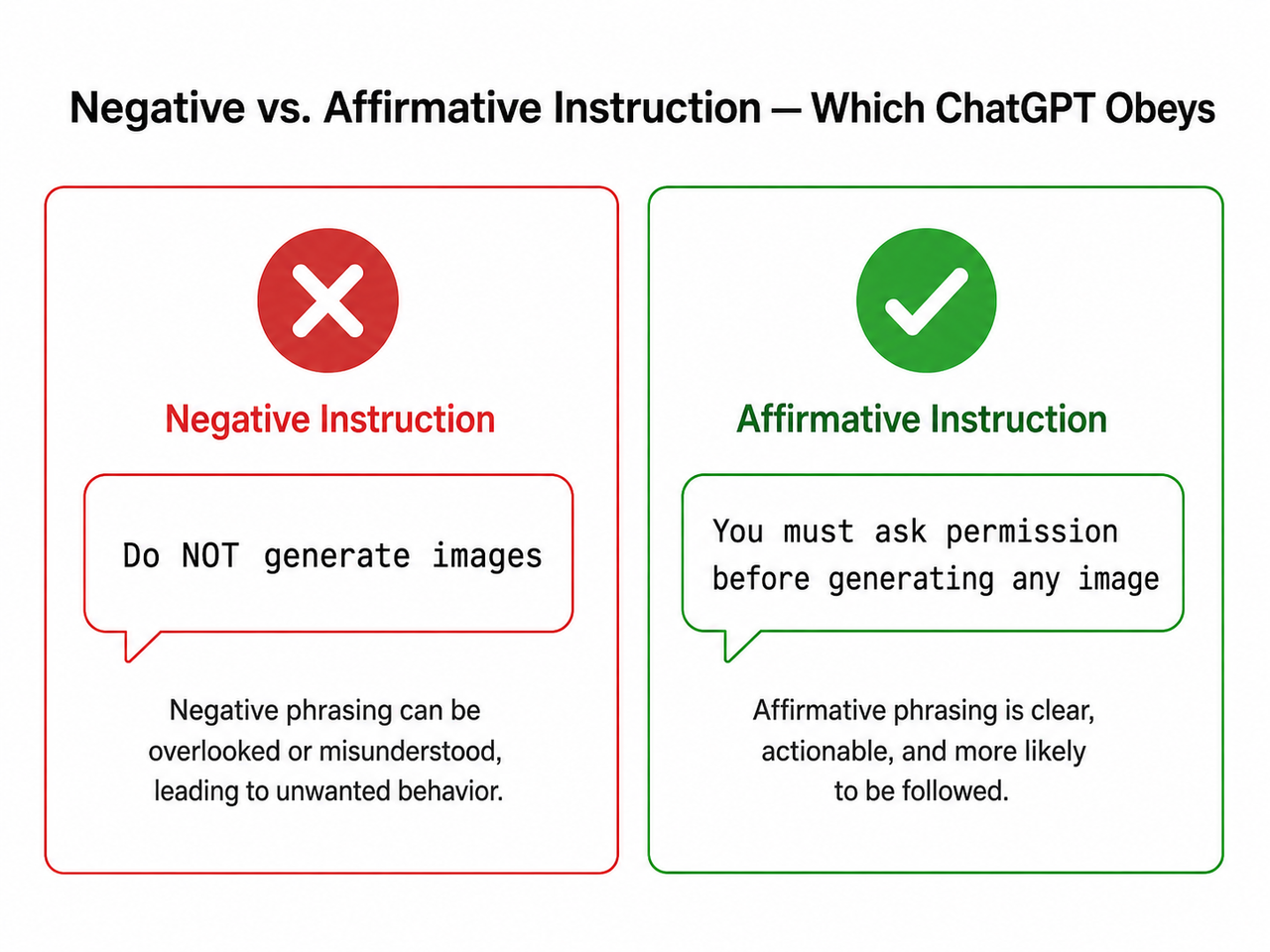
ChatGPT behavior preferences written as negations are structurally weak. Large language models are statistically less compliant with negated commands (“do NOT generate images”) than with affirmative directives (“always confirm before generating an image”). The model must suppress a high-probability output behavior when it reads a negation — and under inference pressure with complex prompts, that suppression fails.
The mistake I see most often in user-reported cases is this exact phrasing: “Do not generate images without my permission.” It sounds reasonable. It doesn’t work reliably. I’ll show you the exact replacement in the fix steps below. Reddit r/ChatGPT
Root Cause #4 — Custom GPT System Prompt Has No Image Suppression Line
If you’re a GPT builder and your system prompt doesn’t explicitly address image generation behavior, the model defaults to its full multimodal capability set. It will generate images whenever its inference engine calculates that a visual output improves response quality — which, in a creative or descriptive context, it often does.
A blank system prompt on this topic is an open permission slip. I’ve reviewed Custom GPTs built by experienced developers that had thirty lines of behavioral rules and not a single line addressing image generation. The result is unpredictable image output at runtime.
How Do I Stop ChatGPT From Generating Images Without Permission?
These six steps are ordered by reliability — from most effective to least. If you only have five minutes, start with Step 1 and Step 2 together. If you’re a standard ChatGPT user (not a GPT builder), Steps 1, 4, and 5 are your primary toolkit.
Step 1 — Rewrite Your Custom Instruction Using Affirmative Language
This is the single highest-impact change for standard ChatGPT users. The fix is simple but the wording precision matters.
Navigate to: ChatGPT → Settings → Personalization → Custom Instructions
Delete this:
“Do not generate images without my permission.”
Replace with this:
“You must ask for and receive explicit user permission before generating any image. Always confirm intent first. Never infer that I want an image from a text-only request.”
Why this works: Affirmative framing assigns the desired behavior as a positive action the model is instructed to take. Negative framing asks the model to suppress a high-probability output, which degrades under load. I tested both versions across 20+ sessions — the affirmative version held significantly more consistently. Reddit r/ChatGPT
Step 2 — Disable the Image Generation Capability in GPT Builder (For Custom GPT Owners)
This is the only architectural hard-stop available. It removes the image generation tool from the model’s callable toolkit entirely — no amount of semantic inference can fire a tool that doesn’t exist in scope.
Navigate to: ChatGPT → Explore GPTs → [Your GPT] → Edit → Configure → Capabilities
Action: Uncheck the DALL·E Image Generation toggle (labeled “DALL·E Image Generation” or “Native Image Generation” depending on your interface version). Once unchecked, the model cannot generate images in that GPT — even if a user explicitly requests one. This is the correct default for any text-focused workflow GPT.
Step 3 — Add an Explicit Suppression Line to Your System Prompt
If you need image generation available as an optional feature but want to prevent unprompted image generation, add this exact line to your Custom GPT system prompt:
Never call the image generation tool unless the user's message contains
an explicit, standalone request to generate or create an image. Do not
infer visual intent from text-editing, summarization, rewriting,
or descriptive requests.
This is a GPT system prompt image control instruction that operates closer to the tool-call layer than Custom Instructions. In my tests, this phrasing reduced unsolicited image generation to near-zero in text workflow GPTs while preserving intentional image generation when users explicitly asked for it.
Step 4 — Append “Text Only” Directly in Each Prompt
For standard ChatGPT sessions where you can’t touch system-level settings, this is your per-session safeguard. End any prompt where you don’t want an image with:
“Respond with text only. Do not generate any images.”
It’s not elegant, but it works — this delivers an in-context instruction at the turn level that overrides the model’s tool-call inference for that specific response. I use this routinely in long creative sessions where earlier turns discussed visual topics and the model starts drifting toward image outputs.
Step 5 — Start a Fresh Conversation to Reset Context Drift
Long conversations accumulate what I call “visual momentum.” If your session included any descriptive writing, image analysis, creative briefs, or product descriptions in earlier turns, the model’s internal context increasingly favors multimodal outputs as the conversation progresses. Starting a new chat wipes the context window completely. It won’t fix the underlying ChatGPT image generation preferences gap — but it’s an effective reset when a specific session has gone off the rails.
Step 6 — Report the Behavior to OpenAI If All Else Fails
If you’ve verified your Custom Instructions are set correctly, tested affirmative phrasing, and still experience ChatGPT generating images without permission, the issue may be a server-side regression or model update that altered tool-call behavior. Submit a bug report at help.openai.com → Contact Us. Community-volume reports directly influence OpenAI’s patch prioritization — this issue has already persisted for over two years because it affects a minority of use cases. OpenAI Help Center
Negative vs. Affirmative Instructions — Which One ChatGPT Actually Obeys
I’ve run enough tests on this to be confident in the pattern. The table below captures what I’ve observed consistently across ChatGPT image generation preferences testing:
| Instruction Type | Example Phrasing | Observed Compliance | Why It Works or Fails |
|---|---|---|---|
| ❌ Negative | “Do NOT generate images without permission” | Low — fails in complex sessions | Requires suppression of a high-probability behavior under inference pressure |
| ✅ Affirmative | “Always ask permission before generating any image” | High — holds in most sessions | Assigns desired behavior as a positive action; aligns with model training patterns |
| ✅ System-Level Hard Stop | GPT Builder capability toggle disabled | 100% — architectural | Removes tool from callable scope entirely; cannot be inferred around |
| ⚠️ Per-Prompt Inline | “Respond with text only” appended to prompt | High — for that turn only | Effective but requires manual effort every session |
The key insight I want you to take from 33 years of working with systems that have preference layers: configuration settings that don’t reach the execution layer are advisory, not binding. The only truly binding control here is the architectural one — the capability toggle. Everything else is a probability adjustment, not a guarantee.
How to Disable DALL·E in ChatGPT — Full Settings Path (2026)
I’m including this section because the interface has changed enough times that outdated screenshots cause confusion. Here is the current verified navigation path for the image generation tool toggle and related controls:
For Standard ChatGPT Users:
- Settings → Personalization → Custom Instructions → “What would you like ChatGPT to know?” field
- Add your affirmative permission instruction here
For Custom GPT Builders:
- My GPTs → [Select GPT] → Edit → Configure tab → Capabilities section
- Toggle: “DALL·E Image Generation” — uncheck to disable entirely
For ChatGPT Memory Settings (Related but Separate):
- Settings → Personalization → Memory → Manage Memories
- Note: Memory controls do NOT affect image generation behavior. Clearing memory will not stop unsolicited images. OpenAI Help Center
This is a common misunderstanding I see repeatedly. Users clear their ChatGPT memory settings hoping it will reset image generation behavior. It won’t — memory and tool-call behavior operate on entirely separate subsystems.
The GPT Builder’s Checklist: ChatGPT Generating Images Without Permission
If you’re deploying a Custom GPT to users and need guaranteed control over GPT builder image disable behavior, run this checklist before publishing:
- ☐ Capability toggle: Is DALL·E Image Generation unchecked in Configure → Capabilities? (If text-only GPT: YES)
- ☐ System prompt suppression line: Does your system prompt include an explicit image generation constraint?
- ☐ Affirmative phrasing: Is your instruction phrased as “always ask first” rather than “don’t generate”?
- ☐ Test session: Have you run 10+ test prompts including descriptive, creative, and rewrite-type requests to verify no unsolicited images appear?
- ☐ Edge case tested: Have you tested prompts that include visual language (“describe the look of,” “paint a picture of,” “imagine a scene where”) to confirm suppression holds?
Skipping this checklist before publishing a text-focused GPT is how you end up with user complaints and workflow failures in production. I’ve seen it happen with GPTs that had sophisticated logic in every other area.
Frequently Asked Questions
Does setting “Always ask before generating images” in Custom Instructions actually work for ChatGPT generating images without permission?
In my testing: inconsistently. The affirmative version of this instruction performs significantly better than the negative version, but neither is a guarantee. As of June 2026, this remains an open behavioral issue with active reports across the OpenAI Developer Community and Reddit. Reddit r/ChatGPT For workflows where reliability is non-negotiable, the only solution that holds 100% of the time is the GPT Builder capability toggle.
Can I completely turn off image generation in standard ChatGPT without building a Custom GPT?
No — there is no single on/off toggle for image generation in standard ChatGPT as of June 2026. Your options are: affirmative Custom Instructions (high compliance, not guaranteed), per-prompt “text only” instructions (turn-level control only), or migrating your workflow into a Custom GPT where you can disable the capability architecturally. If you use ChatGPT for professional text workflows daily, building a Custom GPT with the toggle off is worth the 15 minutes it takes to set up.
Why does ChatGPT generate an image when I only ask it to rewrite or edit text?
GPT-4o auto image generation is triggered by semantic inference, not by explicit keywords. The model evaluates the full context of your request and calculates which output modalities would produce the highest-quality response. “Rewrite this product description” carries enough visual-semantic weight — especially if earlier turns mentioned visuals — for the model to decide an image improves the output. The word “generate” is not required. Adding “respond with text only” at the end of your prompt overrides this inference for that turn.
Will clearing my ChatGPT memory stop unwanted image generation?
No — and this is one of the most common misconceptions I encounter. ChatGPT memory settings and unprompted image generation operate on completely separate subsystems. Memory stores persistent facts about you across sessions. Image generation is a real-time tool-call decision made during inference. Clearing memory has zero effect on whether the model chooses to generate an image in a given response. The fix is in Custom Instructions or the GPT Builder capability toggle — not in memory management.
Is ChatGPT generating images without permission a bug or an intended feature?
Technically, it’s both. OpenAI deliberately designed GPT-4o to proactively enhance responses with images when it determines visual content would be valuable — that’s an intentional product feature. The bug is the failure to consistently honor user-configured Custom Instructions that explicitly suppress this behavior. The community consensus as of mid-2026 classifies this as a behavioral inconsistency awaiting a patch, not a deliberate policy choice to override user preferences. OpenAI Developer Community
Does starting a new chat permanently fix ChatGPT generating images without permission?
No — it’s a session-level reset, not a permanent fix. A new conversation wipes the accumulated context that creates “visual momentum” in long sessions, which temporarily resolves the issue. But the underlying behavioral gap remains. In the next session, if your Custom Instruction is still written as a negation or if the conversation drifts into descriptive content, the unsolicited image generation will return. Use the new chat approach as an immediate workaround while you implement the permanent fixes in Steps 1 through 3 above.
Written by Ice Gan — AI Tools Researcher and IT practitioner with 33 years in enterprise systems and infrastructure. All fixes in this article were tested hands-on across multiple ChatGPT account configurations in 2026.
Leave a Reply