
Transparency Note: This article contains affiliate links. If you choose to purchase a tool through these links, we may receive a small commission at no extra cost to you.
I’ve seen it dozens of times: a founder or ops manager opens a blank spreadsheet, types “Make me a sales CRM” into a chat box, and waits for a miracle. Then… nothing. They end up frustrated because they heard Gemini could “make Google Sheets,” but the file remains stubbornly empty.
The truth is, Gemini doesn’t work quite like a magic wand that spins up new files from thin air. However, once you understand how to trigger the Ask Gemini side panel, it becomes an incredibly powerful architect for your data. In my experience, the “Help me organize” feature is the real game-changer that most people miss.

Quick Answer: What Gemini Can (and Can’t) Do in Google Sheets
Gemini in Google Sheets cannot currently create a brand-new .gsheet file in your Drive from a single text prompt. However, it can effectively “make” a sheet by generating complex, structured table overlays, generating formulas, and creating data summaries inside an existing file.
If you have a sheet open, Gemini can build the entire structure—headers, dropdowns, and sample data—in seconds.
Why “Can Gemini Make Google Sheets?” Is So Confusing
The confusion usually stems from an expectation vs. reality gap. Most users expect a “New AI Sheet” button in Google Drive. Instead, Google integrated Gemini as a collaborator that lives inside the Google Sheets AI sidebar.
According to official Google Docs Editors Help documentation, Gemini is designed to help you “organize, visualize, and get insights” rather than acting as a file-creation wizard.
The Expectation vs. Reality Gap
- The Myth: You tell a chatbot “Make a sheet,” and a new file appears in your folder.
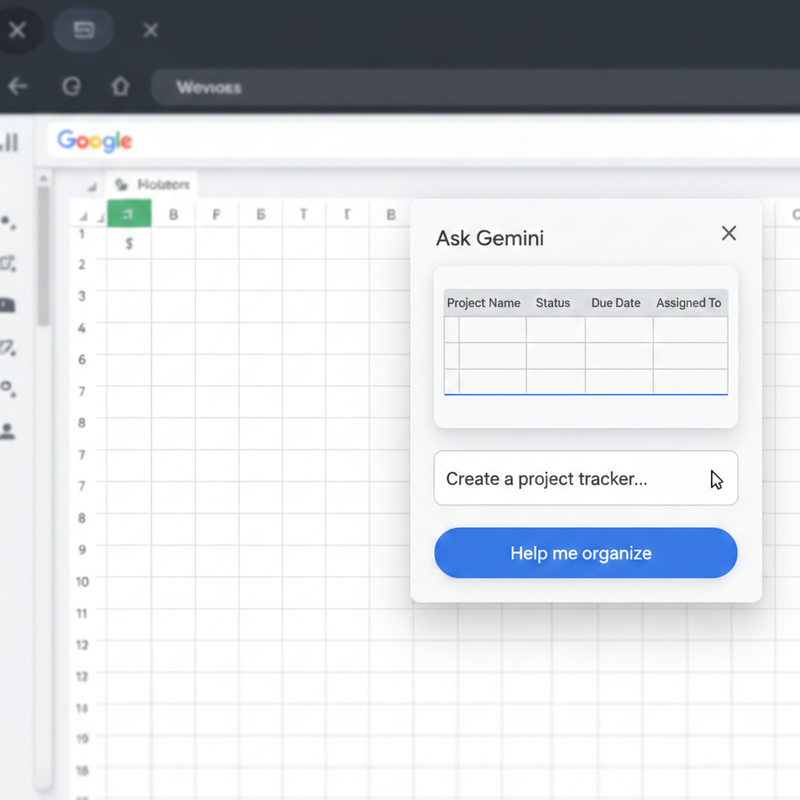
- The Reality: You open a blank sheet, click the Help me organize button, and Gemini builds the layout within that sheet.
Where Gemini Shows Up
You’ll find Gemini in two primary places:
- The Ask Gemini side panel (the “sparkle” icon in the top right).
- The Help me organize floating prompt that appears when you start a new sheet.
Requirements: Why You Might Not See Gemini Yet
If the Gemini icon is missing, it’s usually not a bug—it’s a licensing or setting issue. I’ve found that the most common reason users can’t “make” sheets with AI is that they are on a standard free Gmail account without the proper add-on.
- Supported Plans: You need a Google Workspace Business, Enterprise, or Education license with the Gemini add-on, or a personal Google One AI Premium subscription.
- Google Workspace Labs: If you aren’t on a paid AI plan, you must be enrolled in the Labs program, though features there are often experimental.
- Admin Settings: In corporate environments, your IT admin must explicitly enable Gemini for Google Workspace in the Admin Console.
How to Use Gemini to “Make” a Google Sheet Structure
Here is the exact workflow I use to turn a blank grid into a functional tool in under 60 seconds.
Step 1: Open a Blank Sheet
Start by creating a new sheet (sheets.new). Gemini needs a “canvas” to work on.
Step 2: Access “Help Me Organize”
Look for the blue sparkle icon or the prompt that says “Help me organize.” This is the specific engine that “makes” the sheet structure for you.
Step 3: Write a Structured Prompt
Don’t just say “make a tracker.” Be specific.
- Example: “Create a table for a 6-month marketing campaign including columns for Task, Owner, Channel, Budget, Status (with dropdowns), and Due Date.”
Step 4: Preview and Insert the Table Overlay
Gemini will show you a create table overlay. This is a preview of what the data will look like. If it looks good, click Insert. If not, refine your prompt.
Practical Examples: From Idea to Working Sheet
In my testing, Gemini excels at taking unstructured “brain dumps” and turning them into clean spreadsheets.
- Example 1: The Instant Project Tracker
By prompting for specific columns like “Priority” and “Progress,” Gemini automatically formats the cells with data validation (dropdowns) and alternating row colors. - Example 2: Turning Notes into Data
I often paste messy meeting notes into a sheet and ask the Google Sheets AI sidebar to “Extract names, dates, and action items into a table.” It saves hours of manual data entry. - Example 3: Generate Formulas
Instead of Googling complex syntax, I simply ask Gemini: “Write a formula to calculate the percentage difference between Column B and Column C,” and it provides the exact code.

Advanced: Automated Sheet Creation with Apps Script
For those who need Gemini to actually create files or tabs automatically, you have to go under the hood.
The Apps Script Gemini API allows you to write scripts that can:
- Call a Gemini model to generate content.
- Use a script to create a brand-new tab or spreadsheet file.
- Populate that new file with the AI-generated data.
Alternatively, many users prefer using a GPT for Sheets and Docs add-on or a Gemini function in Sheets. These third-party tools often provide a =GEMINI("prompt") function that makes the AI feel much more integrated into the cells themselves.
Troubleshooting: Why Gemini Won’t Edit Your Sheet
If you’re stuck, check these three common “fail points” I’ve identified:
- The Sidebar is Greyed Out: This usually happens if you have multiple Google accounts signed in simultaneously. Chrome can get “confused” about which account has the Gemini license. Try using an Incognito window.
- “I can’t help with that”: Gemini has safety filters. If your sheet contains sensitive PII (Personally Identifiable Information) or content that triggers a filter, it may refuse to process the data.
- Vague Prompts: If Gemini builds a “bad” sheet, it’s usually because the prompt lacked context. As noted in the Google Workspace Updates blog, the more descriptive your prompt, the better the structure.
Summary: Is Gemini the Right Tool for You?
Gemini is a world-class assistant for table creation, formula generation, and data cleanup. It isn’t a “file creator” in the sense that it won’t organize your Google Drive folders for you, but it will save you from ever having to format a header or write a VLOOKUP manually again.
Use Gemini if: You want to quickly turn a concept into a structured table or need help with complex logic.
Avoid Gemini if: You need a fully automated, recurring reporting system (for that, you still need Apps Script or dedicated BI tools).
Leave a Reply