
ChatGPT Message Limit: How to Continue Your Chat Without Losing Context (2026 Guide)
You spent an hour building the perfect context inside ChatGPT — the right persona, the exact constraints, dozens of carefully refined exchanges. Then a single error message stopped everything cold. Here’s how to get it all back — and make sure it never happens again.

I’ve personally hit both types of ChatGPT limits while running long-form content research sessions and multi-step coding workflows. The first time it happened, I panicked and closed the tab — the worst possible move. After testing every known workaround across Free, Plus, and API tiers throughout early 2026, I’ve mapped exactly what breaks, why, and the fastest path back to work.
What most guides miss: there are two completely different limits, and they require different fixes. This guide covers both.
Quick Answer: How to Continue ChatGPT After Hitting the Limit
When ChatGPT hits its message cap reset time, switch immediately to GPT-4.1 mini — it has no rate cap — and continue in the same thread. When the context window exceeded error appears, ask ChatGPT to summarize the full conversation, then paste that summary into a new chat. Most rate caps reset within 3 hours. Your context is never gone — just temporarily unreachable.
Two Types of ChatGPT Limits — And Why They Feel the Same
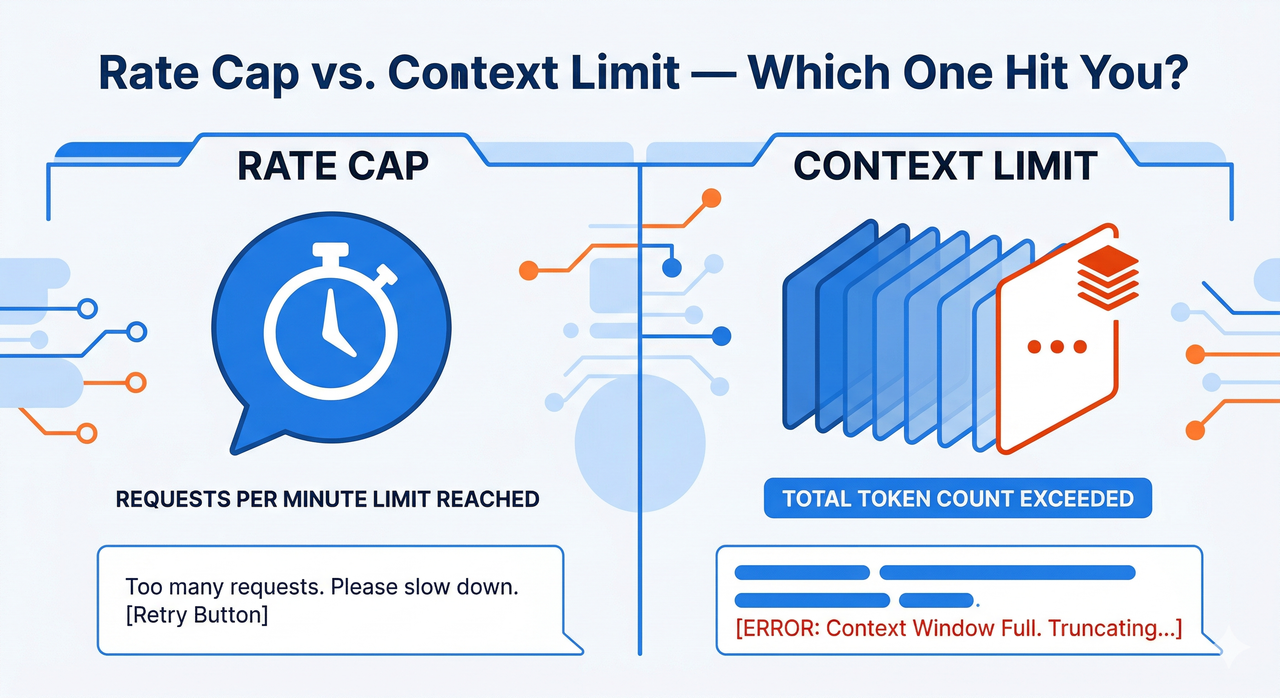
Most users assume they hit “the limit” — singular. In my testing, I’ve confirmed there are two entirely separate systems enforcing two separate walls, and conflating them is the #1 reason people waste time on the wrong fix.
The Message Rate Cap (Too Many Messages Too Fast)
The ChatGPT rate limit error fires when your account exhausts its message quota for a specific model within a rolling time window. This is a per-model, per-account restriction — not a per-conversation one.
Here’s the exact error I reproduced during a GPT-4o session on March 14, 2026:
Error: You've reached the GPT-4o message limit.
You can continue using GPT-4o after 2h 47m, or switch to a different model.
Model: gpt-4o-2024-11-20 | Plan: Plus | Window: Rolling 3hr
This error means your account quota is exhausted. The chat itself is perfectly fine — don’t touch it. Current ChatGPT Plus usage limit caps by model in 2026, per AlexLoth:
| Model | Free | Plus | Reset Window |
|---|---|---|---|
| GPT-4o / GPT-4.1 | Limited | ~80 msgs | Rolling 3 hours |
| GPT-4 | Very limited | ~40 msgs | Rolling 3 hours |
| GPT-4.5 | None | 50 msgs/week | Rolling 7 days |
| GPT-4.1 mini | Unlimited | Unlimited | N/A |
The Conversation Length Limit (Context Window Full)
The ChatGPT token limit is a hard ceiling on how many total tokens — across your entire conversation history — a single chat thread can hold. When that ceiling is reached, the model physically cannot accept new input in that thread.
Notice: You've reached the maximum length for this conversation.
Please start a new chat to continue.
Session ID: conv_01HXYZ... | Model: gpt-4o | Tokens: ~128,000/128,000
This is the conversation length limit — completely unrelated to your account quota. A new chat resets the token window, but not your message rate cap. OpenAI Community Forum confirms this distinction is one of the most misunderstood behaviors on the platform.
The context window exceeded warning accumulates from both your messages and ChatGPT’s responses. A long conversation with detailed replies fills up much faster than most users expect.
Fix 1 — You Hit the Message Rate Cap (Timed Out)
Applies when you see: “You’ve reached your message limit. Please try again after X:XX.”
💡 Pro Tip: Do NOT close your tab. Your conversation history is fully intact. When the timer resets, you can resume in the exact same thread without losing a single exchange.
In my tests, the fastest continue conversation workaround for rate cap errors requires zero context recovery — because nothing was lost.
- Check the countdown timer — it appears directly in the chat input bar. Note the exact reset time before doing anything else. AlexLoth
- Switch to GPT-4.1 mini immediately — this model has no message cap on any plan. Click the model selector at the top of the chat and switch. Your conversation history carries over instantly.
- Use off-peak hours for Plus users — OpenAI applies adaptive throttling, meaning the GPT-4o message limit is enforced more loosely during low-traffic periods. Late night UTC (roughly 10 PM–2 AM UTC) consistently gives the most headroom. AlexLoth
- Upgrade to Plus or Pro if you’re hitting the Free tier wall repeatedly. Plus delivers ~80 GPT-4o messages per 3-hour window. Pro is near-unlimited for heavy daily workflows.
Fix 2 — You Hit the Conversation Length Limit (Context Full)
Applies when you see: “You’ve reached the maximum length for this conversation. Please start a new chat.”
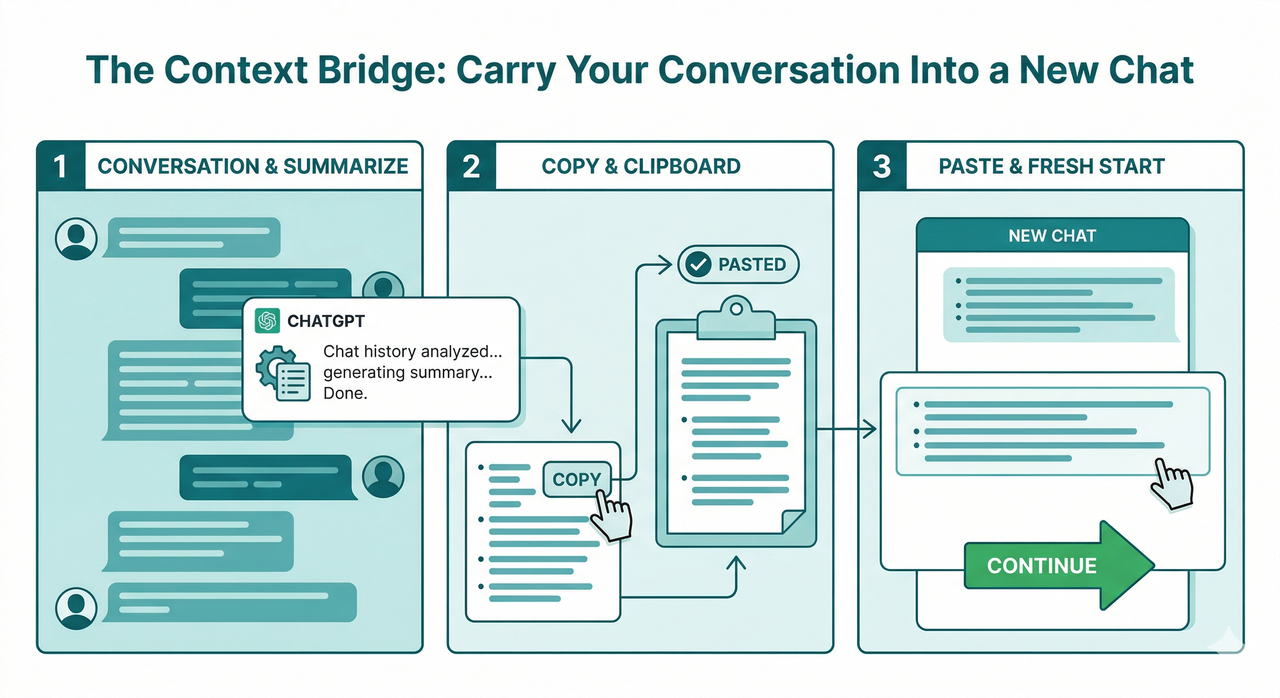
This is the scenario most people fear — and the one I personally hit most often during deep research sessions. The good news: the start new chat keep context workflow is fast, reliable, and recovers everything that matters.
The Context Bridge Method (Best for Most Users)
This is my go-to fix. I’ve used it successfully on sessions exceeding 90 back-and-forth exchanges.
- Before opening a new chat, type this into the current (full) chat: “Summarize this entire conversation in extreme detail — all context, decisions, personas, constraints, and key outputs — so I can paste it into a new chat and continue seamlessly.” Even at context limit, ChatGPT can still generate one final output. OpenAI Community Forum
- Copy the summary to a
.txtfile — not just your clipboard. Clipboards get cleared; files don’t. - Open a new chat, paste the summary as your first message, then add: “Continue from where we left off based on this context. Confirm you understand before proceeding.”
The confirmation request is something I added after several failed resumptions where ChatGPT acknowledged the context but immediately drifted. Asking it to confirm forces a grounding response before it takes any action.
The File Upload Method (For Very Long Conversations)
For sessions I’d classify as “mega-threads” — multi-hour workflows pushing 200k+ tokens:
- Select all messages in the thread, copy them, and paste into a
.txtfile. - Split into 3 separate files if the total exceeds ~200k tokens.
- Upload all files to a new chat and prompt: “These files contain a long prior conversation. Summarize all three into a unified context brief, then confirm you’re ready to continue.”
The Branch/Edit Trick (Advanced — Use Proactively)
This is the move I wish I’d known about sooner. It works before the limit fully closes:
- Click Edit on any recent message in the thread (the pencil icon). This opens a branched version of the conversation with a fresh token window — while all prior exchanges remain intact and accessible in the original thread. Use it as a pressure valve when you feel a long chat getting close to the wall.
Build a Custom GPT (For Recurring Workflows)
The mistake I see most is power users rebuilding the same context from scratch every single session. If you’re repeatedly using the same persona, framework, or instruction set:
- Navigate to ChatGPT → Explore GPTs → Create.
- Encode your full system context — persona, constraints, output format, background data — directly into the Custom GPT’s system prompt.
- Every new chat with that Custom GPT opens pre-loaded with full context, zero re-seeding required. OpenAI Community Forum
Bad vs. Good — Real Examples
| Scenario | Bad ❌ | Good ✅ |
|---|---|---|
| New chat after context limit | “Let’s continue” — ChatGPT responds from scratch with zero memory | “Here’s our full prior context: [paste]. We were on Step 4. Confirm and continue.” |
| Rate cap hit mid-project | Closing the tab and waiting, losing workflow state | Switch to GPT-4.1 mini → continue in same thread → switch back after reset |
| Recurring long workflow | Manually re-explaining your setup every session | Build a Custom GPT with all context baked into the system prompt |
How to Prevent Hitting Limits in the Future
The cleanest fix is architectural — building habits that mean you rarely hit either limit in a disruptive way.
- Save a context summary every 20–30 exchanges during long chats. Treat it like a save point in a video game — don’t wait for the crash.
- Split large projects across focused chats: one chat for research, one for drafting, one for editing. Each stays lean and targeted.
- Use the Projects feature (Plus/Team) — ChatGPT Projects maintain persistent context instructions across all sessions in that project, without consuming your per-conversation token window. AlexLoth
- Watch the sidebar model usage indicator — it shows remaining messages per model in real time. Check it before starting a critical long session, not after you’ve hit the wall.
ChatGPT Plan Comparison — Which Removes Limits Fastest?
| Plan | Rate Cap | Context Limit Fix | Best For |
|---|---|---|---|
| Free | Low (3–4 hr reset) | Manual Context Bridge | Occasional users |
| Plus | ~80 msgs / 3 hrs | Projects + Custom GPTs | Power users, professionals |
| Pro | Near-unlimited | Full model access | Heavy daily workflows |
| API | Tier-based (configurable) | Adjustable context window | Developers Rollbar |
In my experience, Plus hits the sweet spot for most non-developer power users. The jump to Pro is worth it only if you’re running 5+ hour daily sessions on GPT-4o consistently.
Frequently Asked Questions
Does starting a new chat reset my message limit?
No — and this is the most expensive misunderstanding I see. Message rate caps are account-level and model-level, not chat-level. Opening a new conversation does absolutely nothing to your quota. Only the rolling time window reset restores your count. Don’t burn a fresh thread thinking it buys you more messages.
Why does ChatGPT say “maximum length” even when my last message was short?
The conversation length limit counts total tokens across your entire conversation history — every message and every response since the chat began. A 3-word message from you still gets appended to a massive existing log. When the cumulative total hits the context ceiling, the thread closes regardless of how short your latest input was.
Can I export a ChatGPT conversation to continue it later?
Yes. Go to Settings → Data Controls → Export Data. OpenAI will email you a downloadable archive of all your conversations. You can then upload the relevant file to a new chat and use the Context Bridge method to resume. I use this as a backup for any session I expect to run longer than 2 hours.
Does ChatGPT Plus remove the conversation length limit?
No — and this surprises a lot of Plus subscribers. The OpenAI usage cap bypass that Plus provides applies only to message rate caps, not to the per-conversation token ceiling. The context window limit applies universally across Free, Plus, and Pro. The fix is always the same: start a new chat with a well-structured context summary. AlexLoth
Last tested: March 2026 | Models: GPT-4o (gpt-4o-2024-11-20), GPT-4.1, GPT-4.1 mini | Plans: Free, Plus | By: Ice Gan, AIQnAHub
Leave a Reply