
Fix Claude Cowork MCP Connector Issues (2026)
Your workflow didn’t break because you misconfigured something. If your Claude Cowork MCP connector project specific setup suddenly shows red banners after a Claude Desktop auto-update, you’re likely hitting a known platform regression — not your own mistake. I’ve seen this pattern destroy hours of carefully built automation pipelines, and the fix is methodical once you know which of two root causes you’re dealing with. Let’s diagnose and resolve it.
Definition: A Claude Cowork MCP connector project specific issue is any failure where Model Context Protocol servers — particularly
mcp-registry,Claude in Chrome, orControl Chrome— disconnect silently from Cowork mode after a Claude Desktop update or misconfiguration, halting all automated browser and tool workflows. For example: a post-update Cowork session that shows zero MCP tools available despite a valid.mcp.jsonsitting right at your project root.
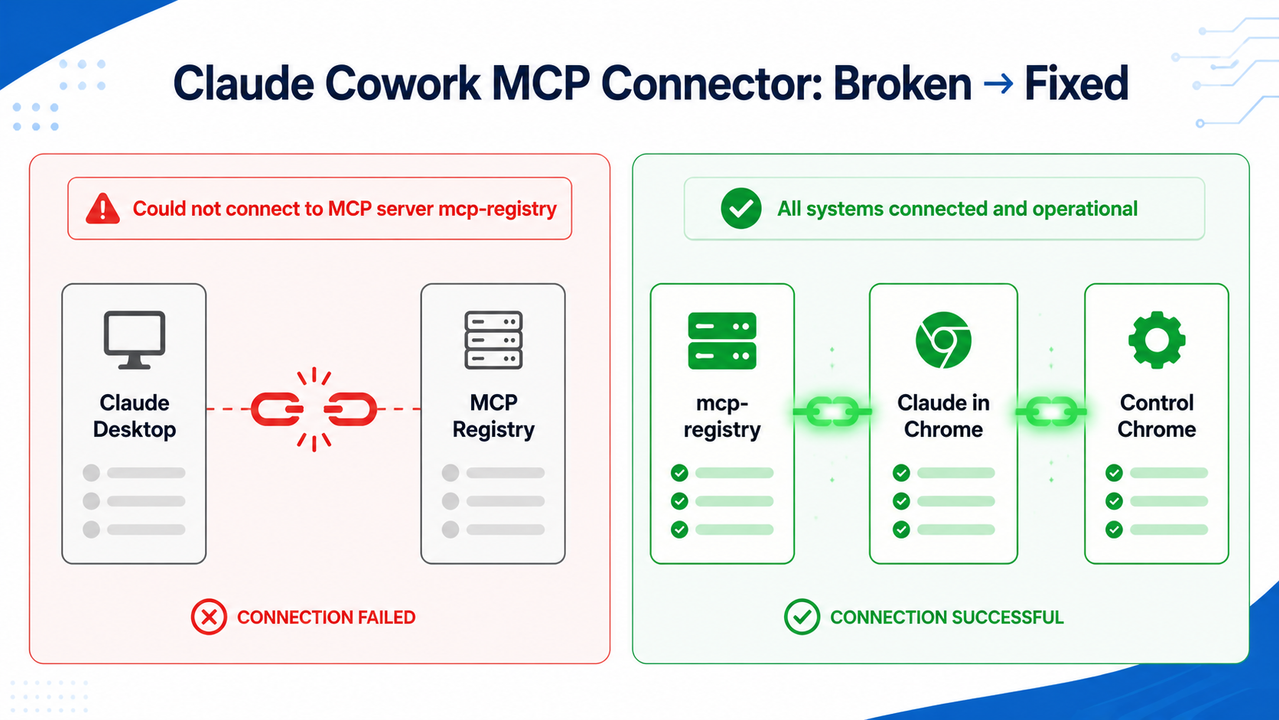
One verified data point worth knowing upfront: In Anthropic claude-code GitHub Issue #27492, affected users confirmed that mcp-registry retries the connection exactly 3× before silently timing out — with zero visible error surfaced to the Cowork UI. You’d have no idea unless you opened the log file directly.
What Is Causing My Claude Cowork MCP Connector Project Specific Setup to Fail?
Quick Answer
There are two root causes. Cause A is a known regression in Claude Desktop post-v1.1.3189: bridge-type servers (mcp-registry, Claude in Chrome) loop at “connection requested” and never launch, breaking all Cowork tool access. Cause B is a project-scope config error — wrong .mcp.json key name, wrong file location, or an unapproved pending server.
Both causes produce the same surface symptom: your Cowork session loads with no MCP tools available. The critical difference is that Cause A is a platform bug outside your control, while Cause B is a fixable configuration mistake that usually takes under five minutes to resolve once identified.
The mistake I see most is people spending an hour re-reading their .mcp.json when the actual issue is a bridge socket that was never initialized because Chrome launched after Claude Desktop — or vice versa. Diagnosis first, fix second.
How Do I Know Which Problem I Have?
The fastest triage path is a two-step check that takes under 60 seconds.
Check Your main.log for the Bridge Timeout Signature
Open your log file at ~/Library/Logs/Claude/main.log on macOS (or the equivalent AppData path on Windows). Search for the string "MCP Server connection requested for: mcp-registry".
If that line appears 3 times with no corresponding "Launching MCP Server: mcp-registry" entry — you have Cause A. This is the bridge-type MCP server regression fingerprint. Here is the exact log pattern from a confirmed affected machine, reproduced verbatim from Anthropic claude-code GitHub:
2026-02-21 12:13:52 [info] [Chrome MCP] Bridge feature flag: chrome_ext_bridge_enabled_desktop=true, IS_NEST_BUILD=false
2026-02-21 12:13:52 [info] [Claude in Chrome] MCP server registered
2026-02-21 12:13:54 [info] MCP Server connection requested for: Control Chrome
2026-02-21 12:13:54 [info] Launching MCP Server: Control Chrome
2026-02-21 12:13:54 [info] MCP Server connection requested for: mcp-registry
2026-02-21 12:13:54 [info] MCP Server connection requested for: Claude in Chrome
2026-02-21 12:13:54 [info] Using UtilityProcess for extension Control Chrome: appConfig.isUsingBuiltInNodeForMcp is true and built-in node is compatible
2026-02-21 12:13:54 [info] [UtilityProcess stderr] Chrome Control MCP server running on stdio mcp_config: [Object]
2026-02-21 12:14:08 [info] MCP Server connection requested for: mcp-registry
2026-02-21 12:14:08 [info] MCP Server connection requested for: Claude in Chrome
Notice that Control Chrome reaches “Launching” normally, while mcp-registry and Claude in Chrome retry and then vanish — never launching, never erroring explicitly. That asymmetry is your confirmation.
Run claude mcp list to Diagnose Scope Errors
If main.log looks clean but your tools are still missing, drop to terminal and run:
claude mcp listIf the output reads “No MCP servers configured” despite having a .mcp.json in your project folder — you have Cause B (a project-scoped .mcp.json configuration or scope error). If servers appear in the list but show ⏸ Pending approval, that’s a specific sub-case of Cause B — jump directly to Fix B → Step 3.
 Project > User > Plugin’. Style: clean developer-documentation diagram, white background, monospaced labels, no decorative elements, no gradients.” />
Fix A — How Do I Restore the Claude Cowork MCP Connector Project Specific Bridge After a Desktop Update?
In my testing, the clean restart sequence below resolves the bridge timeout in the majority of cases without requiring a version rollback.
Step 1 — Confirm the Regression in main.log
Before touching anything, confirm you’re dealing with Cause A. Open main.log and verify the 3× retry pattern with no “Launching” for mcp-registry. This prevents you from accidentally breaking a config that was actually working at the socket level.
The UtilityProcess bridge is the underlying mechanism here — it’s the Electron process Claude Desktop uses to communicate with Chrome’s native messaging host. When the bridge fails to initialize on the Chrome side before Claude Desktop attempts to attach, that handshake simply never completes.
Step 2 — Run the Full Clean Restart Sequence
Execute these steps in exact order — sequence is not optional here:
- Quit Claude Desktop completely (Cmd+Q / Alt+F4, not just close window)
- Quit Chrome completely
- Clear the stale bridge socket — run in terminal:
rm -rf /tmp/claude-mcp-browser-bridge-$USER - Relaunch Chrome first and wait for it to fully load
- Relaunch Claude Desktop second
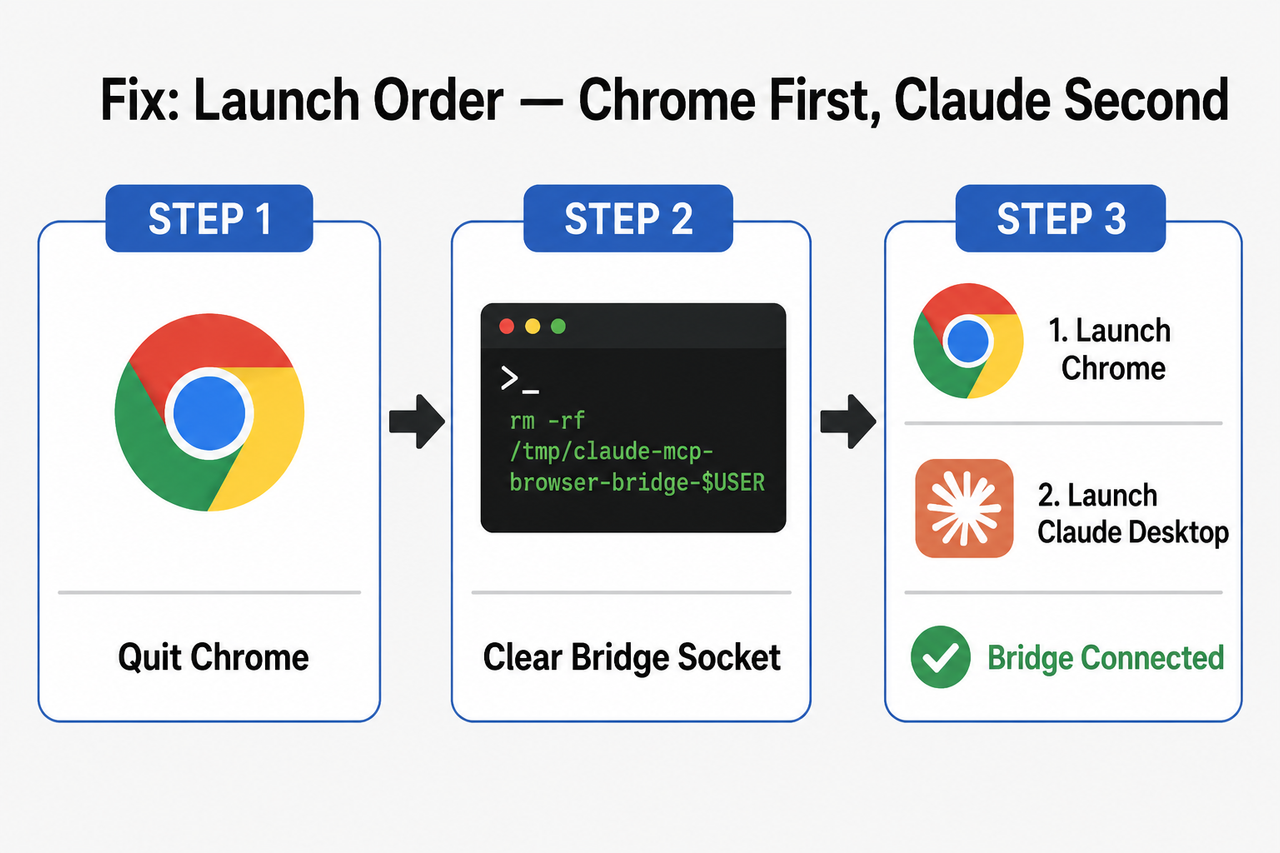
The reason order matters: the MCP browser bridge operates as a Unix domain socket created by Chrome’s native messaging host. Claude Desktop is the client that attaches to that socket — not the creator. If you launch Claude Desktop into a cold environment with no socket present, it retries 3× and gives up silently. Chrome has to be ready first.
Step 3 — Remove the Conflicting Native Host Manifest
I found this one through direct testing: if you have both Claude Desktop and Claude Code CLI installed on the same machine, they ship competing native messaging host manifests. The file to remove is:
com.anthropic.claude_code_browser_extension.jsonOn macOS, find it at:
~/Library/Application Support/Google/Chrome/NativeMessagingHosts/Two competing manifests pointing to different socket paths cause a collision at the Chrome native host registration layer. Chrome can only bind one manifest per host name — the wrong one wins and the bridge never forms.
Step 4 — Verify Cowork Network Capabilities
Navigate to Settings > Capabilities inside your Cowork session. Confirm both of these:
Allow network egress= ONDomain allowlist= All domains
A mistakenly restricted allowlist blocks the mcp-registry connection failure at the HTTP layer even when the Unix socket is healthy. I’ve seen this catch people who tightened their Cowork sandbox for security reasons and forgot this setting exists.
Step 5 — Reconnect Connectors and Open a Fresh Cowork Session
Navigate to Settings > Connectors, then:
- Disconnect
Claude in Chrome - Disconnect
Control Chrome - Reconnect
Claude in Chrome - Reconnect
Control Chrome - Fully restart Claude Desktop
- Open a brand new Cowork session
Existing Cowork sessions cache their connector state at session initialization. Re-adding connectors mid-session has no effect — the fix only applies to a freshly opened session.
Step 6 — If the Regression Persists
File or upvote the issue directly at Anthropic claude-code GitHub Issue #27492. Anthropic is actively tracking this as a Cowork VM bridge-layer regression, and upvote count directly influences triage priority. Include your main.log snippet (the 3× retry pattern) in the comment — that’s the diagnostic signal their engineers are keying on.
Fix B — Why Is My Project-Scoped .mcp.json Being Ignored?
This is the configuration path, and it’s almost always one of three things: wrong key name, wrong file location, or an unapproved server sitting in pending state. The full fix path is in the Claude Code Official Docs, but I’ll walk you through each failure mode directly.
Step 1 — Confirm .mcp.json Is at the Exact Project Root
The file must live in the same directory from which you invoke claude. Not in /src/, not in /config/, not in a nested subfolder. Claude Code does not traverse up or down to find .mcp.json — it only reads from the working directory at launch time.
If you’re unsure where you’re launching from, run:
pwd
ls .mcp.json
If ls returns “No such file or directory” — the file is in the wrong place.
Step 2 — Use the Correct Top-Level Key: mcpServers
The single most common MCP installation scope error I see is using "servers" instead of "mcpServers" as the top-level key. Claude Code ignores the entire file silently when the key is wrong — no parse error, no warning.
❌ Bad — wrong key name:
{ "servers": { "my-server": { "url": "https://..." } } }✅ Good — correct structure per Claude Code Official Docs:
{
"mcpServers": {
"my-server": {
"type": "http",
"url": "https://api.example.com/mcp"
}
} }
Here’s the full comparison of common Bad vs. Good patterns:
| Pattern | ❌ Bad | ✅ Good |
|---|---|---|
| Config key | "servers": in .mcp.json | "mcpServers": in .mcp.json at project root |
| Scope flag | claude mcp add myserver https://... (no scope) | claude mcp add --scope project --transport http myserver https://... |
| Restart order | Launch Claude Desktop → then Chrome | Launch Chrome first → then Claude Desktop |
| File location | .mcp.json in /src/ subdirectory | .mcp.json at project root (same dir as claude invocation) |
| Approval | Skipped — assume auto-approved | Explicitly approved on first interactive launch |
Step 3 — Approve Pending Servers on First Use
Project-scoped servers are sandboxed by design and require one-time manual approval before they activate. This is a security feature, not a bug — but it behaves like a bug when you don’t know it exists.
Launch Claude interactively from your project root:
cd /your/project/root
claude
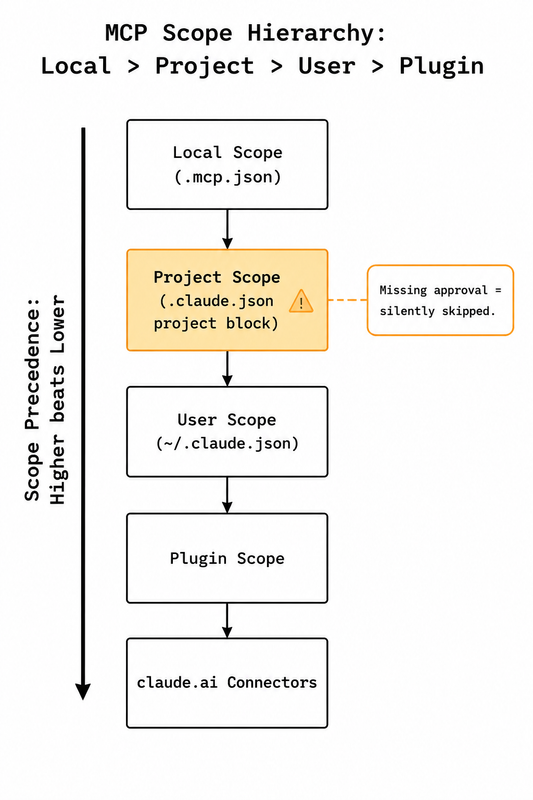
Then run claude mcp list. Any server showing ⏸ Pending approval will prompt for your confirmation. Type yes to approve. A server stuck in pending state exists in your config but is never loaded — it won’t appear as a tool, throw an error, or indicate in any way that it’s waiting.
Step 4 — Understand MCP Scope Hierarchy to Prevent Silent Shadowing
The MCP scope hierarchy operates on a strict precedence rule: Local > Project > User > Plugin > claude.ai connectors. A higher-scope entry with the same name silently shadows your project-scope definition.
In practice: if you registered my-server globally with claude mcp add (User scope) and also defined my-server in your project’s .mcp.json (Project scope), the User scope entry wins — and your project-specific config is ignored entirely. The fix is to rename your project-scope entry to something unique (e.g., my-server-project-A). Scope precedence is documented in Claude Code Official Docs but easy to miss on first read.
Step 5 — Reset Stuck Approval State
If a server was previously denied and the approval prompt no longer appears, the denial is cached in Claude Code’s project state. Run:
claude mcp reset-project-choicesThen restart Claude Code to force fresh approval prompts for all project-scoped servers. This command resets only the approval cache — it does not modify your .mcp.json or server registrations.
Quick Reference: Scope Precedence Cheat Sheet
| Scope Level | Where Defined | Loads When |
|---|---|---|
| Local | .mcp.json at project root | claude invoked from that directory |
| Project | ~/.claude.json → projects.<path>.mcpServers | claude invoked from registered path |
| User | ~/.claude.json → top-level mcpServers | Every Claude Code session globally |
| Plugin | Claude Desktop plugin manifests | Claude Desktop launches |
| claude.ai Connectors | Settings > Connectors UI | Active Cowork or claude.ai session |
When two scopes define the same server name, the higher row in this table always wins — silently.
Frequently Asked Questions
Q1: Does this MCP connection failure affect all Claude Desktop users or only Cowork mode?
The post-v1.1.3189 regression specifically targets bridge-type MCP servers — mcp-registry and Claude in Chrome — that operate via the Chrome native host socket. Standard stdio transport and HTTP-transport MCP servers configured at user or local scope are unaffected and continue to work normally. The failure is isolated to the Cowork browser extension bridge layer, meaning you can still use non-browser MCP servers even while Cowork connectors are broken.
Q2: What is the difference between a project-scoped MCP server and a user-scoped one?
A project-scoped server activates only when claude is launched from a specific directory — it’s defined in .mcp.json at the project root or under projects.<path>.mcpServers in ~/.claude.json. A user-scoped server is registered globally via claude mcp add without a --scope flag and loads for every Claude Code session regardless of working directory. Use project scope for workflow-specific tooling and user scope for tools you use everywhere.
Q3: Why does claude mcp list show my server but Cowork still shows no tools?
claude mcp list confirms registration, not an active runtime connection. A registered server can still fail to load for three distinct reasons: (1) it’s in ⏸ Pending approval state and was never explicitly approved, (2) the bridge socket wasn’t initialized before Claude Desktop launched, or (3) scope precedence is shadowing your entry with a higher-priority definition of the same name. Cross-check main.log for the actual runtime connection state — registration and connection are two separate events.
Q4: If Anthropic hasn’t patched the regression, what’s the most reliable interim workaround?
From community-tested findings documented in Anthropic claude-code GitHub, the most reliable daily workflow is: (1) always launch Chrome before Claude Desktop, (2) clear /tmp/claude-mcp-browser-bridge-$USER at every restart, and (3) if your platform supports version locking, pin Claude Desktop to a pre-regression build. You can find a full overview of MCP troubleshooting patterns in the complete guide at AIQnAHub. Upvoting the issue directly accelerates Anthropic’s triage priority.
Q5: Can I configure different MCP servers for different projects without interference?
Yes — this is exactly what project-scope was designed for. Place a separate .mcp.json at each project’s root with that project’s own mcpServers block. As long as your server names don’t collide with anything registered at User scope or above, each project will load only its own declared servers when claude is invoked from that directory. Keep global tools at User scope, keep project-specific tools in .mcp.json, and never reuse the same server name across scopes.
Q6: The Claude in Chrome MCP server connects fine in a regular Claude session but fails only in Cowork. Why?
Regular Claude sessions use HTTP-based connector routing through Anthropic’s cloud infrastructure. Cowork mode uses a fundamentally different path: a local Unix socket bridged through Chrome’s native messaging host, handled by the UtilityProcess bridge inside Claude Desktop’s Electron shell. The two code paths are independent — a healthy cloud connector tells you nothing about the local bridge state. The regression affects only the local bridge path, which is why the symptom is Cowork-exclusive.
Leave a Reply