
Transparency Note: This article contains no affiliate links. All recommendations are independent.
Nano Banana Pro 2 Not Working? 10 Easy Fixes to Get Gemini Images Back on Track
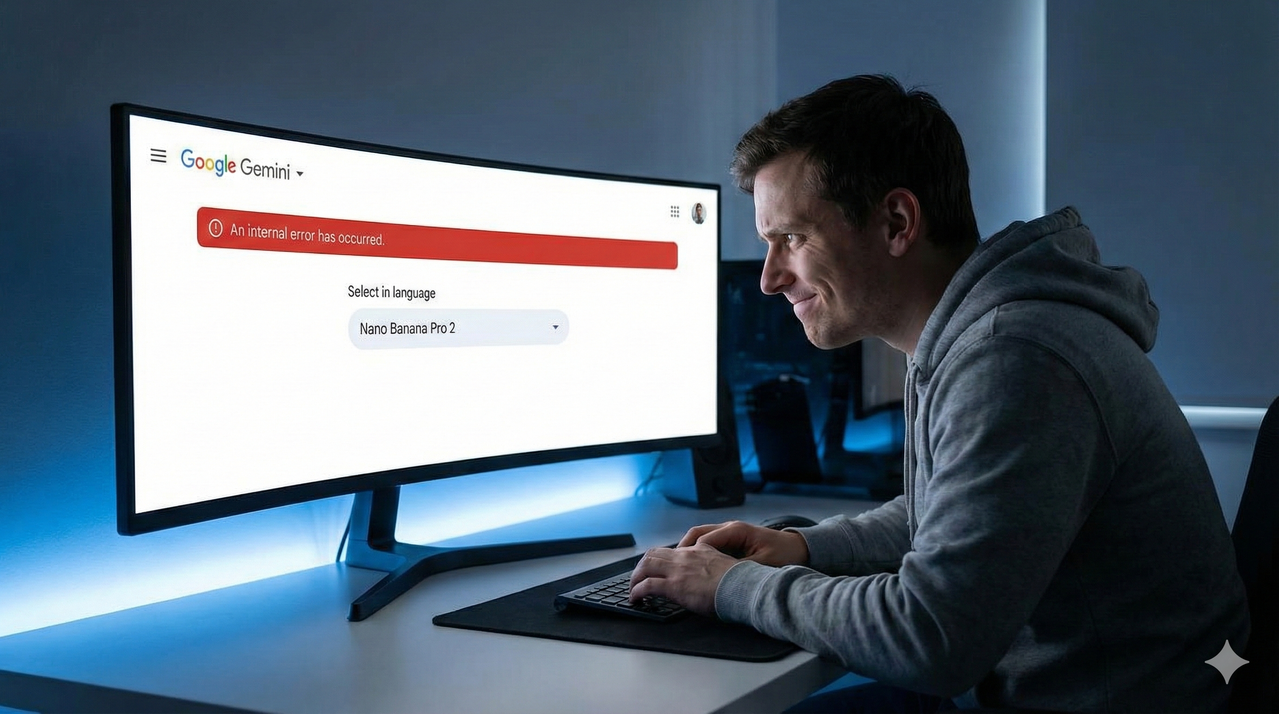
You hit generate. Nothing. Or worse — you get a broken image, a red banner saying “An internal error has occurred”, or outputs that look like Nano Banana Pro 2 forgot everything it learned. Every failed generation feels like a wasted credit, a missed deadline, or proof that your account is somehow broken. I’ve been there. The good news: in the vast majority of cases, this is fixable in under 10 minutes — and it almost never means your account is permanently damaged.
Quick Answer – How to Fix Nano Banana Pro 2 Fast
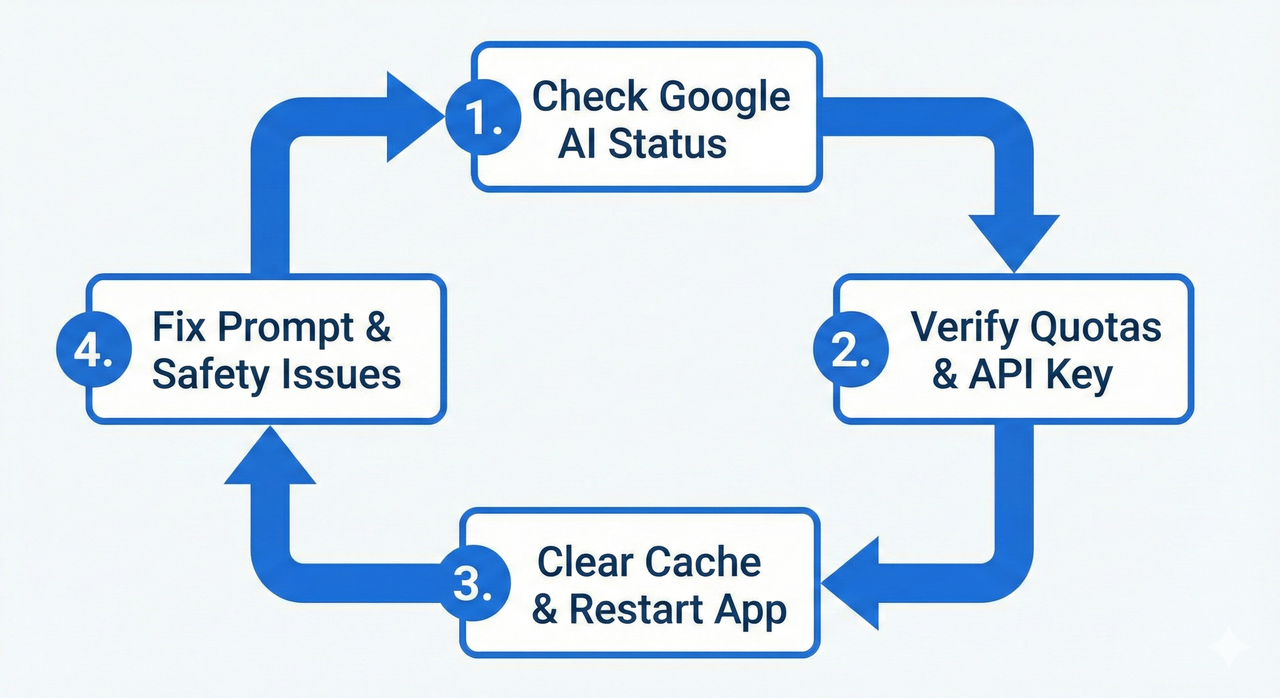
If Nano Banana Pro 2 is not working, here is the fastest path to resolution:
- Check the Google AI status page for active outages or incidents.
- Verify your Gemini API key, billing status, and usage quotas and rate limits in Google AI Studio.
- Stabilize your internet connection (aim for >10–15 Mbps, no packet drops).
- Hard-refresh your browser or update the Gemini app, then clear browser cache and cookies.
- Reopen the session and explicitly reselect the Nano Banana Pro model or Nano Banana 2 model in Flow by Google or AI Studio.
- Rewrite your prompt with clear subject, style, lighting, camera angle, and resolution — vague prompts silently trigger safety blocks and return generic internal errors.
Most cases resolve at step 1 or 2. Keep reading for the full diagnostic breakdown.
What Is Nano Banana Pro 2 in Gemini?
Nano Banana Pro and Nano Banana 2 are Google’s advanced AI image generation models, built on top of the Google Gemini multimodal architecture. As confirmed by Google Blog , Nano Banana Pro was designed for professional, reasoning-heavy image tasks — think client deliverables, product photography, text-heavy designs, and data visualizations. Nano Banana 2 is the faster, default-tier sibling: it’s what Google Gemini serves most users automatically as of early 2026.
You can access both models in three environments:
- Gemini chat (gemini.google.com) — consumer-facing, model selector in the top bar
- Google AI Studio (aistudio.google.com) — developer-facing, with full API control and quota dashboard
- Flow by Google — the creative workflow tool, where you select models per project node
The key confusion I see constantly: users assume they are on Nano Banana Pro when Google Gemini has actually defaulted them to Nano Banana 2. Always verify the active model in the picker before you start a session. For a deeper look at how Gemini image models compare, see our full model breakdown guide.
| Feature | Nano Banana 2 | Nano Banana Pro |
|---|---|---|
| Speed | Faster | Slower (uses extended thinking) |
| Default model | Yes | No — must be selected manually |
| Best for | Quick drafts, everyday images | Client work, text rendering, complex compositions |
| Availability | Free and paid plans | Gemini Advanced / API (paid tiers) |
| Max resolution | Up to 2K | Up to 4K |
Common Nano Banana Pro 2 Issues (Symptoms)
Before we fix anything, let’s name exactly what you are seeing. I categorize Nano Banana Pro 2 failures into four distinct symptom buckets.
Images Won’t Generate or “An Internal Error Has Occurred”
This is the most alarming symptom — the model simply refuses to output anything. In
Google AI Studio, the API response typically returns a 500-level error or a JSON
payload with "message": "An internal error has occurred". In the Gemini
chat interface, it surfaces as a red inline banner or a plain text error. You may also see the
softer variant: “I’m having a hard time fulfilling your request” — which can mean a
safety block, a quota hit, or a transient service failure. All three look identical from the
user’s side, which is why systematic diagnosis matters.
Nano Banana Pro / 2 Missing or Greyed Out
Sometimes the Nano Banana Pro model simply doesn’t appear in your model dropdown in Flow by Google or AI Studio. This usually means one of three things: your current plan doesn’t include Pro access, the model is temporarily unavailable in your region, or Google Gemini has quietly set Nano Banana 2 as the forced default (which happened to many users in late February 2026 when Google changed the default model assignment).
Very Bad or Off-Prompt Image Quality Overnight
“It was fine yesterday — what happened?” This is the second most common complaint I see. The Nano Banana Pro model didn’t get worse; something in your workflow changed. Most often it’s a model switch (Pro → 2), a prompt that worked before now triggering a soft safety filter, or a shift in how the model interprets certain style terms after a backend update. The output looks like the model is ignoring half your prompt.
Slow, Laggy, or Time-outs During Generation
Generation hangs at the spinner for 30–90 seconds, then either fails silently or returns a timeout error. In my experience, this almost always correlates with either peak-hour Google AI infrastructure load or a local network with packet loss. A weak Wi-Fi signal doesn’t just make things slow — it can corrupt the multipart request entirely, causing the server to return an error that looks like a model bug.
Root Causes – Why Nano Banana Pro 2 Breaks
Understanding why the model fails is what separates a one-time fix from a permanent solution.
Service Outages and Capacity Limits on Google’s Side
Google AI infrastructure — including Google Gemini and Google AI Studio — experiences periodic outages, planned maintenance windows, and capacity constraints during high-demand periods. The important thing to understand is that these incidents don’t always appear on the main Google Workspace status page. The most reliable places to check are the Google AI status page (status.cloud.google.com, filtering for AI Platform services), the Gemini Apps Community on Google Help, and the r/GeminiAI subreddit, where users report degraded performance in real time. I’ve seen incidents where the model was returning internal errors for 6–8 hours before any official status update appeared.
Quotas, Billing Problems, and Gemini API Key Issues
If you use Nano Banana Pro 2 via the API, your Gemini API key has
hard limits attached to it. Free tier users hit usage quotas and rate limits much
faster than they expect — especially for image generation, which is more resource-intensive than text.
In Google AI Studio, navigate to Settings → Billing & Plans and
Settings → Usage & Limits to check your current consumption. An expired billing method,
a suspended project, or an API key that was regenerated (invalidating your old one) will all produce
"An internal error has occurred" without any clear explanation in the UI.
Weak, Vague, or Policy-Blocked Prompts
This is the root cause nobody wants to admit. A two-word prompt like “cyberpunk city” gives Nano Banana Pro 2 almost no signal to work with. Worse, certain topic combinations — even innocent-sounding ones — can trigger Google Gemini‘s safety filters, which surface as generic internal errors rather than explicit content warnings. The model doesn’t tell you why it blocked your prompt. As noted in the developer documentation Google AI Dev Tutorial , prompt specificity directly correlates with both output quality and filter-pass rates.
Local Device and App Issues (Cache, Outdated App, Network)
Stale browser cache and cookies store outdated session tokens and model configuration data that can interfere with how the Gemini interface communicates with the backend. If you haven’t cleared your cache in weeks and you’re seeing persistent issues, this is a fast and free first fix. Similarly, an outdated Gemini mobile app may be sending API requests using a deprecated endpoint format, causing silent failures on the server side.
Step-by-Step Nano Banana Pro 2 Troubleshooting Checklist
Work through these in order. Most users resolve their issue by step 5.
Step 1 – Check Google AI / Gemini Status
Before changing anything in your setup, rule out Google’s infrastructure.
- Visit status.cloud.google.com and filter for AI Platform and Vertex AI services
- Search “Gemini status” or “Nano Banana Pro not working” on Google — recent Reddit or community threads will surface faster than official pages during an active incident
- Check the Gemini Apps Community ( Google Help ) for threads posted in the last 24 hours
- If there’s an active incident: stop here, wait, and retry in 30–60 minutes
Step 2 – Verify Your Account, Plan, and Quotas
- In Google AI Studio, click your profile → Billing → confirm your payment method is active and not expired
- Navigate to Usage & Limits → check today’s image generation count against your plan’s daily quota
- If you use the API: open the Gemini API key dashboard, verify your key is active and hasn’t been rotated or revoked
- Free tier image generation quotas reset daily at midnight Pacific time — if you’re at 100%, wait for reset
Step 3 – Test and Stabilize Your Internet
- Run a speed test (fast.com or speedtest.net) — you need stable >10–15 Mbps with low jitter
- Packet loss above 1% will cause multipart image generation requests to fail inconsistently
- Switch from Wi-Fi to a wired connection or mobile hotspot to isolate the network variable
- Avoid peak hours (typically 12–2 PM and 7–10 PM in your timezone) when Google AI infrastructure is under highest load
Step 4 – Refresh or Update the Gemini App
- Browser: Press
Ctrl+F5(Windows/Linux) orCmd+Shift+R(Mac) to force a full hard refresh, bypassing cached resources - Mobile: Force-close the Gemini app completely, then check for updates in the Play Store or App Store — run the latest version
- AI Studio: Close the browser tab entirely, wait 30 seconds, then reopen — don’t just refresh; a new tab creates a fresh session
Step 5 – Clear Browser Cache and Cookies, Then Re-Sign In
This is the fix that resolves more issues than it has any right to.
- Chrome:
Settings → Privacy and Security → Clear Browsing Data→ check Cookies and site data + Cached images and files → set time range to All time → Clear - Firefox:
Settings → Privacy & Security → Clear Data - After clearing: sign out of your Google Gemini account entirely, close the browser, reopen, and sign back in fresh
- This forces a new session token and reloads your current model configuration from the server
Step 6 – Reselect the Nano Banana Pro / Nano Banana 2 Model
Do not assume you are on the model you think you’re on.
- Gemini chat: Click the model name in the top bar → confirm Nano Banana Pro or Nano Banana 2 is highlighted (not base Gemini)
- AI Studio: In your project settings, open the Model dropdown → explicitly select
gemini-3-pro-image-preview(Nano Banana Pro) orgemini-3.1-flash-image(Nano Banana 2) - Flow by Google: Open the image generation node → check the Model field in the right panel → reselect and save
- After reselecting, send one test generation before committing to a full workflow
Step 7 – Run a Safe Baseline Prompt
Before debugging your actual prompt, confirm the model itself is functional:
A high-resolution photo of a red apple on a white background,
studio lighting, sharp focus, 2K resolution, product photography style.- If this works: your model is functional — the issue is in your original prompt (go to Step 8)
- If this also fails: the issue is infrastructure, credentials, or session-level — go back to Steps 1–5
Step 8 – Fix Prompt Structure and Safety Issues
The most common silent failure mode. Rewrite your prompt using this anatomy:
[Subject] + [Environment/Setting] + [Style] + [Lighting] + [Camera/Angle] + [Resolution] + [Aspect Ratio]
- Use positive framing: describe what you want, not what you don’t want
- Add specific resolution terms:
2K,4K,ultra-sharp,high-resolution - Avoid ambiguous or policy-adjacent terms — if your prompt was blocked, the error looks identical to a server error
- Use natural language; Nano Banana Pro 2 responds better to descriptive sentences than keyword lists
Step 9 – Try a Different Environment
If the issue persists after Steps 1–8:
- Switch browsers: if you use Chrome, try Firefox or Edge
- Switch devices: if on mobile, switch to desktop (or vice versa)
- Create a new project in Google AI Studio from scratch and run your baseline prompt there
- This isolates whether the bug is tied to a specific project, browser profile, or device
Step 10 – Log Error Details and Contact Support
When nothing else works:
- Record: exact timestamp of failure, your Google project ID, the full error message text, the exact prompt you used
- Screenshot the error in both the UI and (if using API) the raw JSON response
- Post in the Gemini Apps Community ( Google Help ) with these details — community-identified patterns often resolve faster than official support tickets
- For API users: file a bug via the Google AI Developer forum at ai.google.dev
How to Write Better Prompts for Nano Banana Pro 2
Getting consistent, high-quality results from Nano Banana Pro 2 is 50% model, 50% prompt craft. In my testing, a well-structured prompt reduces internal errors and safety blocks by a significant margin — because ambiguity is the enemy.
The Anatomy of a Strong Nano Banana Prompt
Every reliable Nano Banana prompt contains these elements:
| Element | What to Include | Example |
|---|---|---|
| Subject | Specific person, object, or scene | “a vintage leather armchair” |
| Environment | Setting, background, context | “in a sunlit library with oak shelves” |
| Style | Art direction or photo style | “photo-realistic”, “illustration”, “cinematic” |
| Lighting | Direction, quality, color | “warm golden-hour side lighting” |
| Camera/Angle | Lens type, shot framing | “wide-angle, low-angle shot” |
| Resolution | Output quality signal | “4K”, “ultra-sharp”, “high-detail” |
| Aspect Ratio | Output dimensions | “16:9”, “1:1”, “4:3” |
Before/After Prompt Examples
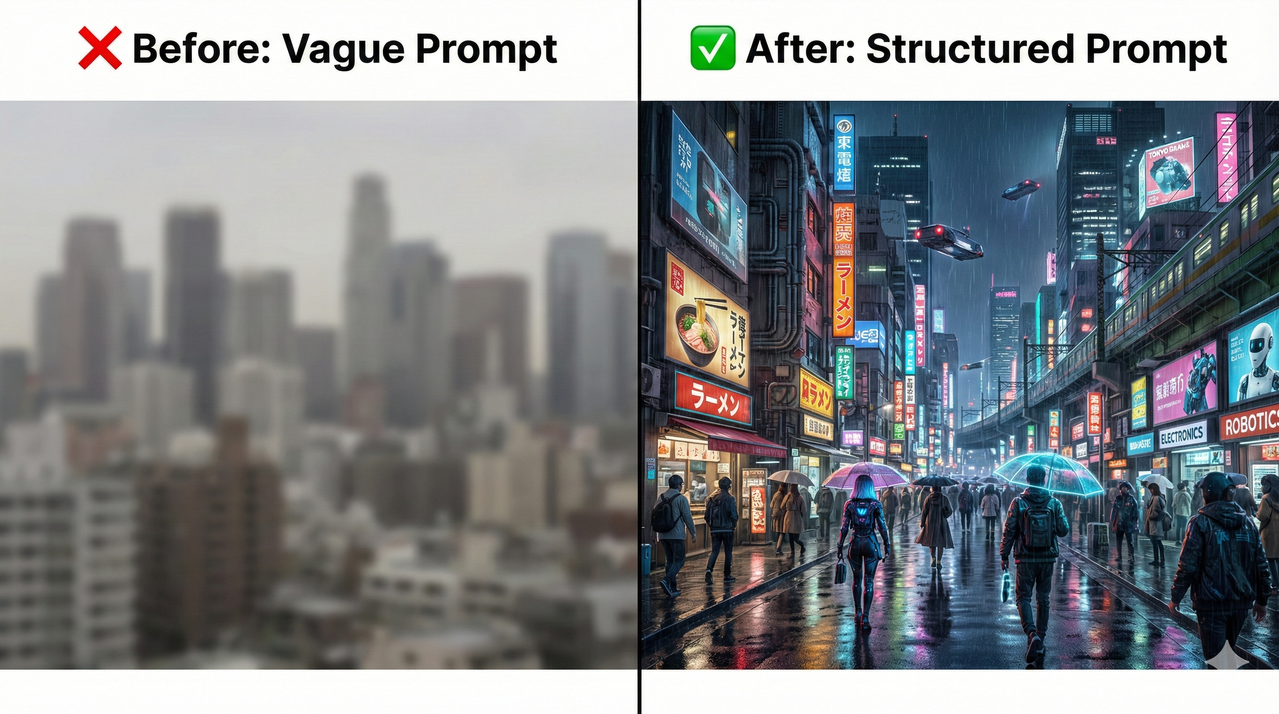
❌ Bad Prompt:
“Cyberpunk city.”
Why it fails: No subject focus, no lighting direction, no camera angle, no resolution target. Nano Banana Pro 2 is a reasoning model — with this little signal, it guesses on every dimension, and the results are inconsistent at best, policy-blocked at worst.
✅ Good Prompt:
“A 4K cinematic wide-angle shot of a rainy cyberpunk Tokyo street at night, neon signs reflecting on wet pavement, pedestrians with transparent umbrellas, rendered in ultra-sharp detail, moody blue and magenta lighting, photo-realistic style, 16:9 aspect ratio.”
Why it works: Every element of the anatomy is covered. The Nano Banana Pro model has clear instructions on subject, environment, style, lighting, camera, resolution, and aspect ratio — leaving almost no room for misinterpretation or accidental safety triggers.
Avoiding Safety-Policy Pitfalls
Google Gemini‘s safety filters are aggressive — and they surface as generic internal errors, not explicit refusals. The model won’t tell you “this was blocked for policy reasons.” I’ve found three reliable rewrites that preserve creative intent while avoiding blocks:
- Replace vague weapon/violence references with specific artistic context (“a medieval sword mounted on a stone wall as a museum exhibit” not “a sword”)
- Avoid combining ambiguous demographic descriptors with action-heavy scenarios
- When in doubt, add “illustration style” or “for a children’s book cover” to reframe intent clearly — the model responds to contextual framing
Fixing Low Resolution, Blurry, or Compressed Images
The model isn’t broken — you’re probably looking at a preview.
Previews vs Full-Resolution Downloads
Google Gemini‘s chat interface renders a compressed web-optimized preview of every image by default. What you see in the chat window is not the full-resolution output. To get the actual file:
- Hover over the image in Gemini chat → click the download icon (arrow pointing down)
- In Google AI Studio: the image viewer shows a preview; use the Download button in the top-right of the image panel
- In Flow by Google: right-click the output node result → Export full resolution
Always evaluate image quality from the downloaded file, not the in-app preview.
Choosing the Right Resolution and Aspect Ratio
- 1K (1024px): Fast, low-credit cost — use for rapid iteration and concept validation
- 2K (2048px): Standard quality for web assets, social media, presentations
- 4K (4096px): Client deliverables, print assets, detailed product shots — takes longer to generate
- Extreme aspect ratios (1:4, 4:1, 1:8, 8:1): Nano Banana Pro 2 supports these, but composition quality drops significantly at ratios beyond 3:1. For banners and panoramas, generate at 2:1 and extend in post-processing.
Resetting After Long Edit Chains
One of the most overlooked causes of degraded output: iterative editing. Each edit-over-edit conversation accumulates context “noise” that gradually pulls the model away from your original intent. In my experience, image quality noticeably degrades after 5–7 successive edits in the same thread. The fix:
- Download the last good image from your edit chain
- Start a brand-new conversation or AI Studio project
- Re-upload the downloaded image as your reference
- Write a fresh, complete prompt describing the next edit you want — don’t reference the previous conversation
When to Use Nano Banana 2 vs Nano Banana Pro
Choosing the wrong model for your task is a common source of “bad” results that have nothing to do with bugs.
Nano Banana 2 – Fast, Default, Good Enough
Nano Banana 2 is the right choice when:
- You need a quick visual concept or mood board (output in 5–10 seconds)
- The image is for internal review, social drafts, or personal projects
- You’re iterating rapidly through many prompt variations
- You’re on a free or starter plan with limited quota
Nano Banana Pro – For Complex, Client-Ready Work
Nano Banana Pro is worth the extra time and cost when:
- The deliverable goes to a client or goes live publicly
- Your image contains text elements (product labels, posters, infographics) — Pro handles text rendering significantly better
- You need compositional reasoning: “place the logo in the lower-left corner over a semi-transparent dark overlay”
- You’re generating data visualizations or technical diagrams where accuracy matters
Migrating a Project from Nano Banana 2 to Pro
- Copy your best-performing prompts into a text document
- In AI Studio or Flow by Google, duplicate your project
- In the duplicate, change the model to
gemini-3-pro-image-preview(Nano Banana Pro) - Re-run your prompts one by one — expect to tweak resolution and style terms, as Pro interprets some language differently than 2
- Keep both projects open in parallel until you confirm Pro’s output meets your standard
Advanced Debugging for Developers (AI Studio & API)
This section is for developers calling the Gemini API directly. If you use the consumer Gemini interface, you can skip to the FAQ.
Inspecting Response Codes and Error Payloads
When Nano Banana Pro 2 fails via the API, the HTTP response code and JSON body give you diagnostic data the UI hides. Common patterns:
| HTTP Code | JSON "code" |
Meaning | Fix |
|---|---|---|---|
| 500 | INTERNAL |
Server-side transient error | Retry with exponential backoff |
| 429 | RESOURCE_EXHAUSTED |
Usage quotas and rate limits hit | Wait for reset or upgrade plan |
| 400 | INVALID_ARGUMENT |
Malformed request or bad parameters | Check prompt encoding and model name |
| 403 | PERMISSION_DENIED |
Invalid or expired Gemini API key | Regenerate key in AI Studio |
| 400 | SAFETY |
Safety filter block | Rewrite prompt |
Always log the full JSON error object, not just the status code — the nested message field often contains the specific subsystem that failed.
Handling Quotas, Retries, and Backoff
For production integrations, never retry immediately on a 500 or 429. Implement exponential backoff:
import time
import random

def generate_with_backoff(client, prompt, max_retries=5):
    for attempt in range(max_retries):
        try:
            response = client.generate_image(prompt=prompt)
            return response
        except Exception as e:
            if attempt == max_retries - 1:
                raise
            wait = (2 ** attempt) + random.uniform(0, 1)
            time.sleep(wait)
Monitor your daily quota consumption programmatically via the Google AI Studio usage API endpoint — don’t rely on the UI dashboard for high-frequency monitoring.
Using Reference Images and “Thinking” Mode Effectively
Nano Banana Pro supports up to 14 reference images per request via the
inline_data or file_data fields in the API payload. As documented by
Google AI Dev Tutorial
,
these references are used for:
- Character/subject consistency: Lock facial features or object appearance across a generation series
- Style transfer: Provide an art style reference the model should emulate
- Layout control: Pass a wireframe or sketch to control element placement
“Thinking mode” (or interim image generation) is Pro’s internal reasoning pass — it generates
a rough compositional sketch before the final render. If your final output is consistently
off-composition, check whether thinking mode is enabled in your API request
("thinkingConfig": {"thinkingBudget": 1024}). Increasing the thinking budget
improves compositional accuracy for complex multi-element prompts at the cost of additional latency.
FAQ – Fast Answers for Common Nano Banana Pro 2 Problems
Why does Nano Banana Pro 2 show “An internal error has occurred”?
This error surfaces for at least four different root causes: a Google-side service incident, an expired or quota-exceeded Gemini API key, a safety-policy block on your prompt, or a corrupted local session. Check the Google AI status page first, then verify your quotas, then rewrite your prompt before assuming a deeper problem.
How do I get Nano Banana Pro back in the model list?
If Nano Banana Pro has disappeared from your model picker, first confirm your plan includes Pro access (it requires Gemini Advanced or a paid API tier). If your plan is correct, hard-refresh the page or clear browser cache and cookies — the model list is cached client-side and can become stale after Google updates the available model roster.
Why are my Nano Banana Pro 2 images suddenly worse than last week?
The two most common culprits: Google Gemini silently switched your default to Nano Banana 2 (faster, lower fidelity), or a backend update shifted how the model interprets certain style terms in your saved prompts. Verify the active model first, then re-run your best previous prompt verbatim to see if the quality drop is model-level or prompt-level.
Does switching from mobile to desktop help Nano Banana Pro?
Yes, frequently. The desktop browser version of Google Gemini and Google AI Studio have more robust session management, direct access to model selectors, and don’t suffer from mobile app version lag. For any serious creative or client workflow, desktop is the recommended environment for Nano Banana Pro 2.
Is Nano Banana 2 worse than Nano Banana Pro, or just different?
Different, not worse — for its intended use case. Nano Banana 2 is optimized for speed and general-purpose imagery. Nano Banana Pro applies extended reasoning to composition, text rendering, and factual accuracy. Using Pro for quick social drafts wastes quota; using Nano Banana 2 for client-facing text-heavy designs produces inferior results. Match the model to the task.
Leave a Reply