
Fix Gemini Only Uploading One Image at a Time (2026)
Why can I upload only one image to Gemini when I previously uploaded several at once is usually not an intended limit: Gemini Apps are documented to accept up to 10 files per prompt, subject to availability. For example, reported workarounds include sharing images from Google Photos instead of using the in-app picker.
A feature that worked yesterday and stalls today produces a particular kind of unease. You wonder whether it was taken away, whether your plan changed, or whether you broke something. Why can I upload only one image to Gemini when I previously uploaded several at once is a question I’d want answered with evidence, not reassurance.
I have spent 33 years in IT, and I have seen this pattern in every era of software. A feature works on one build and not the next, or on one client and not another. My habit is to suspect the client or the update before I suspect my account.
I have not reproduced this problem on my own devices. This guide draws on Google’s help page, a Google Help community thread with a Product Expert reply, and a news report, and I label which is which.
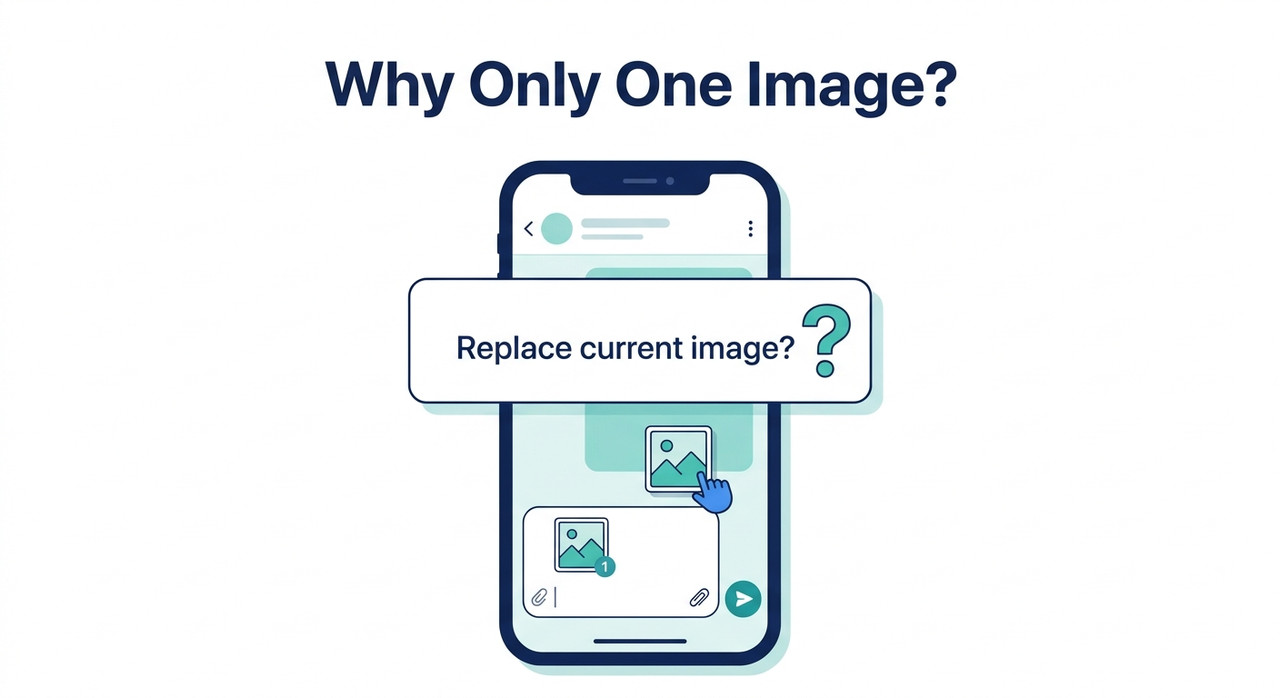
Why Can I Upload Only One Image to Gemini When I Previously Uploaded Several at Once?
Quick Answer
Gemini Apps are meant to accept up to 10 files per prompt, so one image is not the intended limit. Update the app, clear its cache and force stop it. If the replace prompt persists, select the images in Google Photos and use Share > Gemini, or use + > Files, then send feedback with system logs.
The cause is not confirmed. I found no official Google acknowledgment of the problem. The main evidence is a community thread from April 2026 that Google has locked, so behavior may have changed since then.
What I can give you is what is documented, what users have reported, and the steps a Google Product Expert suggested.
What Is Gemini Supposed to Allow?
Start with the rules as Google writes them. They tell you whether a one-image limit is expected, and the answer is no.
| Item | Documented behavior | Source |
|---|---|---|
| Files per prompt | Up to 10 of any supported kind, including images, “subject to availability” | Gemini Apps Help |
| Size per file | Up to 100 MB for most file types; videos up to 2 GB | Gemini Apps Help |
| ZIP files | Up to 10 files, up to 100 MB, no video or audio inside | Gemini Apps Help |
| Higher limits | A Google AI Pro or Google AI Ultra plan raises usage limits | Gemini Apps Help |
| Earlier behavior | One image per prompt, until a May 2025 rollout | 9to5Google |
The Documented Limit Is 10 Files per Prompt
Google’s help page says you can add up to 10 files of any supported kind in the same prompt, such as documents, images or videos. It adds the qualifier “subject to availability.” Gemini Apps Help
That qualifier matters. It means the limit is not guaranteed to look identical for everyone at every moment, and I would not read more into it than that.
Gemini Accepted Only One Image per Prompt Until May 2025
There was a time when one image was the rule. Android Central reported in March 2025 that Gemini allowed only one image at a time, and that adding another replaced the first. In May 2025, 9to5Google reported that Gemini began accepting up to 10 images per prompt on Android, iOS and the web. 9to5Google
So the one-image behavior is not new. It is the old behavior returning, which is part of why users think the feature was removed.
Users Have Reported the Limit Regressing to One
A September 2025 community post described a second image triggering a prompt about replacing the first, with Yes and No options. An April 18, 2026 thread described the same behavior from a user who said they previously uploaded up to 10 images at once. Google Help community thread
That user’s post was filed under Media and Extensions, Android App and Gemini Pro. Two reports seven months apart do not prove a pattern. They do show the problem is not a one-off.
What Could Make Gemini Accept Only One Image?
Nobody outside Google can say for certain. The table sorts the possibilities by how well each is supported. The Status column is a warning label.
| Possible cause | Evidence | Status |
|---|---|---|
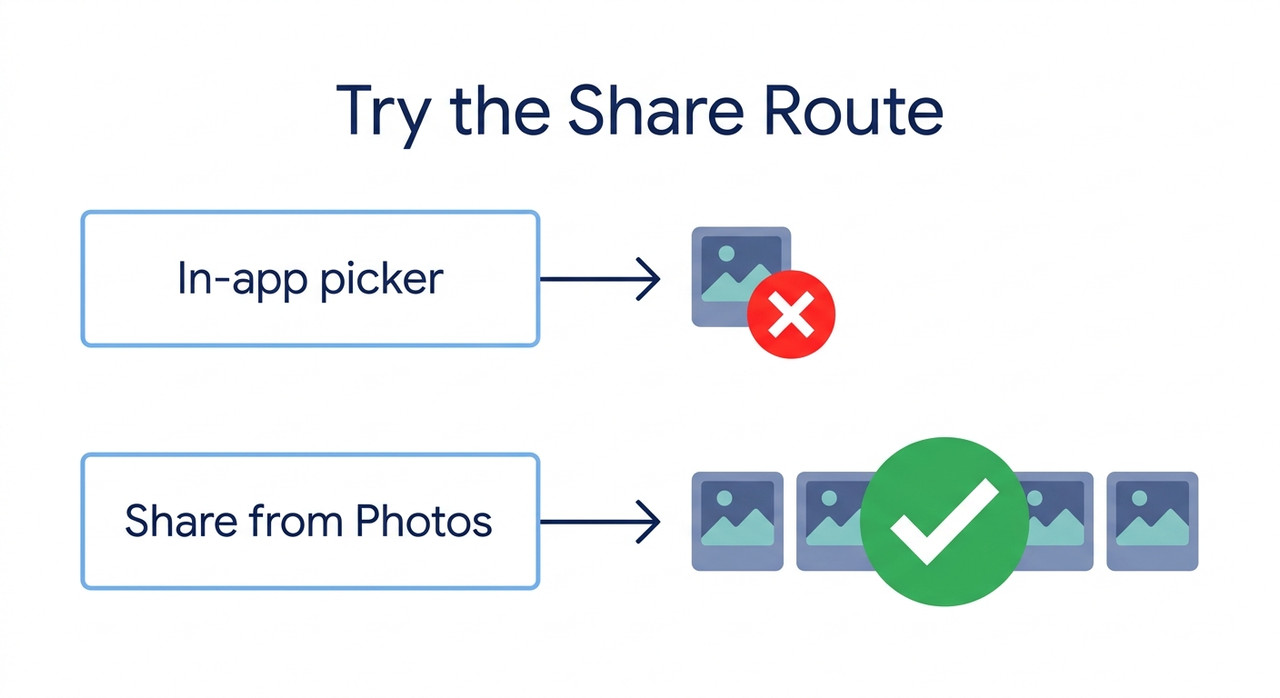
| Android in-app image picker issue | A Product Expert said sharing allows multiple uploads while the picker is restricted | Community-reported, unconfirmed |
| App out of date or not fully updated | The expert’s first step was to update the app | Plausible, unconfirmed |
| A rolling usage limit | The help page lists “You’ve reached your limit for chats with files” | Documented |
| A storage limit | The help page lists “Delete data to upload file” | Documented |
| More than 10 files or oversized files | Documented limits | Documented |
| Plan-dependent limits | The help page says Google AI Pro or Ultra raises limits | Documented, no sign it explains this symptom |
| Chat state | One unrated Reddit tip suggests an older chat restored multi-upload | Anecdote |
A Product Expert Pointed at the In-App Picker
In the April 2026 thread, a Platinum Product Expert replied with a set of steps. One of them was a workaround through the Google Photos share sheet, and the expert said this method “currently allows multiple uploads while the internal app picker is restricted.” Google Help community thread
That is the best clue available. It points at the Android image picker inside the app, not at your account or plan. It is still a community reply, not an official statement.
The expert also asked users to submit feedback with system logs “to help the team identify the specific app build issue.” Google Help community thread That phrasing suggests the issue may be tied to a particular app build. I wouldn’t treat it as confirmation.
Limits and Storage Produce Different Messages
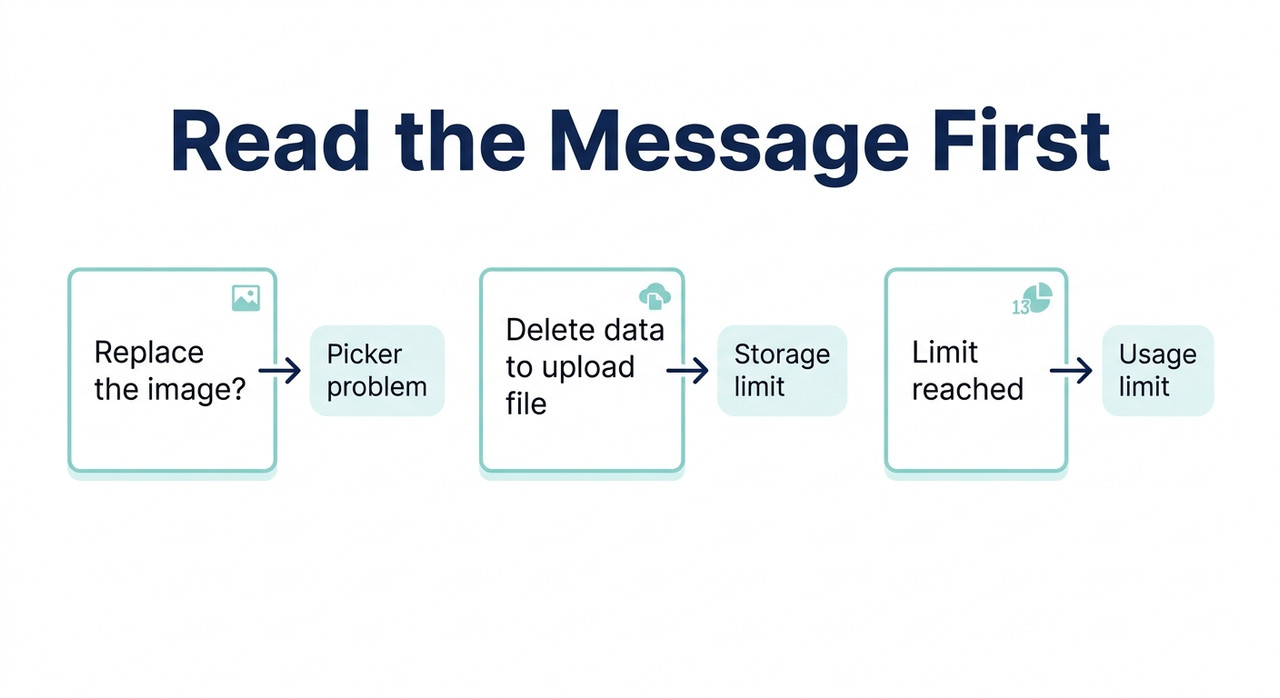
Two documented limits can stop an upload, and each has its own message. If Gemini Apps storage is full, you see “Delete data to upload file.” If you’ve hit a rolling limit, you see “You’ve reached your limit for chats with files.” Gemini Apps Help
Neither message is about image count. So if you see a prompt asking to replace the image and no limit message, those two causes are less likely.
“Subject to Availability” Leaves Room for Differences Between Accounts
Google’s wording leaves room for the limit to vary. I can’t tell you whether that explains your case. I only note that the documented number is a target, not a promise for every account on every day.
Why Can I Upload Only One Image to Gemini When I Previously Uploaded Several at Once, and How Do I Fix It?
Work through these in order. Most are the Product Expert’s steps, and I mark the ones that are my own additions.
Step 1 — Read the Exact Message
Look at what the screen actually says. A prompt asking whether to replace the current image points to the picker. “Delete data to upload file” is a storage limit, and “You’ve reached your limit for chats with files” is a rolling usage limit. Gemini Apps Help
Getting this right saves time. A storage message needs a different fix than a picker problem.
Step 2 — Update the App, Clear the Cache and Force Stop It
This is the Product Expert’s first sequence. Open Google Play, tap your profile icon, choose Manage apps & device, and make sure Gemini is updated. Then go to Settings > Apps > Gemini > Storage & cache and tap Clear cache. In App Info, tap Force stop and restart the app. Google Help community thread
These are the standard moves for a force stop and clear cache reset. They cost nothing and rule out a stale install.
Step 3 — Share Up to 10 Images From Google Photos or the Gallery
This is the workaround the expert gave. Open Google Photos or your device’s Gallery, select up to 10 images, tap Share, and choose Gemini. Google Help community thread
It avoids the in-app picker entirely. If it works, you have your workflow back while the underlying problem is sorted out.
Step 4 — Use + > Files Instead of Gallery
In the Gemini app, tap the + icon and choose Files instead of Gallery. Navigate to your images folder and try selecting multiple files through the system file manager. Google Help community thread
This is the expert’s second workaround. It uses a different picker than the photo gallery inside the app.
Step 5 — Try Gemini on the Web
Google’s help page describes uploading files on the web at gemini.google.com by clicking Add files and then Files. Gemini Apps Help The 10-file limit applies there too.
I haven’t confirmed that the web version lets you attach several images today if the Android app doesn’t. Treat this as a test worth running, not a guaranteed fix.
Step 6 — Check Your File Count and Sizes
Stay within 10 files per prompt, and keep each file under 100 MB (2 GB for video). Gemini Apps Help A ZIP file can contain up to 10 files, up to 100 MB, with no video or audio inside.
If you were attaching more than 10 images, that alone explains a refusal. Split the batch across two prompts.
Step 7 — Check Limits and Storage
If you saw a limit or storage message, deal with that first. Rolling limits reset after some time. For storage, delete some Gemini Apps activity: go to gemini.google.com, open Settings & help > Activity, and choose what to delete. It may take several minutes for space to clear. Gemini Apps Help
Google says an upgrade to Google AI Pro or Google AI Ultra raises usage limits. I’d treat that as a last resort, since nothing shows it changes the one-image behavior.
Step 8 — Send Feedback With System Logs
If the steps don’t restore multi-upload, report it. In the Gemini app, tap your profile icon, choose Help & Feedback > Send feedback, and make sure system logs are included. Google Help community thread
The expert suggested describing it this way: “Multi-image upload limit regressed to 1; ‘Replace current image’ pop-up appears when adding a second file.” Specific reports are easier for Google to act on.
Step 9 — Use a Stopgap if Nothing Works
This step is my suggestion, not an official fix. Combine the images into one collage or a single PDF, or send them across several prompts and ask Gemini to compare them all in the final message.
Be honest with yourself about the tradeoff. A collage can lose detail, and a PDF is a different kind of input. Use these only until multi-image upload works again.
What Do the Real Messages Look Like?
Here is the wording from the sources, labeled by where it came from. First, the April 2026 user report from the Google Help community thread:
PREVIOUSLY, I WAS ABLE TO UPLOAD UP TO 10 IMAGES AT ONCE WITHOUT ANY ISSUES.
HOWEVER, STARTING TODAY, THE SYSTEM ONLY ALLOWS ME TO UPLOAD ONE IMAGE AT A
TIME, AND A POP-UP ASKS TO REPLACE THE CURRENT IMAGE IF I TRY TO ADD ANOTHER.
Google Help community thread Next, the feedback description the Product Expert suggested sending:
Multi-image upload limit regressed to 1; 'Replace current image' pop-up appears when adding a second file.Google Help community thread Finally, the messages from Google’s own help page, which are the documented limit and storage messages:
"Delete data to upload file"
"You've reached your limit for chats with files"
"Your uploads may be too large for the best results"
Gemini Apps Help The first two block uploads. The third means a file may be too large for Gemini to read in full, which is a different problem.
Which Fix Fits Which Symptom?
Use this table to jump to the right step. It saves time when the message is clear.
| What you see | Likely cause | Start at |
|---|---|---|
| A replace-image prompt on a second upload | Picker issue | Steps 2 to 4 |
| “Delete data to upload file” | Storage limit | Step 7 |
| “You’ve reached your limit for chats with files” | Usage limit | Step 7 |
| More than 10 files or very large files | File limits | Step 6 |
| Multi-upload works elsewhere but not on this phone | App or device issue | Steps 2, 5 and 8 |
These are working interpretations from the documentation and the community thread, not official diagnoses. If two rows fit, start with the cheaper check.
How Can You Protect a Multi-Image Workflow?
Once you have it working again, a little preparation saves time the next time it breaks. Keep the images you reuse in one album or folder, so you can select them in a single step from Google Photos or the file manager.
That matters because the workarounds depend on selecting several images at once. A tidy album turns a ten-minute hunt into a ten-second selection.
I’d also write down which route worked, whether share sheet or Files. When one picker fails after an update, you will know the other one to try first. For more troubleshooting guides, see our complete guide.
Bad vs. Good Way to Handle a One-Image Limit
Here is the contrast I would want every reader to see. Both examples are illustrative composites, not real transcripts.
Bad: “Gemini asked me to replace my image every time I added a second one, so I uploaded them one at a time and asked for a comparison after each. The answers kept losing track of the earlier photos.”
Good: “I updated the app and force stopped it, then selected the five photos in Google Photos and used Share > Gemini. All five attached to one prompt, and I sent feedback with system logs for the picker problem.”
The difference is not luck. It is trying the documented workaround before giving up on the workflow.
Frequently Asked Questions
Q1: Why can I upload only one image to Gemini now? A1: The cause isn’t confirmed. Gemini Apps are documented to accept up to 10 files per prompt, and community reports point to the Android in-app picker. Update the app and try sharing from Google Photos. Gemini Apps Help
Q2: Is the one-image limit permanent? A2: Nothing I found says so. Google’s help page still lists up to 10 files per prompt, subject to availability, and Gemini only accepted one image per prompt before a May 2025 rollout. 9to5Google
Q3: How do I attach several images if the picker only lets me add one? A3: Select up to 10 images in Google Photos or your Gallery and use Share > Gemini, or tap + > Files and pick them there. A Google Product Expert suggested both. Google Help community thread
Q4: Is there a limit on how many files I can upload? A4: Yes. Up to 10 files per prompt, with most file types up to 100 MB each and videos up to 2 GB. Gemini Apps Help
Q5: What does “Delete data to upload file” mean? A5: It’s a storage message from Gemini Apps. Clear some Gemini Apps activity, then try the upload again. Gemini Apps Help
Q6: What does “You’ve reached your limit for chats with files” mean? A6: It’s a rolling usage limit on chats with files. Wait for it to reset, or consider Google AI Pro or Google AI Ultra for higher limits. Gemini Apps Help
Q7: Should I report this to Google? A7: Yes, if the steps don’t help. Use Profile icon > Help & Feedback > Send feedback with system logs, and describe the multi-image limit regressing to one image. Google Help community thread
Leave a Reply