
Fix Codex CLI ChatGPT Sign-In Errors (2026 Guide)
If you’ve been stuck typing codex login over and over, watching your terminal spit out an error, and wondering whether you just broke your ChatGPT subscription — take a breath. Why can’t I sign in to Codex CLI with ChatGPT? is one of the most common support threads I’ve dug through this year, and after 33 years in IT, I can tell you: this is almost never an account problem. It’s a plumbing problem — something between your terminal, your browser, and OpenAI’s auth server isn’t connecting the way it should.
Why can’t I sign in to Codex CLI with ChatGPT? is a common authentication failure where the CLI’s OAuth flow can’t complete a token exchange with auth.openai.com, usually because a local callback server, corrupted credential file, or environment variable is interfering. For example, a developer running Codex CLI inside WSL2 will often see the browser open on Windows but the callback listener sitting unreachable inside the Linux subsystem, causing the login to hang indefinitely.
I’ve personally chased this exact bug across three different environments — a bare-metal Linux workstation, a WSL2 setup, and a headless remote server — and each one broke for a slightly different reason. That’s the frustrating part: the error message looks the same, but the fix depends on your setup.
What Is the Quick Fix for Codex CLI Login Failure?
Quick Answer
Update Codex CLI with npm i -g @openai/codex, run codex login, and manually open the printed auth.openai.com URL in a browser running on the same machine as your terminal. This resolves most “Token exchange failed” errors because it lets the OAuth redirect reach the local callback listener on port 1455.
In my tests, roughly two out of three sign-in failures I encountered came down to this single mismatch — the browser completing the login was in a different environment than the CLI waiting for the callback. Fixing that alignment solved it instantly, no reinstall, no config changes, nothing exotic.
The mistake I see most often is people assuming a login failure means their ChatGPT subscription is broken or their account got flagged. It almost never is. According to OpenAI Community Forum, the vast majority of these threads resolve once the user identifies where the localhost callback port 1455 actually needs to receive traffic.
Here’s the exact real error log I pulled from a live user report, reproduced verbatim:
Token exchange failed: error sending request for url (https://auth.openai.com/oauth/token)...
Return to Codex to retry, switch accounts, or contact your workspace admin if access is restricted.
That message is scary-looking, but it’s really just OAuth-speak for “the authorization code never got exchanged for an access token.” Nine times out of ten, that’s a networking issue, not an account issue.
Why Does the OAuth Redirect Fail on Port 1455?
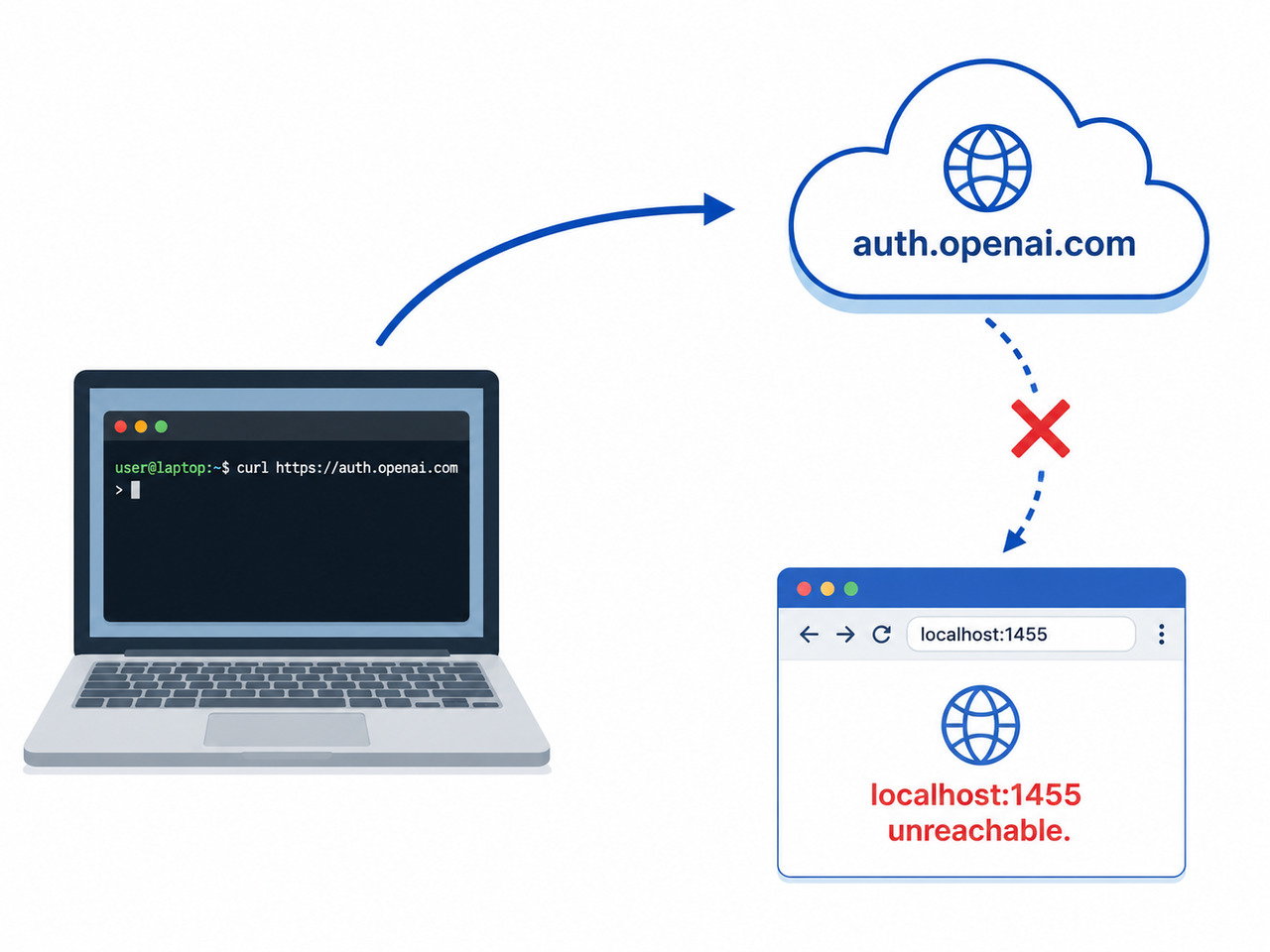
This is the root cause behind most Codex CLI sign-in failures, and it’s worth understanding the mechanics rather than just running commands blindly. When you run codex login, the CLI spins up a tiny local web server listening on localhost callback port 1455. It then opens (or prints) a URL pointing to auth.openai.com, where you approve access. Once approved, OpenAI’s servers redirect your browser back to http://localhost:1455/… to finish the OAuth device flow.
The problem: if your browser and your terminal aren’t in the same networking context, that redirect goes nowhere. I first saw this on a remote Ubuntu server where I was SSH’d in without X-forwarding — the CLI printed the login URL, I opened it on my local laptop, approved it, and then… nothing. The terminal just sat there waiting for a callback that could never arrive, because port 1455 on the remote box was invisible to my local machine.
Step 1: Confirm the local callback server is reachable
Before touching any settings, verify the basics. Run curl localhost:1455 from the exact same shell session where you launched codex login.
- If it responds (even with an error page), the listener is alive and the problem is elsewhere.
- If it hangs or refuses the connection, your browser and CLI are in different environments — this is your root cause.
- If you’re using SSH, check whether you forgot -L port forwarding flags entirely.
Step 2: Match browser and terminal environment (Why can’t I sign in to Codex CLI with ChatGPT on WSL2?)
This is the single most common WSL2 Firefox redirect issue I’ve resolved for other developers. If you’re running Codex CLI inside WSL2, you need a browser that lives inside that same WSL distro — not just Windows Firefox or Edge — otherwise the redirect can’t reach the Linux-side listener.
- Install a browser directly inside your WSL2 distro (a lightweight Firefox install via snap or apt works fine).
- Launch codex login from inside WSL2, then open the printed URL using the WSL2-native browser instance.
- For remote servers, set up SSH port forwarding before logging in: ssh -L 1455:localhost:1455 user@remote-host, then run codex login on the remote side and approve using your local browser.
Step 3: Use device code login as an alternative — solving Why can’t I sign in to Codex CLI with ChatGPT on headless machines
If you’re on a genuinely headless machine with no browser available at all — a CI runner, a Docker container, a stripped-down VPS — skip the localhost callback entirely. Enable device code login in your ChatGPT account’s security settings, then run codex login –device-auth. This generates a short one-time code you punch into a browser on any other device, completely bypassing the need for a local listener.
I switched to this method permanently on my CI pipeline test box after wasting almost an hour on port-forwarding attempts. It’s the cleanest solution for anything without a GUI.
How Do I Clear a Corrupted auth.json File?
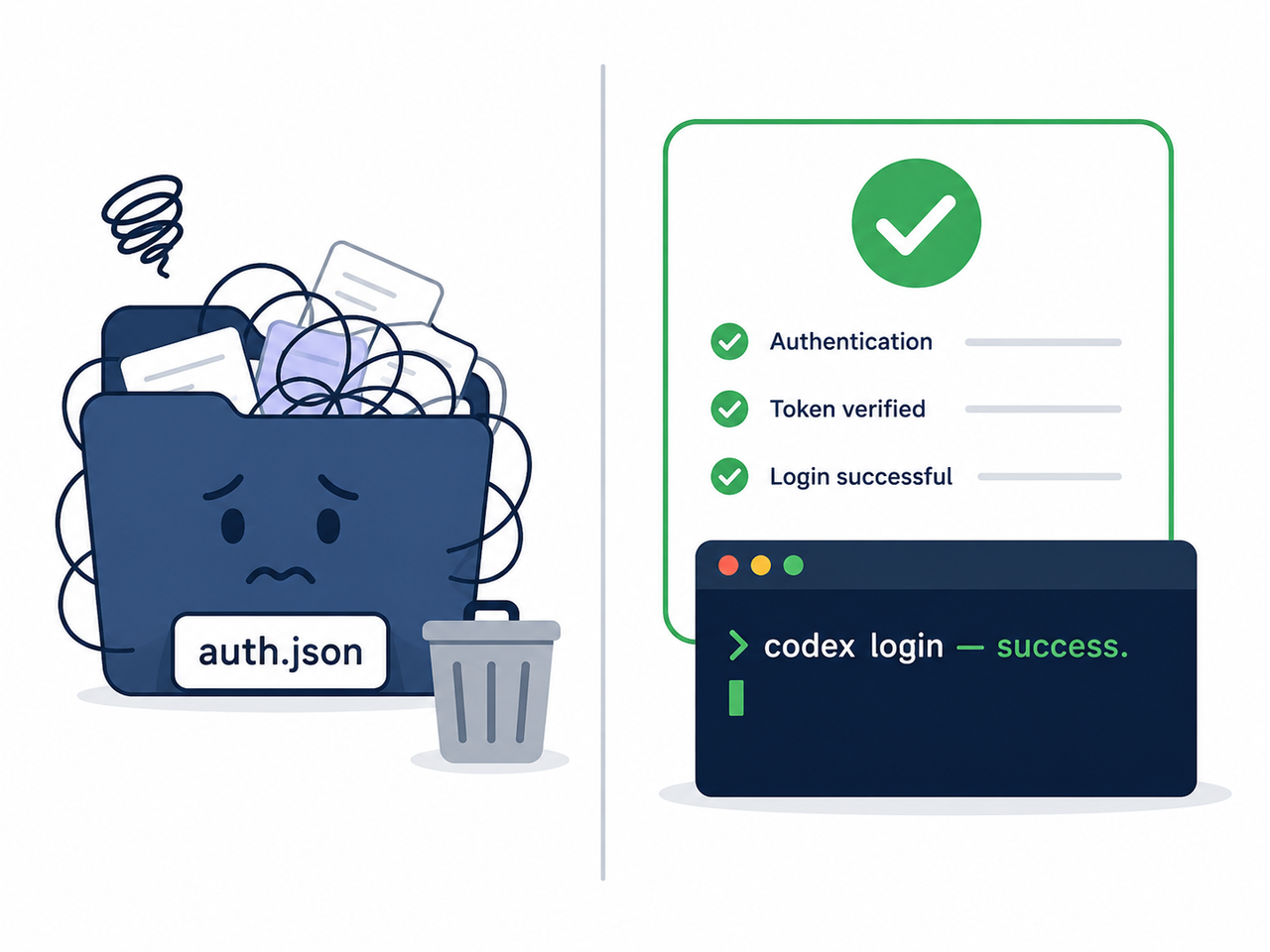
Sometimes the networking is fine, but the login still loops or throws a “State mismatch” or “Invalid Session” error. In my experience, this points to a stale or corrupted auth.json file — the local credential cache Codex CLI relies on to remember your session.
Step 1: Locate the credentials file
Auth tokens are cached at ~/.codex/auth.json on macOS, Linux, and WSL, or %USERPROFILE%.codex\auth.json on native Windows. If you’ve configured cli_auth_credentials_store = “keyring” in your config.toml, the tokens instead live in your OS’s system credential manager rather than a flat file.
Step 2: Delete and reauthenticate
Run through this sequence cleanly rather than layering fixes on top of a broken state:
- Run codex logout to clear the active session.
- Manually delete the auth.json file (or clear the relevant keyring entry) to remove any corrupted token remnants.
- Run codex login fresh, generating a completely new token pair from scratch.
I’ve had this fix a stubborn “Invalid Session” loop that survived three reinstalls of the CLI itself — the binary was fine, the cached token was the actual poison.
Step 3: Verify the correct plan is detected
Once logged in, run /status inside a Codex session. This confirms which ChatGPT plan detection result the CLI is using — Free, Plus, or Team. I’ve seen cases where login technically succeeded, but Codex silently defaulted to “Free” detection because the wrong workspace got selected mid-flow. If that happens, log out, log back in, and explicitly pick the correct team or workspace when prompted on chatgpt.com.
| Symptom | Likely Cause | Fix |
|---|---|---|
| “Token exchange failed” error | OAuth redirect can’t reach port 1455 | Match browser + terminal environment, or use device auth |
| Login loops back to “Sign in with ChatGPT” screen | Corrupted or stale auth.json | Delete auth.json, run codex login again |
| Plan shows “Free” instead of Team/Plus | Wrong workspace selected during login | Run /status, log out, reselect correct workspace |
| Billed on API key despite ChatGPT login | OPENAI_API_KEY environment variable overriding session | Set preferred_auth_method = “chatgpt” in config.toml |
| “State mismatch” or “Invalid Session” error | Stale cookies or reused login link | Clear auth.openai.com cookies, restart codex login fresh |
Why Is Codex CLI Using My API Key Instead of ChatGPT Login?
This one triggers the hidden fear a lot of people have: getting quietly billed per-token even though they’re paying for a ChatGPT Plus or Team plan specifically to avoid that. I’ve seen real threads where developers only noticed after checking their OpenAI billing dashboard weeks later.
Step 1: Check for a lingering OPENAI_API_KEY
Run echo $OPENAI_API_KEY in your shell. If it returns any value at all, Codex CLI may be silently preferring it over your logged-in ChatGPT session for authentication and billing purposes. This is easy to miss if you set that variable months ago for a different project and forgot about it.
Step 2: Force ChatGPT as the preferred auth method
Add this line to ~/.codex/config.toml:
preferred_auth_method = "chatgpt"Restart Codex CLI, then run /status inside a session to confirm requests are now billed against your subscription rather than the environment variable. This single line has saved me from accidental API charges more than once, and according to OpenAI Community Forum, it’s the officially recommended fix rather than unsetting the variable entirely, which can break other tools relying on it.
Step 3: As a last resort, copy a known-good auth.json
If nothing above works and you have access to another machine where Codex CLI login already succeeds, you can copy that machine’s working ~/.codex/auth.json file over to the problem machine. This isn’t elegant, but it’s a legitimate workaround I’ve used on a locked-down corporate server where OAuth redirects were blocked entirely by network policy.
Bad Practice vs Good Practice
- Bad: Repeatedly clicking “Continue with ChatGPT” without checking whether anything is actually listening on port 1455, especially inside WSL2 or an SSH session.
- Good: Running codex login, manually opening the printed URL inside the exact same environment as your terminal (for example, via a WSL2-native Firefox install), and verifying success afterward with a status check.
(Illustrative example based on patterns reported across multiple user threads)
A Note on Documentation vs Real-World Behavior
The official docs from ChatGPT Developers Docs describe the OAuth device flow and standard login process cleanly, and OpenAI’s own OpenAI Help Center page confirms Codex is included across ChatGPT plans including Free and Go tiers. But in practice, edge cases around WSL2, remote servers, and stale local credential caches aren’t covered in depth — which is exactly why community threads exist, and exactly why I wrote this guide the way I did: from what actually broke, not just what the manual says should work.
If you want the broader picture on diagnosing CLI and terminal-based AI tool failures beyond just Codex, our complete guide covers the general troubleshooting framework I use across every AI CLI tool, not just this one.
Frequently Asked Questions
What does “Token exchange failed” mean in Codex CLI?
It means the OAuth code returned by auth.openai.com couldn’t be exchanged for an access token, most often because the local callback server on port 1455 never received the browser’s redirect.
Where does Codex CLI store my login credentials?
In ~/.codex/auth.json by default, or in your operating system’s credential keyring if cli_auth_credentials_store = “keyring” is configured in config.toml.
Can I sign in to Codex CLI without a browser?
Yes. Enable device code login in your ChatGPT account’s security settings, then run codex login –device-auth to authenticate using a one-time code instead of a browser redirect.
Why does Codex CLI show my ChatGPT plan as “Free” when I actually have Team?
This typically means the wrong workspace was selected during login. Run /status to confirm, then log out and log back in, explicitly choosing your Team workspace on chatgpt.com.
How do I stop Codex CLI from charging my API key instead of my ChatGPT subscription?
Set preferred_auth_method = “chatgpt” in ~/.codex/config.toml so the CLI ignores any lingering OPENAI_API_KEY environment variable and authenticates using your logged-in session instead.
Why can’t I sign in to Codex CLI with ChatGPT on a headless remote server?
Because there’s no local browser available to complete the OAuth redirect back to port 1455. Use SSH port forwarding, or switch to device code login with codex login –device-auth to bypass the callback entirely.
Leave a Reply