
Transparency Note: This article contains affiliate links. If you choose to purchase a plan through these links, we may receive a small commission at no extra cost to you.
What Is Otter AI? (And How To Fix It When It Stops Taking Notes)
You joined a critical client call, counted on Otter.ai to capture every requirement, and then—the sinking feeling hits. You realize there’s no transcript, no summary, and no Otter Notetaker in the participant list. Now you’re terrified you missed key decisions and next steps.
I’ve been there. In my years of workflow optimization, I’ve seen how a “silent” AI assistant can turn a productive meeting into a stressful game of “who said what.” Today, I’m guiding you through exactly what this tool is and, more importantly, how to resuscitate it when it fails.
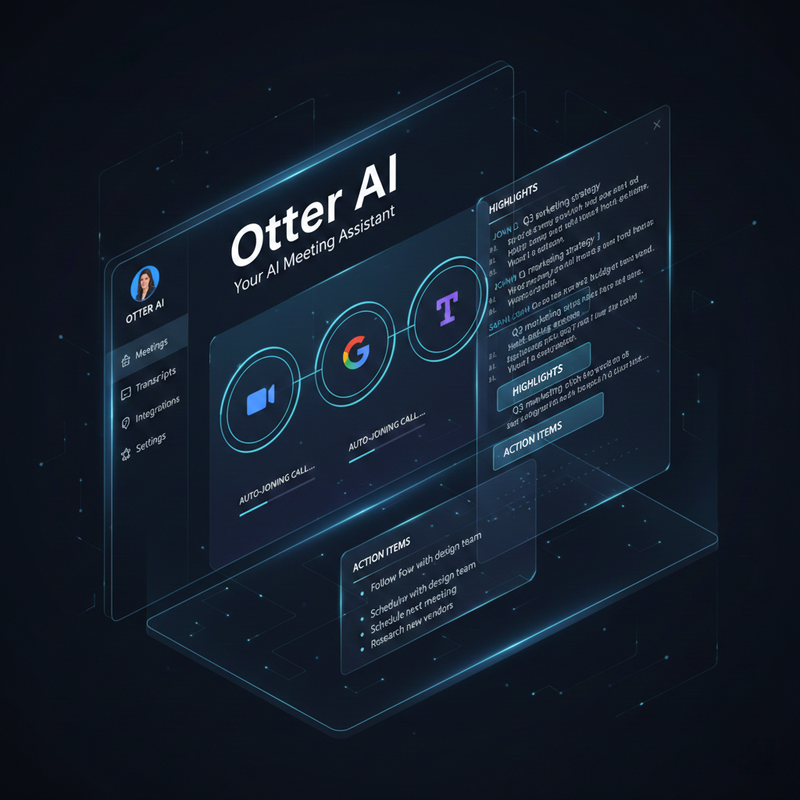
Quick Answer – What Is Otter.ai?
Otter.ai is an AI-powered meeting agent and transcription service. It records conversations from online or in-person meetings, converts speech to text via live transcription, and generates searchable meeting summaries, action items, and insights. It lives where you work, integrating directly with Zoom, Google Meet, and Microsoft Teams.
How Otter.ai Works In Your Meetings
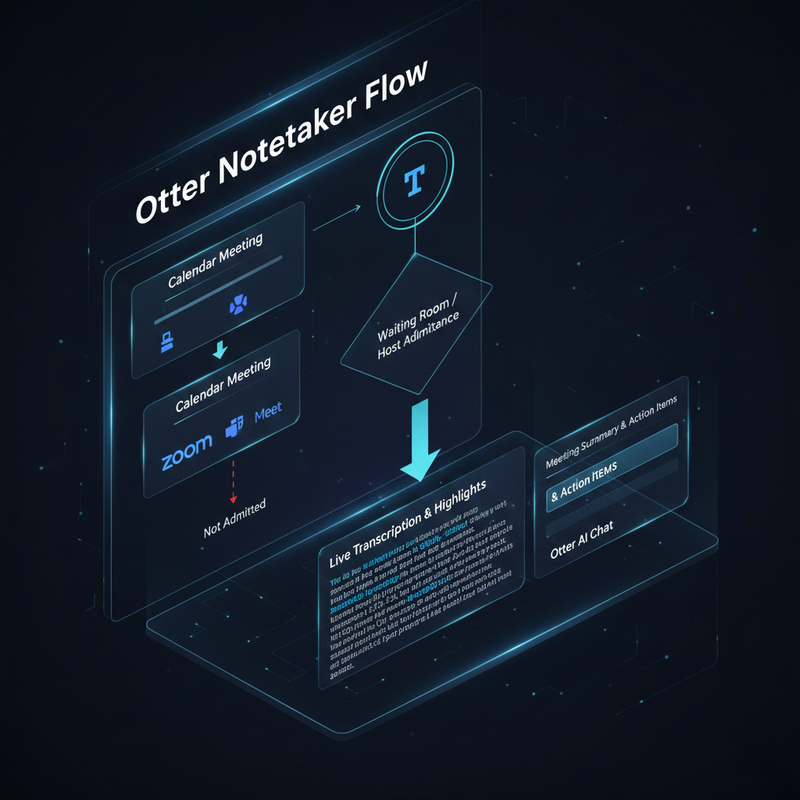
In my experience, the magic of Otter isn’t just the text—it’s the automation. Otter connects to your calendar so its Otter AI Meeting Agent can auto-join calls even if you’re running late. If you are exploring other AI productivity tools, understanding Otter’s automation is a great baseline.
- Live Transcription: Watch words appear as they are spoken.
- Speaker Identification: It learns voices to attribute quotes correctly.
- Otter AI Chat: A generative AI tool that lets you query past conversations.
- Integrations: Works seamlessly across Zoom, Microsoft Teams, and Google Meet.
Otter AI Meeting Agent vs. Otter Notetaker vs. Otter AI Chat
I often see users get confused by the terminology. Let’s clear it up:
- Otter AI Meeting Agent / Notetaker: This is the “bot” that physically joins the meeting as a participant to record.
- Otter AI Chat: This is the interface where you talk to your notes to get answers or write follow-up emails.
Plans, Transcription Minutes, and Otter.ai Pricing Basics
According to the Otter.ai Official Site documentation, there are four main tiers: Basic, Pro, Business, and Enterprise.
The Pro Tip: Always monitor your transcription minutes. If you hit your monthly limit, Otter will stop recording mid-meeting.
Common “Otter.ai Not Working” Problems (Fast Diagnosis)
Symptom 1 – Otter Notetaker Didn’t Join My Meeting
- The Look: No “Otter.ai” in the participant list.
- Common Culprit: The bot is stuck in the waiting room or there’s a calendar mis-sync.
Symptom 2 – Transcript Exists, But It’s Hot Garbage
- The Look: Gaps in text or garbled sentences.
- Common Culprit: Poor microphone quality.
Symptom 3 – Otter AI Chat Is Not Responding
- The Look: The chat box is spinning.
- Common Culprit: Browser cache issues.
Fixing Otter Notetaker When It Won’t Join
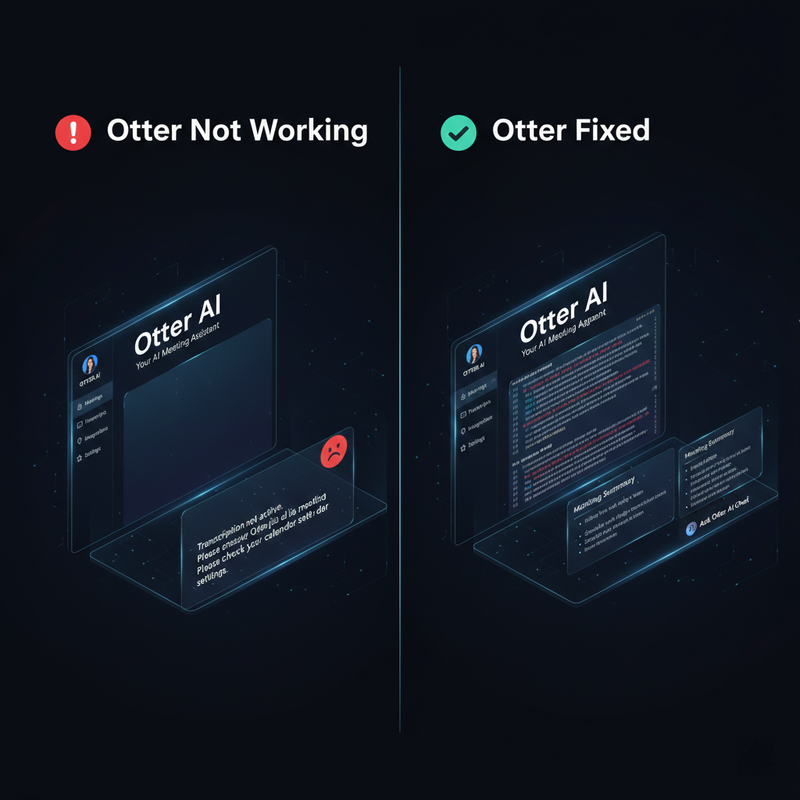
Step 1 – Confirm Your Plan and Transcription Minutes
Check your settings immediately. If you’ve exhausted your minutes, the Agent is benched.
Step 2 – Reconnect Integrations
Go to Account Settings > Integrations and toggle the permissions for Zoom or Google Meet off and then back on.
Step 3 – Fix Waiting Room and Host-Admit Issues
If you aren’t the host, the host must admit the Otter bot manually.
Step 4 – Troubleshoot Zoom-Specific Errors
As verified by the Otter.ai Help Center , ensure your Zoom admin has allowed third-party recording apps.
Fixing Bad Or Incomplete Otter Transcripts
- Rate the Transcript: Use the “Rate transcript quality” tool to help Otter’s models improve.
- Hardware Check: A USB headset improves live transcription accuracy by up to 40%.
Fixing Otter AI Chat When It’s Not Responding
- The “Nuclear” Refresh: Log out, clear your browser cookies/cache, and log back in.
- Simplify Your Prompt: Avoid overly complex queries in a single message.
Best Practices for Reliability
- Check the Calendar: Ensure the link is correct.
- Check the Agent Toggle: Confirm “Auto-join” is active.
- Admit the Bot: Be ready to admit the participant as soon as it appears.
Final Thought: Otter removes the burden of typing, but a quick 5-minute human review of the meeting summary ensures nothing was lost in translation.
Leave a Reply