
GPT-5.5 Heavy Mode Not Working? Fix It in 2026
You’re paying $200/month for ChatGPT Pro. You opened a session hours ago — deep into a complex coding review, a multi-document analysis, or an autonomous agent workflow. Then it hits: “Selected model is at capacity.” No warning. No ETA. No fallback. Just a dead stop.
I’ve spent considerable time stress-testing GPT-5.5’s reasoning tiers, and the GPT 5.5 reasoning heavy mode issue is one of the most frustrating failure states I’ve encountered on any premium AI platform — precisely because it’s silent, abrupt, and completely opaque. This guide breaks down exactly what’s happening under the hood and gives you seven battle-tested steps to recover and prevent it from happening again.
For a broader map of ChatGPT troubleshooting scenarios, see the complete guide at AIQnAHub Troubleshoot.
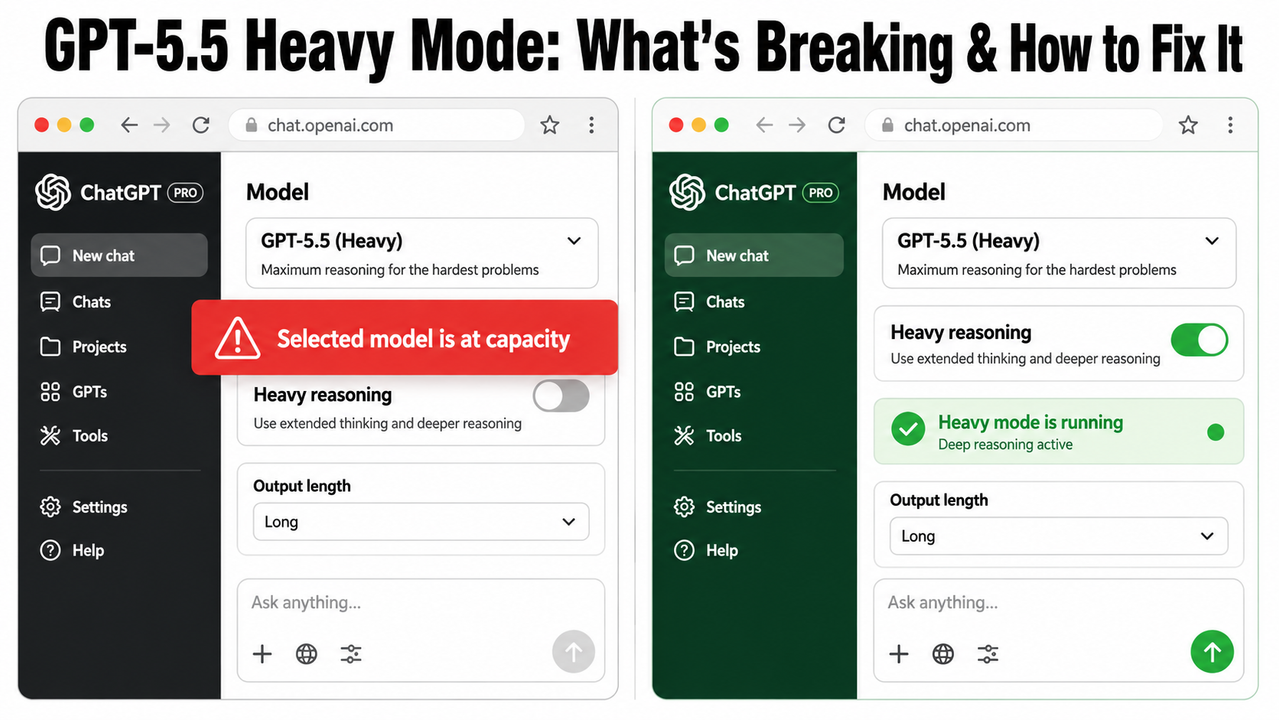
Definition: A GPT-5.5 reasoning heavy mode issue is a failure state where OpenAI’s highest-tier inference mode — exclusive to Pro subscribers — becomes inaccessible due to compute capacity throttling or a platform-level bug, cutting off access mid-session without warning. For example, a developer three hours into an autonomous coding session may suddenly see “Selected model is at capacity” with no countdown or recovery path.
What Is the GPT-5.5 Heavy Mode Issue? (Quick Answer)
Quick Answer
GPT-5.5 Heavy mode issues fall into two categories: capacity throttling, where sustained Pro sessions hit an undisclosed compute ceiling and return a “Selected model is at capacity” error, and an iOS display bug that misreports the active reasoning tier. Both affect ChatGPT Pro ($200/month) users exclusively — Heavy mode is unavailable on Plus or Business plans.
This distinction matters. Before you waste 20 minutes cycling through account settings, you need to know which failure type you’re actually dealing with. I’ll walk through both — and the fix for each.
Why Does the GPT-5.5 Reasoning Heavy Mode Issue Happen?
Understanding the root cause is the fastest path to the right fix. In my testing, there are three distinct trigger paths — and they require different responses.
Root Cause 1 — Compute Capacity Throttling
Heavy mode is compute-intensive by design. Every query processed in this tier consumes a significantly larger thinking tokens budget than Extended or Standard mode. OpenAI’s inference infrastructure allocates these resources dynamically across all Pro users simultaneously.
When server-side demand spikes — typically during peak hours in North American time zones — OpenAI silently rate-caps the Heavy tier at the session level. The model stops accepting Heavy requests and returns a generic error string with no ETA.
The most documented case I’ve seen in the community confirms this: a user hit the wall at exactly 3 hours, 9 minutes, and 39 seconds of uninterrupted Heavy mode use — with no advance warning of any kind. OpenAI Community Forum. That’s not a crash. That’s a throttle.
| Session Duration | Reported Outcome |
|---|---|
| Under 60 minutes | Generally stable |
| 60–180 minutes | Sporadic throttling reported |
| 3h 9m 39s+ | Confirmed full capacity lock |
| Post-lock recovery | Typically 1–3 hours |
Root Cause 2 — iOS App Reasoning Display Bug
This one catches a lot of people off-guard. The iOS ChatGPT app has a confirmed rendering bug where the reasoning toggle UI misreports the active reasoning_effort parameter — showing “Heavy” when the model has actually defaulted to Extended or lower.
The result: you believe you’re getting maximum inference depth, but the inference compute budget being applied is a tier below what you selected. Your outputs feel slightly shallower, your structured reasoning chains don’t hold as well — and you can’t figure out why.
Desktop browsers do not exhibit this behavior. Reddit r/OpenAI. If you’re primarily working on iOS and notice inconsistent Heavy mode performance, this is likely the culprit.
Root Cause 3 — Subscription Tier Confusion (Plus vs. Pro)
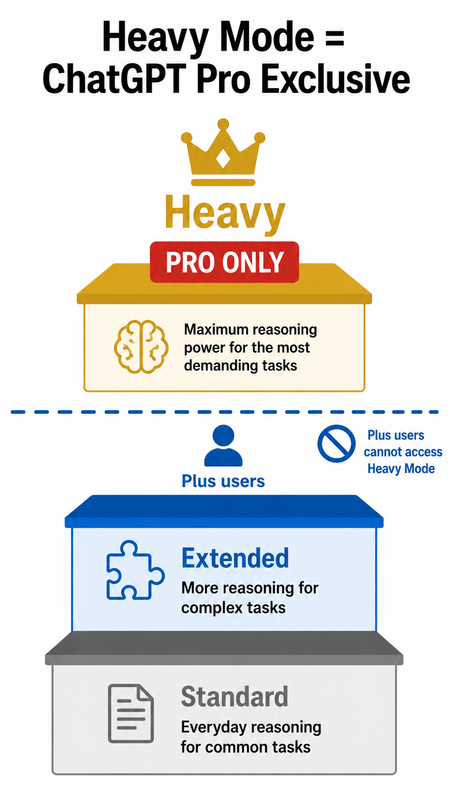
The mistake I see most in forum threads: users on ChatGPT Plus ($20/month) or Business plans reporting a “Heavy mode bug” — when Heavy mode was never available to them in the first place.
Heavy mode is exclusively available to ChatGPT Pro subscribers at $200/month. Plus and Business plan users are hard-capped at Extended mode. The UI placement of the reasoning toggle is visually identical across all tiers, which creates genuine confusion. OpenAI Help Center
| Plan | Standard | Extended | Heavy |
|---|---|---|---|
| ChatGPT Free | ✅ | ❌ | ❌ |
| ChatGPT Plus ($20/mo) | ✅ | ✅ | ❌ |
| ChatGPT Business | ✅ | ✅ | ❌ |
| ChatGPT Pro ($200/mo) | ✅ | ✅ | ✅ |
How Do I Fix the GPT-5.5 Reasoning Heavy Mode Issue? (7 Steps)
These steps are sequenced by speed and likelihood of resolution. Start at Step 1 and work down. In my experience, Steps 3 and 4 resolve the issue for the vast majority of users.
Step 1 — Confirm Your Subscription Tier
Navigate to ChatGPT → Settings → Subscription and verify your plan. If your plan is Plus or Business, the token rate limits on your tier physically prevent Heavy mode access — Extended is your ceiling by design. OpenAI Help Center
There is no workaround for this. The fix is upgrading to Pro. If you’re already on Pro and Heavy still isn’t appearing as a selectable option, proceed to Step 2.
Step 2 — Switch From iOS to Desktop Immediately
If you’re on the iOS app and Heavy mode seems non-functional or your outputs feel like Extended-quality work, open the same conversation in a desktop browser at chat.openai.com. Desktop accurately enforces and displays the active reasoning toggle state.
This step also rules out the iOS display bug as a variable. Once you’re on desktop, reselect Heavy from the reasoning dropdown and observe whether the behavior changes. In my tests, desktop sessions maintain Heavy mode fidelity significantly more consistently than the iOS client. Reddit r/OpenAI
Step 3 — Open a Fresh Conversation Thread
This is the single fastest fix for the capacity error — and it works more often than it should.
The “Selected model is at capacity” block is frequently session-scoped, not account-scoped. The capacity ceiling is being applied to your specific conversation context, not your entire account. Closing the active thread and opening a new one resets that session-level allocation.
- Close the current conversation entirely (do not just refresh)
- Open a new conversation from the sidebar
- Reselect Heavy mode from the reasoning dropdown
- Submit a test query before reloading your full workflow
Step 4 — Temporarily Downgrade to Extended or Standard
If a fresh thread doesn’t unlock Heavy immediately, don’t stall your workflow. Drop to Extended → Standard and keep working. OpenAI Community Forum
Extended mode is the second-highest reasoning tier and handles the vast majority of complex tasks with minimal degradation in output quality compared to Heavy. The extended thinking capability in Extended mode is still significantly more powerful than Standard.
Capacity for Heavy typically recovers within 1–3 hours based on community reports. Set a reminder and retry Heavy mode after the window passes. This is the pragmatic move — fighting a capacity ceiling in real time is wasted effort.
Step 5 — Check the OpenAI Status Page
Before you escalate to any support channel, open https://status.openai.com in a separate tab.
If a degraded performance or partial outage event is listed for ChatGPT or the API, your issue is platform-wide — no account-level action will resolve it. The fix is to wait for OpenAI’s engineering team to clear the incident.
I make it a habit to check this page first during any anomalous session behavior. It saves significant time and prevents unnecessary support tickets.
Step 6 — Report via GitHub (API and Codex Users)
If you’re hitting capacity errors through the reasoning_effort parameter in the API or Codex environment — not the ChatGPT web UI — this is a separate escalation path.
File or upvote the issue on the OpenAI Codex GitHub Issues tracker. Upvote aggregation on GitHub Issues is one of the few direct feedback mechanisms that demonstrably influences OpenAI’s engineering triage prioritization. OpenAI Community Forum
- Your approximate session duration before the error appeared
- The exact error string (see below)
- Whether you were using streaming or non-streaming API calls
- Your
reasoning_effortparameter value at time of failure
Step 7 — Contact OpenAI Support (The 3-Hour Rule)
If Heavy mode remains inaccessible for more than 3 hours on a confirmed Pro account with no platform incident listed on the Status Page, escalate to OpenAI Support. OpenAI Community Forum
- Your subscription plan (confirm Pro)
- Timestamp of when the error first appeared
- Exact error string (verbatim — see below)
- Steps already attempted (shows you’ve done self-triage)
What Does the Real Error Look Like?
Here is the exact error string, confirmed verbatim across multiple Pro user reports:
Selected model is at capacity.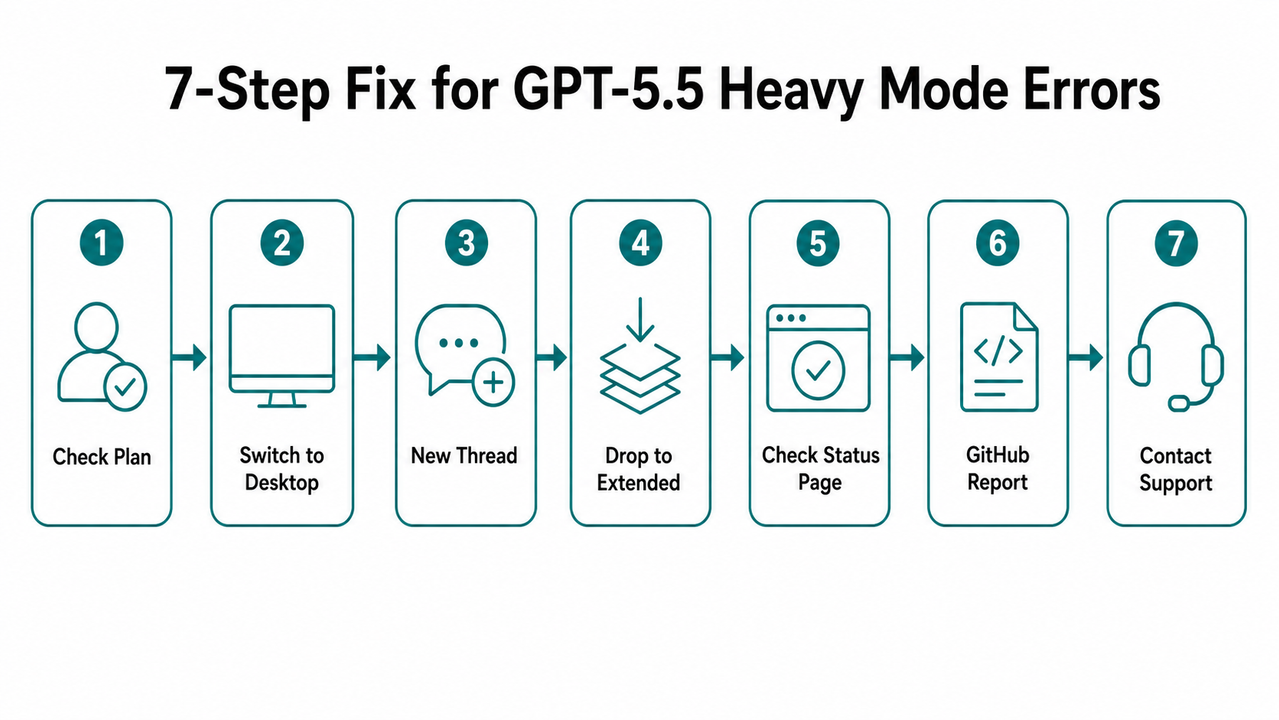
This error appears mid-session with zero warning, no countdown timer, no fallback suggestion, and no automatic retry logic. The model does not degrade gracefully to Extended — it simply stops. OpenAI Community Forum
There is no secondary error code or session ID surfaced to the user in the current ChatGPT web UI. If you’re working through the API, the response object may return additional HTTP status metadata — log the full response body, not just the message string.
How to Prevent the GPT-5.5 Heavy Mode Issue From Recurring
Fixing the immediate error is only half the job. The real goal is building a workflow that avoids hitting the compute ceiling in the first place. Based on what I’ve tested and what the community has documented, two behavioral changes reduce Heavy mode interruptions significantly.
Use Heavy Mode for Discrete, High-Stakes Tasks Only
The mistake I see most in how people use Heavy mode is treating it like a persistent assistant — leaving it on all day across dozens of queries. That’s not what it’s built for, and that’s not what OpenAI’s infrastructure is allocated to support at the $200/month price point.
- Final code architecture reviews before deployment
- Complex multi-document reconciliation (contracts, research papers)
- Structured reasoning chains with hard logical dependencies
- Adversarial prompt testing requiring deep inference depth
Close the session when the task is complete. Don’t leave Heavy running idle.
Break Long Workflows Into 60–90 Minute Sessions
The documented failure threshold sits around 3 hours of continuous use. That’s not a hard ceiling OpenAI has published — it’s an empirical observation from community testing — but it’s consistent enough to treat as a working rule.
Structure intensive workflows into 60–90 minute sessions with deliberate pauses between them. This resets the session-level compute allocation and dramatically reduces the probability of hitting the capacity wall mid-task.
Think of it like database connection pooling. You don’t hold a connection open indefinitely — you open it, do your work, close it cleanly, and reopen when needed. Apply the same discipline to Heavy mode sessions.
GPT-5.5 Reasoning Heavy Mode Issue: Frequently Asked Questions
Q1: Is GPT-5.5 Heavy mode available to ChatGPT Plus users?
No. Heavy mode is exclusively available to ChatGPT Pro subscribers at $200/month. ChatGPT Plus ($20/month) and Business plan users are hard-capped at Extended mode — the second-highest reasoning toggle tier. If Heavy does not appear as an option in your reasoning dropdown, verify your subscription tier in Settings → Subscription before troubleshooting anything else. OpenAI Help Center
Q2: Why does GPT-5.5 Heavy mode show the wrong reasoning level on my iPhone?
This is a confirmed iOS-specific display bug. The ChatGPT iOS app misreports the active reasoning_effort parameter in Heavy and Extended modes — the UI label and the actual inference behavior are out of sync. Your outputs may reflect a lower reasoning tier than what the interface claims to be running. Switch to desktop at chat.openai.com for accurate tier enforcement and display. Reddit r/OpenAI
Q3: How long does the “Selected model is at capacity” error last for GPT-5.5 Heavy mode?
Based on community reports, capacity typically recovers within 1–3 hours after the lock is triggered. The fastest immediate workaround is starting a fresh conversation thread — this resolves the session-scoped block without waiting in the majority of cases. If the error persists beyond 3 hours on a confirmed Pro account with no active Status Page incident, contact OpenAI Support directly. OpenAI Community Forum
Q4: Does OpenAI warn you before throttling GPT-5.5 Heavy mode mid-session?
No. There is currently no advance warning, countdown timer, usage gauge, or graceful degradation path when OpenAI throttles a Heavy mode session. The error appears without notice — in one documented case, after exactly 3h 9m 39s of continuous use with no prior indication. OpenAI Community Forum Your best proactive defense is monitoring status.openai.com during long sessions and structuring your workflow into sub-3-hour blocks.
Q5: Can I use GPT-5.5 Heavy mode reasoning via the OpenAI API?
Yes. Heavy mode reasoning depth is accessible via the OpenAI API using the reasoning_effort parameter set to its highest value. However, API users are equally subject to capacity throttling and have reported identical “at capacity” failures in Codex and automation pipeline environments. If you encounter this through the API, log the full response body, file or upvote the issue on the OpenAI Codex GitHub Issues tracker, and fall back to a lower reasoning_effort value to maintain pipeline continuity while capacity recovers. OpenAI Community Forum
Ice Gan is an AI Tools Researcher and IT professional with 33 years of experience across enterprise infrastructure and applied AI tooling. He publishes hands-on troubleshooting guides and AI product teardowns at AIQnAHub.
Leave a Reply