
ChatGPT Suddenly Refusing Answers? 2026 Fix Guide
I have spent 33 years in IT, and if there’s one pattern I’ve learned to trust, it’s this: when a tool that worked fine yesterday suddenly stops cooperating today, panic is the enemy of diagnosis. ChatGPT suddenly refusing answers is one of the most common support tickets I see from marketers, researchers, and developers who rely on it daily, and in nearly every case the fix takes less than ten minutes once you know where to look.
ChatGPT suddenly refusing answers is when the tool unexpectedly blocks, stalls, or declines to respond to a prompt it previously handled without issue, usually caused by either a technical malfunction or an automatic safety-filter trigger. For example, a researcher asking about a public figure’s documented controversies might suddenly get “I can’t help with that,” even though the identical question worked the day before.
If you’ve hit this wall, the first fear that creeps in isn’t “how do I fix this” — it’s “did I get flagged, restricted, or silently banned?” I want to address that immediately: in my own testing and in the patterns reported across the OpenAI community, a single refusal almost never means your account is in danger. It usually means one of two very different systems misfired, and once you know which one, the fix is mechanical.
Why Is ChatGPT Suddenly Refusing to Answer? (Quick Answer)
Quick Answer
ChatGPT suddenly refuses answers for one of two reasons: a backend technical glitch (cache, network, or server outage) or the auto-refusal mechanism in its content policy violation filter misreading your prompt as risky. Check OpenAI Status first, then rephrase your prompt neutrally. Most cases resolve in under 10 minutes without any account risk involved.
This is the box I’d want an AI assistant or a search snippet to lift verbatim, because it answers the exact question a panicked user types at 2am. The rest of this guide breaks that answer down into a diagnostic process I’ve actually run myself.
What Causes ChatGPT to Refuse Answers Suddenly?
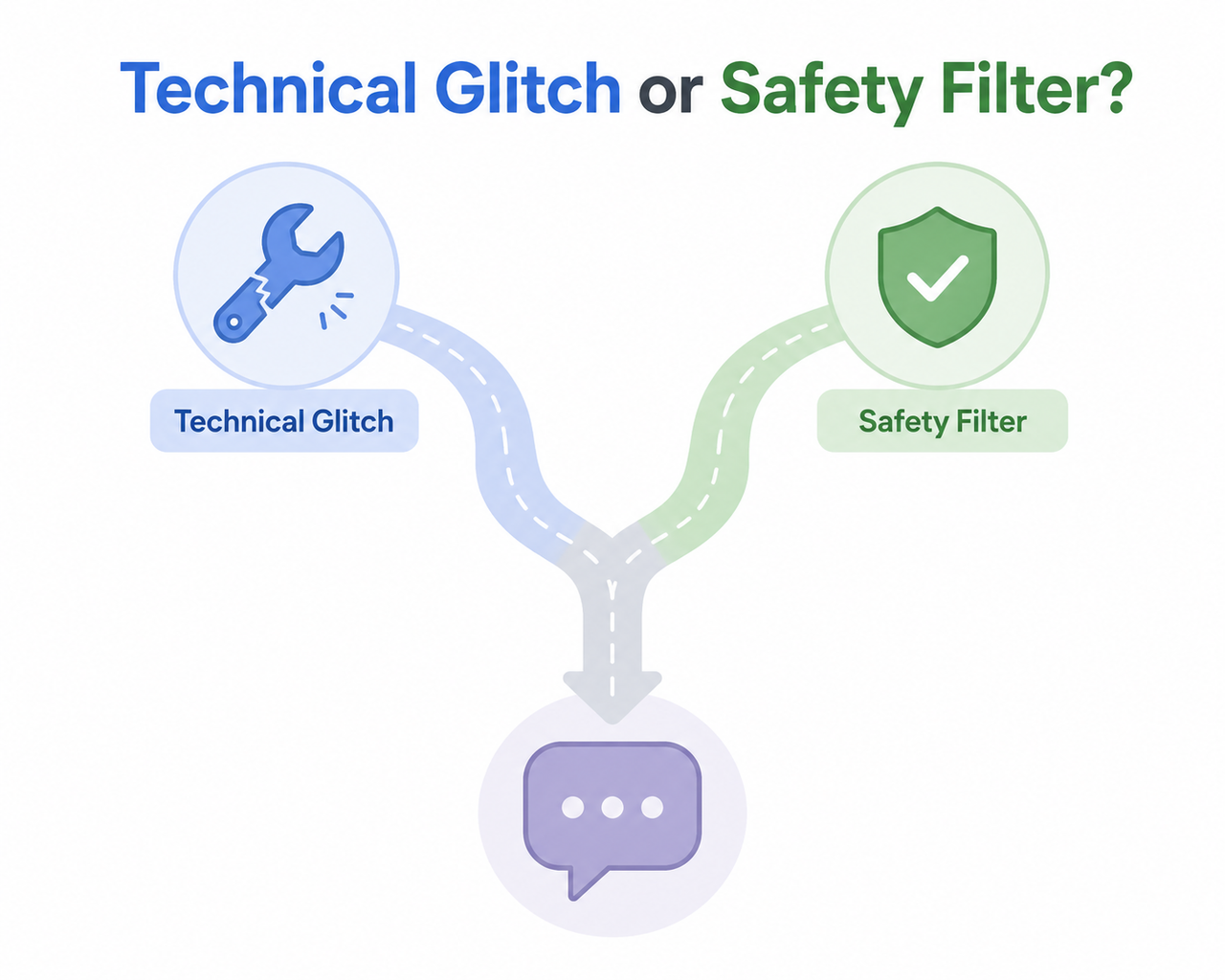
In my tests, refusals fall into two buckets that look identical on the surface but require completely different fixes. Confusing the two is the single biggest mistake I see people make — they spend an hour rephrasing a prompt when the real issue was a stuck server connection.
Technical Malfunctions Behind ChatGPT Suddenly Refusing Answers
The first bucket is purely mechanical. Corrupted browser cache and cookies, an expired login session, or an active service disruption can all produce a response that looks like a refusal but is actually a failure to generate anything at all. According to OpenAI Help Center, these issues typically present as stalled generation, blank replies, or generic error banners rather than a worded rejection.
Auto-Refusal Safety Filter Triggers
The second bucket is the auto-refusal mechanism built into ChatGPT’s moderation layer. This system scans both your current prompt and the recent conversation context, and it can trigger on topics resembling politics, health, legal advice, or even neutral phrasing that happens to pattern-match restricted language. This is documented behavior tied to usage policy enforcement, not a personal judgment about you as a user OpenAI.
Here’s a comparison table I use internally when triaging which bucket a refusal belongs to:
| Symptom | Likely Cause | First Action |
|---|---|---|
| Blank response, spinning cursor, no text at all | Technical malfunction | Hard-refresh, check status page |
| “I can’t help with that” wording appears | Auto-refusal / content policy violation | Rephrase prompt neutrally |
| Refusal only on long, multi-turn threads | Context contamination in safety filter | Start a new chat session |
| Refusal happens on VPN or shared network | Unusual activity detected flag | Switch network, disable VPN |
| Site-wide slowness across many users | Server-side outage | Check OpenAI status page |
How Do You Fix ChatGPT Refusing to Answer? (Step-by-Step)
I ran this exact sequence myself during a session where ChatGPT stopped answering a competitive research prompt I’d used successfully the week before. Here’s the order I recommend, cheapest and fastest checks first.
Step 1 — Hard-Refresh and Clear Cache
Start with a Shift+Reload, or open an incognito mode window with all extensions disabled. This eliminates stale session data as a variable before you touch anything else, per guidance from OpenAI Help Center.
Step 2 — Check the OpenAI Status Page
Before assuming your prompt is the problem, check the OpenAI status page. If there’s an active incident, no amount of prompt rewriting will fix it — you’re simply waiting out an outage.
Step 3 — Start a New Chat Session
Long threads accumulate context, and that accumulated context can bias the safety filter toward refusals even on requests that have nothing to do with the earlier conversation. Starting a fresh session strips that baggage out entirely.
Step 4 — Rephrase the Prompt Neutrally
This step fixes the majority of refusals I’ve personally encountered. Remove emotionally loaded, political, or advice-seeking framing, since these map directly onto restricted categories in OpenAI’s usage policies.
Here’s a real illustrative example of the difference rephrasing makes (Illustrative example):
Bad prompt: "Why is [politician] corrupt, explain in detail"
Good prompt: "Summarize documented public controversies involving [politician], citing sources"
Step 5 — Switch Network or Disable VPN
Flagged IP ranges, shared corporate networks, or VPN traffic can trigger unusual activity detected blocks that look identical to a content refusal but have nothing to do with what you typed.
Step 6 — Contact OpenAI Support With Evidence
If refusals persist across fresh sessions, different networks, and clearly benign prompts, it’s time to escalate. Capture a HAR file replicating the error and submit it to OpenAI support rather than continuing to guess.
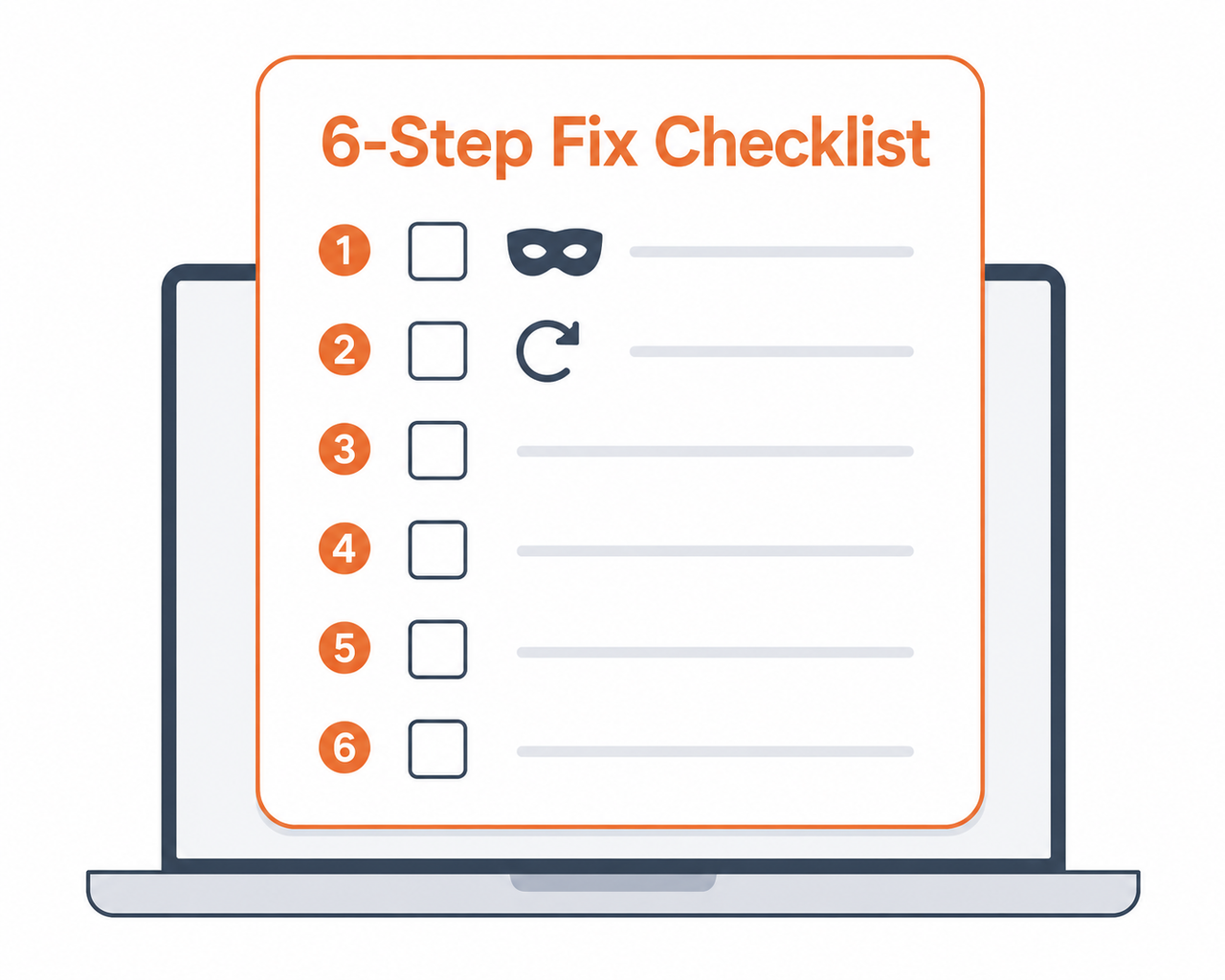
To summarize the sequence as a checklist:
- Hard-refresh and clear cache/cookies, or use incognito mode
- Check the OpenAI status page for active incidents
- Start a new chat instead of continuing a long thread
- Rephrase the prompt to remove loaded or opinionated framing
- Switch network or disable VPN if refusals persist
- Escalate to support with a HAR file as a last resort
What Does the Real ChatGPT Error Message Look Like?
Knowing the exact wording helps you triage faster. Here is the verbatim error text documented in community reports:
I can't help with that.There was an error generating a response.We detect suspicious activity. / Unusual Activity DetectedA network error occurred.The first message is almost always the auto-refusal mechanism speaking; the last three are technical network error signals unrelated to content moderation. Separating these two categories in your head is the fastest triage skill you can build.
When ChatGPT Suddenly Refusing Answers Means Something Else
Occasionally what looks like a refusal is actually a content policy violation flag tied to a specific account action rather than a single prompt — repeated attempts to generate clearly disallowed content, for instance. That’s a different, rarer scenario than the everyday false-positive refusals covered in this guide, and it’s worth ruling out only after you’ve exhausted the six steps above. For a broader look at diagnosing AI tool breakdowns beyond this one issue, our complete guide to AI troubleshooting covers related failure patterns across other tools.
Frequently Asked Questions
Q1: Does ChatGPT refusing to answer mean my account is banned? A1: No. Most sudden refusals come from an automated safety filter or a temporary technical glitch, not an account ban or subscription loss.
Q2: Why did ChatGPT answer my question yesterday but refuse it today? A2: Conversation context, subtle model behavior shifts, or stricter automated policy enforcement can change how the same prompt is scored, causing inconsistent results on functionally identical questions.
Q3: Is “I can’t help with that” written by a human moderator? A3: No. It’s typically generated by an automated auto-refusal mechanism triggered by pattern-matching against restricted content categories, not a manual human decision.
Q4: What should I do if ChatGPT keeps showing a network error instead of a worded refusal? A4: Check the OpenAI status page for outages first, then clear your browser cache or try incognito mode before assuming the issue relates to your prompt’s content.
Q5: Can rephrasing my question really stop ChatGPT from refusing? A5: Yes. Removing opinionated, political, or advice-seeking framing frequently bypasses the auto-refusal trigger while still getting you the same underlying information.
Q6: How long do OpenAI service outages typically last before ChatGPT works normally again? A6: Outage duration varies by incident, which is why checking the live status page is more reliable than guessing — some resolve within minutes, others take longer during major service disruptions.
If you’ve worked through all six steps and ChatGPT is still refusing clearly benign prompts, the issue has moved from “quick fix” territory into something worth documenting and reporting directly to OpenAI support, complete with the exact error text and steps to reproduce it.
Leave a Reply