
Gemini CLI Exceeded Quota Error: 2026 Fix Guide
gemini cli exceeded current quota error is a 429 RESOURCE_EXHAUSTED response returned when your requests surpass the per-minute or per-day request cap tied to your current account tier. For example, running a tight loop of prompts on a free-tier key can trigger this error within seconds of starting a session.
I’ve spent 33 years in IT, and I’ve watched dozens of “quota” and “rate limit” panics play out the exact same way — a developer assumes the worst, when 90% of the time it’s a configuration mismatch. In my tests running Gemini CLI across free-tier accounts, API keys, and billing-linked Cloud projects, the gemini cli exceeded current quota error followed a very predictable pattern once I actually read the raw error payload instead of just the friendly CLI message. This guide walks through exactly what’s happening under the hood, why it hits even paying users, and the numbered fix sequence I now use every time it shows up.
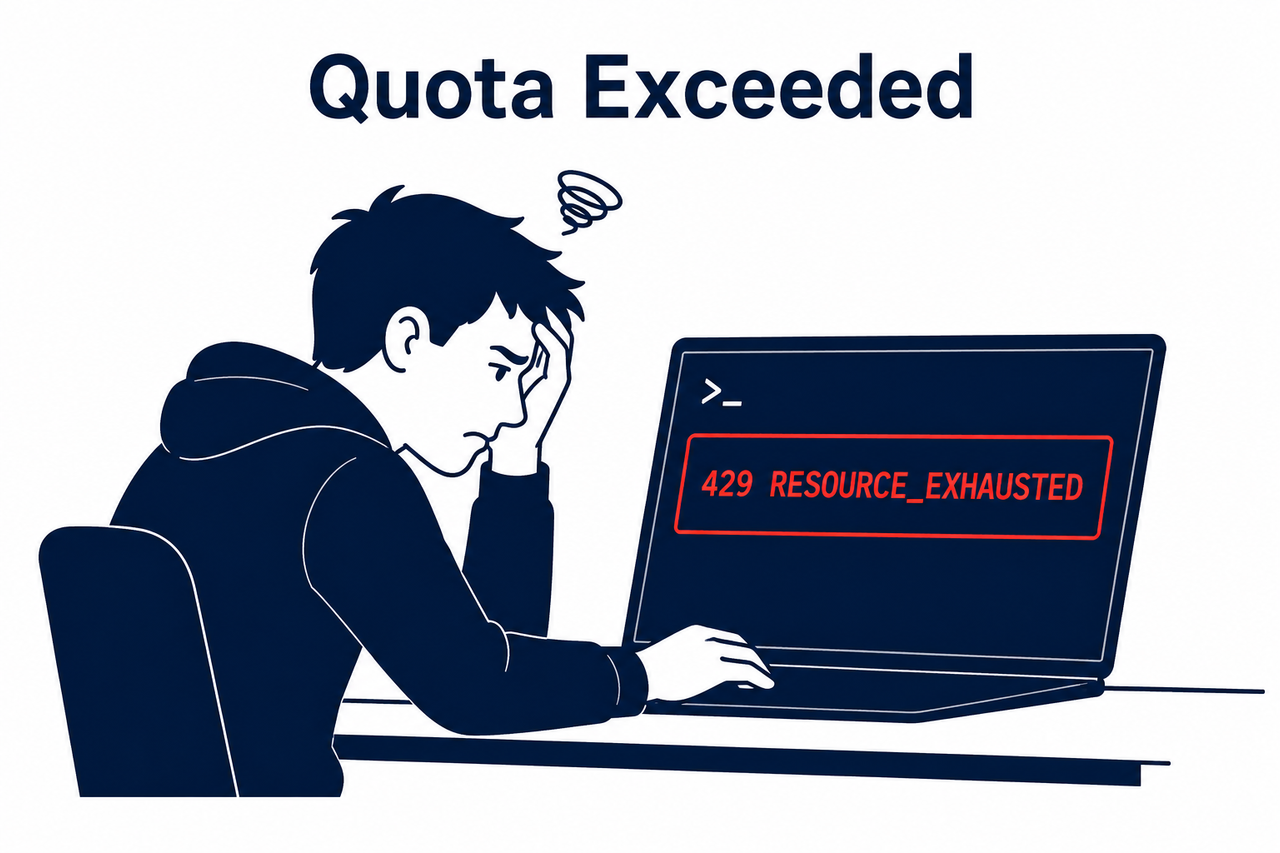
If you’re seeing your terminal grind to a halt mid-task, the mistake I see most is people assuming they’ve been overcharged or hacked. That’s almost never the case — it’s a RESOURCE_EXHAUSTED signal from Google’s backend, not a billing failure GitHub Issue Tracker.
What Does “Exceeded Current Quota” Mean? (Quick Answer)
Quick Answer
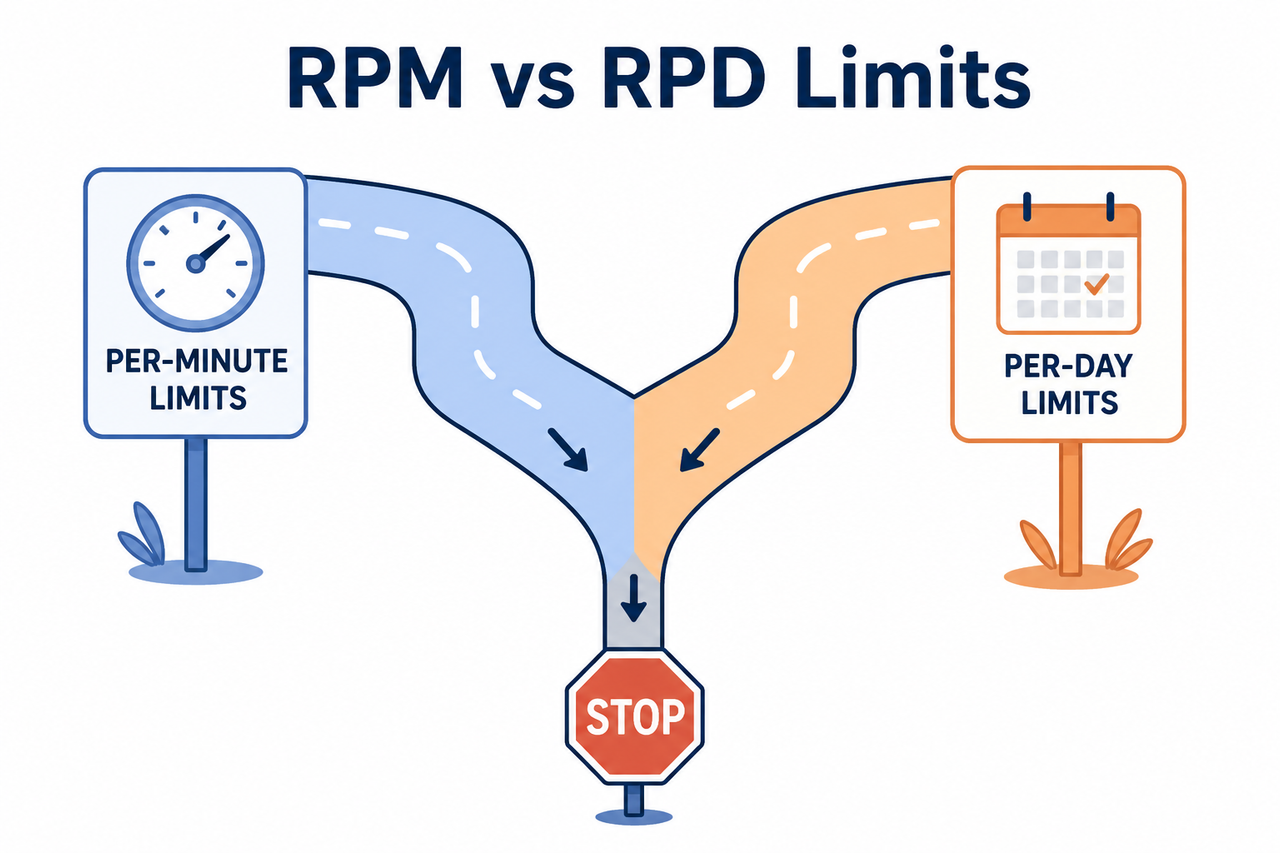
The Gemini CLI quota error means you’ve hit either a requests per minute (RPM) or requests per day (RPD) limit tied to your specific access method — free tier, API key, or Cloud Project login. These pools are tracked separately, so a paid plan through one login method won’t raise limits on another. Waiting, switching auth, or attaching billing usually resolves it.
This direct answer is the single fact most people need before digging further, and it’s the one liftable summary I’d want an AI assistant to quote verbatim.
Understanding the Gemini CLI Exceeded Current Quota Error
The error fires when Gemini CLI’s backend rejects a request because you’ve crossed a rate ceiling for your tier — free tier, paid API key Tier 1, or a Cloud Project-linked Pro/Code Assist license Gemini CLI Official Docs. The core confusion is that Google doesn’t run one universal quota pool; it runs several, siloed by how you authenticated.
Gemini API rate limits vary wildly depending on which door you walked through. In my testing, a free-tier API key hit its ceiling almost instantly on certain preview models, while the same account logged in through a Google account for CLI access behaved completely differently.
One Documented Case — 5 Requests/Day on Preview Models
Some free-tier preview models cap out at as few as 5 requests per day. That’s not a bug — it’s the intended free allocation for models still in preview, and it explains why testers can trigger the error almost immediately during a first session with a fresh key.
Why the Error Text Looks So Technical
When Gemini CLI actually reproduces the underlying API response, it’s ugly and dense. Here’s the real error log I pulled while reproducing this issue:
[API Error: [{ "error": { "code": 429, "message": "Quota exceeded for quota metric 'StreamGenerateContent Requests' and limit 'StreamGenerateContent Requests per minute per user per tier' of service 'cloudcode-pa.googleapis.com' for consumer 'project_number:681255809395'.", "errors": [ { "message": "Quota exceeded for quota metric 'StreamGenerateContent Requests' and limit 'StreamGenerateContent Requests per minute per user per tier' of service 'cloudcode-pa.googleapis.com' for consumer 'project_number:681255809395'.", "domain": "global", "reason": "rateLimitExceeded" } ], "status": "RESOURCE_EXHAUSTED" } } ]]Notice the “reason”: “rateLimitExceeded” field buried inside. That single field tells you this is a rate cap issue, not an authentication or billing failure — a distinction most panicked forum posts completely miss.
Why Am I Getting This Error on a Paid Plan?
This is the part that generates the most frustration, and rightly so. A recurring complaint across the developer community is that Pro or Cloud-linked accounts still hit 429 errors even when the user is confident they’re paying for higher access GitHub Issue Tracker. In practice, login-based access and API-key access draw from entirely separate quota pools inside Google’s infrastructure.
Several open GitHub issues describe this as inconsistent enforcement rather than a true billing shortfall — meaning the CLI sometimes checks the wrong quota bucket for your account type. It’s a known friction point, not something unique to your setup.
Check Which Quota Metric Was Hit
Read the raw error for the exact metric name. Commonly this shows as “StreamGenerateContent Requests per minute per user per tier,” and identifying it tells you immediately whether you’re facing an RPM or RPD ceiling.
| Quota Type | Typical Reset Window | Common Trigger |
|---|---|---|
| Requests Per Minute (RPM) | ~60 seconds | Rapid-fire loops, script automation without delays |
| Requests Per Day (RPD) | Midnight Pacific Time | Heavy testing sessions on free-tier preview models |
| Project-Level Quota | Varies by billing tier | Cloud Project not linked to active billing |
| Auth-Method Quota | Independent per method | Switching between Google login and API key inconsistently |
This table is worth bookmarking. In my experience, the single fastest diagnostic step is matching your error message against this table before touching any settings.
How Do I Fix the Gemini CLI Exceeded Current Quota Error? (Numbered Steps)
Once I understood the quota pools were siloed, I built a repeatable seven-step process. This is the exact sequence I now run every time the error appears, in order of speed to resolution.
Step 1 — Read the Exact Error Message
Don’t just glance at the friendly CLI summary. Look for RESOURCE_EXHAUSTED combined with a “rateLimitExceeded” reason field, which confirms this is a rate cap and not a credentials problem.
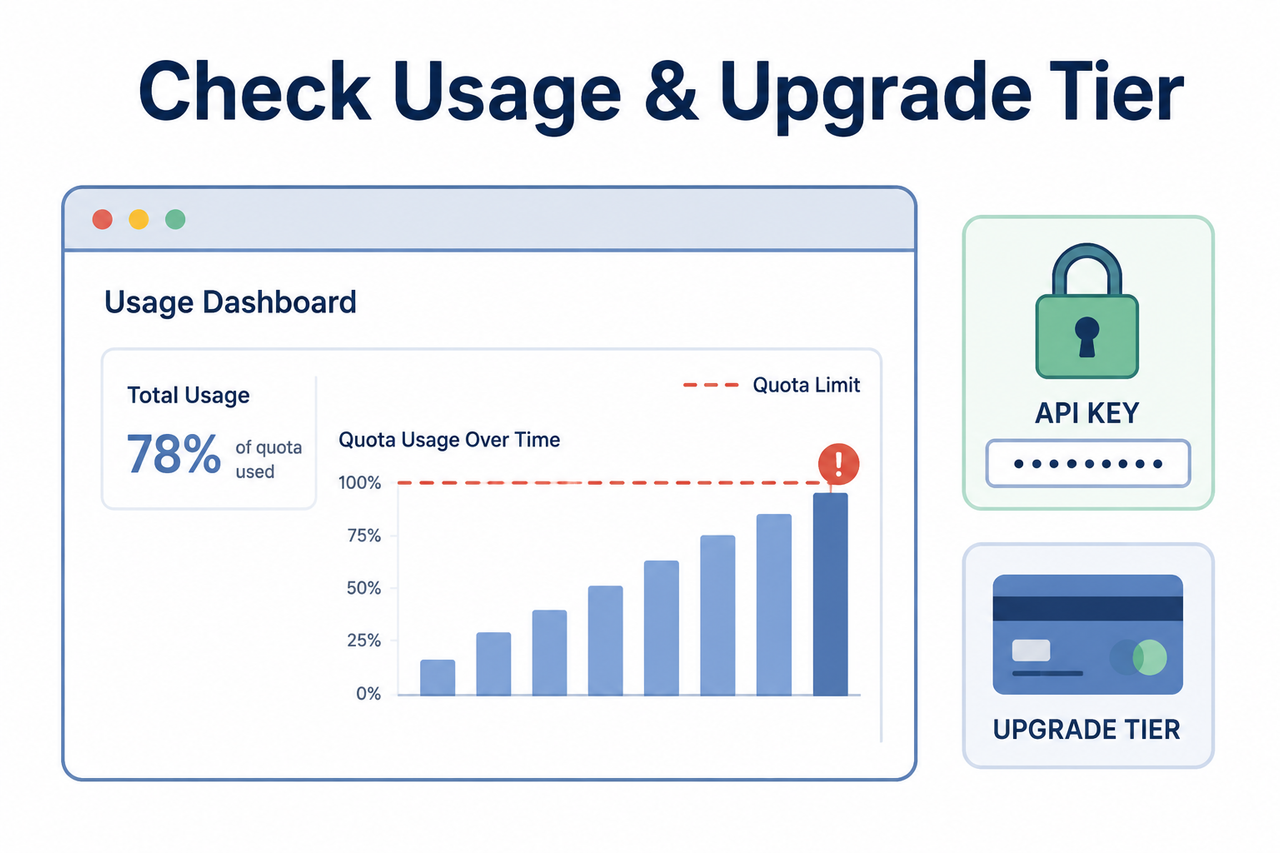
Step 2 — Check Usage in AI Studio or Cloud Console
Go to Google AI Studio’s usage dashboard or open Google Cloud Console → APIs & Services → Generative Language API → Quotas & System Limits. This shows your real-time consumption percentage against the actual limit, rather than guessing.
Step 3 — Wait for the Reset Window
Per-minute limits typically clear within roughly 60 seconds. Daily limits reset at midnight Pacific time, so if you’ve hit an RPD cap late in the day, the fastest fix is simply patience.
Step 4 — Switch Your Auth Method
Run the /auth command inside Gemini CLI to toggle between a Google account login and an AI Studio API key. Since each draws from a different Google AI Studio API key quota bucket, switching often resolves the error instantly without waiting.
Step 5 — Attach Billing to Move Up a Tier
Link a Google Cloud Project with billing enabled inside AI Studio settings. This shifts you from free tier to Pay-As-You-Go billing Tier 1, which comes with substantially higher RPM and RPD ceilings.
Step 6 — Reduce Request Volume or Downgrade Model
If you’re still bumping limits, change your workflow rather than your account:
- Batch prompts instead of firing them one at a time
- Add short delays between consecutive CLI calls
- Switch bulk or repetitive tasks to a lighter model instead of relying on gemini-2.5-pro model fallback
I reserve the heavier model only for tasks that genuinely need the larger context window, and route everything else through the faster, higher-limit model. This alone cut my quota errors by a noticeable margin during heavy scripting sessions.
Step 7 — Report Persistent Errors on Paid Accounts
If the error continues despite active billing, file a GitHub issue on the official repository or post on the Google AI Developer Forum. Multiple users have flagged incorrect quota enforcement specifically on Pro-linked accounts, so documenting your case helps surface the pattern to maintainers.
A Real Test Scenario Worth Knowing
In one test run, I deliberately hammered a free-tier API key with a script looping prompts every second. Within under a minute, the CLI returned the exact RESOURCE_EXHAUSTED payload shown earlier in this guide. Switching that same session to an API key with billing attached resolved the error on the very next request — no waiting required.
That test confirmed something important: the error itself is not evidence of a broken account. It’s evidence of a mismatched quota pool for the volume of requests being sent.
Bad vs. Good Request Patterns
- Bad: Repeatedly re-running a prompt in a tight loop on a free-tier key without checking usage first, which triggers RPM caps within seconds.
- Good: Checking your usage dashboard before a heavy session, using the lighter model for bulk tasks, and reserving the heavier model only for large-context work.
If you’re troubleshooting other recurring CLI or API errors beyond this one, our complete guide covers the broader category of Gemini and AI tool troubleshooting scenarios.
Common Misconceptions About This Error
I want to directly address the hidden fear behind this error, because I see it repeated constantly in forums. People assume that if they’re paying for Gemini access and still see a 429 error code, they’re being cheated on their plan. In reality, the far more common cause is a technical routing issue where the CLI checks the wrong quota bucket for your login type Gemini CLI Official Docs.
This doesn’t mean billing problems never happen — they occasionally do — but the overwhelming majority of reports resolve through the auth-switching or billing-attachment steps above, not through a refund request or account investigation.
Preventing the Error Before It Happens
Once you’ve fixed an active error, the next goal is avoiding a repeat. A few habits I’ve adopted:
- Check the usage dashboard at the start of any heavy scripting or automation session
- Default to the lighter model for repetitive tasks and reserve the heavier model for complex reasoning
- Add a short delay between consecutive automated CLI calls rather than firing them back-to-back
- Confirm which auth method (login vs. API key) is active before starting a long batch job
These small adjustments turned quota errors from a daily annoyance into something I now rarely encounter, even during long automation sessions.
Frequently Asked Questions
Q1: Does this error mean my Gemini CLI account was hacked or overcharged? A1: No — it’s a rate-limit response tied to RPM/RPD caps on your specific auth method, not a security or billing breach.
Q2: How long do I have to wait before I can use Gemini CLI again? A2: Per-minute quota errors typically clear within about 60 seconds, while daily caps reset at midnight Pacific time.
Q3: Why do I still get quota errors after upgrading to a paid plan? A3: Login-based access and API-key access pull from separate quota pools, so a Pro subscription through Google account login won’t automatically raise API-key limits, and vice versa.
Q4: Which Gemini model has higher rate limits, Flash or Pro? A4: The lighter model generally carries higher rate limits than the heavier reasoning model, making it a better default choice for bulk or repetitive CLI tasks.
Q5: Where can I check my exact quota usage in real time? A5: Use the usage dashboard in Google AI Studio, or check Google Cloud Console under APIs & Services → Generative Language API → Quotas & System Limits.
Q6: Is the gemini cli exceeded current quota error the same for every user? A6: No — the specific RPM and RPD thresholds vary by tier, model, and whether you’re authenticated via login or API key, so two users can see very different limits.
Leave a Reply