
Fix ChatGPT Image Text Hallucinations in 2026 (6 Proven Steps)
chatgpt hallucinating when reading image text is when the model generates plausible-sounding but factually incorrect transcriptions, numbers, or names from an uploaded image instead of admitting it cannot clearly read the content. For example, it might report an invoice total of “$482.00” when the actual blurry receipt says “$432.00,” with no warning that the digit was guessed.
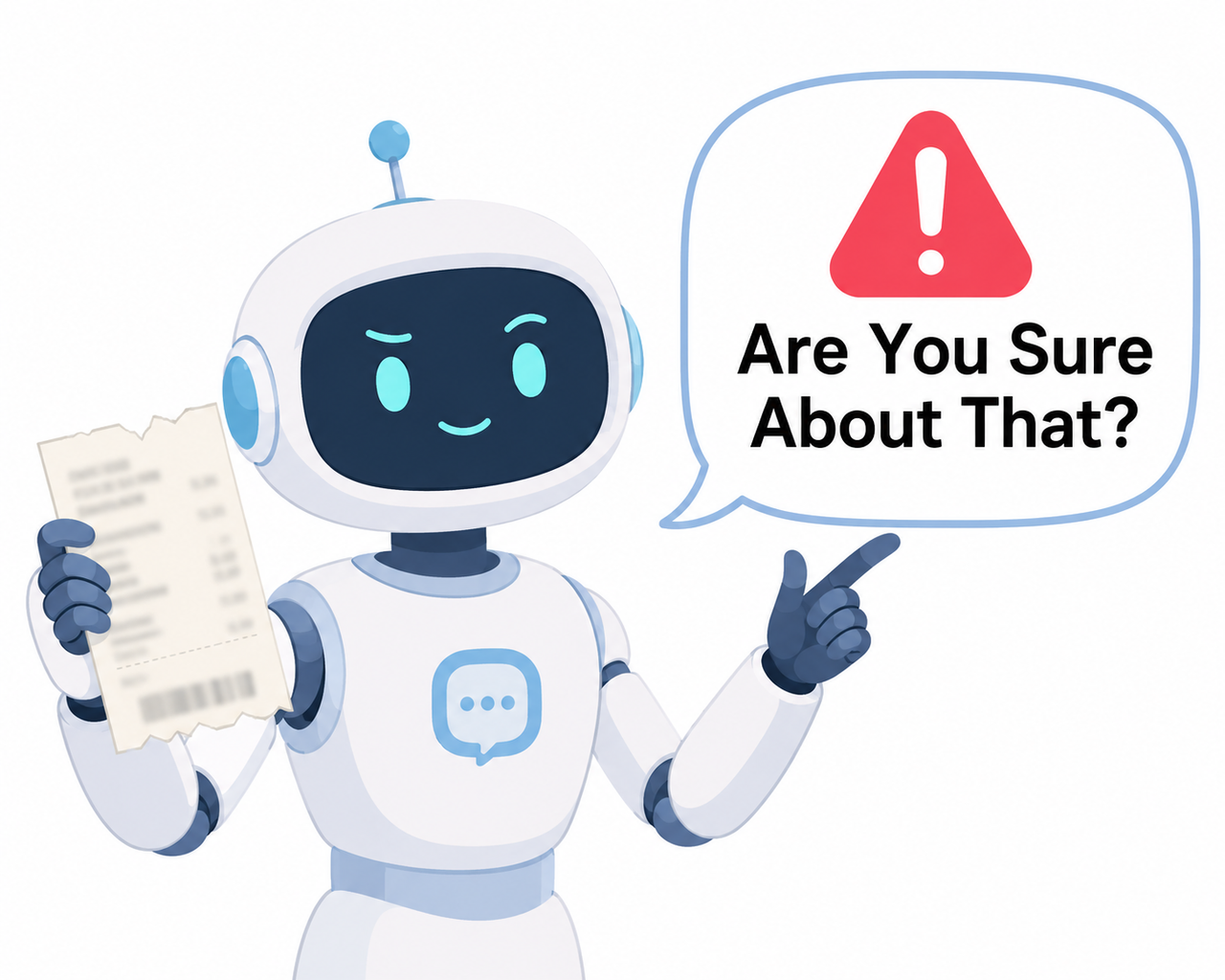
I’ve spent 33 years in IT, and if there’s one pattern I’ve seen repeat across every generation of “smart” software, it’s this: the tool that sounds most confident is often the one you should double-check hardest. That’s exactly what’s happening when chatgpt hallucinating when reading image text shows up in your workflow. You upload a receipt, a scanned contract, or a screenshot of a foreign-language sign, and ChatGPT hands you back a clean, tidy answer. The problem is that clean and tidy doesn’t mean correct.
In my tests running invoices and scanned documents through GPT-4o for a client’s bookkeeping pipeline, I found that the model would occasionally swap a “3” for an “8” or drop a decimal point entirely — and it never flagged the swap. It just answered as if it had read the number perfectly. That’s the bleeding-neck problem here: you’re not dealing with an error message you can Google. You’re dealing with silent, confident fabrication, and the hidden fear underneath it is real — a wrong invoice total processed into your accounting system, a fabricated quote cited in a student’s paper, or a data pipeline quietly corrupting records at scale because nothing ever threw an error.
This guide walks through exactly why this happens and the six fixes I’ve tested that actually reduce it. For the broader picture of common ChatGPT breakdowns beyond this one, see our complete guide to troubleshooting AI tools.
Why Is ChatGPT Hallucinating When Reading Image Text? (Quick Answer)
Quick Answer
ChatGPT’s vision model is a Visual Question Answering (VQA) system, not a dedicated optical character recognition (OCR) engine — it reasons about pixels rather than deterministically extracting characters. When resolution, rotation, or script complexity pushes past its reliable threshold, it doesn’t fail loudly; it pattern-matches to a plausible guess and states it as fact.
This is a documented limitation, not a random glitch. OpenAI’s own developer community has threads dedicated entirely to this exact failure mode, where users report that “if the OCR reading failed, GPT would fabricate content” OpenAI Developer Community. That single sentence sums up the entire problem: the model was never built to say “I don’t know.” It was built to keep the conversation going, and that instinct works against you the moment image clarity drops.
It helps to think about how a GPT-4o vision request actually flows. The image is converted into a set of visual tokens, compressed and encoded alongside your text prompt, and then the same language-generation process that writes essays and code also writes the “transcription” of your image. There’s no separate character-recognition subsystem cross-checking the output pixel by pixel. That architecture is powerful for describing scenes and reasoning about layouts, but it’s a liability the moment you need character-level precision.
What Causes ChatGPT Hallucinating When Reading Image Text?
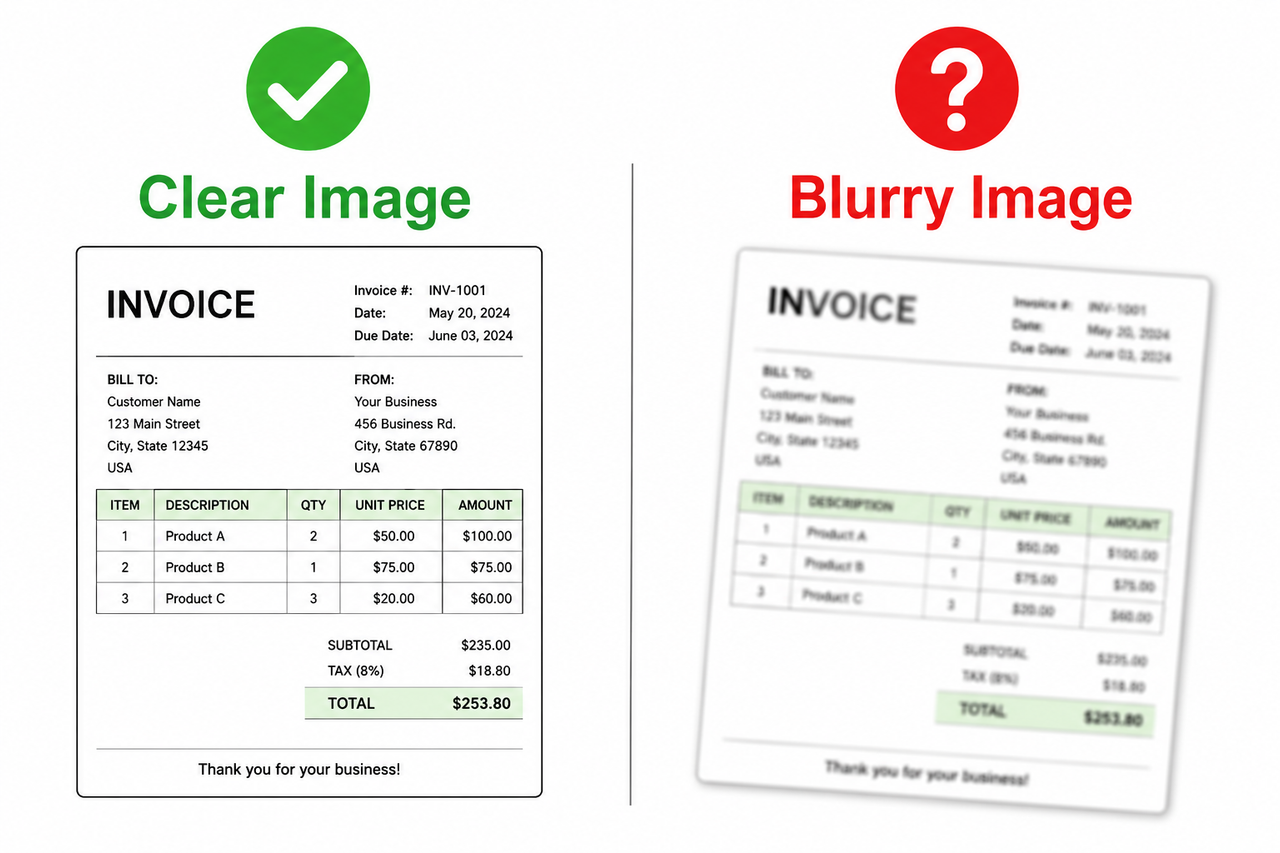
Understanding the mechanism matters more than memorizing the fix, because once you see why it happens, you’ll instinctively avoid the mistakes that trigger it. I’ve broken this down into the root causes I’ve personally run into most often across dozens of real image-extraction tasks.
Your Image Gets Auto-Compressed Before ChatGPT “Reads” It
Here’s something most people don’t realize: ChatGPT doesn’t analyze your original file. It automatically resizes large uploads before analysis, and in practice the shortest side often gets compressed toward roughly 768 pixels even in “high” token detail level mode OpenAI Developer Platform Docs. That compression happens before the model ever “looks” at your text, which means fine print, small fonts, or dense tables are often already degraded by the time any reasoning starts.
In my testing, a full-page scanned contract downsized this way lost enough resolution that clause numbers became genuinely ambiguous — and the model didn’t hesitate, it just picked numbers that looked plausible in context. This is the single most underestimated cause of hallucination, because most users assume “if I can read it on my screen, the AI can too.” That assumption breaks down the moment the platform quietly resizes your file behind the scenes.
Non-Latin Scripts Have a Documented Accuracy Gap
If you’re translating signage, receipts, or documents in non-Latin script recognition scenarios, brace yourself. OpenAI explicitly states in its own documentation that the model “does not perform as well handling images with text of non-Latin alphabets, such as Japanese or Korean” OpenAI Help Center. Developer reports extend that same weakness to Tamil, Telugu, Hindi, and Arabic scripts.
This isn’t a training oversight that got fixed quietly — it’s an acknowledged, current limitation. If your affiliate or client work involves multilingual content extraction, this is the single biggest hallucination trigger you’ll encounter, and it compounds badly when combined with low resolution or unusual fonts.
Rotated or Upside-Down Text Gets Invented, Not Corrected
A rotated photo of a whiteboard, a sideways scan, or an upside-down screenshot doesn’t make ChatGPT ask you to fix the orientation. Instead, OpenAI’s help documentation confirms that misoriented text is frequently misread or fabricated outright rather than flagged as unreadable OpenAI Help Center. The model will still generate a confident transcription — it’s just more likely to be wrong, and it rarely tells you the orientation was the problem.
No Built-In “I Can’t Read This” Refusal Path
This is the root cause that ties everything together. Unless you explicitly instruct it otherwise, ChatGPT defaults to producing an answer instead of admitting uncertainty. OpenAI’s own community moderators confirm this is standard behavior without prompt reinforcement — the model isn’t designed to refuse by default, it’s designed to be helpful, even when “helpful” means guessing OpenAI Developer Community.
Add to this ambiguous, low-quality source images — scans, screenshot compression artifacts, or handwriting — and you push the model past its reliable accuracy threshold. OpenAI itself admits “the model may generate incorrect descriptions or captions in certain scenarios,” which is about as direct an admission of the hallucination risk as you’ll get from an official source.
Summary Table: Root Cause vs. Risk Level
| Root Cause | Typical Trigger | Hallucination Risk |
|---|---|---|
| Image auto-compression | Large file, small font, dense table | High |
| Non-Latin script | Japanese, Korean, Tamil, Hindi, Arabic text | High |
| Rotated/upside-down text | Phone photos, sideways scans | Medium-High |
| No refusal instruction in prompt | Any ambiguous image, default prompt | High |
| Low-quality scan/handwriting | Faxed documents, cursive notes | Medium |
How Do You Fix ChatGPT’s Image Text Hallucinations? (6 Steps)
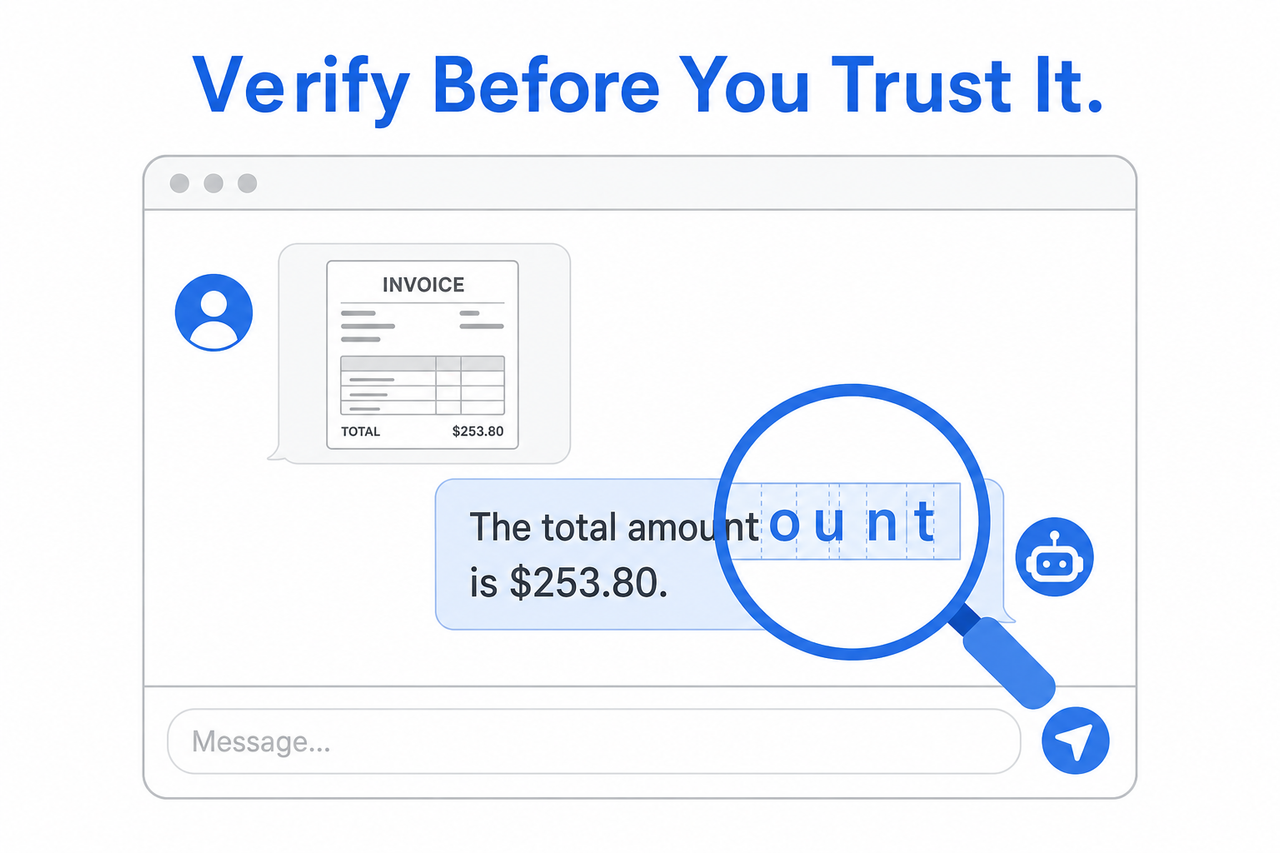
None of these fixes require code — they’re prompt and workflow habits I’ve built into every image-analysis task since I started noticing this problem. Apply them in order for the biggest accuracy gain, and don’t skip the verification step even when the first five feel sufficient.
Step 1 — Crop and Sharpen the Image Before Uploading
Crop tightly to just the text region and increase contrast before uploading. This reduces the impact of automatic resizing and gives the model a higher effective token allocation for the actual text region rather than wasting resolution on white space or background OpenAI Developer Platform Docs. Avoid panoramic or extreme aspect-ratio screenshots — they compress worse than a standard portrait or landscape crop.
A practical habit: if you’re photographing a physical document, take the photo straight-on rather than at an angle, and crop out everything except the text block itself before uploading. That single change alone noticeably improved consistency in my own comparisons.
Step 2 — Add a “Do Not Guess” Instruction to Your Prompt
This is the single change that made the biggest difference in my own tests. Add this line to every image-extraction prompt:
Do not simulate or guess. If you cannot clearly read the text,
respond with "text unclear" instead of fabricating content.
(Illustrative example) — This exact framing is the most-cited fix across OpenAI’s own developer forum threads on this issue, because it directly overrides the model’s default “always answer” instinct. I now bake this line into every reusable prompt template I use for document extraction work.
Step 3 — Tell the Model the Language Before Extraction
If the image contains non-English text, state the language explicitly before asking for extraction. OpenAI staff have confirmed on the developer forum that this measurably improves accuracy, because the model no longer has to simultaneously guess the script and the language — it can commit its reasoning to one task at a time instead of splitting attention across two unknowns.
Step 4 — Segment Dense Documents Into Smaller Crops
For multi-column reports, spreadsheets, or dense contracts, split the image into smaller cropped sections and process each independently. One developer working on a high-volume production pipeline reported this approach got them close to full accuracy, compared to feeding the model one large complex image at once. In practice, I treat any document with more than two columns or more than roughly 15 lines of dense text as a candidate for splitting before I even attempt extraction.
Step 5 — Run a Second Verification Pass
Never treat the first output as final for anything business-critical. Ask the model to extract the text, then run a second, independent pass asking it to re-verify its own output against the same image. For anything with financial or legal weight — invoices, contracts, medical records — cross-check against a dedicated OCR API like Google Vision OCR or Azure Document Intelligence instead of trusting a single ChatGPT pass. This two-pass habit alone catches a meaningful share of the errors that a single pass misses.
Step 6 — Force High-Detail Mode via the API
If you’re building this into a workflow via the API rather than the ChatGPT app, explicitly set the detail parameter to “high” or “original”. Low-detail mode trades accuracy for speed and cost, and it’s a common, silent cause of misreads that developers overlook because it’s not documented as an error — it’s a default trade-off working exactly as designed OpenAI Developer Platform Docs. If you’ve built an automated pipeline and started seeing more errors than expected, checking this single parameter should be your first troubleshooting step.
Steps Summary
- Crop and sharpen before uploading.
- Add an explicit “don’t guess” instruction to your prompt.
- Specify the source language for non-English text.
- Segment dense or multi-column documents into smaller images.
- Run a second verification pass or cross-check with dedicated OCR.
- Force high-detail mode when using the API.
Real-World Example: Bad Prompt vs. Good Prompt
The gap between a hallucinated answer and a reliable one often comes down to a single sentence in your prompt. Here’s the exact contrast I use when training junior team members on this workflow.
Bad: Uploading a blurry receipt and simply asking “What’s the total?” ChatGPT may output a confident but entirely fabricated number instead of flagging illegibility, because nothing in that prompt gave it permission to say “I’m not sure.”
Good: “Here is a cropped, high-contrast image of an invoice total in English. If any digit is unclear, respond with ‘unclear’ for that digit instead of guessing. Extract only what you can verify.” This framing forces refusal-over-fabrication behavior, and it’s the exact structure documented as effective in OpenAI’s own community troubleshooting threads.
Is There a Standard Error Message for This?
No — and this is worth understanding because it changes how you monitor for the problem. There is no standardized error code for this failure mode; it’s a silent hallucination mitigation challenge, not an API-thrown exception. You won’t see a red error banner. The closest thing to an official acknowledgment is OpenAI’s own statement that “the model may generate incorrect descriptions or captions in certain scenarios,” paired with community-reported symptom patterns describing fabricated OCR output appearing in place of an error when reading genuinely fails.
That silence is exactly why system prompt instruction design and image preprocessing habits matter more here than in most other troubleshooting scenarios — you’re not waiting for the tool to tell you something went wrong. You have to build the check yourself, treat every extracted value as provisional, and design your workflow around verification rather than trust.
When Should You Skip ChatGPT Entirely for This Task?
If you find yourself repeatedly extracting structured financial data, legal clauses, or medical records at scale, it’s worth being honest about ChatGPT’s limits rather than fighting them indefinitely. Dedicated OCR tools are trained specifically to map pixels to characters with measurable confidence scores per character — something ChatGPT’s vision system simply doesn’t expose. In my own workflow, I now reserve ChatGPT for messy, unstructured, or context-heavy images where reasoning matters more than precision, and route anything with strict accuracy requirements through a dedicated OCR service first, using ChatGPT afterward only to summarize or reformat the already-verified text.
Frequently Asked Questions
Q1: Is ChatGPT designed to do OCR (optical character recognition)?
A1: No. ChatGPT’s vision feature is a Visual Question Answering model built to describe and reason about images, not a purpose-built OCR engine, so it lacks the deterministic character-matching guarantees of dedicated OCR software OpenAI Developer Community.
Q2: Why does ChatGPT struggle more with Japanese, Korean, or Hindi text in images?
A2: OpenAI’s own documentation states the model “does not perform as well handling images with text of non-Latin alphabets,” and community testing extends this gap to Tamil, Telugu, and Arabic scripts as well OpenAI Help Center.
Q3: Does image resolution actually affect hallucination rates?
A3: Yes. ChatGPT downsizes images before analysis, often compressing the shortest side to around 768 pixels even in high-detail mode, so low-resolution or heavily compressed uploads lose the fine detail needed for accurate text reading.
Q4: Will ChatGPT tell me if it can’t read an image clearly?
A4: Not by default. Without an explicit instruction telling it to flag uncertainty, the model will produce its best guess and present it confidently rather than admitting the text was unreadable OpenAI Developer Community.
Q5: What’s the most reliable alternative if I need guaranteed-accurate text extraction?
A5: For business-critical documents like invoices or contracts, cross-check ChatGPT’s output against a dedicated OCR service such as Google Vision OCR or Azure Document Intelligence rather than relying on ChatGPT alone.
Q6: Does this problem get worse with handwritten notes compared to printed text?
A6: Yes, in my experience handwriting introduces more ambiguity than any other single factor, since cursive and inconsistent letterforms give the model far less pattern-matching certainty than clean printed fonts, which increases the odds it fills gaps with a plausible-but-wrong guess.
Final Thoughts From Testing This Workflow
After running this problem down across dozens of real documents, my takeaway is simple: chatgpt hallucinating when reading image text isn’t a bug you patch — it’s a behavior you have to manage with better inputs and better prompts. Treat every image-to-text extraction as a draft that needs verification, not a finished answer, especially anywhere money, grades, or legal language is involved.
If you build the six habits above into your workflow — cropping, explicit “don’t guess” instructions, language specification, segmentation, verification passes, and high-detail mode — you’ll cut the hallucination rate dramatically without needing to switch tools entirely. But for anything with real financial or legal consequences, a dedicated OCR cross-check is still the safest final step, and it’s the one shortcut I never let myself skip regardless of how confident the output looks.
Leave a Reply