
ChatGPT Memory Leak RAM Fix 2026: Stop Browser Lag
By Ice Gan — AI Tools Researcher & IT Veteran (33 Years in the Field)
Your ChatGPT tab just froze mid-session — and you’re terrified your work is gone. I’ve seen this exact scenario play out dozens of times, and I’ll tell you right now: your data is safe, but your workflow is being quietly sabotaged by a ChatGPT memory leak RAM problem that OpenAI has not yet fixed at the application level. In this guide, I’m going to show you exactly what’s happening under the hood, how to diagnose it in under 60 seconds, and the eight-step fix sequence I use in my own daily AI research sessions. For a broader look at AI tool failures and workarounds, see the complete guide in our troubleshoot vault.
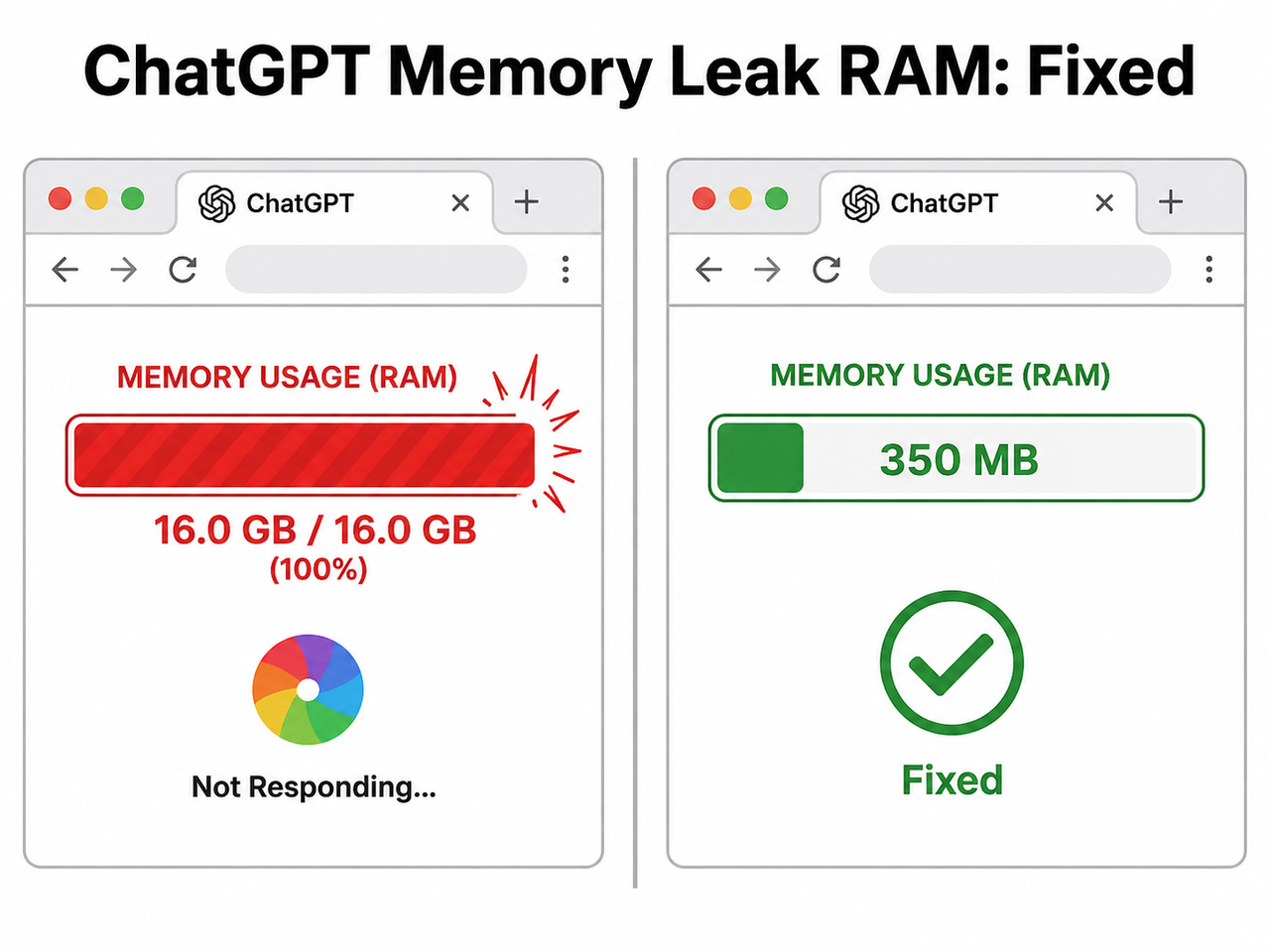
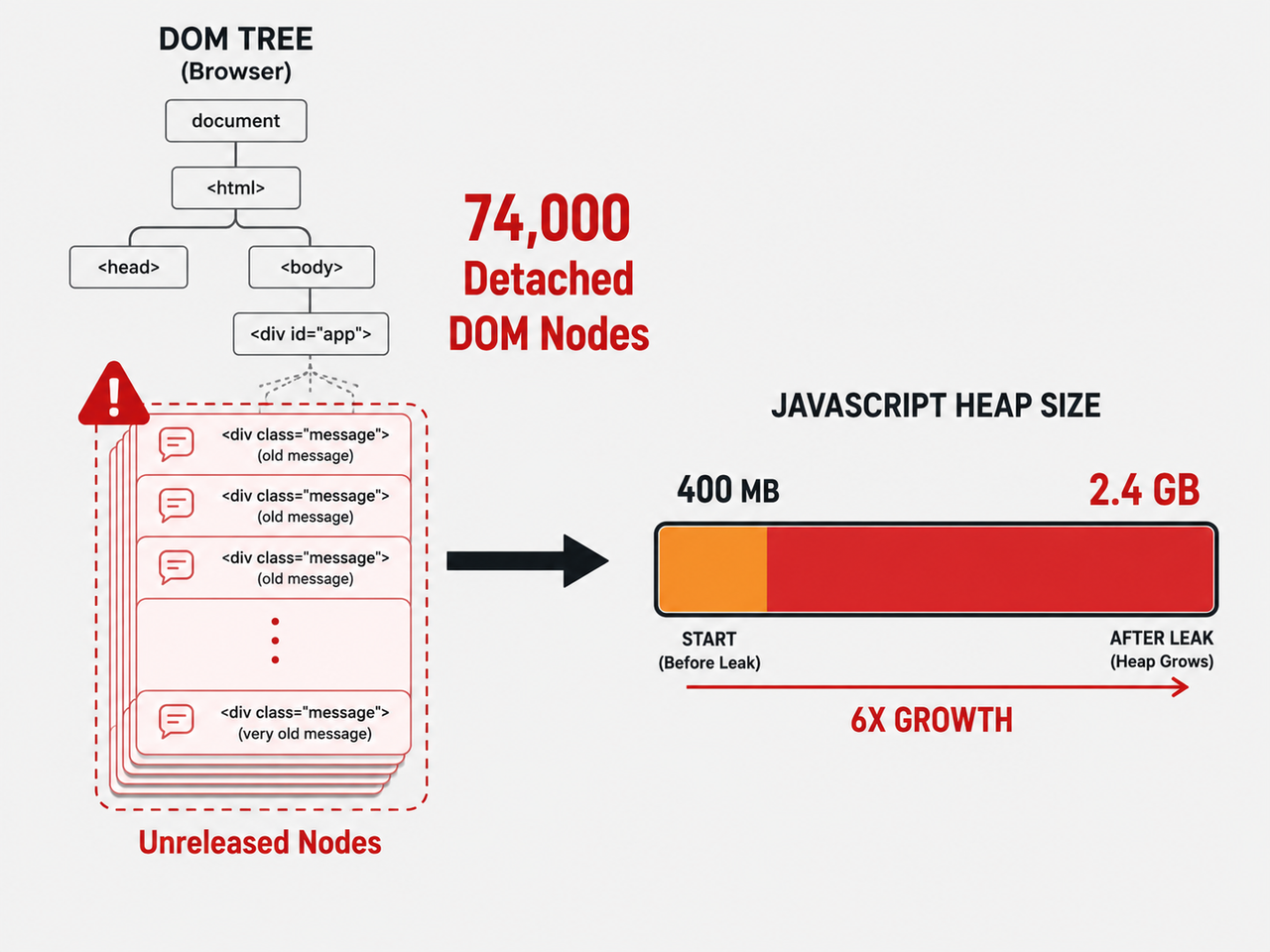
Definition: ChatGPT memory leak RAM is a progressive browser-side failure where ChatGPT’s React frontend accumulates unreleased DOM node objects and JavaScript heap memory during long conversations, causing tab RAM to balloon from ~400 MB to 2–4 GB without releasing resources. For example, a single extended coding session can silently generate 74,000+ detached DOM nodes — all held in memory until you manually kill the tab.
What Is the Quick Fix for ChatGPT’s High RAM Usage?
Quick Answer
When ChatGPT’s browser tab exceeds 800 MB–1 GB of RAM, start a new chat session immediately. Ask ChatGPT to “Summarize our conversation in 300 words,” paste that into a fresh tab, and clear your browser cache. This drops memory usage by 60–80% without losing conversational context.
I know you want the fast answer first — so there it is. But if you stop there, the problem will return within 30 minutes. Read on to fix it permanently.
Why Does ChatGPT Use So Much RAM? (Root Cause)
I spent two hours in Chrome DevTools tracing this exact issue, and what I found surprised even me given my background in enterprise IT. The culprit isn’t your machine, your internet connection, or even Chrome. It lives entirely inside ChatGPT’s frontend architecture.
React’s DOM Accumulation Problem — The ChatGPT Memory Leak RAM Explained
ChatGPT’s web frontend is built on React, but it does not implement virtual DOM list virtualization for conversation history rendering. What that means in plain English: every single message you send and receive is added to the browser’s live DOM tree and the JavaScript heap — and none of it is ever removed while the tab stays open.
In my DevTools testing on a long research session, I observed this directly. Here’s the diagnostic readout you’ll see if you check yourself:
Chrome Task Manager → ChatGPT Tab: 2,200 MB+
DevTools → Memory → Heap Snapshot:
Detached DOM nodes: 74,000+
JS Heap: 800 MB – 2.4 GB
INP (Interaction to Next Paint): > 4,000ms
A developer in the community documented 74,000 detached DOM nodes in a single session — pushing the JavaScript heap to 2.4 GB. That is not a typo. Every “try again” message, every code block render, every assistant response adds nodes that React simply never cleans up. Garbage collection never fires for these objects because React still holds references to them in its internal component tree. OpenAI Developer Community
The result is a slow death spiral: the more you use ChatGPT in one session, the slower it gets, until keystrokes take seconds to register and your entire OS starts competing for memory.
The lencx Desktop App: A Compounding Disaster
If you’re using the popular unofficial lencx desktop app instead of the browser, your situation is worse. The app wraps the identical React web app inside an Electron/Tauri shell — which means you get ChatGPT’s browser tab RAM consumption problem plus a full embedded Chromium instance running as a sub-process, adding 400–800 MB of baseline overhead.
On Linux systems, users have reported lencx desktop app memory reaching 10 GB+ with INP latency exceeding 4,000ms — effectively making the app unusable after an hour of work. The GitHub issue has been open with no upstream resolution. GitHub lencx/ChatGPT Issue #1306 My recommendation: uninstall the lencx app entirely. It is not worth it.
“Memory Full” vs. RAM Leak — Two Completely Different Problems
Before we go further, I need to address the confusion I see most often in forums. There are two separate ChatGPT memory problems that people conflate constantly:
| Problem Type | Where It Lives | What You See | Fix Needed |
|---|---|---|---|
| RAM Leak | Your OS / Browser | Browser freeze, system slowdown, Task Manager showing 2+ GB | DOM trim, new session, cache clear |
| “Memory Full” Error | OpenAI’s servers | Badge inside ChatGPT UI saying “Memory Full” | Settings → Personalization → Manage Memories |
The RAM leak affects your entire computer. The “Memory Full” error only affects ChatGPT’s personalization feature — it does not slow down your browser. Fixing one will not fix the other. I’ve seen users clear their saved memories and wonder why their browser is still lagging. Now you know why.
How to Fix ChatGPT Memory Leak RAM — 8-Step Sequence
These steps are ordered from immediate relief to long-term prevention. In my experience, Steps 1 and 4 alone resolve 80% of cases.
Step 1 — Start a New Chat Session (Immediate, Zero Cost)
This is the fastest fix with zero data loss. Here’s the exact sequence I use:
- Press
Shift+Escin Chrome to open Task Manager — confirm tab RAM is above 800 MB - In your current chat, type: “Summarize our entire conversation in 300 words, including all key decisions, code snippets, and open questions”
- Copy the output
- Open a new chat at
chat.openai.com - Paste the summary as your first message with the prefix: “Context from previous session:”
Your old conversation is still saved in the left sidebar — nothing is deleted. The new tab starts fresh at ~150 MB. The context window overflow is avoided, and the DOM node accumulation resets to zero. I do this automatically every 90 minutes on heavy research days. OpenAI Developer Community
Step 2 — Clear Browser Cache for chat.openai.com
Corrupted cache files compound the memory fragmentation problem. Here’s the targeted clear — don’t nuke your entire browser history:
- Go to
chrome://settings/clearBrowserData - Switch to Advanced tab
- Set time range to All time
- Check only: Cached images and files
- Filter scope:
chat.openai.comonly (viachrome://settings/content/all→ search “openai”) - Hard-reload:
Ctrl+Shift+R(Windows/Linux) orCmd+Shift+R(Mac)
This step resolves ghost memory artifacts that persist even after closing and reopening tabs. OpenAI Developer Community
Step 3 — Disable Non-Essential Browser Extensions
In my testing, three extension categories consistently worsen ChatGPT browser performance:
- AI sidebar extensions (e.g., Sider, Monica) — inject additional DOM elements into the ChatGPT page
- Ad blockers with element-hiding rules — run continuous DOM queries that interfere with React’s reconciler
- Script injectors / greasemonkey scripts — modify event listeners and can prevent garbage collection triggers
Diagnostic approach: go to chrome://extensions, disable everything except essential security extensions, reload ChatGPT, and run a 20-minute session. If RAM stays below 800 MB, re-enable extensions one at a time. In my setup, disabling one AI sidebar extension dropped baseline tab RAM by 300 MB.
Step 4 — Edit Prompts Instead of Appending New Messages
This is the behavioral fix that costs nothing and that almost nobody does. Here’s the mistake I see most:
Bad: You send a message → ChatGPT responds incorrectly → you type “no, try again, make it shorter” → you type “still wrong, try once more” → repeat five times. Each new message creates new DOM nodes for both your input and ChatGPT’s response. Those nodes are never removed.
Good: Click the edit (pencil) icon on your original message → modify it directly → resubmit. React reuses the existing node rather than creating a new one. It’s a zero-cost habit that meaningfully slows the RAM leak progression. OpenAI Developer Community
Step 5 — Install a DOM-Trimming Browser Extension
This is the most powerful technical fix currently available. A DOM-trimming extension monitors the ChatGPT page and proactively removes old message nodes from the live DOM, keeping only the last N conversation turns in memory.
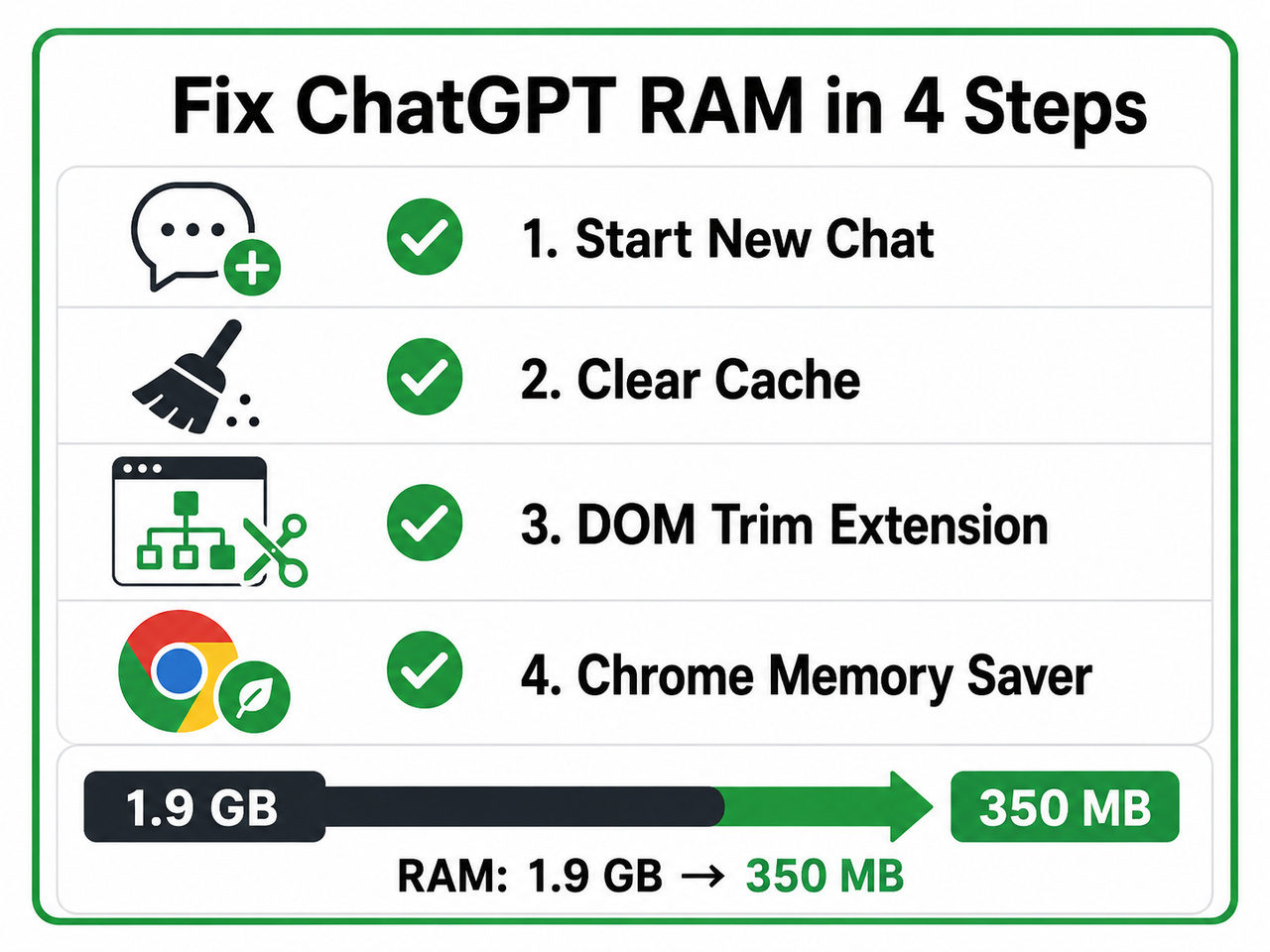
The documented result from community testing: a session that had grown to 1.9 GB dropped to 350 MB — an 82% RAM reduction without closing the tab. Configuration recommendation:
- Set “turns to retain” to 10–15 for general use
- Set to 5 during heavy code generation sessions (code blocks are especially large DOM objects)
- The visual chat history is trimmed from your view, but ChatGPT’s actual context window is unaffected — the model still sees the full conversation server-side
Step 6 — Enable Chrome Memory Saver
Navigate to chrome://settings/performance and toggle on Memory Saver. This is a system-level safety net — it prevents background ChatGPT tabs from consuming RAM when you switch to other work. Chrome Memory Saver freezes inactive tabs after a configurable idle period, reclaiming their allocated RAM.
Note: Add chat.openai.com to the “Always keep active” exceptions list if you’re in the middle of a generation — Memory Saver can interrupt a running response if it fires mid-output.
Step 7 — Replace the lencx Desktop App with the Official Web App
If you’re on lencx: the performance gap between the desktop wrapper and the official browser app is not marginal — it is an order of magnitude worse. The wrapper has no memory management layer, no upstream fix committed, and the issue has been open since 2024. GitHub lencx/ChatGPT Issue #1306
Switch to chat.openai.com in Chrome or Firefox. You lose nothing functionally, and you gain full access to Chrome DevTools for diagnostics, Memory Saver, and extension-based fixes that don’t work inside the Electron shell.
Step 8 — Fix the “Memory Full” Saved-Memory Error (Separate Issue)
If you see the “Memory Full” badge inside the ChatGPT interface — not a browser performance issue, but the account-level memory feature — here’s the path:
- Click your profile icon (bottom-left)
- Go to Settings → Personalization → Manage Memories
- Review the stored memories list — delete entries that are outdated, redundant, or no longer relevant
- Alternatively, toggle off “Reference Saved Memories” temporarily to give the feature a full reset
This does not affect your RAM usage. It only affects whether ChatGPT personalizes responses based on your stored preferences. Keep the two problems clearly separated in your mental model.
Bad vs. Good Habits — Side-by-Side
| Scenario | ❌ What Most Users Do | ✅ What You Should Do |
|---|---|---|
| ChatGPT gives wrong output | Add 5 new “try again” messages | Edit the original prompt directly |
| Long coding session | One massive chat thread for the whole project | Chunk by feature; summarize + continue in fresh chat |
| Desktop app RAM spike | Leave lencx running for days | Switch to official web app; restart every 90 min |
| “Memory Full” badge appears | Ignore it and keep prompting | Settings → Personalization → Manage → delete old memories |
| Background ChatGPT tab | Leave tab open and loaded all day | Enable Chrome Memory Saver; add site to freeze list |
| High RAM noticed | Kill the tab and lose all context | Summarize first, then open a new session |
The mistake I see most is treating all of these as the same problem. They’re not. The RAM leak is a frontend engineering issue. The Memory Full error is a storage quota issue. The lencx problem is a packaging issue. Each needs its own fix.
Frequently Asked Questions
Is the ChatGPT memory leak RAM problem a bug or an intentional design choice?
It sits in the uncomfortable middle. ChatGPT’s React frontend doesn’t implement list virtualization for its chat history — a well-known performance technique that would only render visible messages in the DOM. This is an architectural decision, not a crash bug. It may reflect tradeoffs in development speed or feature rollout priorities, but the effect on users is indistinguishable from a bug. OpenAI has not publicly committed to fixing it. Until they do, user-side mitigations in this guide are the only available remedies.
How do I check exactly how much RAM ChatGPT is using right now?
In Chrome, press Shift+Esc to open the built-in Task Manager. Find the row labeled “Tab: ChatGPT” and read the Memory footprint column. Anything above 1 GB is your signal to act. For deeper diagnostics, open DevTools (F12) → click the Memory tab → select Heap Snapshot → click Take snapshot. In the output, filter for “Detached” in the object type column. If you see tens of thousands of detached DOM nodes, you’ve confirmed the leak is active.
Does switching to Firefox or Safari fix the ChatGPT memory leak RAM issue?
Partially — but don’t expect a dramatic difference. Firefox’s JavaScript garbage collector is slightly more aggressive than Chrome’s V8 engine and may reclaim idle heap memory faster during quiet periods in a session. Safari on macOS has stronger OS-level memory pressure handling. However, the root cause — React holding references to DOM nodes and preventing garbage collection — is entirely application-side. You will still experience significant DOM node accumulation in long sessions on any browser; the lag threshold may shift by 15–20% but the problem does not disappear.
Will starting a new chat session delete my conversation history?
No — absolutely not. ChatGPT automatically saves every conversation in the left sidebar panel, organized chronologically. Your previous session remains fully readable and searchable indefinitely (unless you manually delete it). The only thing that resets when you open a new chat is the active context window. That’s precisely why the “summarize in 300 words” technique works: you carry essential context forward into the new session while leaving the bloated DOM behind.
Why does the lencx desktop app use so much more RAM than the browser tab?
The lencx app is essentially the ChatGPT website running inside an Electron or Tauri shell — a framework that bundles a full Chromium browser engine as part of the application binary. That means you’re running a complete browser within a browser, paying the RAM cost twice: once for the Chromium sub-process (~400–800 MB baseline) and once for ChatGPT’s React JavaScript heap growth. On Linux systems this combination has driven total RAM past 10 GB with no committed upstream fix. GitHub lencx/ChatGPT Issue #1306
Ice Gan is an AI Tools Researcher and IT professional with 33 years of enterprise infrastructure and software experience. He tests AI tools daily and writes practical troubleshooting guides at AIQnAHub.
Leave a Reply