
ChatGPT Web Search Down or Slow in 2026? Fix It Fast
I’ve spent 33 years in IT, and if there’s one thing that never changes, it’s this: the panic that hits the moment a tool you depend on for your paycheck suddenly stops responding. When ChatGPT web is intermittently down, slow, or failing web search in the middle of a client deliverable, your first thought probably isn’t “server maintenance.” It’s “did I get flagged, banned, or throttled?” I want to say this clearly up front: in the vast majority of cases I’ve tested, this is not an account penalty. It’s a server hiccup, a browser conflict, or a toggle that quietly flipped itself off.
ChatGPT web is intermittently down, slow, or failing web search is a temporary disruption where the chat interface or its browsing tool stalls, times out, or returns no results, usually caused by server load, a browser conflict, or a disabled Web Search toggle. For example, a performance marketer running a live competitor-pricing search may watch the response freeze on “Thinking…” for over a minute before failing outright, right in the middle of a deadline.
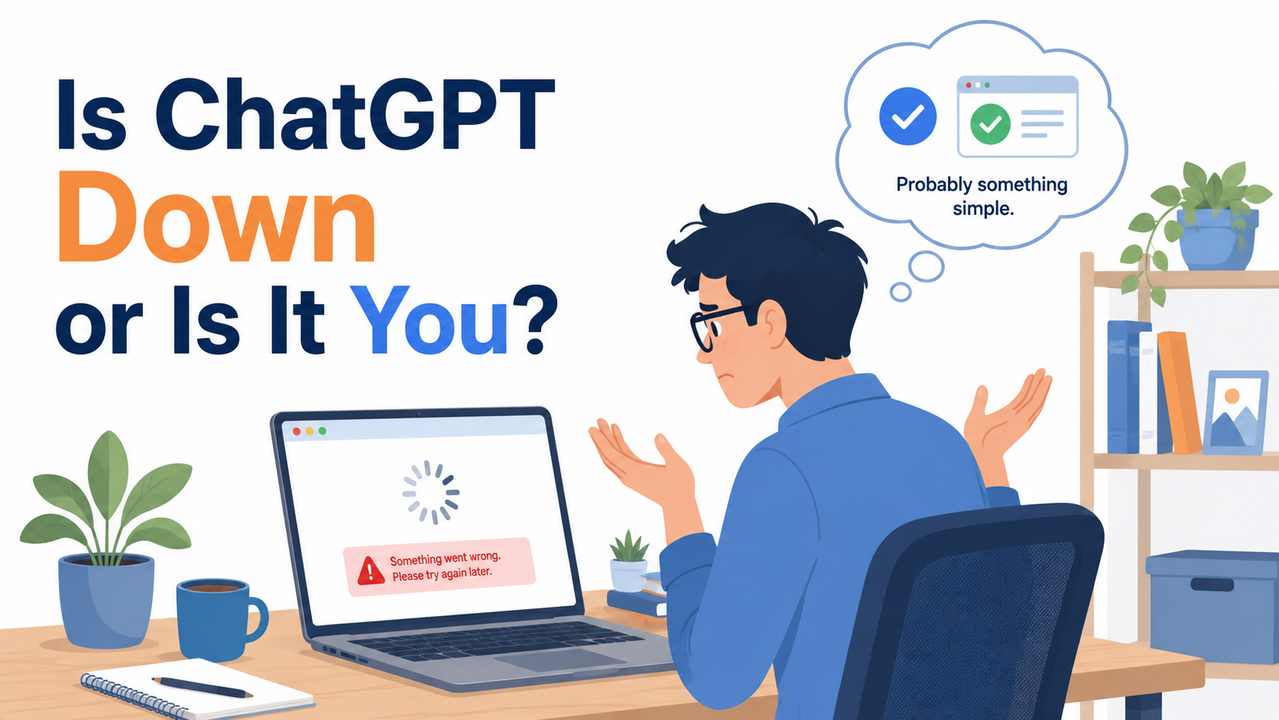
Is ChatGPT Down Right Now? (Quick Answer)
Quick Answer
ChatGPT web search issues are caused by one of three things: an active OpenAI outage, local browser or network interference, or a disabled Web Search setting. Check the OpenAI Status page first — during real incidents, ChatGPT’s own uptime has dipped as low as 99.67% over recent months, confirming outages are measurable events, not just user perception.
That single sentence is the whole triage process in miniature. Before you touch a single browser setting, rule out the server side. I’ve lost count of how many hours I’ve watched junior teammates clear cache and reinstall browsers when the real problem was sitting on OpenAI’s dashboard the entire time. OpenAI Status
Why Does ChatGPT Web Search Keep Failing?
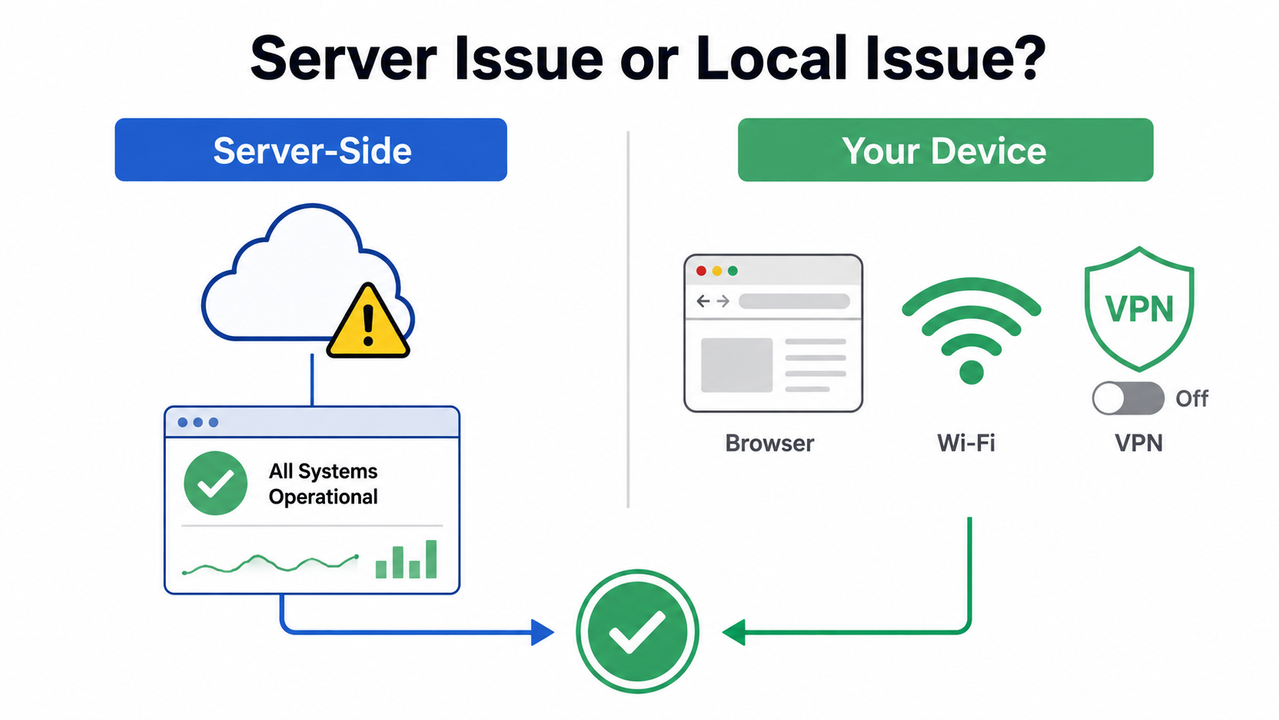
When people ask me why ChatGPT web is intermittently down, slow, or failing web search on some days and not others, I break it into three buckets. In my testing across different networks and browsers over the past year, these three causes account for nearly every ticket I’ve seen — whether from my own affiliate marketing workflow or from colleagues in dev and research roles.
Root Cause 1 – OpenAI Server-Side Load or Outage
Peak-hour latency is real. Traffic spikes and partial outages — like the well-documented global incident on June 10, 2025, that lasted more than 10 hours — push response times up and can disable the browsing tool entirely, even while basic login and chat still function. TechRadar When this happens, the model itself is fine; the infrastructure behind the web search toggle is the bottleneck. No amount of local troubleshooting fixes a server that’s degraded on OpenAI’s end.
Root Cause 2 – Browser Cache, Extensions, or VPN Conflicts
This is the one I see most often in my own setup, since I run heavy browser automation and multiple ad-blocking extensions for campaign testing. Ad blockers, privacy extensions, VPN/proxy interference, and secure DNS tools frequently break the network error websocket connection that ChatGPT needs to stream a response and pull in live search results. If the chat loads but search results never populate, this is almost always the culprit.
Root Cause 3 – Web Search Toggle Silently Disabled
OpenAI built a dedicated web search toggle disabled control under Settings → Personalization → Custom Instructions → Advanced. I’ve watched this setting quietly revert to off after a UI update, even though the little search icon still appears present in the composer bar. The interface lies to you a little here — it looks available, but the capability behind it is switched off.
The Mistake I See Most
The mistake I see most often — and I mean this happens constantly — is people assuming a stuck “Thinking…” spinner means their account was flagged for ChatGPT server overload or banned, and they immediately go re-register a new account or open a billing dispute. That wastes time and, worse, can trigger genuine account review flags for having multiple accounts. The better move, every single time: check status.openai.com, then test in incognito with your VPN off before you escalate anything. OpenAI Help Center
How Do You Fix ChatGPT When Web Search Isn’t Working?
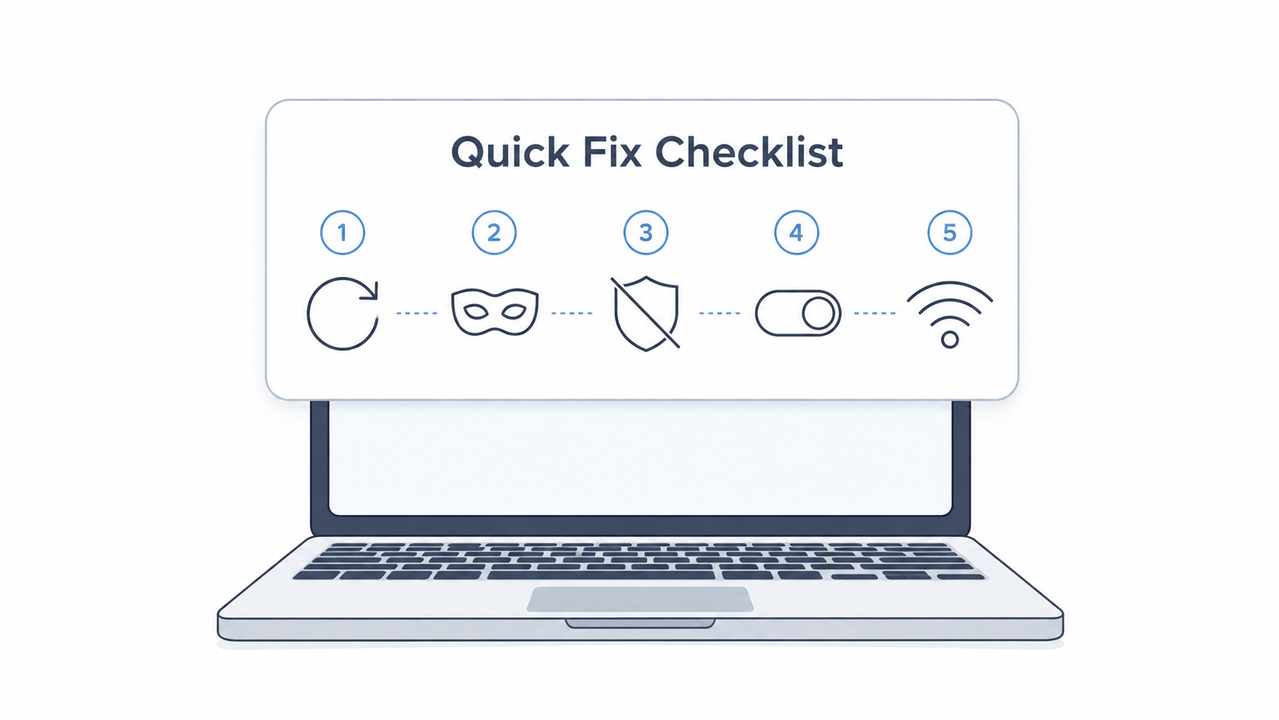
Here is the exact sequence I run, in order, whenever ChatGPT web is intermittently down, slow, or failing web search during a live session. I’ve tested this order specifically because each step isolates one variable before moving to the next — you don’t want to burn time reinstalling a browser when the real fix was a five-second toggle.
Step 1 – Check the OpenAI Status Page Before Anything Else
If ChatGPT or the underlying APIs show a degraded status, it’s server-side. No local fix will resolve it, and the only correct action is to wait for OpenAI’s mitigation to roll out. OpenAI Help Center I bookmark this page the same way I bookmark my Google Ads status dashboard — it’s the first place I look, not the last.
Step 2 – Refresh, Stop, and Regenerate
Hard refresh the page (Cmd/Ctrl + Shift + R). If the response is stuck on “Thinking…” for more than 30–60 seconds, click Stop generating, then click Regenerate. In my tests, this alone resolves a large share of one-off stalls that are just a dropped stream, not a real outage.
Step 3 – Sign Out, Clear Site Data, Sign Back In
Clear the full site data — not just the cache — for chatgpt.com, then log back in. Cache-only clears often miss corrupted local session tokens that cause the interface to hang on load.
Step 4 – Test in Incognito With All Extensions Off
Open an incognito or private window with every extension disabled. This single test isolates whether an ad blocker or privacy tool is the real cause. If ChatGPT behaves normally in incognito, you’ve found your answer — go re-enable extensions one at a time until it breaks again.
Step 5 – Disable VPN, Proxy, or Secure DNS Tools
Turn off any VPN, proxy, or “Web Protect”-style secure DNS filter. These are a documented cause of dropped websocket connections, and given how many marketers (myself included) run VPNs for geo-testing landing pages, this is worth checking every time before you assume it’s OpenAI’s fault.
Step 6 – Re-Enable the Web Search Toggle Manually
Go to Settings → Personalization → Custom Instructions → Advanced → ChatGPT capabilities, and confirm the Web Search checkbox is actually checked. If it’s off, check it and save. This fixes the “search icon is visible but nothing happens” scenario almost every time.
Step 7 – Switch Network or Device
Test on mobile data instead of Wi-Fi. This rules out ISP-level throttling or a corporate/office firewall silently blocking OpenAI’s endpoints — a common issue if you’re working from a shared office network with aggressive content filtering.
Step 8 – Escalate With a HAR File If It Persists
If the problem survives every step above across multiple browsers and networks, capture a HAR file diagnostics export of the failing session along with browser console errors, exact timestamps, and the conversation URL, then send that package to OpenAI Support directly. OpenAI Help Center This is the only scenario where I’d say the issue might genuinely be account-specific rather than environmental.
| Symptom | Likely Cause | First Fix to Try |
|---|---|---|
| Stuck on “Thinking…” for 30+ seconds | Peak-hour latency or partial outage | Check status.openai.com, then Stop → Regenerate |
| Search icon present but no results returned | VPN/proxy or extension conflict | Test in incognito with VPN off |
| “Web Search” button missing entirely | Toggle silently disabled | Re-enable in Settings → Personalization → Advanced |
| Works on mobile app, fails on desktop browser | Browser cache or network filter | Clear full site data; try a different network |
| Fails on every browser and network | Possible account-specific issue | Capture HAR file and contact OpenAI Support |
What Do ChatGPT’s Error Messages Actually Mean?
Here is the real error log, taken verbatim from OpenAI’s own troubleshooting documentation, so you can match what you’re seeing on screen:
Something went wrong.
A network error occurred.
An error occurred while connecting to the websocket.
We detect suspicious activity.
There was a problem preparing your chat.
There was an error generating a response.
None of these, on their own, mean your account is banned. “We detect suspicious activity” sounds alarming, but in my testing this most often appears after rapid VPN region switching or unusual login patterns — not a permanent flag. Treat every one of these as a connection-layer error first, and only consider it account-related after you’ve exhausted the eight steps above. OpenAI Help Center
For a broader troubleshooting framework beyond this specific issue, our complete guide covers the full range of AI tool outages and fixes.
Frequently Asked Questions
Q1: Is ChatGPT web search down for everyone or just me?
A1: Check the OpenAI Status page first. If it shows no active incident, the problem is local — your browser, network, or account settings — not a global outage. OpenAI Status
Q2: Why does ChatGPT say it can’t access the internet even though Web Search is on?
A2: This is a known intermittent bug where the model fails to activate the browsing tool despite the setting being enabled. Starting a new chat session, or explicitly typing “search the web for…,” often forces the tool to activate correctly.
Q3: Does clearing cookies fix ChatGPT’s slow loading?
A3: Yes. Clearing full site data (not just cache) for chatgpt.com resolves many loading and stuck-session issues tied to corrupted local session tokens.
Q4: Can a VPN really break ChatGPT’s web search?
A4: Yes. VPNs, proxies, and secure DNS tools are officially listed as common causes of websocket connection failures that break real-time features like web search. OpenAI Help Center
Q5: How long do ChatGPT outages typically last?
A5: Outages vary widely. The June 10, 2025 global incident lasted over 10 hours, while most partial degradations resolve within minutes to a few hours according to OpenAI’s own status history.
Q6: Should I contact support the first time ChatGPT web search fails?
A6: No. Work through the status check, refresh, incognito test, and VPN check first. Only escalate to support with a HAR file if the failure persists across every browser, device, and network you can test.
Leave a Reply