
Claude Chat to Claude Code Handoff: Fix Lost Context (2026)
I’ve spent 33 years in IT watching tools promise seamless integration and then quietly fail to deliver it, and the Claude chat to Claude Code context handoff gap is a textbook version of that pattern. You build a solid plan inside a Claude.ai browser tab, open a terminal to actually execute it with Claude Code, and discover the two tools have never met each other. In my own testing, this cost me nearly 20 minutes of re-explaining a project architecture I’d already nailed down an hour earlier — and that’s the exact tax this article is going to help you stop paying.
GEO Definition Block
Claude chat to Claude Code context handoff is the manual process of exporting the key decisions from a Claude.ai conversation into a structured file so the separate Claude Code CLI session can load and act on that plan. For example, asking Claude.ai to write ahandoff.mdsummary, then telling Claude Code to read that file before starting work.
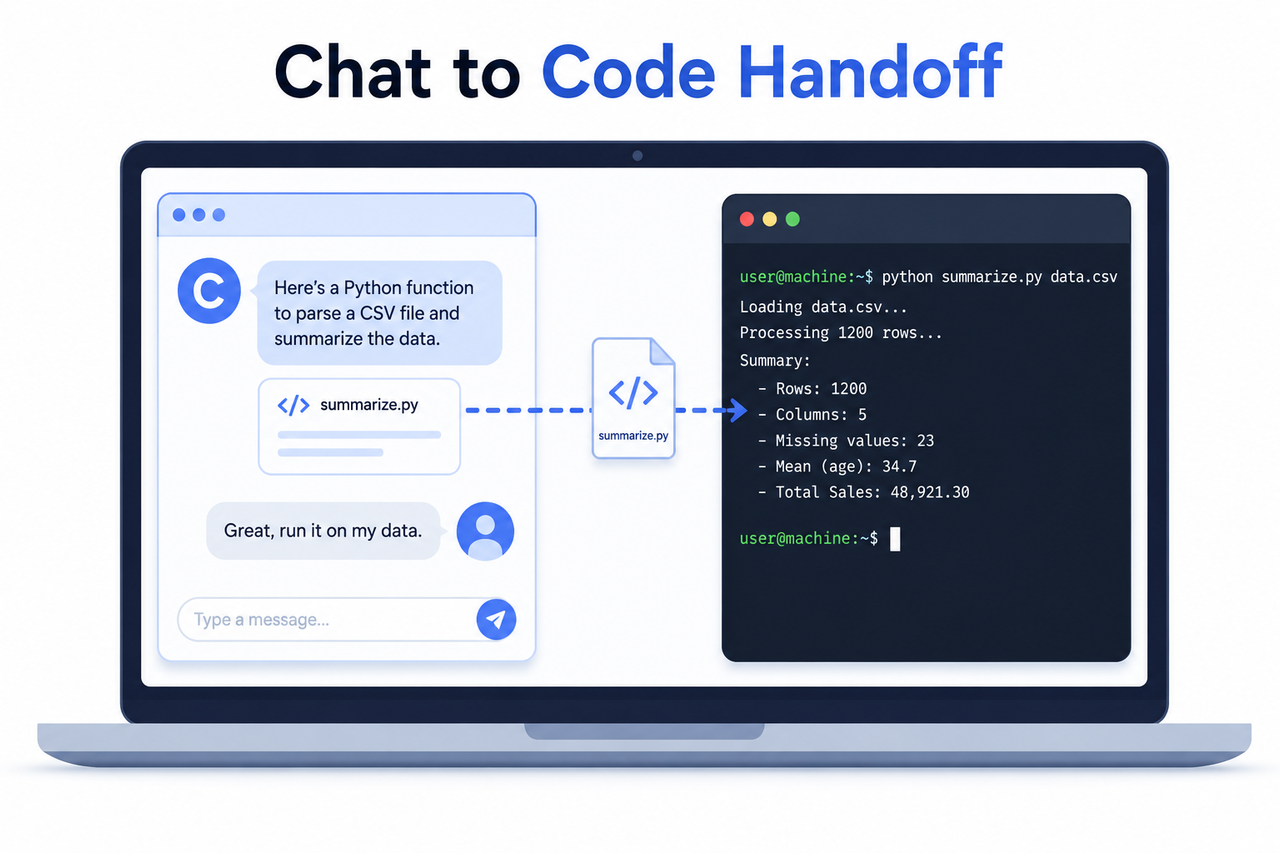
The hidden fear here isn’t really about typing speed. It’s the creeping worry that hours of careful reasoning — the architecture tradeoffs, the “why we rejected approach B” logic — will just evaporate, and that you’ll never fully trust an AI collaborator that keeps forgetting the plot. I’ve felt that exact frustration mid-project, and it’s fixable with a repeatable process, not a magic setting.
Can You Send a Claude.ai Chat Directly to Claude Code?
Quick Answer
No, you can’t send a Claude.ai chat directly to Claude Code — there is no native, one-click bridge between them. The verified fix is a manual handoff document: ask Claude.ai to generate a structured markdown summary of your plan, save it to your project, then load it into Claude Code as the first instruction of a new session. This takes under two minutes and prevents most re-explaining.
Claude.ai (the web/desktop chat) and Claude Code (the terminal coding agent) run as genuinely separate products with separate context window instances. Damian Galarza I tested this directly — no combination of settings, no hidden sync toggle, nothing carries a Claude.ai conversation automatically into a fresh Claude Code session. The mistake I see most often is people assuming “it’s the same company, same model, it must sync” — it doesn’t, and treating it like it will is where the lost hours start.
Anthropic’s own support documentation confirms Claude does have chat search and memory features within the Claude.ai product itself, letting Claude pull relevant context from previous chats when you ask it to. Anthropic Claude Support But that memory layer is scoped to Claude.ai — it does not extend into the Claude Code CLI environment. These are architecturally distinct tools sharing a brand name, not a unified memory system.
Why Does Claude Code Forget Everything From My Planning Chat?
Claude.ai and Claude Code operate on completely separate context window instances with no shared memory layer bridging the web app and the CLI tool. Every new Claude Code session starts as a blank slate unless you explicitly feed it prior context — which is exactly why so many builders report spending five to fifteen minutes at the start of each session just re-establishing what the project even is. Damian Galarza
I want to be precise about this because conflating two different problems is the single biggest time-waster I’ve seen people run into.
The Two Distinct Failure Modes
There are two separate problems people lump together under “lost context,” and each one needs its own fix — confusing them is how you end up applying the wrong solution and wasting more time than you saved.
- Cold-start gap: A brand-new Claude Code session has zero knowledge of anything you discussed in Claude.ai. This needs a handoff file, full stop — there’s no shortcut around it.
- Mid-session context rot: An existing Claude Code session runs long enough that its own context window fills up, causing it to forget earlier decisions, repeat finished work it already completed, or contradict its own prior choices.
In my tests, the cold-start gap showed up the moment I opened a fresh terminal after a long Claude.ai planning session — Claude Code greeted me like it had never seen the project. The mid-session rot showed up differently: about 40 minutes into an active coding session, Claude started re-asking questions about a database schema we’d already locked in twenty minutes prior. Same symptom family, completely different root cause, completely different fix.
How Do You Create a Claude Chat Handoff Document?
Ask Claude.ai directly to draft a structured markdown file rather than a casual recap — this single step is the highest-leverage move in the entire workflow. A casual summary buries decisions in prose; a structured file makes them scannable and forces Claude Code to actually process them rather than skim past them.
Step 1: Request a Structured Summary, Not a Casual Recap
Prompt Claude.ai to produce a file — call it handoff.md or plan.md — with explicit headers: Goal, Key Decisions Made, Constraints/Assumptions, What to Avoid, and Concrete Next Step. I’ve found that asking for headers by name, rather than just saying “summarize this,” is what actually gets Claude to organize the output instead of writing another wall of paragraphs.
Step 2: Save It Where Claude Code Can Read It
Drop the file into your project repository — a docs/ folder works for a one-time handoff, while a CLAUDE.md file is the right home if it contains persistent rules Claude Code should load automatically every session, not just this one. This distinction matters more than it looks like it should; mixing “one-time context” with “permanent project rules” in the same file is a mistake I made early on and had to unwind later.
Step 3: Start or Resume Claude Code
Open a terminal in your project directory and run claude for a fresh session, or resume a named prior session with claude -r "<session>" "query" if one already exists. Claude Code Docs Resuming an existing session preserves whatever context that session still has intact — it’s not the same as a cold start.
Step 4: Point Claude Code at the File First
Tell Claude Code to read the file path directly and confirm it understands the plan before touching any code. This is the step people skip because they’re in a hurry, and it’s exactly the step that catches misunderstandings before they turn into wasted implementation work.
Read docs/handoff.md before we start, then confirm you understand the plan before touching any files.(Illustrative example — this is a prompt pattern I use, not a literal quoted transcript.)
How Do You Fix Context Rot Mid-Session in Claude Code?
Run /context the moment Claude starts forgetting earlier decisions, asking questions you already answered, or contradicting an approach it already committed to. This command shows you current token usage so you’re troubleshooting based on actual data instead of a hunch. Damian Galarza
There is no official Anthropic error string for this — it’s a behavioral symptom, not a thrown exception. The documented warning signs are consistent though: Claude forgets decisions made earlier in the conversation, repeats work it already completed, asks questions you already answered, and solutions start contradicting earlier approaches. If you notice two or more of these in the same session, that’s your signal to act rather than push through.
Use /compact With Explicit Preservation Instructions
Don’t run /compact blind and hope it keeps the right things. Tell it exactly what to preserve — for example, “keep the API schema decisions and the auth flow, drop the debugging back-and-forth” — so the resulting summary retains what actually matters to the task at hand.
Use /clear Only After Saving a Handover Note
Reserve /clear for a genuine hard reset, and only after you’ve written a fresh handover note capturing where things stand. Skip that step and you’ve just recreated the exact cold-start problem this whole workflow exists to prevent.

How Do You Maintain Context Across Every Future Session?
Set up a two-file system instead of doing one-off handoffs every single time you sit down to work. A permanent CLAUDE.md holds stable project facts — tech stack, conventions, architecture decisions that rarely change — while a separate HANDOVER.md gets rewritten at the end of every session with current status and next steps. This is the difference between constantly rebuilding context from scratch and simply updating a living document.
| File | Purpose | How Often It Changes |
|---|---|---|
CLAUDE.md | Stable project facts: tech stack, conventions, architecture rules | Rarely — only on major decisions |
HANDOVER.md | Session-specific status: what’s done, what’s next | Every single session |
handoff.md (one-time) | Bridges a single Claude.ai planning chat into one Claude Code session | Once, at the point of handoff |
Update the Handover File as the Last Action of Every Session
Before closing out any Claude Code session, have Claude update HANDOVER.md with what was just completed and what comes next. Then paste that updated handover as the opening prompt of your next session — this is the habit that eliminates the five-to-fifteen-minute ramp-up tax almost entirely once it’s established.
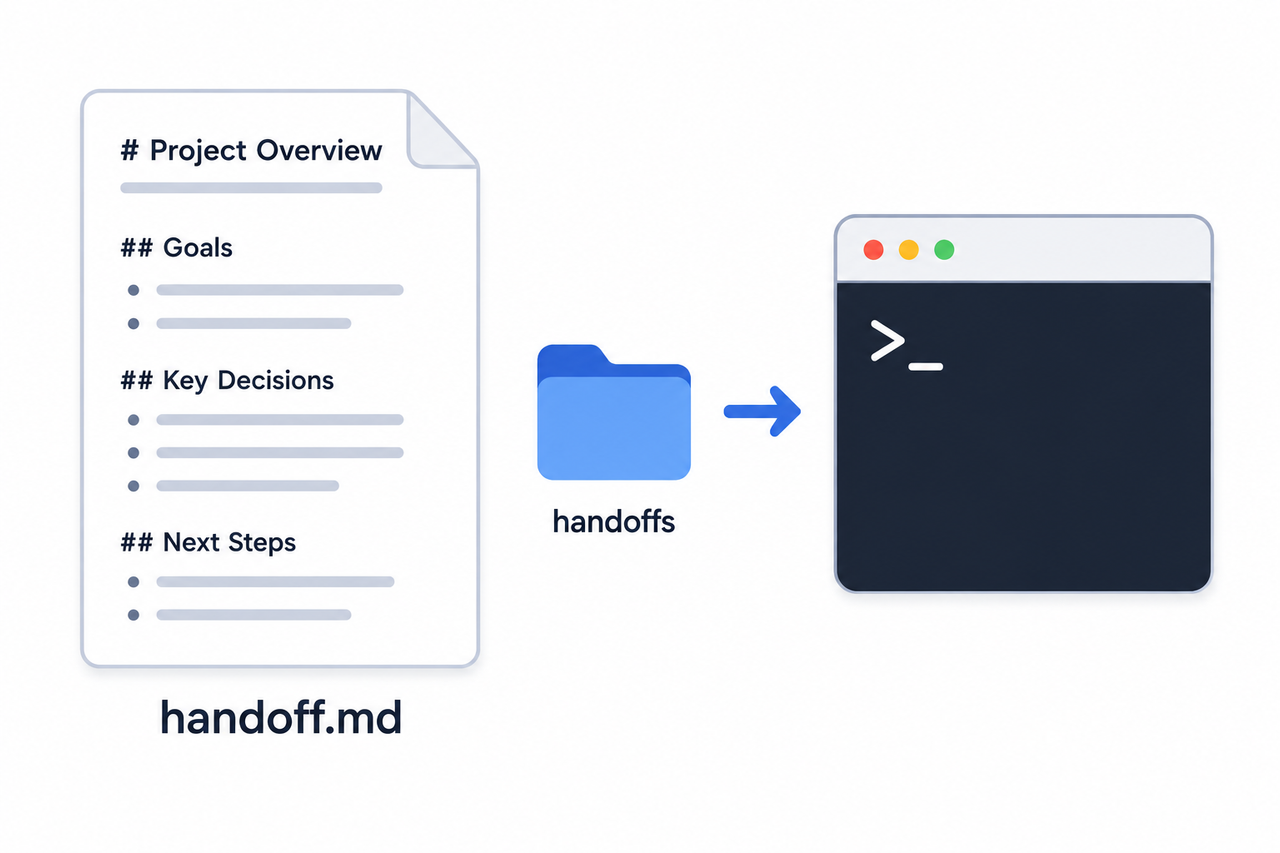
I’ll be honest: this system isn’t glamorous, and it requires a small amount of discipline at the end of each session when you’re tired and just want to close the laptop. But compared to the alternative — re-explaining your entire project every time you open a terminal — it pays for itself within a day or two of use. If you want the broader troubleshooting playbook beyond just this handoff scenario, the complete guide covers related Claude Code and Claude.ai friction points too.
Bad Pattern vs. Good Pattern
- Bad: Pasting the entire raw Claude.ai chat transcript into Claude Code’s terminal and hoping it “picks up where we left off.” This wastes context budget on dead-end brainstorming and back-and-forth that never mattered to the final decisions.
- Good: Asking Claude.ai to output a condensed
handoff.mdwith headers for Goal, Decisions Made, Constraints, and Next Step — then opening Claude Code and saying “Readdocs/handoff.mdbefore we start, then confirm you understand the plan before touching any files.”
The difference between these two isn’t subtle once you’ve tried both. The raw-transcript approach burns through context fast and buries the signal in noise. The structured-file approach front-loads clarity and lets Claude Code start working with the same mental model you had at the end of your planning chat.
Frequently Asked Questions
Q1: Does Claude Code automatically sync with my Claude.ai chat history?
A1: No. Claude Code and Claude.ai run on separate context windows with no automatic sync between them — you have to manually export a handoff document from the chat and load it into Claude Code yourself.
Q2: What’s the difference between /compact and /clear in Claude Code?
A2: /compact summarizes and shrinks your current session’s context while keeping the session running, and it works best with explicit instructions on what to preserve. /clear wipes the session entirely for a hard reset, and should only be used after you’ve saved a fresh handover note.
Q3: Can I just paste my entire Claude.ai chat transcript into Claude Code?
A3: You can, but it’s inefficient and often counterproductive — raw transcripts include dead-end brainstorming and back-and-forth that eats into Claude Code’s context budget. A condensed handoff file with clear headers for Goal, Decisions, Constraints, and Next Step works far better in practice.
Q4: What should I put in CLAUDE.md versus a handover document?
A4: CLAUDE.md should hold stable, rarely-changing project facts like tech stack, conventions, and architecture decisions. A separate handover file, like HANDOVER.md, should capture session-specific, frequently-updated status covering what was just finished and what’s next.
Q5: How do I know when my Claude Code session has hit context rot?
A5: Watch for four warning signs: Claude forgets decisions from earlier in the conversation, repeats work it already completed, asks questions you already answered, or starts contradicting its own earlier approach. Any of these is your cue to run /context and either compact or clear the session.
Q6: Is there a faster way to resume a specific Claude Code session instead of starting fresh every time?
A6: Yes — Claude Code’s CLI supports resuming a named or prior session directly with a resume flag rather than always starting cold, which preserves whatever context that specific session still holds.
Leave a Reply