ChatGPT Keeps Remembering Past Conversations Ruin Responses? Fix It in 2026
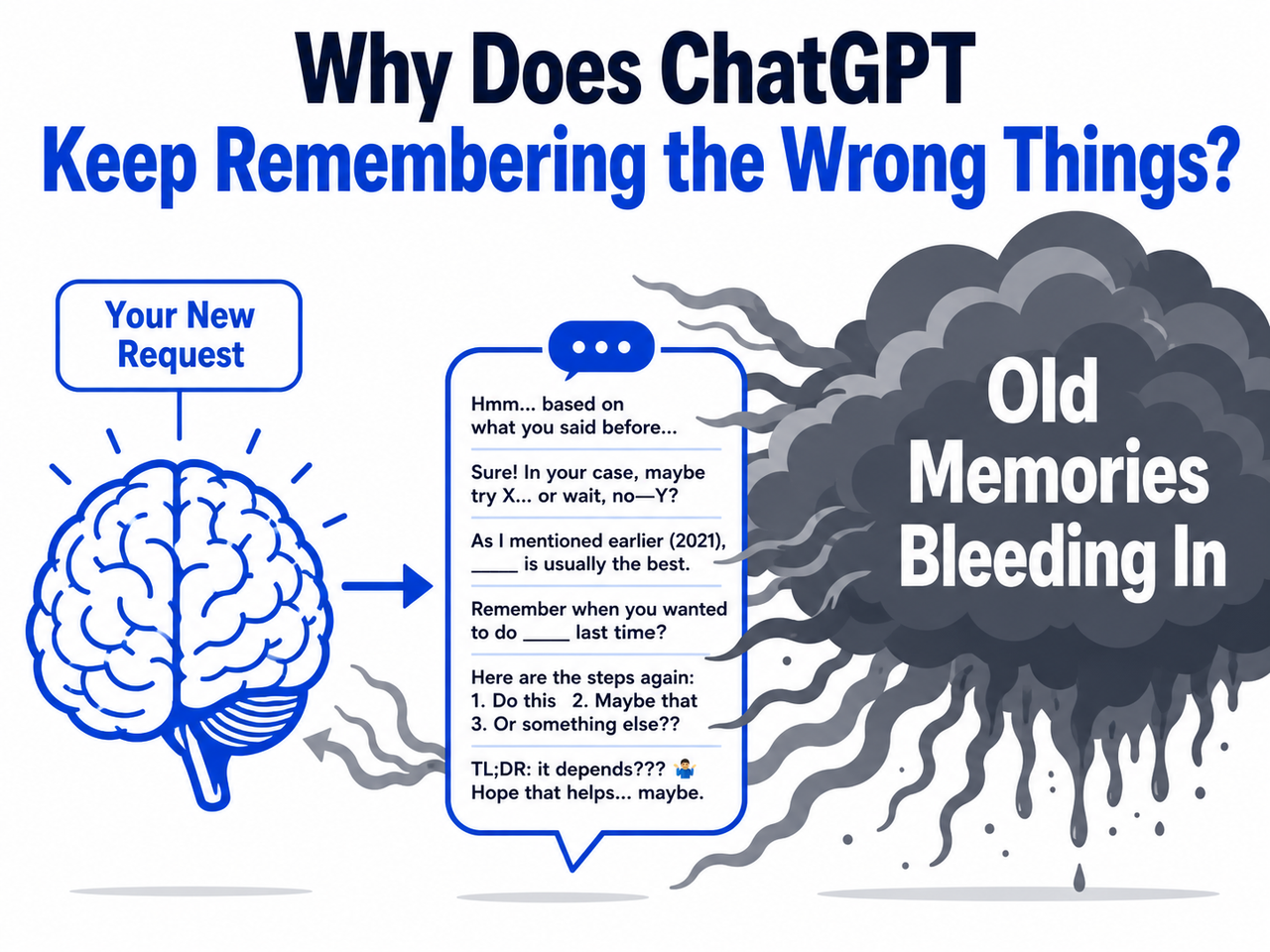
You didn’t imagine it. ChatGPT has been quietly building an invisible profile of you — and it’s been injecting that profile into every single response, even in brand-new chats. If ChatGPT keeps remembering past conversations ruin responses for you, you are not alone, and you are not doing anything wrong. You’re getting a biased echo of who you used to be, not the tool’s best thinking.
I’ve spent time digging into exactly how this works — and the mechanism is both simpler and more alarming than most users expect.
Definition: “ChatGPT keeps remembering past conversations ruin responses” is when ChatGPT’s two memory systems — Saved Memories and Reference Chat History — inject stale user preferences, outdated tone signals, or irrelevant past context directly into new, unrelated chats via the system prompt. For example: a user who spent weeks chatting casually suddenly needs a formal legal summary — and gets breezy, informal output because ChatGPT’s behavioral profile still says “prefers conversational tone, Confidence=high.”
ChatGPT memory bleed explained visually
One data point that surprised me during my research: ChatGPT’s Reference Chat History system draws from approximately 40 recent conversations to construct your dynamic behavioral profile. That means months of casual, exploratory usage can silently override a single professional request you make today. No warning. No notification. No opt-in prompt.
For a complete breakdown of all ChatGPT troubleshooting issues — not just memory — visit the complete guide at AIQnAHub Troubleshoot.
Quick Answer: Why Does ChatGPT Keep Remembering Past Conversations and Ruin Responses?
Quick Answer
ChatGPT remembers past conversations through two systems: Saved Memories (explicit facts you shared) and Reference Chat History (a behavioral profile built from ~40 recent chats). Both inject silently into your system prompt, biasing every new response. Fix it by disabling “Reference Chat History” in Settings → Personalization, or use Temporary Chat for an instant clean session.
What Is ChatGPT Actually Doing With Your Past Conversations?
Most users assume ChatGPT starts fresh with every new chat. It doesn’t. Behind the scenes, it’s prepending a compiled user profile directly into your system prompt — before you type a single word. Here’s what that profile is made of.
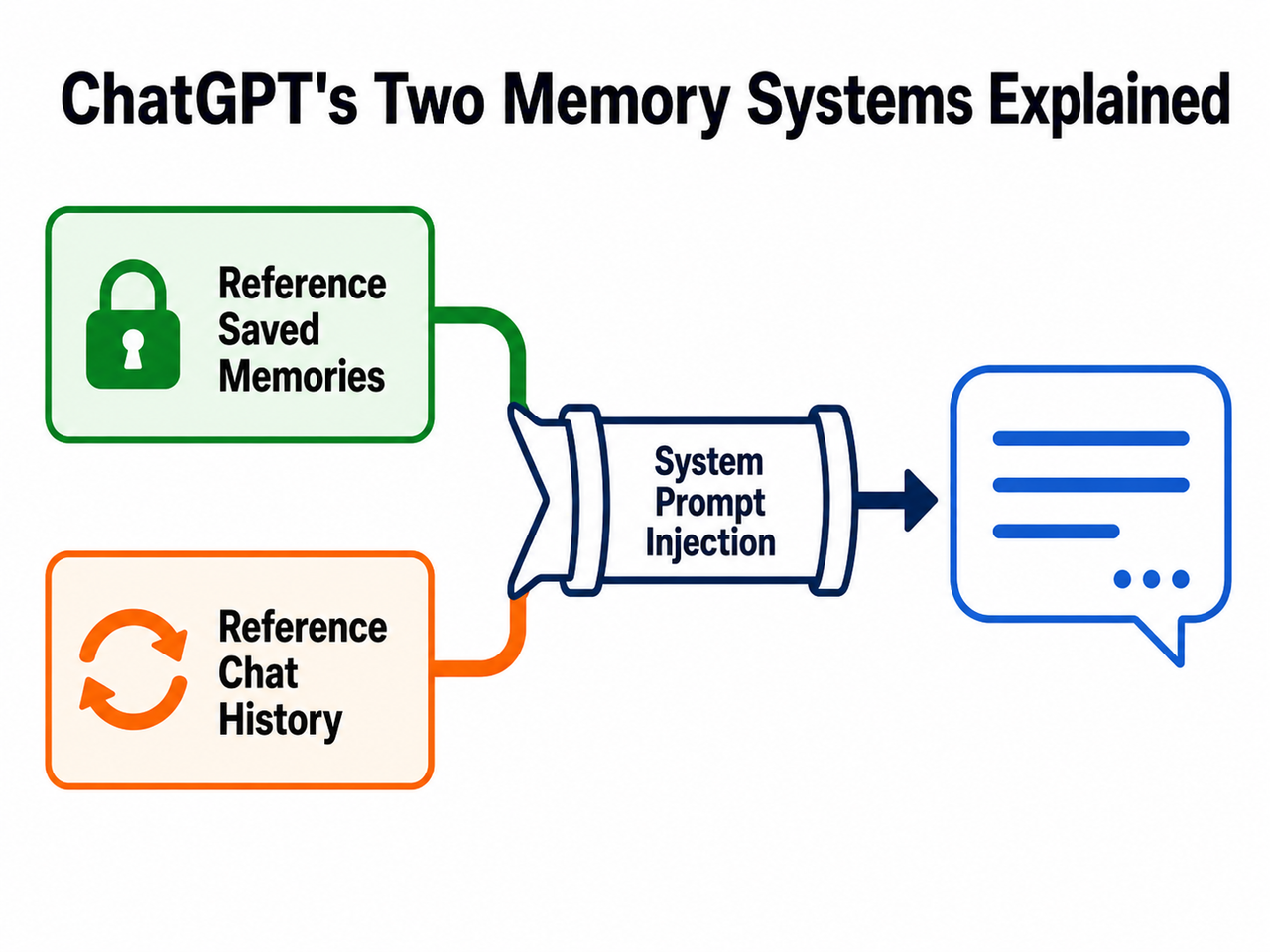
How ChatGPT’s two memory systems inject into responses
Memory System #1 — Reference Saved Memories (The “Permanent File”)
Saved Memories are the explicit facts you’ve shared with ChatGPT — your name, your job title, your preferred output format, dietary choices, project names. These entries persist indefinitely until you manually delete them, are visible at Settings → Personalization → Manage Memories, and accumulate silently without any announcement.
The critical trap I see most users fall into: they delete a chat and assume the memory is gone. It isn’t. Deleting a conversation removes the transcript. The memory entry it created stays in your profile until you manually remove it from Manage Memories. OpenAI Help Center
Memory System #2 — Reference Chat History (The “Shadow Profile”)
This is the one that catches experienced users off guard. Reference Chat History is not a log — it’s a dynamically generated behavioral inference engine. It analyzes your last ~40 conversations and produces a structured profile injected into your system prompt under four hidden fields:
Assistant Response Preferences
Notable Past Conversation Topics
Helpful User Insights
Recent Conversation Content
In my research, I found that this profiling system assigns confidence scores to inferred behaviors. If ChatGPT concludes “user prefers XML output — Confidence=high” from ten past interactions, that tag overrides your current request — even if your current request says nothing about format. Embrace The Red
This is not a search engine lookup happening in real time. The profile is pre-compiled and pre-loaded. ChatGPT isn’t reacting to you — it’s reacting to a model of you built from the past.
The Real Mechanism — System Prompt Injection
Both memory systems converge at the same point: your system prompt. Before ChatGPT processes your first message in any session, it prepends the compiled user profile data. The result is context window pollution — your context window arrives pre-filled with outdated signals before your actual request even enters the picture. You cannot see this injected data in the standard interface. That invisible layer is the root cause of memory bias in ChatGPT responses.
How to Stop ChatGPT From Letting Past Conversations Ruin Responses
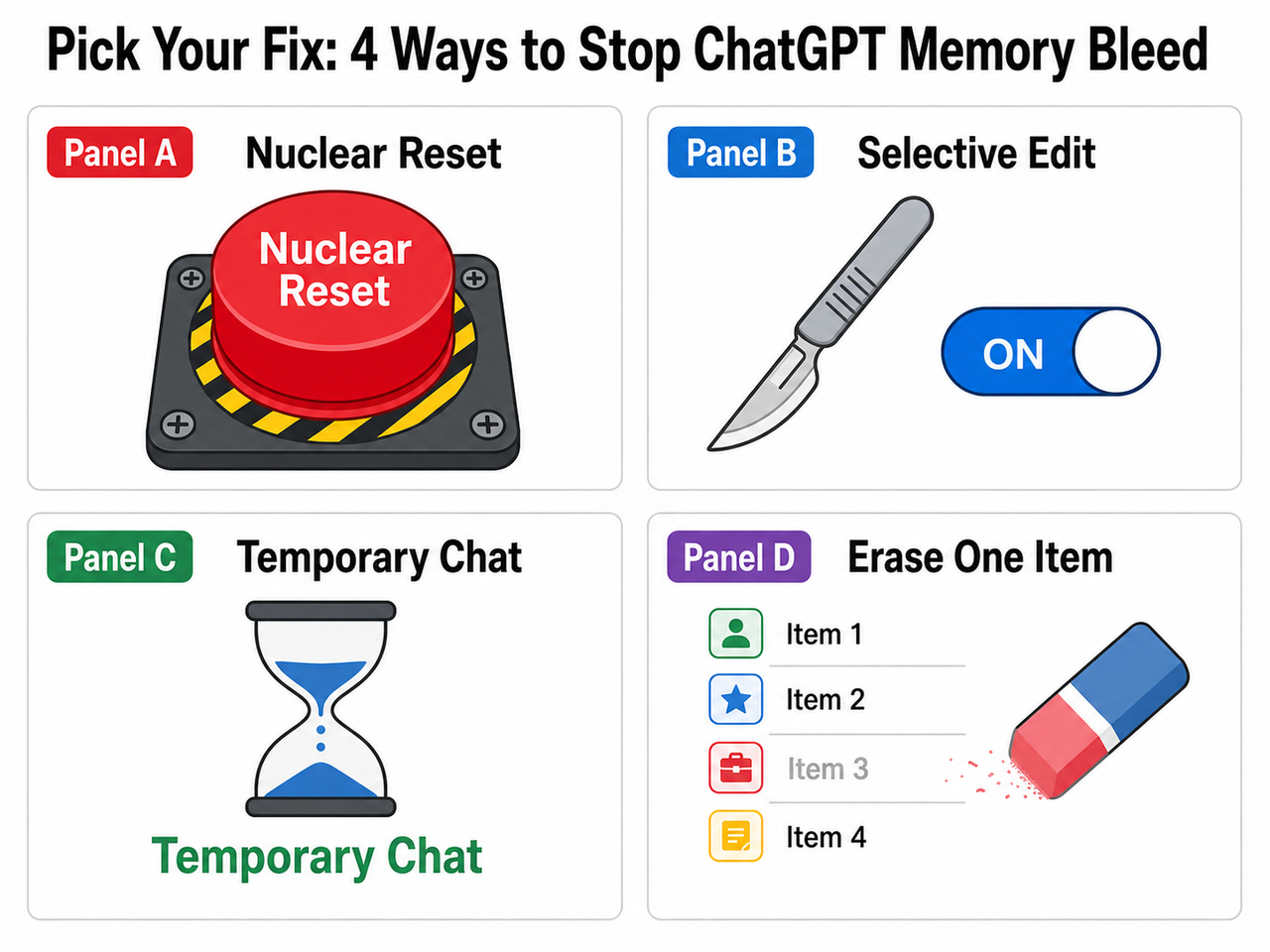
There are four distinct fix paths. Pick the option that matches your situation — you don’t need to apply all four.
Four options to fix ChatGPT memory bleed
Option A — Nuclear Reset (Best for: Starting Completely Fresh)
Use this if your memory settings have accumulated months of bad data and you want a clean slate.
Click your Profile Picture in the top-right corner
Go to Settings → Personalization
Toggle OFF “Reference Saved Memories” — this automatically disables “Reference Chat History” as well
Navigate to Settings → Personalization → Manage Memories
Click ⋯ → Delete All to permanently wipe all saved memory entries
Confirm deletion when prompted
⚠️ Critical Warning #1: Toggling memory off does NOT automatically delete your saved memories. The toggle stops ChatGPT from using them — but the data stays. You must manually delete via Manage Memories. ⚠️ Critical Warning #2: Deleting individual chats does NOT remove the memories those chats created. Always clean both locations. OpenAI Help CenterBest for: Users who’ve been on ChatGPT for months, have accumulated behavioral signals across dozens of projects, and need a genuine zero-state restart.
Option B — Surgical Fix (Best for: Keeping Useful Memories, Stopping the Bleed)
This is my preferred approach for power users. You keep the facts ChatGPT knows about you — but you strip out the behavioral profiling that’s causing cross-session context contamination.
Go to Settings → Personalization
Leave “Reference Saved Memories” ON
Toggle OFF “Reference Chat History” only
Confirm the action
This stops the shadow profile — Assistant Response Preferences, Helpful User Insights, and the rest — from loading into your system prompt. ChatGPT will still know your name and any preferences you explicitly told it. It will no longer infer behavior from past conversations.
⚠️ Warning: Disabling Reference Chat History triggers permanent deletion of all inferred behavioral data from OpenAI’s servers within 30 days. This is not reversible.
Best for: Developers, marketers, and researchers who use ChatGPT across multiple project types and need clean, context-appropriate responses without losing their custom instruction baseline.
Option C — Temporary Chat (Best for: One-Off Clean Sessions, Zero Friction)
This is the fastest fix. No settings change. No deletions. Works right now.
Open ChatGPT
Click “Temporary Chat” at the top of the left sidebar
Type your request
Temporary Chat mode reads from zero saved memories and writes zero new memories. Every response is generated from a fully neutral state. The session disappears when you close it — nothing is retained, nothing is added to your profile. OpenAI Help CenterBest for: Creative writing tasks, sensitive professional work, legal or medical research, or any situation where you need an unbiased, context-free AI response without touching your account settings.
Option D — Spot-Clean Specific Bad Memories (Best for: Targeted Removal)
Use this when you’ve identified one or two specific memory entries causing problems — and you don’t want to nuke everything else.
Inside any active chat, type: “Forget that I [specific thing]” — ChatGPT will confirm and remove that entry
Or: Go to Settings → Personalization → Manage Memories
Locate the problematic entry in the list
Click ⋯ → Delete on that specific entry
For complete removal: also delete the original chat where you shared that information
⚠️ Pro tip from my own testing: Review your full memory list every few weeks. Entries accumulate silently — you’ll often find ChatGPT has inferred things about you that are outdated or context-specific (e.g., “user is writing a thriller novel” from one creative session two months ago, now bleeding into your business email drafts).
Best for: Users whose overall memory is working well but have one or two specific entries causing consistent memory bias in certain tasks.
Real User Complaints — ChatGPT Keeps Remembering Past Conversations and Ruins Responses
I want to be direct: this is not a fringe issue or user error. It’s the memory system working exactly as designed — for users who never knew it was active.
“The memory feature has turned ChatGPT into a tool that merely echoes your previous preferences rather than providing the most accurate answers independently.” — Reddit r/ChatGPT
“ChatGPT repeatedly fails to retain or recall critical context. It often remembers less relevant details while entirely missing key points.” — OpenAI Community Forum
“Review your ‘Customize ChatGPT’ settings. See if cross-session memory has been enabled — that is how details from past conversations cloud your new chat.” — OpenAI Community Forum OpenAI Community Forums
These aren’t bug reports — they’re users experiencing the memory systems working as intended, in ways OpenAI never clearly communicated. The real problem is invisible activation: memory was enabled by default for most accounts, with no prominent onboarding or explanation.
Which Fix Should You Choose?
Your Situation
Best Option
Months of accumulated bad signals, need a full restart
Option A — Nuclear Reset
Want ChatGPT to remember facts but stop behavior bleed
Option B — Surgical Fix
Need one clean response right now, no settings change
Option C — Temporary Chat
One or two specific memories causing problems
Option D — Spot-Clean
Switching between wildly different project types daily
Option B + C combo
Sensitive professional or legal research session
Option C always
The mistake I see most professionals make is trying to fix this purely through prompt engineering — adding “ignore previous context” at the top of each message. That approach does not work. The personalization settings injection happens at the system level, before your prompt arrives. You cannot out-prompt a system prompt.
Real Error Log: What This Looks Like in Practice
Below is an illustrative example reconstructed from community-reported behavior patterns — not a literal API log.
Session: New chat — User goal: Write a formal legal disclaimer
Memory profile (active, not visible to user):
- Assistant Response Preferences: casual, conversational, emoji-friendly
- Helpful User Insights: user is a lifestyle blogger, prefers short paragraphs
- Recent Conversation Content: personal finance tips, weekend travel posts

ChatGPT output: Breezy, informal disclaimer with colloquial phrasing
User confusion: "Why does it keep writing like this? I asked for formal text."
Root cause: System prompt pre-loaded with 6-week-old behavioral profile.
Fix: Temporary Chat → response immediately shifts to formal legal register.
(Illustrative example — reconstructed from community-reported behavior patterns)
The moment you switch to Temporary Chat, the behavioral profile is gone. Same user, same request, completely different — and correct — output. That contrast is the clearest proof that context window pollution from memory is the actual culprit, not the model’s capability.
Frequently Asked Questions
Q1: Does deleting a ChatGPT conversation also delete the memories from it?
No. Deleting a conversation removes the chat transcript from your history, but it does not remove any memories that were created during that conversation. Those entries remain in your profile under Settings → Personalization → Manage Memories until you manually delete them. This is one of the most commonly misunderstood aspects of ChatGPT’s memory settings. OpenAI Help Center
Q2: What is “Temporary Chat” in ChatGPT and does it fully bypass memory?
Yes — completely. Temporary Chat is a session mode that bypasses both Saved Memories and Reference Chat History entirely. ChatGPT generates its response with no pre-loaded profile data. The session also creates no new memories when it ends. It’s the fastest, zero-friction fix when ChatGPT keeps remembering past conversations ruin responses for a specific task.
Q3: Will turning off ChatGPT’s memory delete everything it already knows about me?
No. Toggling the memory switch to OFF stops ChatGPT from using your saved data — but it does not delete it. You must manually go to Settings → Personalization → Manage Memories → Delete All to fully erase saved memories. Separately, disabling “Reference Chat History” causes OpenAI to permanently remove all inferred behavioral data from their servers within 30 days. These are two distinct actions. OpenAI Help Center
Q4: Why does ChatGPT keep using the wrong tone even in a brand-new chat?
Tone bias is the most common symptom of Reference Chat History being active. The system builds a behavioral profile from your last ~40 conversations and injects an Assistant Response Preferences tag into your system prompt. This tag overrides your current request even if you’ve written nothing casual. Disabling Reference Chat History (Option B) or starting a Temporary Chat (Option C) resolves this immediately. Embrace The Red
Q5: Can I actually see what ChatGPT has saved about me?
Partially. You can view your Saved Memories at Settings → Personalization → Manage Memories — this shows the explicit facts ChatGPT has stored. However, the full behavioral profile generated by Reference Chat History — including fields like Assistant Response Preferences, Helpful User Insights, and Recent Conversation Content — is not visible through the standard user interface. That invisibility is precisely what makes cross-session context contamination so hard for users to diagnose on their own.
Q6: Does ChatGPT memory work the same on Free and Plus plans?
Memory feature behavior varies by plan and region. The Manage Memories interface and Temporary Chat are available across plans, though feature availability can change. Always check your own Settings → Personalization panel, as your account’s configuration is the authoritative source for what’s active on your specific account.
Ice Gan is an AI Tools Researcher and IT veteran with 33 years of hands-on IT experience. He tests AI tools systematically and reports findings that help professionals use these platforms without getting burned by hidden defaults.

Leave a Reply