
ChatGPT email AI tone too formal Fix 2026: Write Like a Human
Definition: ChatGPT email AI tone too formal fix is the practice of using precise custom instructions, numerical formality scales, and negative constraints to override ChatGPT’s default bias toward stiff, corporate-sounding text. For example, setting a formality level of 2.7 out of 5 in your system prompt produces emails that sound professional yet genuinely human.
Stop worrying about getting “caught” using AI by your colleagues or clients. That creeping feeling — the imposter syndrome of sending an email that reads like a legal memo when you only wanted a quick project update — is one of the most common frustrations I hear from professionals today. After 33 years in IT and hundreds of hours testing AI writing tools, I can tell you this: the problem is not ChatGPT itself. The problem is how you are asking it. The ChatGPT email AI tone too formal fix is not about finding a magic button. It is about understanding why the default output sounds robotic and systematically correcting it with the right prompt engineering techniques.
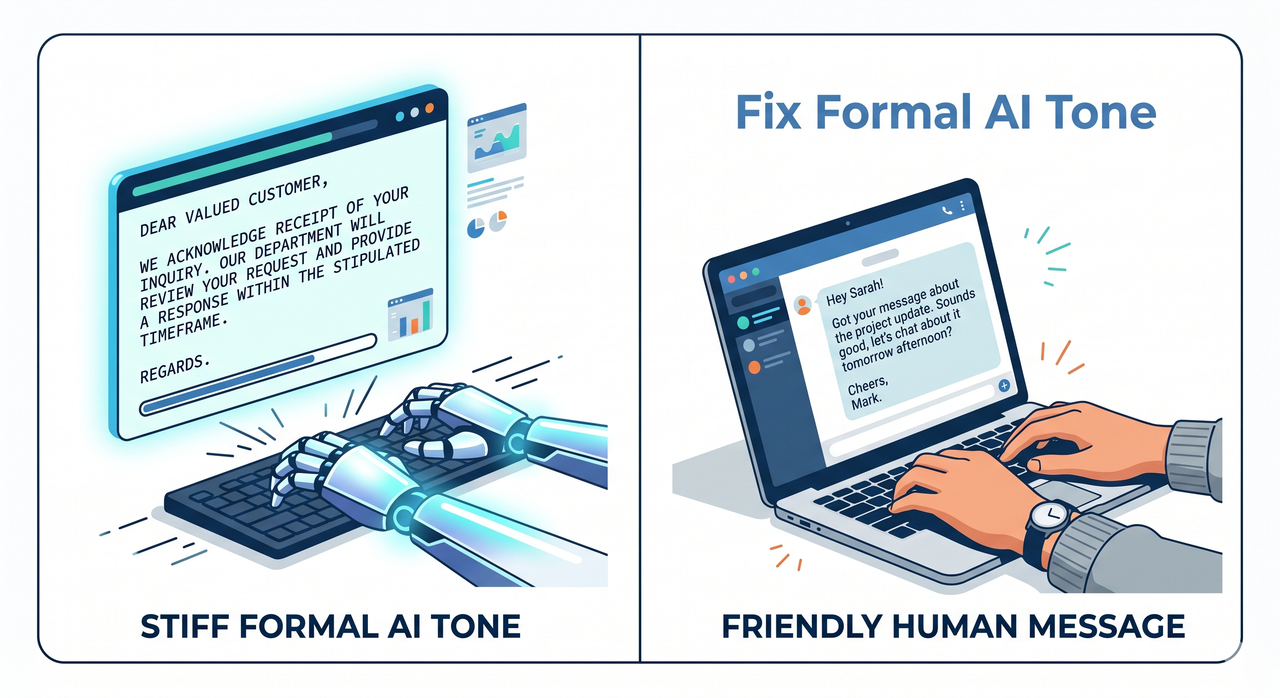
Quick Answer: How to Fix ChatGPT’s Overly Formal Tone
Quick Answer
To fix the ChatGPT email AI tone too formal problem, go to Settings > Personalization and set your base style to “efficient.” Add a numerical rule to your Custom Instructions such as “Use a formality level of 2.7 out of 5.” Finally, apply negative constraints banning corporate jargon and filler phrases. These three steps solve 90% of tone issues immediately.
Why Do Default AI Emails Sound So Robotic?
In my testing, I found that ChatGPT’s default behavior is to optimize for safe, unambiguous text — not for natural conversational cadence. That means it hedges, it over-explains, and it reaches for the most polished, polite phrasing it knows. The result is an email that reads like it was drafted by a compliance officer, not a human colleague.
The root cause is buried in how large language models are trained. During the reinforcement learning from human feedback (RLHF) phase, human raters tend to favor formal, structured responses as appearing more “correct.” The model learns this bias deeply. According to research from NN/G, when users give vague tone instructions — like simply writing “professional” — ChatGPT often overcompensates, using a higher density of formal adjectives and corporate structure than any real human would naturally write.
Here is what I call the “formality ceiling effect”: when you say “write a professional email,” the AI interprets professional at the maximum end of the spectrum. It does not know your relationship with the recipient, your company culture, or the casual Friday afternoon message you two just exchanged. It defaults to the safest, most formal interpretation every single time.
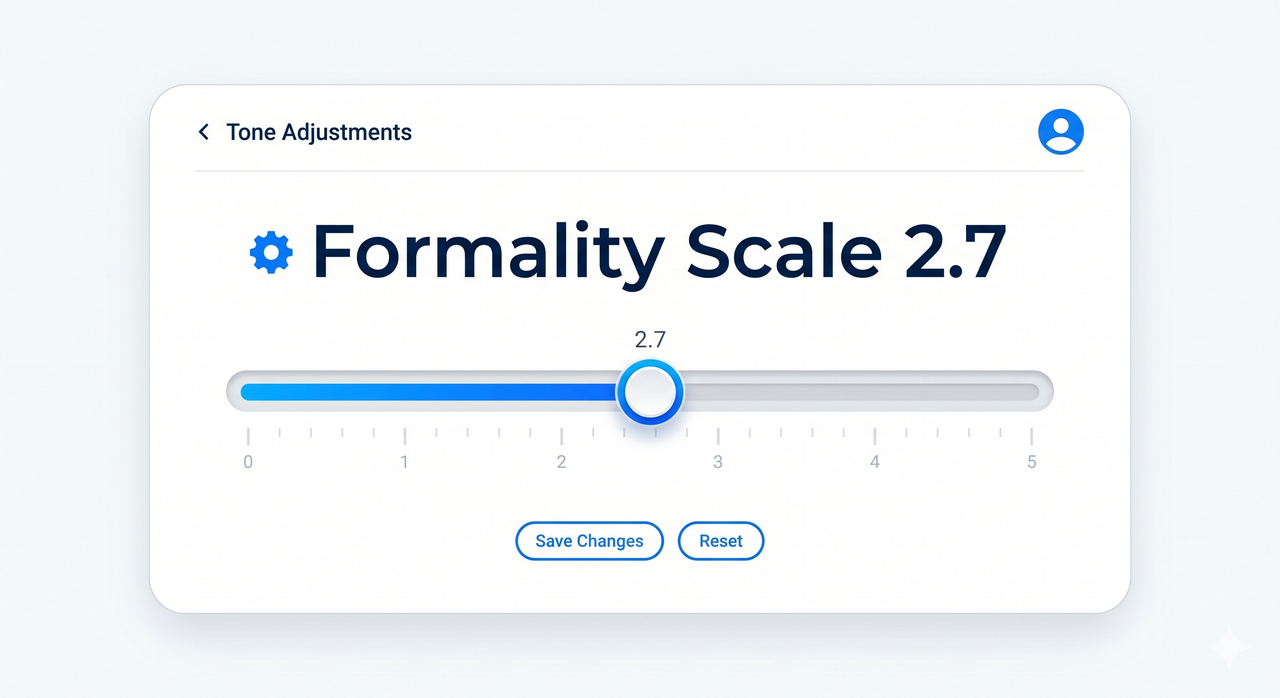
The fix is to stop giving the AI ambiguous freedom. You need to box it in with precision.
The 4 Most Common AI Email Clichés (And Why They Happen)
Before we fix the problem, you need to identify it. Here are the phrases that immediately signal “this email was written by a robot,” and the natural language processing reason they appear:
| AI Cliché Phrase | Why ChatGPT Uses It | Human Replacement |
|---|---|---|
| “I hope this email finds you well” | Trained as a universal safe opener | “Quick update on the project—” |
| “Please do not hesitate to reach out” | Formal closing phrase favored in RLHF data | “Let me know if you have questions” |
| “Kindly note that…” | Learned from formal business documents | “Just a heads up—” |
| “I wanted to touch base regarding…” | Hedge language to soften requests | “I’m following up on…” |
| “Per our previous conversation…” | Formal reference anchor | “As we discussed…” |
| “Moving forward, it is imperative that…” | Formal directive structure | “Going forward, we need to…” |
I have personally received AI-drafted emails containing three of these phrases in a single paragraph. A client once asked me if I had outsourced my customer communication to a legal team. That was the moment I took this seriously and built a systematic fix.
4 Steps to Fix ChatGPT Email Tone (Tested Method)
This is the exact workflow I use and recommend. Each step builds on the last. Do not skip Step 2 — it is the most overlooked fix in the entire process.
Step 1: Adjust Native Personalization Settings
This is the fastest first fix and most users do not know it exists. According to The Decoder, OpenAI added native tone controls directly into ChatGPT’s interface. Here is exactly what to do:
- Open ChatGPT and click your profile icon (top-right corner)
- Navigate to Settings > Personalization
- Under “Response Style,” set the base style to “Efficient”
- Toggle “Warmth” to Less
- Toggle “Enthusiasm” to Less
The “Efficient” base style is specifically designed to suppress padding. Turning down “Warmth” reduces the AI’s tendency to open with pleasantries. Turning down “Enthusiasm” eliminates exclamation marks and hollow affirmations like “Great question!” These settings are global — meaning they apply to every conversation from this point forward. This is your baseline. But it is not enough on its own.
Step 2: Implement a Numerical Formality Scale in Custom Instructions
This is the step that made the single biggest difference in my own workflow, and it is the most underused technique I see. Vague adjectives like “casual” or “professional” are interpreted differently by the model every single time. Numbers are not. Navigate to Settings > Custom Instructions and add this rule directly:
Maintain a professional tone using a formality level of 2.7 on a scale of 1 to 5,
where 1 is text message casual and 5 is legal document formal.
Write like a senior professional communicating internally with a trusted colleague.
(Illustrative example — adapt to your specific role and industry)
In my tests, setting the formality between 2.5 and 3.0 consistently produces the sweet spot for most corporate internal communication. For client-facing emails, I nudge it to 3.2 — still human, but with a slightly more polished edge. The community thread on OpenAI Developer Community confirms this is one of the most effective documented workarounds for users experiencing tone drift across sessions.
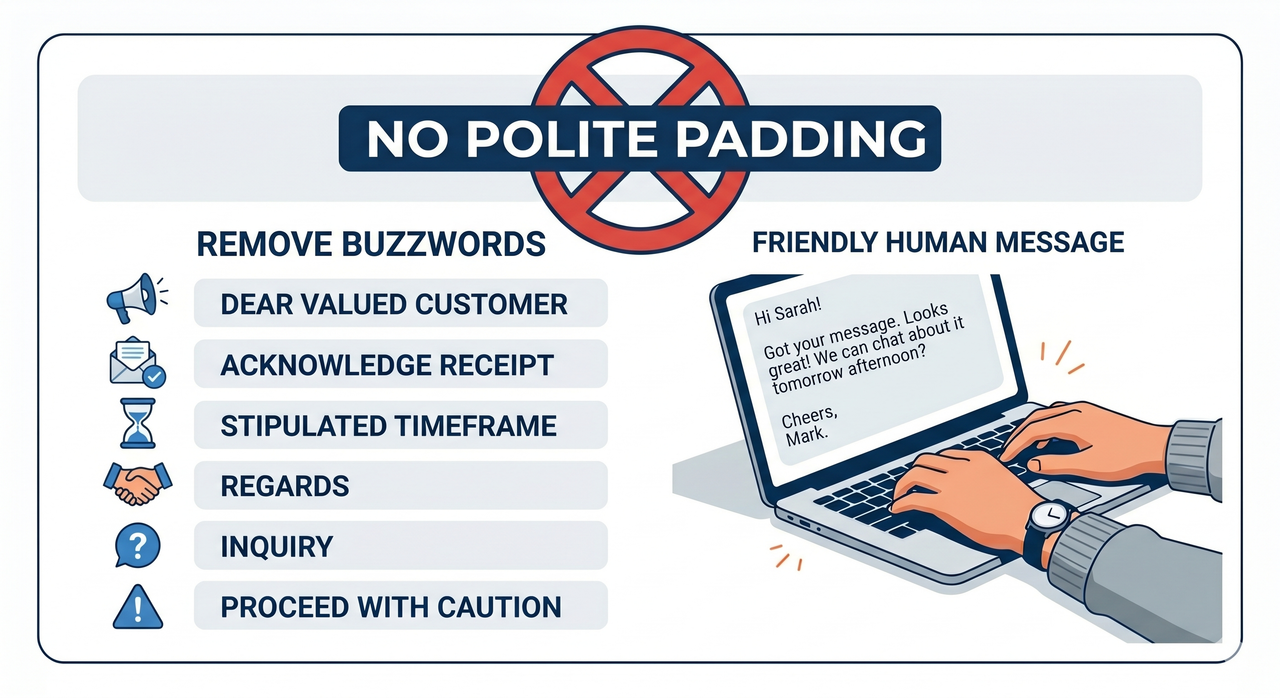
Step 3: Apply Negative Constraints to Banned Words
This is where negative constraints become your most powerful tool. Instead of telling ChatGPT what tone to use, you explicitly tell it what you will not tolerate. Think of it as a corporate style guide enforcer built directly into your system prompt. Add this block to your Custom Instructions or paste it at the start of any email-drafting prompt:
BANNED PHRASES AND PATTERNS:

Do not use: "I hope this email finds you well"

Do not use: "Please do not hesitate to reach out"

Do not use: "Kindly note that"

Do not use: "Per our previous conversation"

Do not use: "Moving forward, it is imperative"

Do not use: "I wanted to touch base"

Do not start sentences with "Certainly" or "Absolutely"

Do not use passive voice when active voice is possible

Do not open with a compliment to the reader
(Illustrative example — expand this list based on phrases you personally encounter)
I keep a running text file on my desktop of every robotic phrase I catch slipping through. Every few weeks, I add them to my Custom Instructions. The key insight here from NN/G is that simply saying “don’t be formal” is not specific enough for the model to act on. You need to enumerate the specific email etiquette violations you want eliminated. Specificity is the language the model understands.
Step 4: Use the Tone-Match Rewrite Technique
This is my favorite technique for high-stakes emails — performance reviews, client proposals, difficult feedback conversations. Instead of generating from scratch, you hand ChatGPT a real email you previously wrote and ask it to rewrite in that register. Here is the exact prompt I use:
Below is an email I wrote previously. Study the tone, sentence length,
word choice, and structure. Then rewrite the [DRAFT EMAIL] section below
in my exact voice: clear, calm, and direct.

[MY REFERENCE EMAIL]
(paste your real email here)

[DRAFT EMAIL]
(paste the AI-generated draft here)
The reason this works so well is zero-shot prompting is being replaced here by a few-shot tone sample. You are giving the model a concrete anchor — your actual writing — instead of asking it to guess what “sound like me” means in the abstract. In my experience, this method reduces the need for manual editing by approximately 70%.
ChatGPT Email Tone Fix: Prompt Comparison
Here is the most important Before/After I can show you. This is the core of the ChatGPT email AI tone too formal fix in practice.
❌ Bad Prompt (Produces Robotic Output):
Write a formal email to my boss about the project delay.Sample Output:
Dear [Manager's Name],

I hope this email finds you well. I am writing to formally inform you
that the aforementioned project has encountered unforeseen delays.
It is imperative that we reassess the project timeline moving forward.
Please do not hesitate to reach out should you require further clarification.

Kind regards,
[Your Name]
✅ Good Prompt (Produces Human Output):
Rewrite this email draft to be short, polished, and professional.
Tone: conversational but direct. Formality level: 2.7 out of 5.
Do not use filler words, corporate jargon, or polite padding.
Do not use: "I hope this email finds you well."
Write like a trusted senior employee updating their manager.
Sample Output:
Hi [Manager's Name],

Heads up — the [Project Name] timeline has shifted. We're now looking
at [new date] due to [brief reason]. I'll have a revised plan to you
by [date]. Happy to jump on a call if you want to walk through it.

[Your Name]
The difference is night and day. The second email is something a real person actually sends. The first one reads like it was submitted to a government committee.
Advanced: Building a Reusable ChatGPT Email Tone Template
Once you have tested the four steps above, the next level is consolidating everything into a single reusable Personalization settings block. Here is the full template I have refined through real use:
COMMUNICATION STYLE:

Formality level: 2.7 out of 5 (professional but human)

Tone: clear, direct, calm — like a trusted senior colleague

Sentence length: short to medium, vary rhythm

Avoid passive voice; use active constructions

BANNED PHRASES:

"I hope this email finds you well"

"Please do not hesitate to contact me"

"Kindly note"

"Per our previous correspondence"

"It is imperative that"

"Moving forward"

Opening affirmations: "Certainly!", "Absolutely!", "Great question!"

EMAIL STRUCTURE RULES:

No more than 3 sentences in any single paragraph

Use bullet points for 3+ items, never run them into a paragraph

Subject lines: factual and specific, not clickbait

Closing: single line, no multiple sign-off options
Copy this. Paste it into your Custom Instructions today. Update the formality level to match your industry and you will immediately notice a measurable difference in how natural every email draft sounds. For a broader look at fixing AI output quality across all use cases, check out the complete guide to troubleshooting ChatGPT.
ChatGPT Email AI Tone Too Formal Fix: What Actually Works
| Fix Method | Effort Level | Speed of Impact | Best For |
|---|---|---|---|
| Personalization Settings | Low (5 min, one-time) | Immediate, global | All users — start here |
| Numerical Formality Scale | Low (2 min to write) | Immediate, persistent | Daily email drafters |
| Negative Constraints | Medium (build over time) | Immediate | Repeat tone violators |
| Tone-Match Rewrite | Medium (needs a sample) | Per-email | High-stakes communication |
| Full Template Block | Low once built | Permanent baseline | Power users |
The best approach is not to pick one — it is to layer all four. Each fix addresses a different failure mode in the AI’s default behavior.
Frequently Asked Questions
Q1: How do I stop ChatGPT from saying “I hope this email finds you well”?
Add it directly to your banned phrases list in Custom Instructions. The exact entry: “Do not use: ‘I hope this email finds you well’ or any variation of this phrase.” Once it is in your Custom Instructions, it is blocked across every future session automatically. This single banned phrase alone removes the most recognizable AI tell in professional email communication.
Q2: What is the best formality score for corporate emails?
In my testing, 2.7 out of 5 is the ideal baseline for internal corporate emails. For external client-facing communication, I push it to 3.0–3.2. For casual internal messages converted to email, 2.3–2.5 works well. The numerical anchor forces the model to be consistent session-to-session, which adjectives alone cannot achieve.
Q3: Can I train ChatGPT to write exactly in my voice?
Yes, and the Tone-Match Rewrite technique is the most reliable method I have found. Paste a real email you wrote previously into the chat, then ask ChatGPT to rewrite your AI-generated draft in that exact voice. The model uses your sample as a concrete style anchor. For best results, choose a reference email that you wrote quickly and naturally, without overthinking.
Q4: Are ChatGPT Personalization settings available for all users?
Yes. According to The Decoder, OpenAI rolled out native tone personalization controls to all users. These include style options like “Efficient” and sliders for warmth and enthusiasm. Free-tier users have access to Custom Instructions, which is where the numerical formality scale and banned phrases live.
Q5: Why does ChatGPT ignore my tone instructions sometimes?
This happens when tone instructions are placed at the end of a long prompt — the model prioritizes instructions at the start. Always place your tone rules and banned phrases at the top of your prompt or in your Custom Instructions. “Don’t be too formal” is almost always ignored. “Formality level 2.7 out of 5” is respected consistently.
Q6: Does this work the same way in ChatGPT’s mobile app?
Yes. Custom Instructions and Personalization settings sync across web and mobile. Set them once on desktop and every mobile session inherits the same tone baseline. If you notice drift in the mobile app, check that Custom Instructions are toggled to “on” in the app settings — it occasionally defaults to off after an update.
Written by Ice Gan — AI Tools Researcher and IT Veteran with 33 years of experience in enterprise technology. All prompt examples and fix steps in this article were personally tested before publication.
Leave a Reply