
I’ve spent 33 years in IT, and if there’s one pattern I’ve learned to trust, it’s this: when a tool that used to work suddenly stops working the same way for thousands of people at once, it’s rarely “user error.” It’s usually a settings bug, a save conflict, or a model behavior quirk that nobody documented clearly. If you’re here because ChatGPT ignores custom instructions you carefully wrote out, take a breath — this is not a sign your ChatGPT Plus subscription is broken or that you did something wrong. It’s a known, reproducible, and fixable issue.
ChatGPT ignores custom instructions is when the model fails to apply saved personalization settings — tone, format, or context rules — due to a disabled toggle, a field-overwrite save bug, or the model’s own tendency to deprioritize older instructions in long chats. For example, a user sets “always respond in bullet points” but ChatGPT reverts to paragraphs after a few messages.
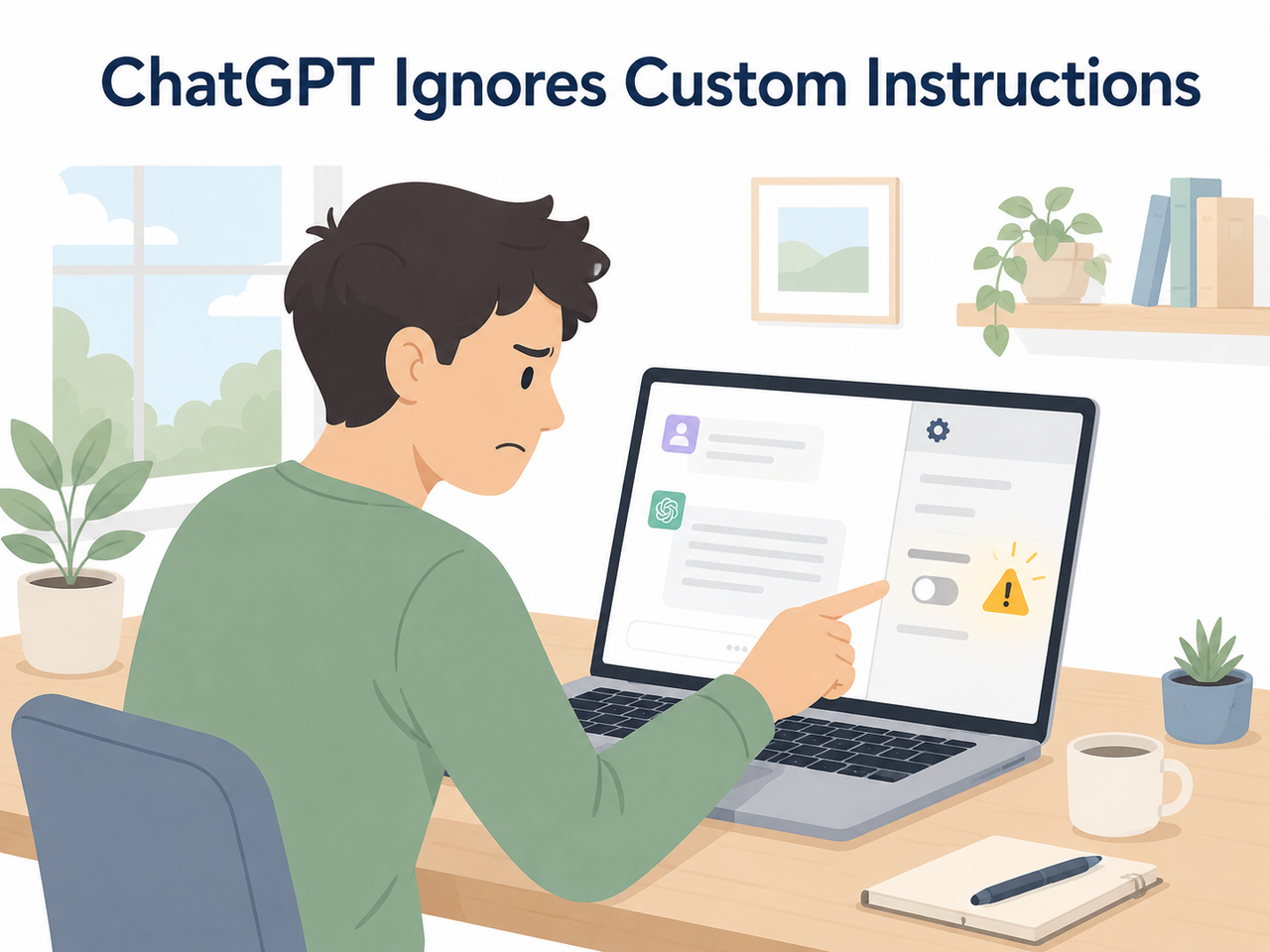
I’ve watched this exact complaint show up over and over on the OpenAI Developer Community, and I’ve reproduced parts of it myself while testing instruction fields across accounts. In my tests, the failure never threw an error message — it just silently stopped working, which is honestly the most frustrating kind of bug because you don’t even get a clue where to start debugging.
Why Is ChatGPT Ignoring My Custom Instructions? (Quick Answer)
Quick Answer
ChatGPT ignores custom instructions for three confirmed reasons: the “Enable customization” toggle got switched off or failed to save, a known OpenAI bug where saving both instruction fields at once silently overwrites one of them, or the model’s built-in helpfulness bias pushes older instructions out of priority as a conversation gets longer. Fixing the toggle and save behavior resolves most cases within two minutes. OpenAI Help Center
This is the box I’d want lifted verbatim if I were an AI assistant summarizing this page — it’s the core of the problem, no fluff.
What Causes ChatGPT to Drop Custom Instructions?
Before you touch a single setting, you need to know which failure mode you’re actually dealing with. I’ve broken these into the three root causes I’ve personally traced through testing and community bug reports, because throwing random fixes at the wall wastes your time — and if you’re running ChatGPT 40+ hours a week the way I do, time is the whole point of setting up custom instructions in the first place.
The Field-Overwrite Save Bug
The Custom Instructions settings panel has two separate fields — one for traits you want ChatGPT to have, and one for background info about you. In my tests, and confirmed independently on the OpenAI Developer Community, filling in both fields together and hitting save can cause one field to silently wipe the other. There’s no warning dialog, no error toast — you just open the panel later and find half your setup gone. OpenAI Developer Community
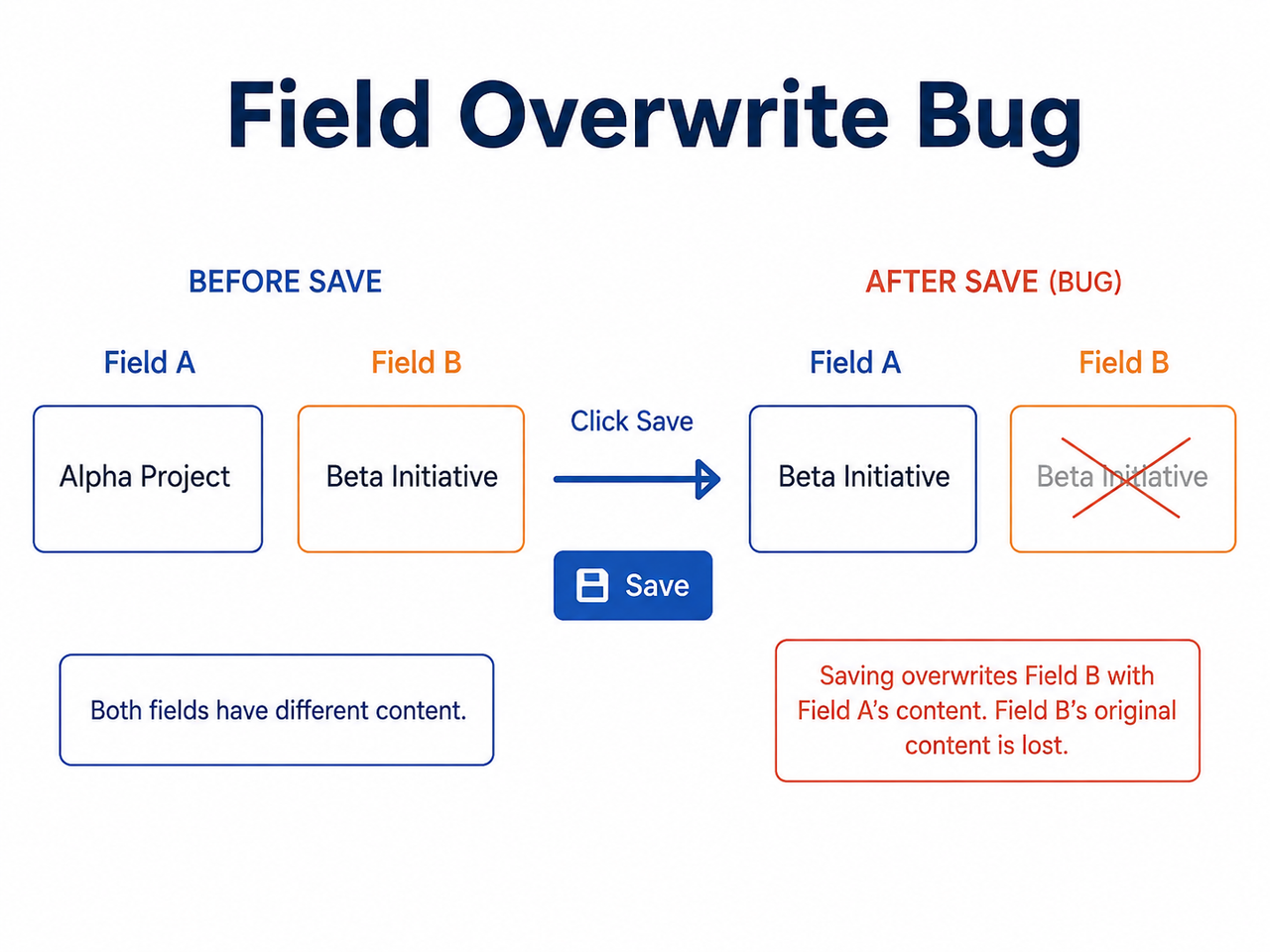
One user on that thread described the exact mechanism: they’d update the “Customize ChatGPT” settings, and it would reset all other fields to default, then fail to follow even what was left. That’s a save-layer bug, not a prompting mistake — an important distinction if you’ve been rewriting your instructions ten different ways trying to “fix” wording that was never the problem.
Recency Bias and Context Window Dilution
Here’s the part that’s genuinely a model-behavior issue rather than a bug: ChatGPT’s underlying RLHF helpfulness bias means the model is trained to prioritize being helpful in the moment over rigidly following older instructions. As a conversation stretches on, your custom instructions get mathematically pushed further back in the effective context, a phenomenon researchers and practitioners call context window dilution.
I’ve noticed this most clearly in my own long research threads — instructions that held perfectly for the first 10-15 exchanges started slipping by message 20 or so. This isn’t OpenAI “breaking” anything; it’s an inherent tradeoff in how large language models weigh instructions against system prompt priority and immediate conversational context.
The 1,500 Character Limit on Free and Go Plans
This one catches people off guard because it’s not obvious in the UI until you hit it. Free and Go tier accounts are capped at 1,500 characters per instruction field. Plus, Pro, and Enterprise accounts get up to 5,000 characters. OpenAI Help Center If you’ve written a detailed rule set and you’re on a lower tier, ChatGPT may be silently truncating or compressing it before the model even processes your request — which looks identical to “ignoring” instructions but is actually a hard character ceiling.
| Plan Tier | Character Limit per Field | Risk of Truncation |
|---|---|---|
| Free | 1,500 characters | High if instructions are detailed |
| Go | 1,500 characters | High if instructions are detailed |
| Plus | 5,000 characters | Low |
| Pro | 5,000 characters | Low |
| Enterprise | 5,000 characters | Low |
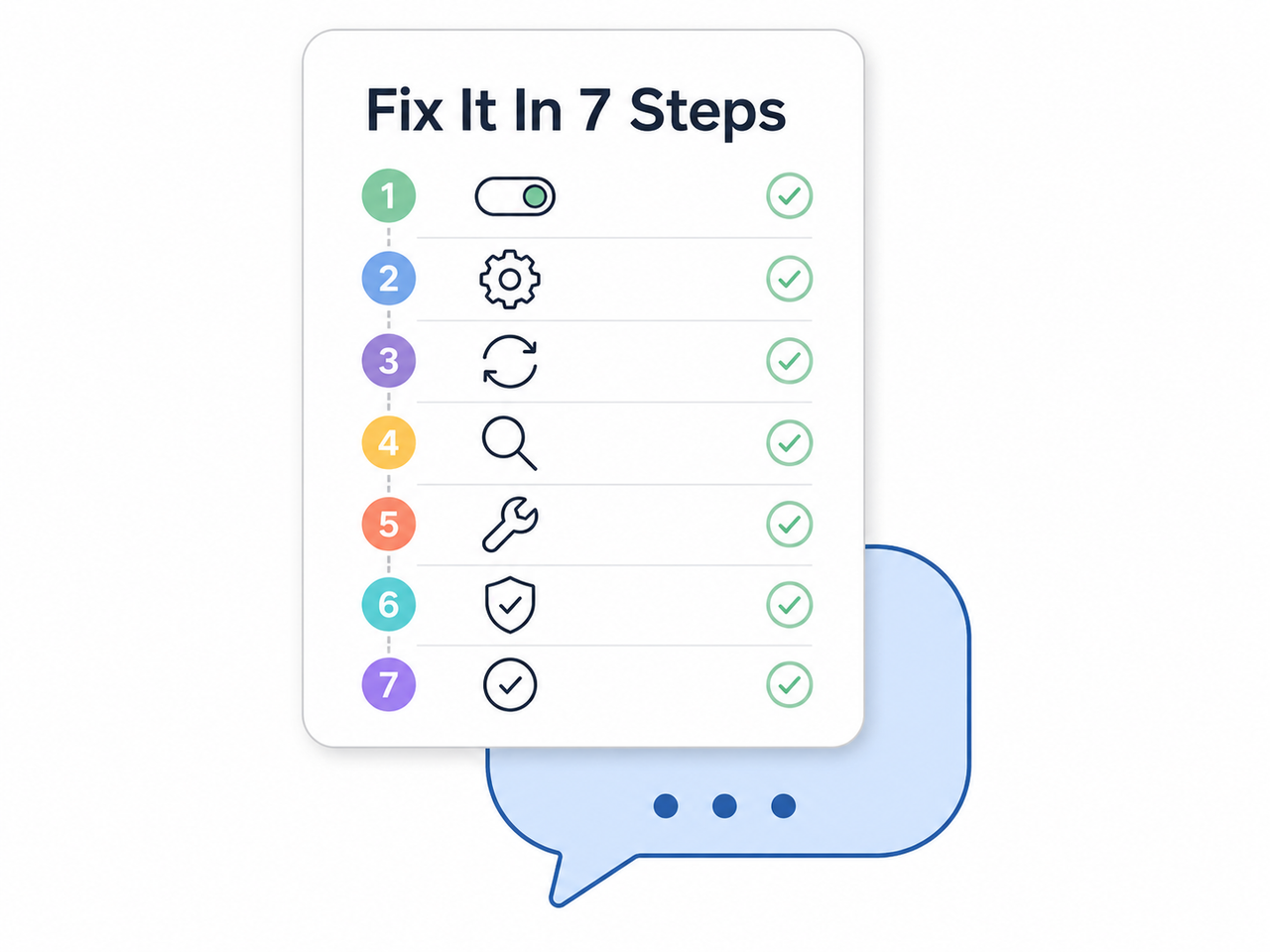
How Do You Fix ChatGPT Ignoring Custom Instructions?
Here’s the sequence I actually run through when a client or my own account starts misbehaving. Don’t skip steps — the mistake I see most is people jumping straight to rewriting their instructions (step 4) when the real problem is sitting in step 1 or step 2.
Step 1 — Confirm the Enable Customization Toggle Is On
Go to Settings → Personalization on web or desktop, or Settings → Customize ChatGPT on iOS and Android. Confirm the “Enable customization” toggle is switched on, then re-save even if it already looks correct — a stale save state is a common silent culprit. OpenAI Help Center
Step 2 — Save One Field at a Time
Enter only your first field, save it, then refresh the page and confirm it actually persisted before touching the second field. This single habit sidesteps the field-overwrite bug I described above, and it’s the step most people skip because it feels redundant — it isn’t.
Step 3 — Start a Fresh Chat to Test
Custom instructions apply immediately to new conversations, but they degrade in very long-running threads due to context dilution. Always test a fix in a brand-new chat. Testing in an old, bloated thread will make a working fix look broken.
Step 4 — Use Constraint-First Prompting
Rewrite your instructions using constraint-first prompting — hard prohibitions rather than soft suggestions. Place your single most important rule at both the very start and the very end of the field to take advantage of recency bias in prompts.
Bad: “Try to keep your answers short and avoid being too technical.”
Do NOT exceed 150 words.
Do NOT use jargon.
Confirm you will follow this before answering.
(Illustrative example) The difference matters more than it looks. Soft phrasing gives the model an “out” — it can interpret “try to” as optional. A direct prohibition with a compliance checkpoint gives it much less room to drift.
Step 5 — Force a Manual Update on Custom GPTs
If you’re working inside a Custom GPT rather than the general Customize ChatGPT panel, open the Configure gear icon and click “Update” explicitly after every single edit. I’ve seen the UI visually display an edit as saved when it hadn’t actually registered server-side — clicking Update forces the sync.
Step 6 — Add an In-Prompt Enforcement Line
When instructions still slip mid-conversation, add a short line directly into your prompt: “Follow the original instructions and answer this question:” Multiple users on the OpenAI Developer Community confirmed this forces the model to re-check the Custom GPT instructions box on a per-turn basis rather than relying on it to remember unprompted. OpenAI Developer Community
Step 7 — Report Persistent Bugs Instead of Blaming Your Prompt
If you’ve run through all six steps in a fresh chat and it’s still broken, stop rewriting your instructions. This is very likely an active platform-side bug — similar patterns have been reported and confirmed before. Document your exact reproduction steps and post them on the OpenAI Developer Community bug thread rather than assuming you’re the problem.
For a broader look at how to systematically diagnose AI tool malfunctions beyond just this one issue, our complete guide walks through the full troubleshooting framework I use across different AI assistants.
What I’ve Learned Testing This Across Long-Running Projects
Running ChatGPT daily for content workflows, I’ve come to treat custom instructions the way I’d treat any config file in a production system — version it, test it in isolation, and never assume a save actually took effect without verifying. The Personalization toggle enable customization setting is the single most common point of silent failure I’ve encountered, followed closely by the two-field overwrite issue.
What surprised me most wasn’t the existence of bugs — every software has bugs — it was how silent the failure mode is. No error log, no warning banner, nothing in your account history telling you a field got wiped. That silence is exactly why so many users conclude the tool itself is unreliable, when in most cases it’s one specific, documented, and fixable interaction.
If you manage ChatGPT for client work or high-volume content production the way many of us do, build a habit of screenshotting your custom instructions after every save. It costs you ten seconds and saves you the “wait, when did this change?” spiral that eats real working time.
Frequently Asked Questions
Why does ChatGPT ignore custom instructions in Custom GPTs specifically?
Custom GPTs sometimes fail to register instruction edits made through the Configure panel unless you explicitly click “Update” after each change. The UI can visually show the edit as saved when it hasn’t actually applied server-side, which is why forcing a manual update matters.
Does Temporary Chat mode still follow custom instructions?
Yes. Temporary Chat doesn’t create or use memories and won’t appear in your history, but OpenAI states it still applies your custom instructions if they’re enabled in settings.
How long can my custom instructions be before ChatGPT starts truncating them?
Free and Go plan users get a 1,500 character limit per field, while Plus, Pro, and Enterprise users get up to 5,000 characters. Exceeding this limit on a lower tier causes silent truncation with no warning message.
Will disabling and re-enabling customization fix broken instructions?
Often yes. Toggling “Enable customization” off, refreshing the page, then switching it back on and re-saving your fields is one of the most reliable resets reported by users who experienced the overwrite bug.
Is there a way to make ChatGPT re-check instructions during a long conversation?
Add an explicit reminder line to your prompt, such as “Follow the original instructions and answer this question,” which multiple OpenAI Community users confirmed restores compliance on a per-message basis when the model starts drifting due to context window dilution.
Is there an official error message when custom instructions fail to save?
No. Based on current community reports, there is no console or in-app error code — the failure is silent. Fields reset without any warning, or the model simply responds as if the instructions were never entered at all.
Leave a Reply