
Fix ChatGPT CSV Visible but Missing in Sandbox (2026)
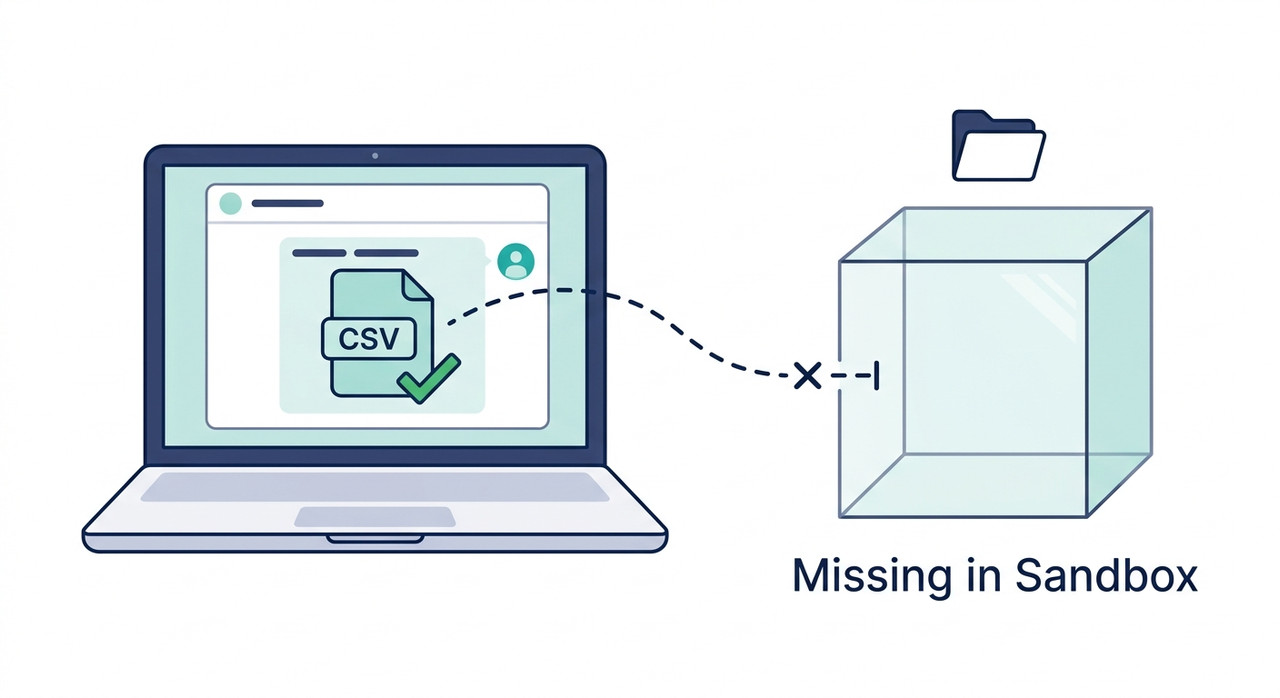
Why is an uploaded CSV visible in ChatGPT but unavailable in its analysis sandbox is a file-handoff failure: the chat and File Library show the attachment, but the Python environment at /mnt/data never receives its bytes. For example, a user’s check returned exists: False and size: None for a file ChatGPT could still read in chat.
I have spent 33 years around systems where a directory listing and the data behind it are two different things. A listing can say a file exists while the storage underneath has nothing in it. That is the best way I know to explain why an uploaded CSV can be visible in ChatGPT but unavailable in its analysis sandbox.
The scary part is not the error message. It is that ChatGPT may keep answering confidently while its code environment never opened your file. This guide shows you how to prove, in about a minute, whether your CSV really reached the sandbox.
One note on how I write this. I have not reproduced these failures myself. Everything below comes from OpenAI’s help center and from user and support reports in OpenAI’s developer forum, and I label which is which.
Why Is an Uploaded CSV Visible in ChatGPT but Unavailable in Its Analysis Sandbox?
Quick Answer
ChatGPT can display an uploaded CSV while its Python sandbox lacks the file, because the upload layer and the execution filesystem appear to be separate. Confirm with code: check the /mnt/data path, byte size and hash. If the file is missing or zero bytes, retry in a normal chat, add it through Project Sources, or analyze locally.
OpenAI’s help center confirms that CSVs are supported uploads. It does not describe this “visible but not mounted” state. That diagnosis comes from community threads, so treat it as a well-supported working theory, not an official explanation. OpenAI Help Center
What Is Actually Happening Between Upload and Sandbox?
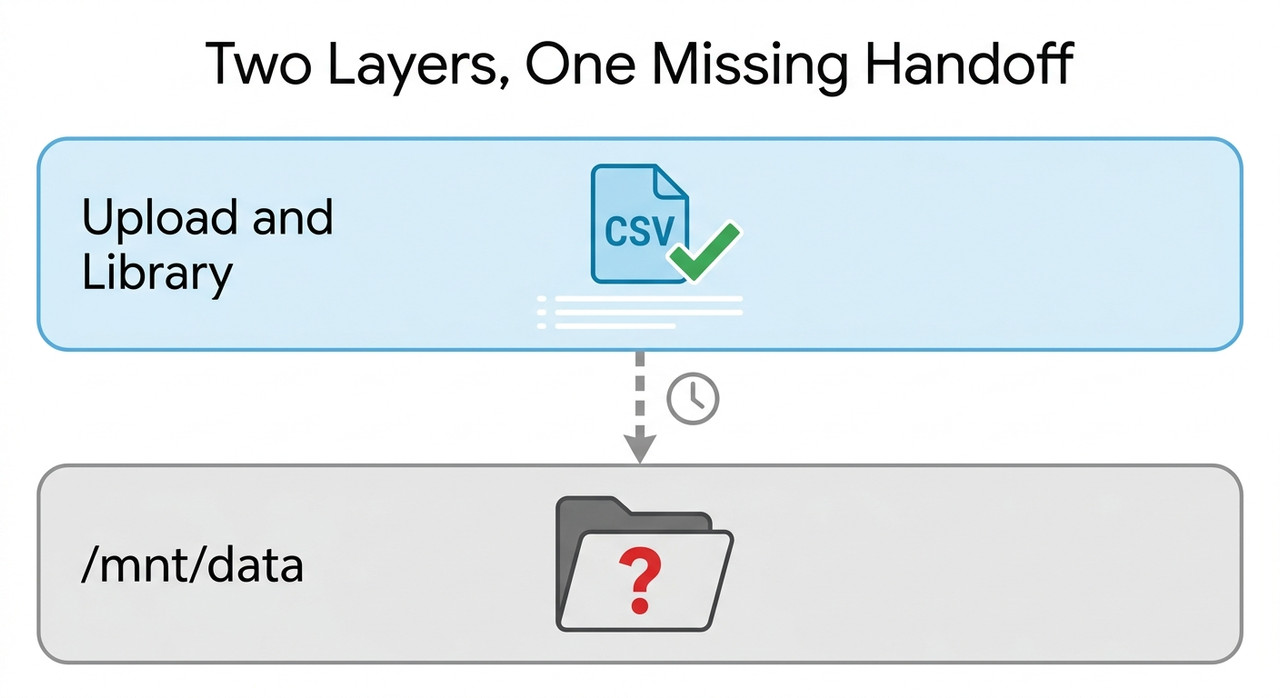
ChatGPT appears to handle your file in two places. The first is the upload, File Library and parsing layer, which lets the model see and search the file. The second is the execution filesystem at /mnt/data, which the code interpreter (Advanced Data Analysis) needs to run Python against your CSV.
Affected users report the first layer working while the second never receives the bytes. That is what makes the file look available when it is not usable for calculations, charts or row counts.
Upload and Execution Are Two Separate Layers
One user who ran careful tests described their results as “Upload / storage PASS, File Library PASS, File parsing PASS.” The failure then appeared at what they called the “execution sandbox handoff.” OpenAI Developer Community (A/B tests) That user’s wording is a diagnostic description, not official terminology.
The failure is intermittent. The same user saw files appear later, and a forum reply in early September said fixes for attachment access had shipped. Those reports mean you cannot assume a single permanent cause.
| Layer | What it does | What failure looks like |
|---|---|---|
| Upload and File Library | Stores the attachment and lists it in the interface | Usually fine; the file is listed and openable |
| Parsing and chat visibility | Lets ChatGPT read and summarize the content | ChatGPT discusses the file, which can mask the problem |
| Execution filesystem at /mnt/data | Gives Python real bytes to open | Path missing, zero bytes, or ClientError |
The middle row is the dangerous one. A model that can read the text may produce a summary even when code cannot open the file. That is why a fluent answer proves nothing about whether the CSV was loaded.
OpenAI Support Confirmed a 60-Second Transfer Timeout in Some Cases
OpenAI’s support account gave the clearest official-adjacent clue. On September 24, 2026, it said some September 1–2 Python failures “hit a 60-second file-transfer timeout.” On September 28, it described one user’s runtime that started but where “copying attachments into it hit an HTTP 408 timeout after 60 seconds, before either the Python or container command ran.” OpenAI Developer Community (Support replies)
That is a concrete mechanism: the runtime exists, but the attachment copy times out. It is a real data point, with a limit. Support said it had not matched the other ClientError and InvalidArgumentError reports to the same failure, so I would not claim one cause explains every case.
Failures Cluster in Projects but Are Not Limited to Them
The most useful experiment I found was a user’s A/B test. A direct upload in a normal chat passed. A direct upload in a ChatGPT Projects chat failed, whether the conversation was moved into the Project or created there. Adding the same files through Project Sources passed. OpenAI Developer Community (A/B tests)
That pattern points at the attachment path inside Projects. It is not a complete rule, though. Later reports describe failures both inside and outside Projects, and CSV and XLSX files were among those affected. Treat the Project finding as a strong lead for your first workaround, not a guarantee.
How Do You Fix an Uploaded CSV That Is Visible in ChatGPT but Unavailable in Its Analysis Sandbox?
Work through these steps in order. The early ones cost almost nothing and tell you which failure you have. I put verification first because a wrong guess about the cause wastes the most time.
Step 1 — Check the Path, Size and Hash With Python
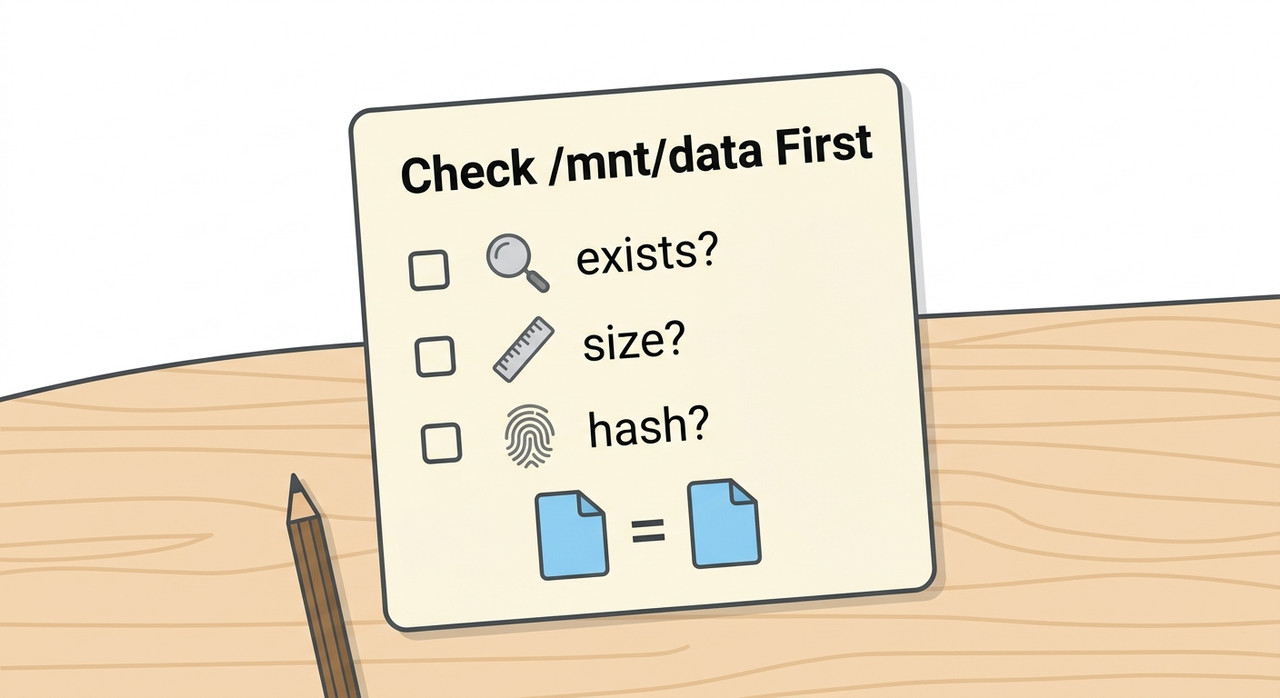
Ask ChatGPT to run code that checks the exact path, size and a SHA-256 hash. Do not ask it to “confirm the file is loaded,” because that invites a fluent answer instead of evidence. Here is a prompt-ready version:
import os, hashlib
p = "/mnt/data/your_file.csv"
print("exists:", os.path.exists(p))
print("is_file:", os.path.isfile(p))
print("size:", os.path.getsize(p) if os.path.exists(p) else None)
if os.path.isfile(p):
print("sha256:", hashlib.sha256(open(p, "rb").read()).hexdigest())
(Illustrative example)
Users diagnosing this problem reported exists: False, is_file: False and size: None for a file ChatGPT could still read in chat. OpenAI Developer Community (A/B tests) Some also reported a zero-byte file, where the path exists but holds nothing.
Step 2 — Compare the Byte Count With Your Local Copy
Check the same file on your computer. On macOS or Linux, run shasum -a 256 your_file.csv. In Windows PowerShell, run Get-FileHash your_file.csv.
If the path exists but the sandbox shows 0 bytes, the transfer failed. That is a different problem from “ChatGPT can’t parse my CSV,” and re-formatting the file will not fix it.
Step 3 — Check Upload Limits and OpenAI Status
Rule out the boring causes next. The help center puts CSVs at about 50 MB depending on row size, and says the 2-million-token cap does not apply to spreadsheets. OpenAI Help Center It also lists rate limits, including 80 files per 3 hours and 3 per day on Free.
Failed uploads can sometimes count toward the rate limit. The help center also points you to OpenAI Status for incidents, so check it before burning more attempts.
Step 4 — Retry the Same CSV in a Normal Non-Project Chat
If your file is inside a Project, test it outside one. In the reported A/B test, a direct upload in a normal chat passed while the same kind of upload inside a Project failed. OpenAI Developer Community (A/B tests)
This is the fastest way to find out whether you are looking at the Project attachment path. Use a small copy of the file first so a large upload does not add its own timeout.
Step 5 — Add the File Through Project Sources
If you need the Project’s instructions or context, stay in it but add the CSV through Project Sources instead of attaching it to a message. In the same tests, files added that way became real files under /mnt/data. OpenAI Developer Community (A/B tests)
Mind the help-center file caps for Projects: 5 files on Free, 25 on Go and Plus, and 40 on Edu, Pro, Business and Enterprise. OpenAI Help Center Run the Step 1 check again afterward, because a file in Sources is not proof the sandbox can open it.
Step 6 — Wait, Then Retry in a Fresh Chat
Some missing files appeared later, which suggests delayed or inconsistent file materialization. One user checked for 5 minutes without success on a file, so waiting alone is not a plan.
My rule is one retry after a short pause, then a fresh chat. Repeating the same failing action in the same conversation rarely changes the outcome.
Step 7 — Recognize a Runtime-Wide ClientError
Watch for a different failure. If even trivial commands fail with caas.internal.errors.ClientError, the execution runtime itself may be down, regardless of your file. OpenAI Developer Community (Support replies) Some users recovered in a new chat and others did not.
Reports of ClientError execution failures continued into mid-October 2026, and I found no official root-cause statement. Note the time and move on to the workaround steps instead of re-uploading the file again and again.
Step 8 — Verify Row Count and Sample Rows Before Trusting Any Analysis
This is the step that protects your decisions. Ask for len(df) from executed code, then ask for quotes from the first, middle and last rows. Compare them with your file.
The affected user who first noticed the problem described a plausible, structured analysis that did not match the real document, and caught it only by demanding quotes from the beginning, middle and end. OpenAI Developer Community (A/B tests) If the sandbox never opened the file, a polished answer is not evidence.
Step 9 — Collect Evidence for Support
If it still fails, give support something they can act on. The help center asks for your account email, a screenshot, the timestamp and time zone, your platform or browser, and the request ID if available. OpenAI Help Center Add the output from Step 1.
The path, size and hash result turns “my file doesn’t work” into a precise, reproducible report. A timestamp matters because these failures cluster around incidents.
Step 10 — Use a Local or Connector Workaround
When the deadline matters more than the cause, analyze the CSV with a local script. Alternatively, use a connector such as Google Drive if you have one.
Users in a separate ZIP-archive thread reported Drive working for archives. That is a user report about a different file type, not a verified fix for CSVs, so test it with a small file first.
What Do the Real Error Outputs Look Like?
I prefer to show verbatim output because the exact wording helps you match your situation. These blocks come from user reports in the cited threads, not from my own runs. The first is the execution error:
ClientError
Encountered exception: .
That text appears in a thread where uploaded files were intermittently unavailable. OpenAI Developer Community (Support replies) The second block shows the “visible but not mounted” state:
/mnt/data/321321321.txt
exists: False
is_file: False
size: None
SHA-256: None
The user labeled this state NOT_MATERIALIZED, but that is a name they invented, not an official error code. OpenAI Developer Community (A/B tests) The third block shows the zero-byte case:
PATH=/mnt/data/.zip
EXACT_PATH_EXISTS=YES
ACTUAL_BYTES=0
ZIP_OPEN=FAIL
That file was a ZIP, not a CSV, but the pattern is the same: the path exists, and the bytes do not. Another user reported ChatGPT running ls -laR /mnt/data and getting only . and .., which it read as “no mounted upload directory available in this runtime.”
How Do the Symptoms Map to Next Actions?
Different symptoms point to different problems. This table keeps you from re-uploading when the runtime is the issue, or restarting when the transfer is.
| Symptom | Likely meaning | First action |
|---|---|---|
| Path missing, file visible in chat | Attachment never reached /mnt/data | Retry outside a Project, or use Project Sources |
| Path exists, size 0 | Transfer started but delivered no bytes | Re-add the file, then compare size and hash |
| Every command fails with ClientError | Runtime failure, not your file | Note the time, try a fresh chat, check OpenAI Status |
| Code works, but row count is wrong | Different problem: file loaded incompletely or parsed oddly | Compare against your local file and re-verify |
These are working interpretations from the reports, not official diagnoses. The first two rows match the A/B findings, and the third matches the support thread.
How Should You Check an Analysis ChatGPT Already Gave You?
Suppose ChatGPT already produced charts or conclusions before you found the problem. Do not delete them yet, but do not use them either. First, find out what the model actually had.
Ask it to state, from executed code, the file path it used, the number of rows loaded and the column names. Then compare those against your local copy. If it cannot run code, any numbers it gave came from somewhere other than a loaded DataFrame.
Spot checks are cheap and powerful. Pick a row near the start, one near the middle and one near the end of your CSV. Ask ChatGPT to print those rows exactly. If it paraphrases or gets values wrong, you have found your answer.
Years of auditing reports taught me one habit I rely on here: never accept a total without reproducing it independently. For a CSV, that means recomputing one headline number, such as a sum or average, with a local tool. If the numbers agree, you can trust the pipeline. If they differ, the analysis was not built on your data.
Bad vs. Good Way to Handle a CSV That ChatGPT Can See but Cannot Open
Here is the contrast I wish more people saw before relying on an analysis.
Bad: “I attached reviews.csv in a Project chat, saw it in the chat and Library, and asked for the average rating. ChatGPT replied with a confident summary. I never checked whether Python could open the file, and later found the analysis used only the indexed text, not the full CSV.”
Good: “After uploading, I asked ChatGPT to run Python that prints whether /mnt/data/reviews.csv exists, its byte size, its SHA-256 hash and len(df). The size was 0, so I stopped, re-added the file through Project Sources, repeated the check, matched the size and row count to my local copy, and only then asked for analysis.”
The difference is not skill. It is one verification step that costs about a minute.
What Should You Do When It Keeps Failing?
Some people will do everything above and still see failures. That fits the reports: the problem is intermittent and has continued across weeks. At that point, stop optimizing the upload and decide how important the ChatGPT route is.
If you need the result today, run the analysis locally with a short script and use ChatGPT only to help write the code. That keeps the data on your machine and removes the sandbox from the critical path.
If you need the Project route, document each failure with a timestamp and the Step 1 output. Patterns matter to support. A log showing several failures in a row, plus a passing result in a normal chat, is far more useful than a screenshot of a spinning response.
For broader AI troubleshooting, our complete guide covers related failures in one place, and the same verify-first habit applies across them.
Frequently Asked Questions
Q1: Why can ChatGPT see my CSV but Python cannot find it? A1: The upload and File Library layer and the execution filesystem at /mnt/data appear to be separate, and in affected cases the bytes never reach the second one. This is a community-derived diagnosis, not an official OpenAI explanation. OpenAI Developer Community (A/B tests)
Q2: How do I confirm the file is missing from the sandbox? A2: Ask ChatGPT to run Python that checks whether the exact path exists, its size in bytes, and its SHA-256 hash. Then compare the size and hash with your local copy.
Q3: Does OpenAI acknowledge this problem? A3: In part. OpenAI Support said some September 2026 failures hit a 60-second file-transfer timeout, and one case showed an HTTP 408 timeout while copying attachments. It did not tie every ClientError report to that cause. OpenAI Developer Community (Support replies)
Q4: Does adding the CSV through Project Sources help? A4: In one user’s controlled tests, files added through Project Sources became real files under /mnt/data while direct attachments inside the Project failed. Results vary because the issue is intermittent.
Q5: Can ChatGPT still analyze my CSV if Python cannot open it? A5: It may produce an analysis from what it can see in chat, but that analysis may be partial or wrong. Verify with an executed row count and sample rows from the start, middle and end before using it.
Q6: What should I send to OpenAI Support? A6: Include your account email, a screenshot, the timestamp and time zone, your platform or browser, the request ID if available, and the output of your path, size and hash check. OpenAI Help Center
Q7: Is the 50 MB CSV limit the reason my file is missing? A7: Probably not if your file is well under it. The help center sets the limit at about 50 MB depending on row size, and the reports I found involve small files too, including a tiny text file. Check the limit first, then look at the handoff. OpenAI Help Center
Leave a Reply